
Back to view formats
View formattingSharePoint Online

Credit / Loyalty Card

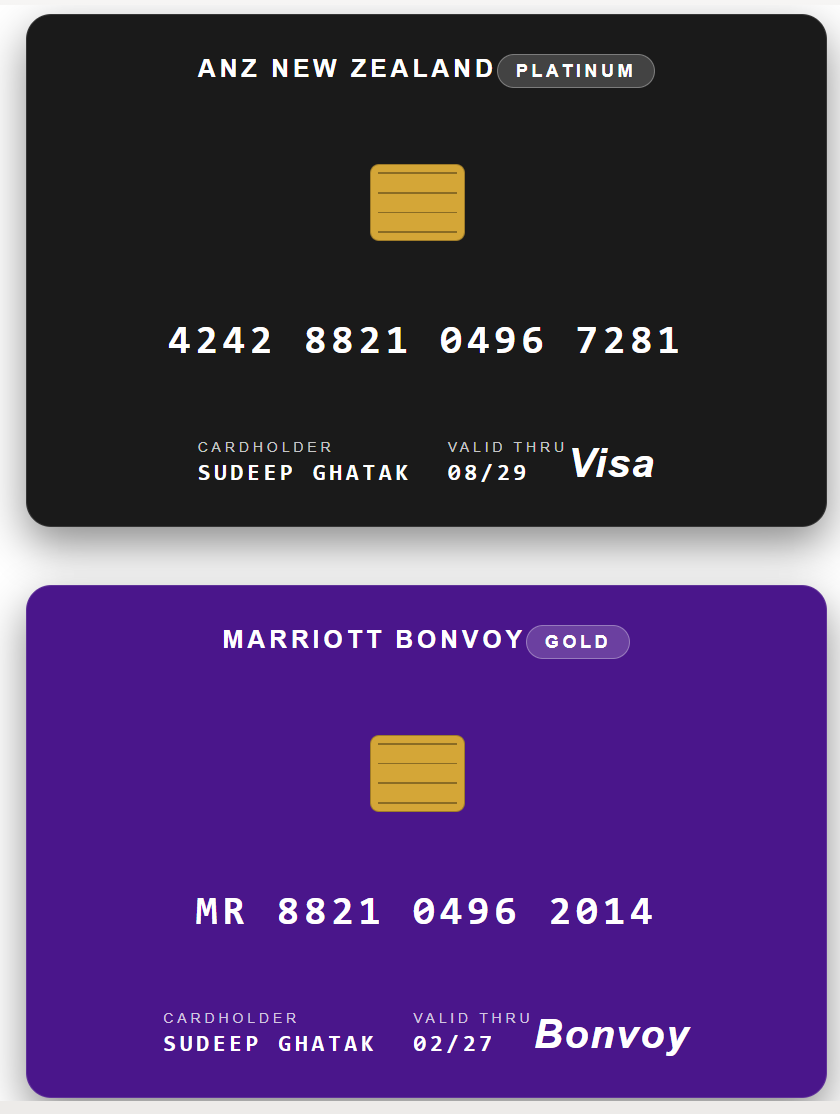
Transforms list items into realistic credit / loyalty cards with a brand name, tier pill, EMV chip, contactless symbol, embossed card number, cardholder, expiry, and network logo. The card colour is driven by the Tier value.

Credit / Loyalty Card formatting preview
Sample preview · View original image

Copy. Apply. Make it yours.

Get this format

1 definition

Review the requirements below, then paste this JSON into the matching formatting panel. Show me where.

Use your list's internal column names and replace any tenant-specific URLs or flow IDs. Formatting is presentation, not a way to secure data.

View formatting
Download JSON
{
  "$schema": "https://developer.microsoft.com/json-schemas/sp/view-formatting.schema.json",
  "hideSelection": true,
  "hideColumnHeader": true,
  "rowFormatter": {
    "elmType": "div",
    "style": {
      "width": "400px",
      "height": "240px",
      "border-radius": "14px",
      "padding": "22px",
      "margin": "16px auto",
      "color": "#ffffff",
      "font-family": "Arial, sans-serif",
      "display": "flex",
      "flex-direction": "column",
      "justify-content": "space-between",
      "box-shadow": "0 10px 24px rgba(0,0,0,0.45)",
      "background-color": "[$TierColor]",
      "border": "1px solid rgba(255,255,255,0.12)"
    },
    "children": [
      {
        "elmType": "div",
        "style": {
          "display": "flex",
          "justify-content": "space-between",
          "align-items": "flex-start"
        },
        "children": [
          {
            "elmType": "span",
            "txtContent": "[$Title]",
            "style": {
              "font-size": "14px",
              "font-weight": "bold",
              "letter-spacing": "2px",
              "text-transform": "uppercase"
            }
          },
          {
            "elmType": "span",
            "txtContent": "[$Tier]",
            "style": {
              "font-size": "10px",
              "font-weight": "bold",
              "letter-spacing": "2px",
              "text-transform": "uppercase",
              "padding": "3px 10px",
              "border-radius": "12px",
              "background-color": "rgba(255,255,255,0.18)",
              "border": "1px solid rgba(255,255,255,0.3)"
            }
          }
        ]
      },
      {
        "elmType": "div",
        "style": {
          "display": "flex",
          "align-items": "center"
        },
        "children": [
          {
            "elmType": "div",
            "style": {
              "width": "44px",
              "height": "34px",
              "border-radius": "5px",
              "background-color": "#d4a637",
              "border": "1px solid rgba(0,0,0,0.25)",
              "margin-right": "10px",
              "display": "flex",
              "flex-direction": "column",
              "justify-content": "space-between",
              "padding": "4px"
            },
            "children": [
              {
                "elmType": "div",
                "style": {
                  "height": "1px",
                  "background-color": "rgba(0,0,0,0.35)",
                  "margin-bottom": "3px"
                }
              },
              {
                "elmType": "div",
                "style": {
                  "height": "1px",
                  "background-color": "rgba(0,0,0,0.35)",
                  "margin-bottom": "3px"
                }
              },
              {
                "elmType": "div",
                "style": {
                  "height": "1px",
                  "background-color": "rgba(0,0,0,0.35)",
                  "margin-bottom": "3px"
                }
              },
              {
                "elmType": "div",
                "style": {
                  "height": "1px",
                  "background-color": "rgba(0,0,0,0.35)"
                }
              }
            ]
          },
          {
            "elmType": "span",
            "style": {
              "font-size": "16px",
              "color": "rgba(255,255,255,0.85)"
            },
            "attributes": {
              "iconName": "Wifi"
            }
          }
        ]
      },
      {
        "elmType": "div",
        "txtContent": "[$CardNumber]",
        "style": {
          "font-family": "Consolas, monospace",
          "font-size": "22px",
          "letter-spacing": "3px",
          "font-weight": "bold"
        }
      },
      {
        "elmType": "div",
        "style": {
          "display": "flex",
          "justify-content": "space-between",
          "align-items": "flex-end"
        },
        "children": [
          {
            "elmType": "div",
            "style": {
              "display": "flex"
            },
            "children": [
              {
                "elmType": "div",
                "style": {
                  "margin-right": "20px"
                },
                "children": [
                  {
                    "elmType": "div",
                    "txtContent": "CARDHOLDER",
                    "style": {
                      "font-size": "8px",
                      "letter-spacing": "2px",
                      "color": "rgba(255,255,255,0.75)"
                    }
                  },
                  {
                    "elmType": "div",
                    "txtContent": "[$CardHolder]",
                    "style": {
                      "font-family": "Consolas, monospace",
                      "font-size": "13px",
                      "letter-spacing": "2px",
                      "text-transform": "uppercase",
                      "font-weight": "bold",
                      "margin-top": "2px"
                    }
                  }
                ]
              },
              {
                "elmType": "div",
                "children": [
                  {
                    "elmType": "div",
                    "txtContent": "VALID THRU",
                    "style": {
                      "font-size": "8px",
                      "letter-spacing": "2px",
                      "color": "rgba(255,255,255,0.75)"
                    }
                  },
                  {
                    "elmType": "div",
                    "txtContent": "[$ValidThru]",
                    "style": {
                      "font-family": "Consolas, monospace",
                      "font-size": "13px",
                      "letter-spacing": "2px",
                      "font-weight": "bold",
                      "margin-top": "2px"
                    }
                  }
                ]
              }
            ]
          },
          {
            "elmType": "span",
            "txtContent": "[$Network]",
            "style": {
              "font-size": "22px",
              "font-weight": "bold",
              "font-style": "italic",
              "letter-spacing": "1px"
            }
          }
        ]
      }
    ]
  }
}

From the contributor

How to use this sample

Summary

This SharePoint JSON view formatting sample transforms list items into realistic credit / loyalty cards. Each item renders as a plastic card with a brand name, tier pill, EMV chip, contactless symbol, embossed-style card number, cardholder name, expiry date, and a network logo. The card colour automatically adapts to the Tier value (Standard, Gold, Platinum, Black, Premium).

It's designed for member directories, partner programs, gym/hotel/airline loyalty rosters, and corporate-card registers.
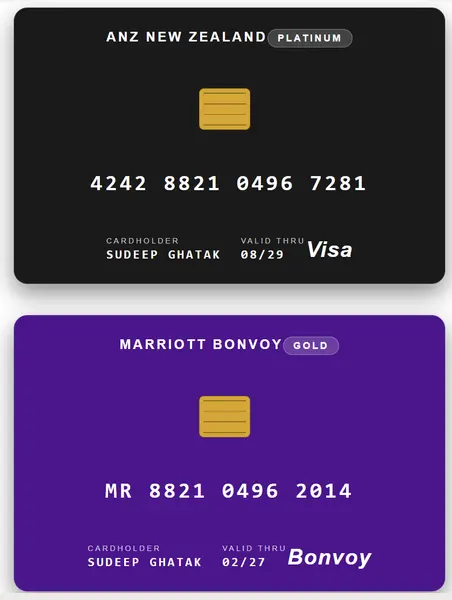
screenshot of the sample

View requirements

Column Name Internal Name Type Description
Title Title Single line of text Brand or issuing organisation (e.g. ANZ NEW ZEALAND, Marriott)
Network Network Choice Network or label (Visa, Mastercard, Amex, Bonvoy, Les Mills, etc)
Tier Tier Choice Tier (Standard, Gold, Platinum, Black, Premium)
Tier Color TierColor Single line of text Hex colour for the card background (e.g. #1a1a1a for Black). See below
Card Number CardNumber Single line of text Card number formatted with spaces (e.g. 4242 8821 0496 7281)
Card Holder CardHolder Single line of text Cardholder full name (uppercase)
Valid Thru ValidThru Single line of text Expiry in MM/YY format (e.g. 08/29)

A PowerShell script has been provided in the assets folder to provision the list for you.

Note: This script uses PnP PowerShell and requires an environment ready for PnP PowerShell.

Sample

Solution Author
credit-card.json Sudeep Ghatak (LinkedIn)

Version history

Version Date Comments
1.0 June 13, 2026 Initial release

Disclaimer

THIS CODE IS PROVIDED AS IS WITHOUT WARRANTY OF ANY KIND, EITHER EXPRESS OR IMPLIED, INCLUDING ANY IMPLIED WARRANTIES OF FITNESS FOR A PARTICULAR PURPOSE, MERCHANTABILITY, OR NON-INFRINGEMENT.


Additional notes

  • The card background colour is read directly from the TierColor column — set it to any hex value (e.g. #1a1a1a) per card. The provisioning script seeds the following defaults based on the Tier value, but you can override per card without changing the formatter:
    • Black -> deep black (#1a1a1a)
    • Platinum -> navy / steel-blue (#2a3f6e)
    • Gold -> warm gold (#b88a2c)
    • Premium -> deep purple (#4a168b)
    • Standard -> classic banking blue (#1a4480)
  • A column-driven colour is used instead of a nested if() expression in background-color because deeply-nested conditionals in style values are unreliable across SharePoint Online tenants.
  • The EMV chip is rendered as a small gold rectangle with four horizontal pin-stripe divs inside — no images needed.
  • Card Number is stored as plain text so you can format groupings of 4 digits with spaces.
  • Title doubles as the brand line at the top, e.g. ANZ NEW ZEALAND or MARRIOTT BONVOY.
  • Network is rendered large in the bottom-right corner as the recognisable label (VISA / Mastercard / Amex / Bonvoy / etc).
  • This sample does not display real card data — it is a visual template only. Never store real card numbers in SharePoint.