
Back to view formats
View formattingSharePoint Online

Spotify Now Playing

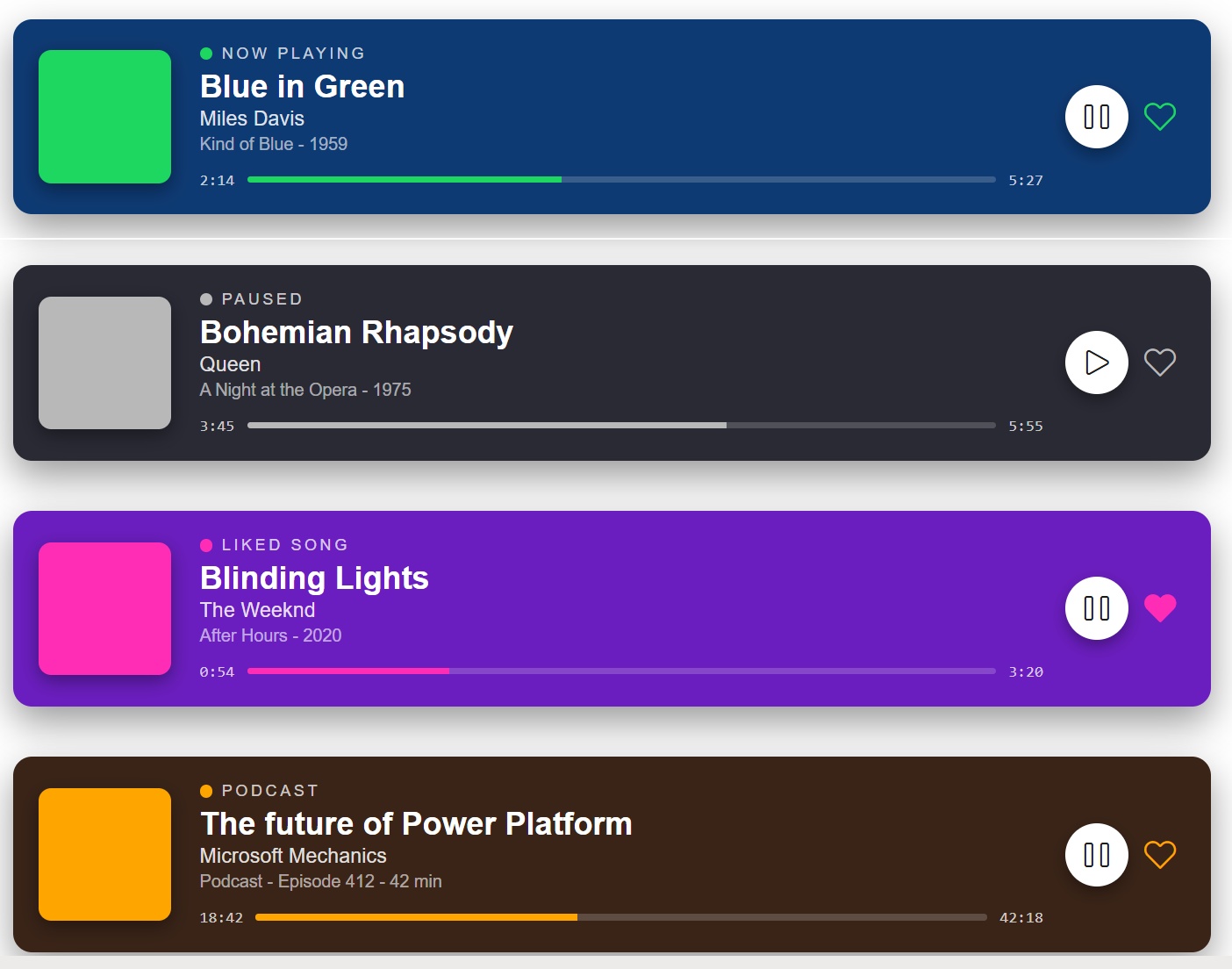
Transforms list items into Spotify-style 'now playing' cards with album-art block, status row, track / artist / album, a horizontal progress bar with elapsed and total time, and play / like controls.

Spotify Now Playing formatting preview
Sample preview · View original image

Copy. Apply. Make it yours.

Get this format

1 definition

Review the requirements below, then paste this JSON into the matching formatting panel. Show me where.

Use your list's internal column names and replace any tenant-specific URLs or flow IDs. Formatting is presentation, not a way to secure data.

View formatting
Download JSON
{
  "$schema": "https://developer.microsoft.com/json-schemas/sp/view-formatting.schema.json",
  "hideSelection": true,
  "hideColumnHeader": true,
  "rowFormatter": {
    "elmType": "div",
    "style": {
      "display": "flex",
      "align-items": "center",
      "max-width": "720px",
      "margin": "16px auto",
      "padding": "16px 22px 16px 16px",
      "border-radius": "12px",
      "background-color": "[$BackgroundColor]",
      "color": "#ffffff",
      "font-family": "Arial, sans-serif",
      "box-shadow": "0 10px 24px rgba(0,0,0,0.4)"
    },
    "children": [
      {
        "elmType": "div",
        "style": {
          "width": "84px",
          "height": "84px",
          "flex-shrink": "0",
          "background-color": "[$AccentColor]",
          "border-radius": "8px",
          "margin-right": "18px",
          "display": "flex",
          "align-items": "center",
          "justify-content": "center",
          "box-shadow": "0 4px 12px rgba(0,0,0,0.4)"
        },
        "children": [
          {
            "elmType": "span",
            "attributes": {
              "iconName": "Headphones"
            },
            "style": {
              "font-size": "34px",
              "color": "#ffffff"
            }
          }
        ]
      },
      {
        "elmType": "div",
        "style": {
          "flex-grow": "1",
          "min-width": "0",
          "padding-right": "14px",
          "display": "flex",
          "flex-direction": "column"
        },
        "children": [
          {
            "elmType": "div",
            "style": {
              "display": "flex",
              "align-items": "center",
              "font-size": "10px",
              "letter-spacing": "2px",
              "text-transform": "uppercase",
              "color": "rgba(255,255,255,0.75)",
              "margin-bottom": "4px"
            },
            "children": [
              {
                "elmType": "div",
                "style": {
                  "width": "8px",
                  "height": "8px",
                  "border-radius": "4px",
                  "background-color": "[$AccentColor]",
                  "margin-right": "6px"
                }
              },
              {
                "elmType": "span",
                "txtContent": "[$Status]"
              }
            ]
          },
          {
            "elmType": "div",
            "txtContent": "[$Title]",
            "style": {
              "font-size": "20px",
              "font-weight": "bold",
              "line-height": "22px"
            }
          },
          {
            "elmType": "div",
            "txtContent": "[$Artist]",
            "style": {
              "font-size": "13px",
              "color": "rgba(255,255,255,0.85)",
              "margin-top": "2px"
            }
          },
          {
            "elmType": "div",
            "txtContent": "[$Album]",
            "style": {
              "font-size": "11px",
              "color": "rgba(255,255,255,0.6)",
              "margin-top": "2px"
            }
          },
          {
            "elmType": "div",
            "style": {
              "display": "flex",
              "align-items": "center",
              "margin-top": "10px",
              "font-size": "10px",
              "color": "rgba(255,255,255,0.75)"
            },
            "children": [
              {
                "elmType": "span",
                "txtContent": "[$ElapsedTime]",
                "style": {
                  "margin-right": "8px",
                  "font-family": "Consolas, monospace"
                }
              },
              {
                "elmType": "div",
                "style": {
                  "flex-grow": "1",
                  "height": "4px",
                  "border-radius": "2px",
                  "background-color": "rgba(255,255,255,0.18)",
                  "margin-right": "8px",
                  "overflow": "hidden"
                },
                "children": [
                  {
                    "elmType": "div",
                    "style": {
                      "height": "4px",
                      "background-color": "[$AccentColor]",
                      "width": "=toString([$ProgressPercent]) + '%'"
                    }
                  }
                ]
              },
              {
                "elmType": "span",
                "txtContent": "[$DurationTime]",
                "style": {
                  "font-family": "Consolas, monospace"
                }
              }
            ]
          }
        ]
      },
      {
        "elmType": "div",
        "style": {
          "display": "flex",
          "align-items": "center",
          "flex-shrink": "0"
        },
        "children": [
          {
            "elmType": "a",
            "attributes": {
              "iconName": "[$PlayIcon]",
              "href": "[$TrackUrl]",
              "target": "_blank",
              "rel": "noopener"
            },
            "style": {
              "font-size": "18px",
              "width": "40px",
              "height": "40px",
              "border-radius": "20px",
              "background-color": "#ffffff",
              "color": "#1a1a1a",
              "display": "flex",
              "align-items": "center",
              "justify-content": "center",
              "margin-right": "10px",
              "box-shadow": "0 4px 10px rgba(0,0,0,0.35)",
              "text-decoration": "none"
            }
          },
          {
            "elmType": "span",
            "attributes": {
              "iconName": "[$LikeIcon]",
              "title": "Like / unlike this track"
            },
            "style": {
              "font-size": "20px",
              "color": "[$AccentColor]",
              "cursor": "pointer",
              "padding": "6px"
            },
            "customRowAction": {
              "action": "setValue",
              "actionInput": {
                "LikeIcon": "=if([$LikeIcon] == 'Heart', 'HeartFill', 'Heart')"
              }
            }
          }
        ]
      }
    ]
  }
}
Schema compatibility review notes

This historical definition differs from the pinned Microsoft schema. This may indicate an unsupported pattern or a schema limitation. Check the original requirements and test in your tenant before use.

  • /rowFormatter/children/2/children/0/attributes must NOT have additional properties

From the contributor

How to use this sample

Summary

This SharePoint JSON view formatting sample transforms list items into Spotify-style "now playing" cards. Each item shows an album-art block, a status row with a coloured dot, the track title, artist, and album, a horizontal progress bar with elapsed and total time, and a play / like control row.
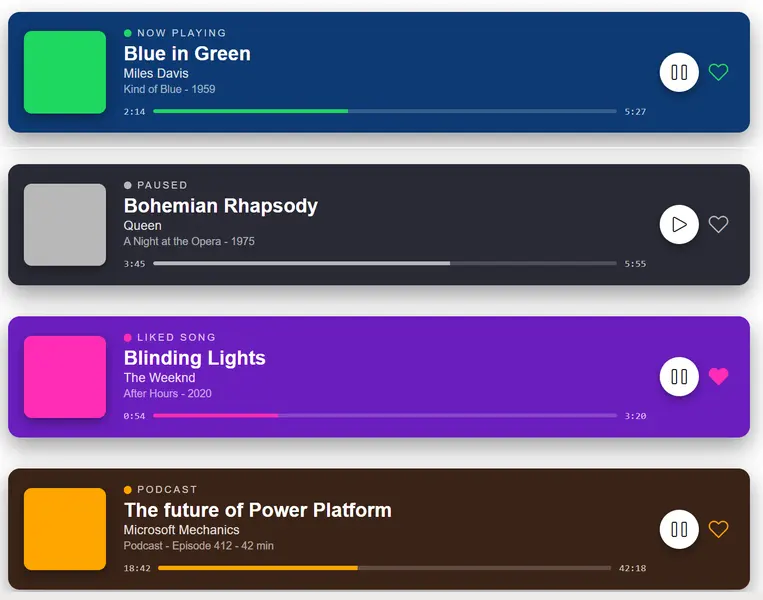
screenshot of the sample

View requirements

Column Name Internal Name Type Description
Title Title Single line of text Track or episode title
Artist Artist Single line of text Artist or show host
Album Album Single line of text Album name + year, or "Podcast - Episode N - duration" for podcasts
Status Status Choice Now Playing, Paused, Liked Song, Podcast, Recently Played, Workout
Background Color BackgroundColor Single line of text Card background hex (e.g. #1a1a2e)
Accent Color AccentColor Single line of text Hex for the album-art block, status dot and progress fill (e.g. #1ed760)
Elapsed Time ElapsedTime Single line of text Time elapsed as M:SS (e.g. 2:14)
Duration Time DurationTime Single line of text Total duration as M:SS (e.g. 5:27)
Progress Percent ProgressPercent Number Track progress 0 - 100 (drives the bar fill width)
Play Icon PlayIcon Single line of text Fluent UI icon name for the play button: Play or Pause
Like Icon LikeIcon Single line of text Fluent UI icon name for the heart: Heart (not liked) or HeartFill (liked)
Track URL TrackUrl Single line of text Streaming URL opened when the play button is clicked (e.g. https://open.spotify.com/search/...)

A PowerShell script has been provided in the assets folder to provision the list for you. The script also seeds 6 sample tracks covering every Status value.

Note: This script uses PnP PowerShell and requires an environment ready for PnP PowerShell.

Sample

Solution Author
spotify-now-playing.json Sudeep Ghatak (LinkedIn)

Version history

Version Date Comments
1.0 May 12, 2026 Initial release

Disclaimer

THIS CODE IS PROVIDED AS IS WITHOUT WARRANTY OF ANY KIND, EITHER EXPRESS OR IMPLIED, INCLUDING ANY IMPLIED WARRANTIES OF FITNESS FOR A PARTICULAR PURPOSE, MERCHANTABILITY, OR NON-INFRINGEMENT.


Additional notes

  • Colours are column-driven, not conditional. Both BackgroundColor and AccentColor are read directly from the list item via [$BackgroundColor] / [$AccentColor]. The provisioning script seeds sensible defaults per Status, but you can override per item without touching the formatter.
  • Icons are column-driven too. The play button and the heart icon both use iconName: "[$PlayIcon]" and iconName: "[$LikeIcon]". Pick from the Fluent UI v1 icon set — common values are Play, Pause, Heart, HeartFill.
  • Progress bar width is computed with =toString([$ProgressPercent]) + '%'. Store a plain integer 0 - 100 in the ProgressPercent column and the bar fills proportionally.
  • Clicking the play button opens the track URL in a new tab - the play element is rendered as an <a> with href: "[$TrackUrl]" and target: "_blank". SharePoint view formatters cannot embed an audio player, so this is the practical way to "play" a track. The seeded sample tracks use https://open.spotify.com/search/... URLs which always resolve, but you can store any streaming URL (Spotify track, Apple Music, YouTube, internal podcast feed, etc).
  • Clicking the heart toggles like / unlike - the heart element carries a customRowAction of type setValue that flips the LikeIcon column between Heart and HeartFill. The change is persisted directly to the list item via the SharePoint formatter runtime; no Power Automate flow or REST call is needed.
  • The album-art block is a solid coloured square overlaid with a Fluent Headphones icon - no images required.
  • Time strings (ElapsedTime, DurationTime) are stored as plain text in M:SS format to keep the formatter simple. If you would rather store seconds, swap them for a calculated text column using the seconds-to-time conversion of your choice.