
From the contributor
How to use this sample
Summary
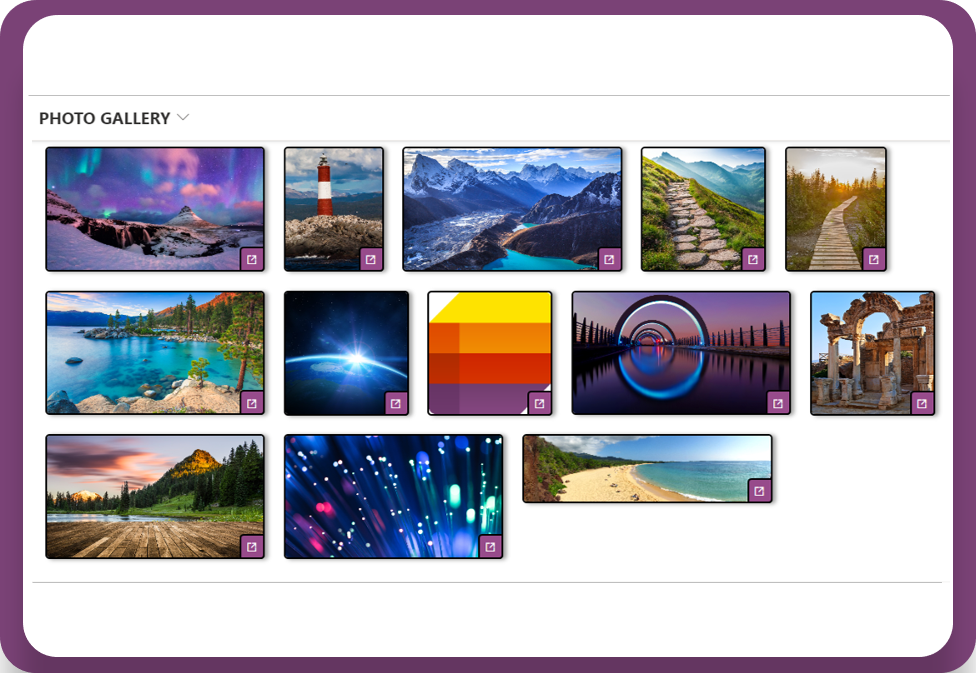
This tutorial will help you create multiple thumbnails through images URLs listed in a multiple choice column.
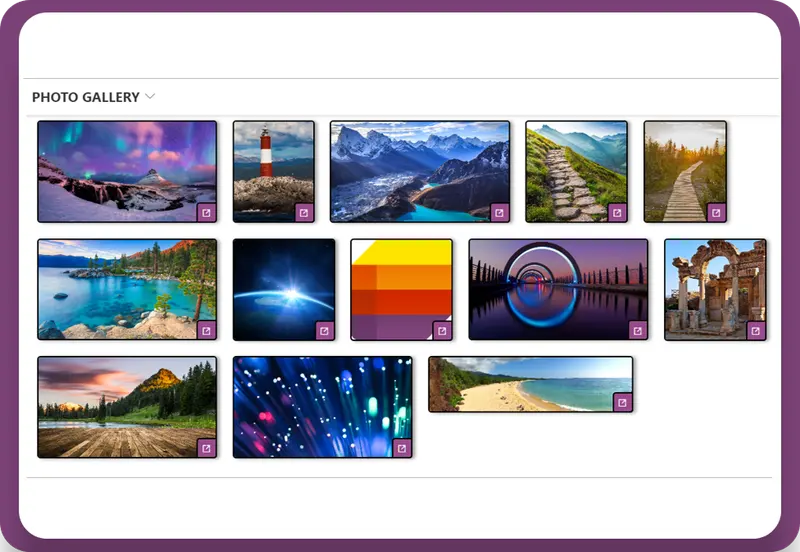
To achieve this result, you can implement one of the following column formatting options:
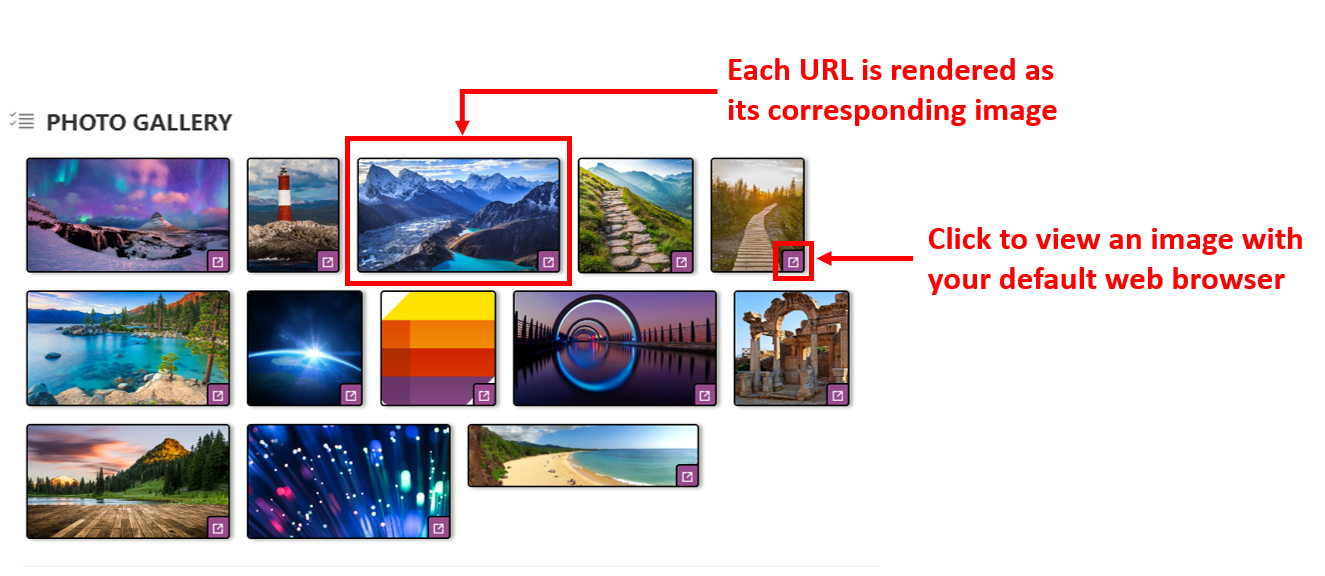
1. Basic thumbnail: each URL is displayed with its own miniature and a little button to open each image through your default web browser.
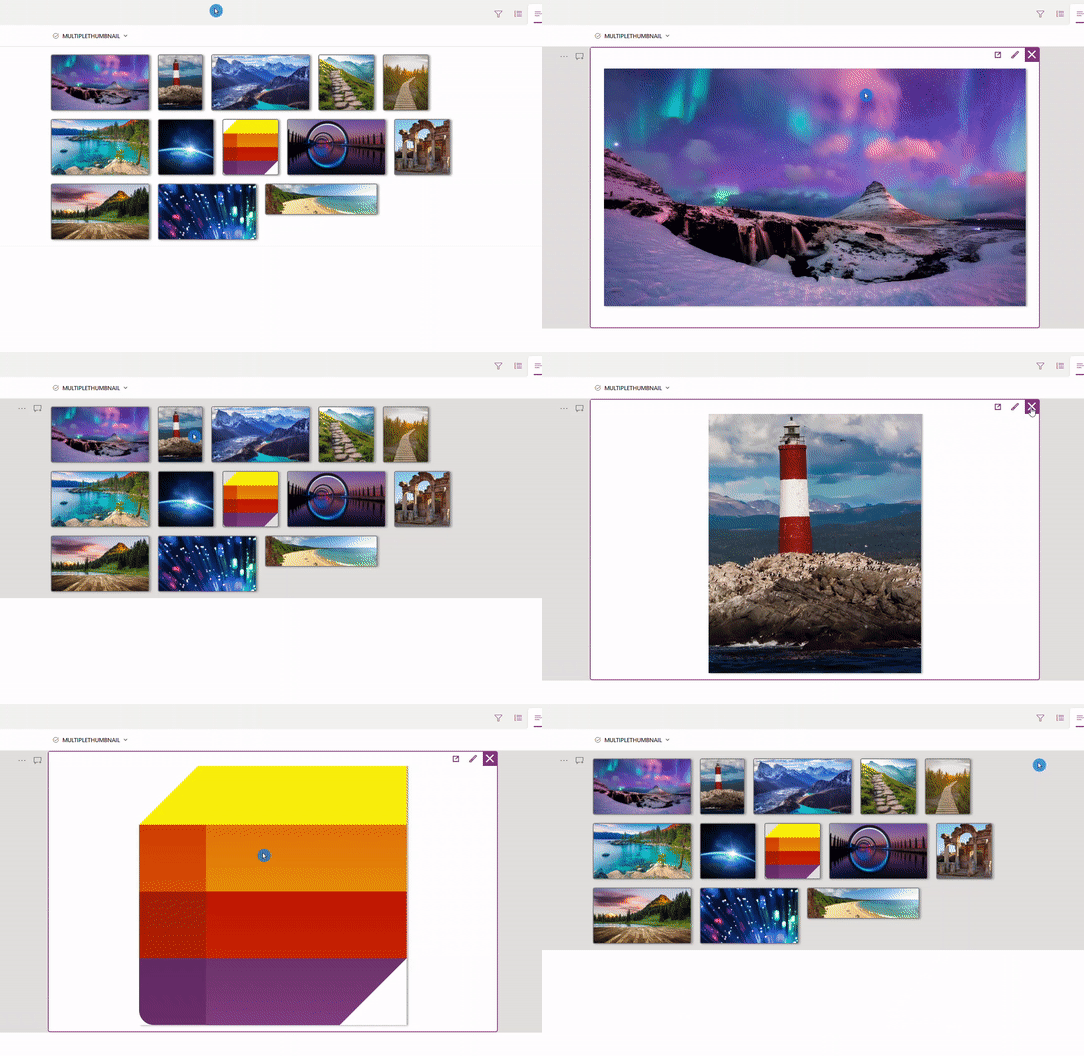
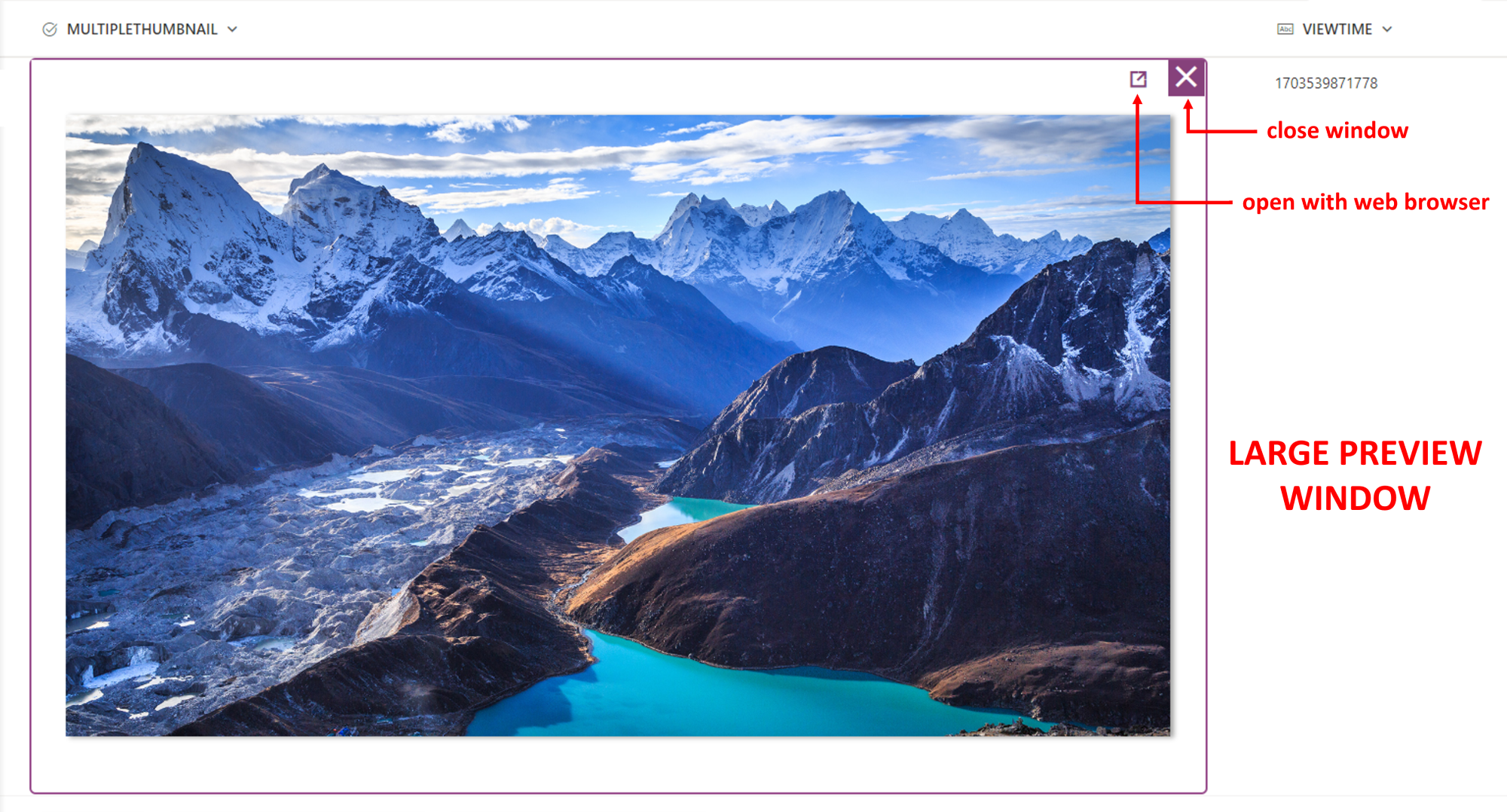
2. Advanced thumbnail: each URL is displayed with its own miniature and each image can be viewed in a larger version through a temporary UI window. This window contains a command bar to open an image through your default web browser.
NOTE: an image URL should point directly to a picture file format, such as jpg, png, gif, etc. Furthermore, each image URL can come from an allowed external domain or it should be accessible by other users if stored in SharePoint.
Examples of images URLs are:
- ✔️ https://www.example.com/products/images/helloworld.jpg (external domain)
- ✔️ https://cdn.example.com/media/cms/images/helloworld.webp (external domain)
- ✔️ https://contoso.sharepoint.com/sites/marketing/Document-Library/Images/helloworld.png (SharePoint)


View requirements
Column width and user interface
Both samples illustrated below have a column min-width of 730px, to allow an optimal user interface both for a list view and the OOTB Microsoft Lists form. If your multiple thumbnail appears as partially cut, select the right edge of column header, drag to the right and increase its width. Save your view to keep current column settings.

1) Basic thumbnail: how to
The basic thumbnail template requires only one multiple choice column, with custom values allowed or not. After creating a multiple choice column, apply the JSON code available here.
2) Advanced thumbnail: how to
The advanced thumbnail template requires users to have editing permission (eg. in a project team members) and the following columns, including their exact names with capital letters. The exact names are required only for columns creation, so that they'll match with the internal names the JSON code refers to. Therefore, all the columns listed below can be renamed later:
| COLUMN NAME | COLUMN TYPE | ADDITIONAL INFORMATION |
|---|---|---|
| MULTIPLETHUMBNAIL | Multiple choice | Each image URL is a corresponding option of this column |
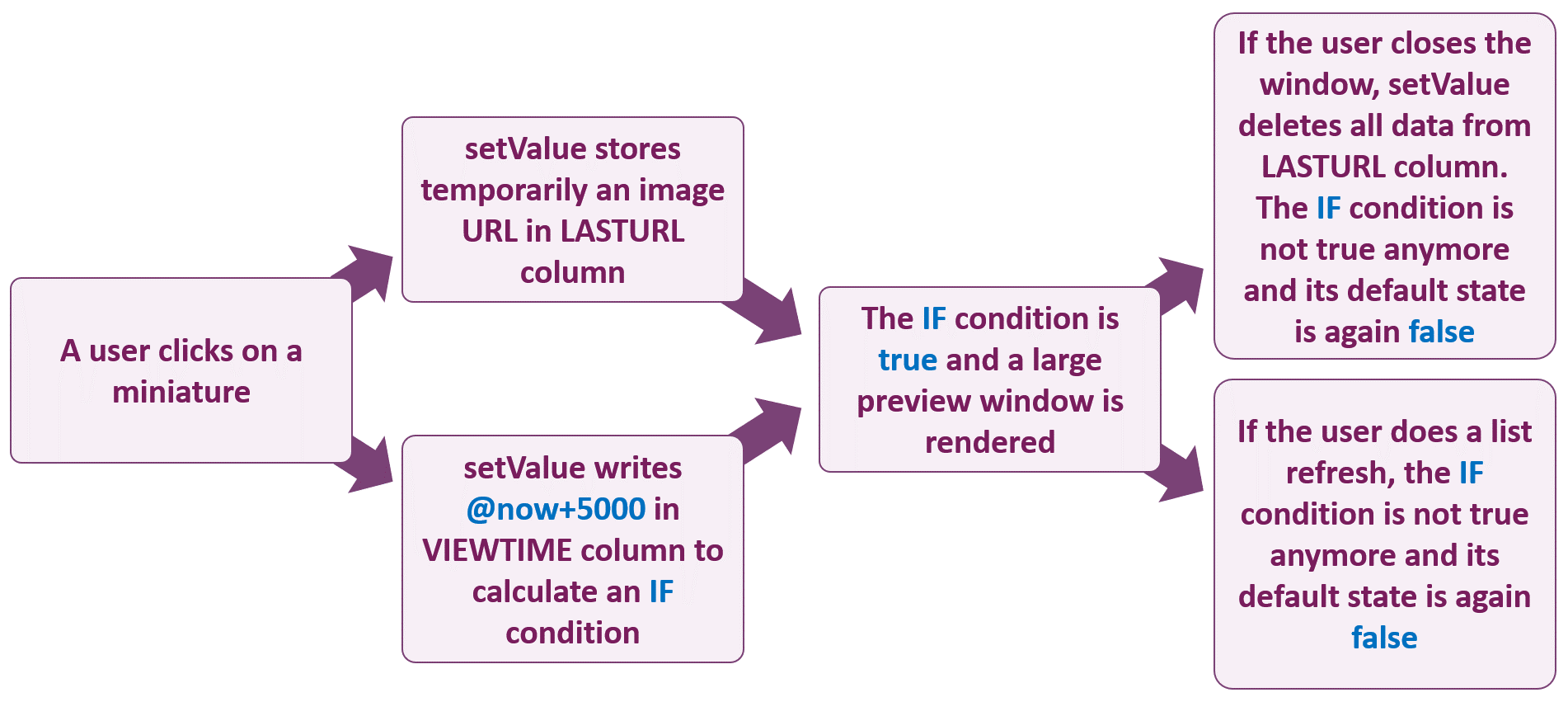
| LASTURL | Multiple lines of text | This column keeps track temporarily of an image URL, when a user clicks on a miniature to open a larger window |
| VIEWTIME | Single line of text | This column keeps track of the current date and time to perform an if condition temporarily true, so that a larger preview window works properly on click |
After creating the 3 columns reported above, format the MULTIPLETHUMBNAIL column with the JSON code available here.
Here is an illustration of the large preview window:
Custom hovercards and app limitation
Images lightboxes are currently not supported by Microsoft Lists, since hovercards are not designed to recognize an iteratorName of each image in an array, based on a forEach property.
Temporary preview window: behind the scenes
If you are wondering what's happening when a user clicks on a miniature, here is a process illustration about how a temporary window works in Microsoft Lists:
Sample
| Solution | Author(s) |
|---|---|
| multi-choice-thumbnail.json | Federico Sapia |
| multi-choice-thumbnail-advanced.json | Federico Sapia |
Version history
| Version | Date | Comments |
|---|---|---|
| 1.0 | January 19, 2024 | Initial release |
Disclaimer
THIS CODE IS PROVIDED AS IS WITHOUT WARRANTY OF ANY KIND, EITHER EXPRESS OR IMPLIED, INCLUDING ANY IMPLIED WARRANTIES OF FITNESS FOR A PARTICULAR PURPOSE, MERCHANTABILITY, OR NON-INFRINGEMENT.