
From the contributor
How to use this sample
Summary
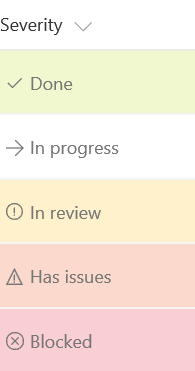
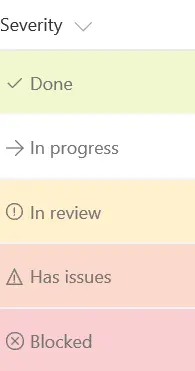
You can apply conditional formatting to text or choice fields that might contain a fixed set of values. The following example applies different classes depending on whether the value of the field is Done, In Review, Blocked, or another value. This example applies a CSS class (sp-field-severity--low, sp-field-severity--good, sp-field-severity--warning, sp-field-severity--blocked) to the <div /> based on the field's value. This is what determines the element's background color. A class of ms-fontColor-neutralSecondary is always applied to ensure the text color is legible in both light and dark themes. Then, it outputs a <span /> element with an iconName attribute. This attribute applies another CSS class to that <span /> that shows an Office UI Fabric icon inside that element. Finally, another <span /> element is outputted that contains the value inside the field.
This pattern is useful when you want different values to map to different levels of urgency or severity. You can start from this example and edit it to specify your own field values and the styles and icons that should map to those values.
View requirements
- This format can be applied to a text/choice column and expects the values Done, In progress, In review, Has Issues, or anything else
Sample
| Solution | Author(s) |
|---|---|
| text-conditional-format.json | Lincoln DeMaris |
Version history
| Version | Date | Comments |
|---|---|---|
| 1.0 | November 2, 2017 | Initial release |
| 1.1 | August 20, 2018 | Switched to Excel-style expression, added theme fontColor, fixed issue with "Has Issues" status |
Disclaimer
THIS CODE IS PROVIDED AS IS WITHOUT WARRANTY OF ANY KIND, EITHER EXPRESS OR IMPLIED, INCLUDING ANY IMPLIED WARRANTIES OF FITNESS FOR A PARTICULAR PURPOSE, MERCHANTABILITY, OR NON-INFRINGEMENT.
Additional notes
This sample is also covered in the main documentation around the Column Formatting
An additional version using Abstract Tree Syntax (AST) is also provided for environments where the Excel-style expressions are not supported.