Back to column formats
Column formattingSharePoint Online

Display QR Code

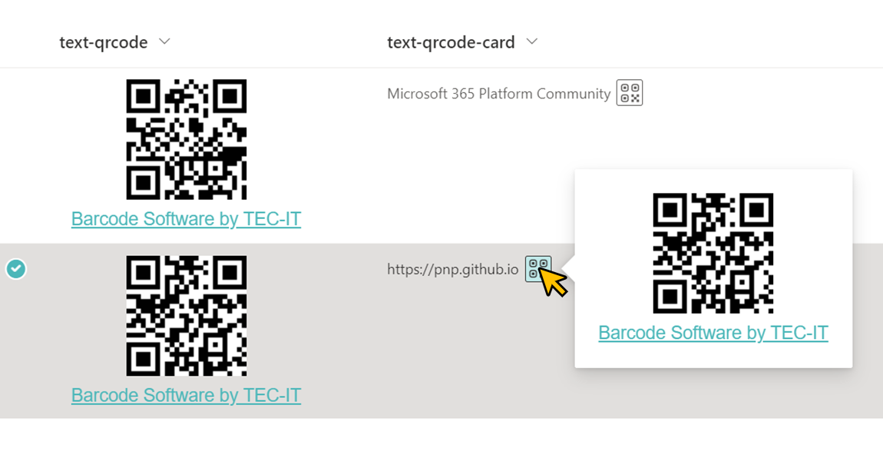
This sample demonstrates the use of TEC-IT's service to convert column value text into a QR code and display it.
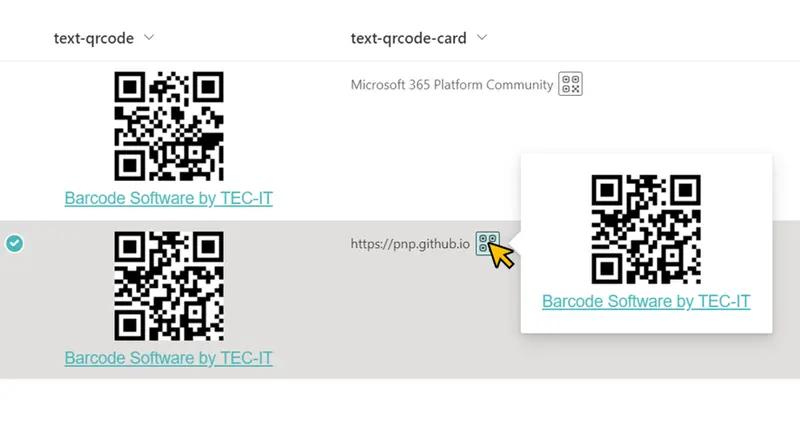
Display QR Code formatting preview
Sample preview · View original image

Copy. Apply. Make it yours.

Get this format

2 definitions

Review the requirements below, then paste this JSON into the matching formatting panel. Show me where.

Use your list's internal column names and replace any tenant-specific URLs or flow IDs. Formatting is presentation, not a way to secure data.

Column formatting
Download JSON
{
  "$schema": "https://developer.microsoft.com/json-schemas/sp/v2/column-formatting.schema.json",
  "elmType": "div",
  "style": {
    "display": "=if(@currentField=='','none','flex')",
    "flex-direction": "row",
    "align-items": "center"
  },
  "children": [
    {
      "elmType": "div",
      "txtContent": "@currentField"
    },
    {
      "elmType": "div",
      "style": {
        "cursor": "pointer",
        "width": "20px",
        "height": "20px",
        "display": "flex",
        "justify-content": "center",
        "align-items": "center",
        "border": "1px solid",
        "border-radius": "2px",
        "font-size": "17px",
        "margin-left": "5px"
      },
      "attributes": {
        "iconName": "QRCode",
        "class": "ms-bgColor-themeLight--hover"
      },
      "customCardProps": {
        "openOnEvent": "click",
        "directionalHint": "rightCenter",
        "isBeakVisible": true,
        "formatter": {
          "elmType": "div",
          "style": {
            "padding": "20px",
            "display": "flex",
            "flex-direction": "column",
            "align-items": "center",
            "white-space": "nowrap"
          },
          "children": [
            {
              "elmType": "img",
              "attributes": {
                "src": "='https://barcode.tec-it.com/barcode.ashx?code=QRCode&dpi=96&data=' + @currentField"
              }
            },
            {
              "elmType": "a",
              "txtContent": "Barcode Software by TEC-IT",
              "style": {
                "padding-top": "8px",
                "font-size": "15px",
                "font-family": "Source Sans Pro, Arial, sans-serif"
              },
              "attributes": {
                "href": "https://www.tec-it.com",
                "target": "_blank",
                "class": "ms-fontColor-themePrimary ms-fontColor-themeDark--hover"
              }
            }
          ]
        }
      }
    }
  ]
}

From the contributor

How to use this sample

Summary

This sample demonstrates the use of TEC-IT's service to convert column value text into a QR code and display it.

screenshot of the sample

Prerequisites

External image sources are blocked by default in the custom formatter. To allow external images, you must add the domain to HTML Field Security.
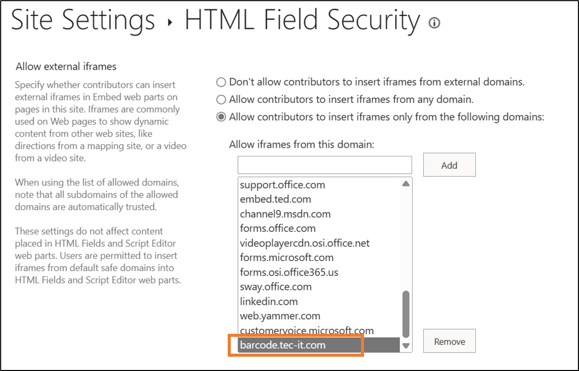
screenshot of HTML Field Security

The following are the steps to add it.

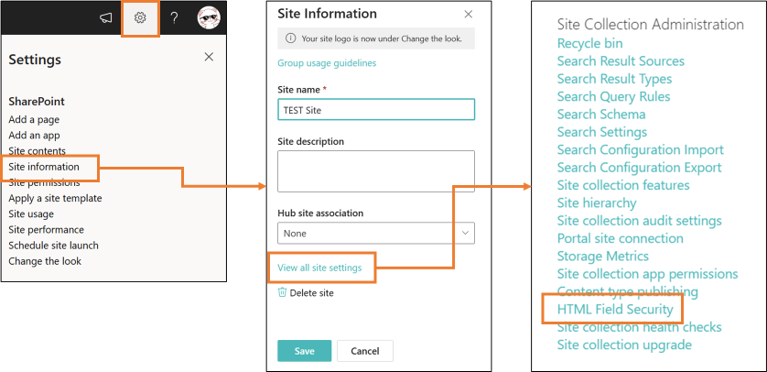
  1. Browse to the root site of your site collection

  2. Select Settings ⚙ > Select Site information > Select View all site settings

  3. Select HTML Field Security

    screenshot of the site settings

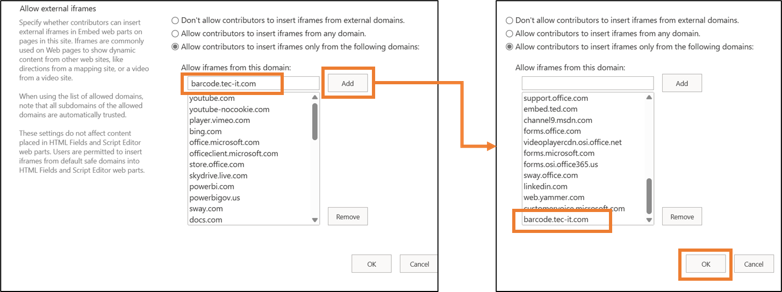
  4. Input the domain name you want to allow (in the case of this sample, input "barcode.tec-it.com")

  5. Select Add

  6. Check if the added domain is listed in the list

  7. Select OK

    screenshot of the steps to add a domain

View requirements

  • This format can be applied to any column type (but is intended for text fields)

Sample

Solution Author(s)
text-qrcode.json Tetsuya Kawahara
text-qrcode-card.json Tetsuya Kawahara

Version history

Version Date Comments
1.0 November 13, 2022 Initial release

Disclaimer

THIS CODE IS PROVIDED AS IS WITHOUT WARRANTY OF ANY KIND, EITHER EXPRESS OR IMPLIED, INCLUDING ANY IMPLIED WARRANTIES OF FITNESS FOR A PARTICULAR PURPOSE, MERCHANTABILITY, OR NON-INFRINGEMENT.

Additional notes