
From the contributor
How to use this sample
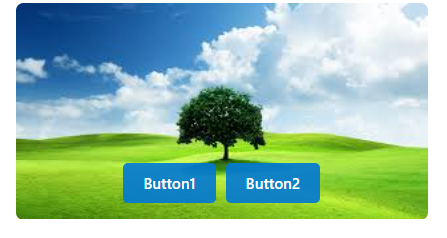
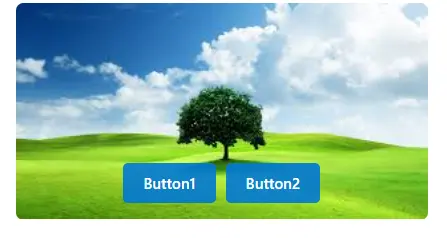
A custom SharePoint list formatting JSON that displays images with overlay buttons in a modern card layout, designed to work consistently across all image aspect ratios.
Summary
This improved formatting creates an attractive card-style view for SharePoint lists containing images with action buttons overlaid on the image. The solution uses absolute positioning and a consistent container height to ensure buttons appear reliably regardless of image orientation or aspect ratio.
Features
- Responsive Image Display: Images fill container while maintaining aspect ratio
- Consistent Overlay Buttons: Always positioned at bottom
- Modern Glassmorphism Design: Semi-transparent buttons with backdrop blur
- Universal Compatibility: Works with portrait, landscape, and square images
- Professional Styling: Clean appearance with shadows and rounded corners
- Secure External Links: Opens in new tab with proper security attributes
View requirements
Your SharePoint list must have the following columns:
| Column Name | Type | Description |
|---|---|---|
ImageUrl |
Single line of text or Hyperlink | URL to the image to display |
Button1Label |
Single line of text | Text for the first button |
Button1Url |
Hyperlink | URL for the first button |
Button2Label |
Single line of text | Text for the second button |
Button2Url |
Hyperlink | URL for the second button |
Installation
- Navigate to SharePoint list
- Click the view dropdown (next to "All Items")
- Select "Create new view"
- Choose "Gallery" layout
- Name your view "Image View"
- Click "Create"
- Click the Image View dropdown
- Click "Format current view"
- Click "Advanced mode"
- Copy the entire JSON code from the
image-overlay-buttons.jsonfile - Paste it into the formatting panel
- Click "Preview" to see your funnel chart
- Click "Save" to apply the formatting
Customization Options
Card Size
Adjust the dimensions in the root configuration:
"height": 175,
"width": 350
Troubleshooting
Buttons not showing
- Verify all required columns exist and have data
- Check that column names match exactly (case-sensitive)
Images not displaying
- Ensure image URLs are accessible and valid
- Check if images are blocked by security policies
- Verify the
ImageUrlcolumn contains proper URLs
Buttons not clickable
- Ensure
Button1UrlandButton2Urlcolumns contain valid URLs - Check if external links are allowed in your SharePoint environment
Technical Details
Container Specifications
- Height: 200px total (160px image + 40px padding)
- Width: 350px (responsive within container)
- Image Container: Fixed 160px height.
Customization Guide
Adjust Container Height
Change the image container height in the style:
"height": "160px"  // Standard (default)
"height": "200px"  // Taller
"height": "120px"  // Shorter
Modify Button Colors
Update button background colors:
// Button 1 (Light)
"background-color": "rgba(255, 255, 255, 0.95)"

// Button 2 (Primary) - Examples:
"background-color": "rgba(0, 120, 212, 0.95)"  // Blue (default)
"background-color": "rgba(16, 124, 16, 0.95)"  // Green
"background-color": "rgba(196, 49, 75, 0.95)"  // Red
Adjust Button Spacing
Modify the gap between buttons:
"gap": "10px"  // Standard (default)
"gap": "15px"  // Wider spacing
"gap": "5px"   // Closer spacing
Change Border Radius
Adjust corner rounding:
"border-radius": "8px"   // Standard (default)
"border-radius": "12px"  // More rounded
"border-radius": "4px"   // Less rounded
"border-radius": "0"     // Square corners
Troubleshooting
Common Issues and Solutions
Buttons not visible on certain images
- The improved version uses absolute positioning - this should be resolved
Buttons not clickable
- Ensure URL columns contain valid URLs with proper protocol (https://)
- Check SharePoint external link policies
Performance issues with many images
- Consider using optimized/resized images
- Implement pagination if displaying many items
Image Requirements
- Recommended size: 350px width or larger for best quality
- Aspect ratio: Any (formatting handles all ratios)
- File size: Keep under 5MB for optimal performance
Example Data
Here's sample data for testing:
| ImageUrl | Button1Label | Button1Url | Button2Label | Button2Url |
|---|---|---|---|---|
https://tenant.sharepoint.com/sites/sitename/Documents/image1.jpg |
Button1 | https://example.com/button1 |
Button2 | https://example.com/button2 |
Test Images
For testing different aspect ratios:
- Landscape: 16:9, 4:3 ratios
- Portrait: 3:4, 9:16 ratios
- Square: 1:1 ratio
Sample
| Solution | Author(s) |
|---|---|
| image-overlay-buttons.json | Sai Bandaru |
Version history
| Version | Date | Comments |
|---|---|---|
| 1.0 | Sep 04, 2025 | Initial release |
Disclaimer
THIS CODE IS PROVIDED AS IS WITHOUT WARRANTY OF ANY KIND, EITHER EXPRESS OR IMPLIED, INCLUDING ANY IMPLIED WARRANTIES OF FITNESS FOR A PARTICULAR PURPOSE, MERCHANTABILITY, OR NON-INFRINGEMENT.