
Back to view formats
View formattingSharePoint Online

Multi-Choice Links

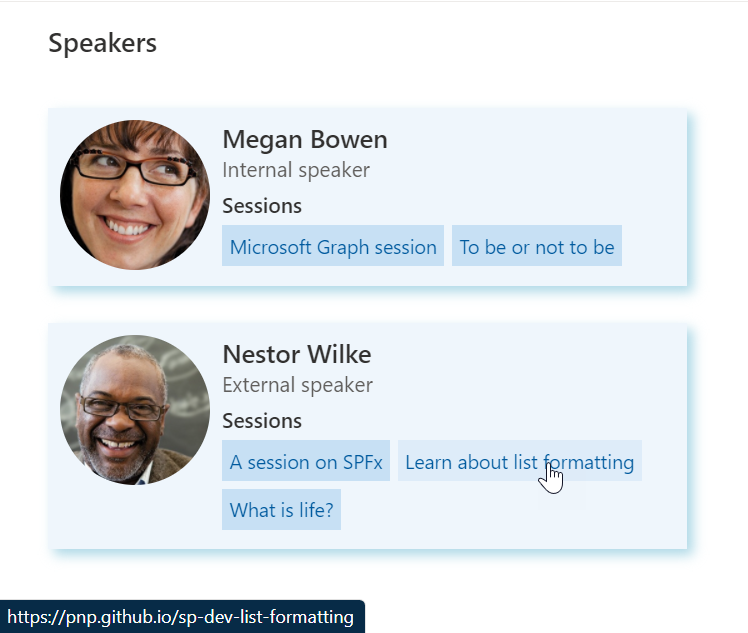
Demonstrates using a multi-choice column to create multiple links

Multi-Choice Links formatting preview
Sample preview · View original image

Copy. Apply. Make it yours.

Get this format

1 definition

Review the requirements below, then paste this JSON into the matching formatting panel. Show me where.

Use your list's internal column names and replace any tenant-specific URLs or flow IDs. Formatting is presentation, not a way to secure data.

View formatting
Download JSON
{
  "$schema": "https://developer.microsoft.com/json-schemas/sp/v2/row-formatting.schema.json",
  "hideSelection": true,
  "hideListHeader": true,
  "rowFormatter": {
    "elmType": "div",
    "style": {
      "display": "flex",
      "flex-wrap": "wrap",
      "align-items": "stretch",
      "padding": "8px",
      "margin-bottom": "25px",
      "max-width": "410px",
      "box-shadow": "4px 4px 8px lightblue"
    },
    "attributes": {
      "class": "ms-bgColor-themeLighterAlt"
    },
    "children": [
      {
        "elmType": "div",
        "style": {
          "flex-grow": "1",
          "display": "flex",
          "flex-wrap": "wrap",
          "align-items": "stretch"
        },
        "children": [
          {
            "elmType": "div",
            "style": {
              "flex": "none"
            },
            "children": [
              {
                "elmType": "div",
                "style": {
                  "width": "100px",
                  "height": "100px",
                  "overflow": "hidden",
                  "border-radius": "50%",
                  "margin-right": "8px"
                },
                "children": [
                  {
                    "elmType": "img",
                    "attributes": {
                      "src": "=if([$Picture] == '', @currentWeb + '/_layouts/15/userphoto.aspx?size=M', [$Picture])",
                      "title": "=if([$Picture] == '', 'No picture available', [$Picture.desc])"
                    },
                    "style": {
                      "position": "relative",
                      "top": "50%",
                      "left": "50%",
                      "width": "100%",
                      "height": "auto",
                      "margin-left": "-50%",
                      "margin-top": "-50%"
                    }
                  }
                ]
              }
            ]
          },
          {
            "elmType": "div",
            "style": {
              "flex-grow": "1",
              "display": "flex",
              "flex-direction": "column",
              "flex-wrap": "nowrap",
              "align-items": "stretch",
              "max-width": "300px"
            },
            "children": [
              {
                "elmType": "div",
                "style": {
                  "flex-grow": "1"
                },
                "children": [
                  {
                    "elmType": "span",
                    "txtContent": "[$Title]",
                    "style": {
                      "display": "block"
                    },
                    "attributes": {
                      "class": "ms-fontSize-l ms-fontWeight-semibold ms-fontColor-neutralPrimary"
                    }
                  },
                  {
                    "elmType": "span",
                    "txtContent": "[$JobTitle]",
                    "style": {
                      "display": "=if([$JobTitle] == '', 'none', 'block')"
                    },
                    "attributes": {
                      "class": "ms-fontSize-m ms-fontWeight-regular ms-fontColor-neutralSecondary"
                    }
                  },
                  {
                    "elmType": "span",
                    "style": {
                      "display": "block",
                      "margin": "5px 0px"
                    },
                    "attributes": {
                      "class": "ms-fontWeight-semibold ms-fontSize-m"
                    },
                    "txtContent": "Sessions"
                  },
                  {
                    "forEach": "sessionIterator in [$Sessions]",
                    "elmType": "a",
                    "txtContent": "=substring([$sessionIterator], 0, indexOf([$sessionIterator], '|'))",
                    "style": {
                      "padding": "5px",
                      "margin": "0px 5px 5px 0px",
                      "float": "left",
                      "text-decoration": "none"
                    },
                    "attributes": {
                      "class": "ms-fontSize-sPlus ms-fontWeight-regular ms-fontColor-themeDark ms-bgColor-themeLight ms-bgColor-themeLighter--hover",
                      "href": "=substring([$sessionIterator], indexOf([$sessionIterator], '|') + 1,  lastIndexOf([$sessionIterator], '|'))",
                      "target": "_blank"
                    }
                  }
                ]
              }
            ]
          }
        ]
      }
    ]
  }
}

From the contributor

How to use this sample

Summary

Rendering multiple links with a list view format cannot be achieved by using a rich text column. This sample solves that problem (rendering multiple links) using a multi choice column.

This sample is derived from the birthdays sample. This sample shows how to format a list to show sessions associated with a speaker. It features the following:

  • Responsive layout through flexbox.
  • Shows links to multiple sessions associated with a speaker (The sessions are stored as choices in a multi choice column).
  • Use of theme color classes to ensure the format displays as intended regardless of theme (light, dark, custom, etc.)
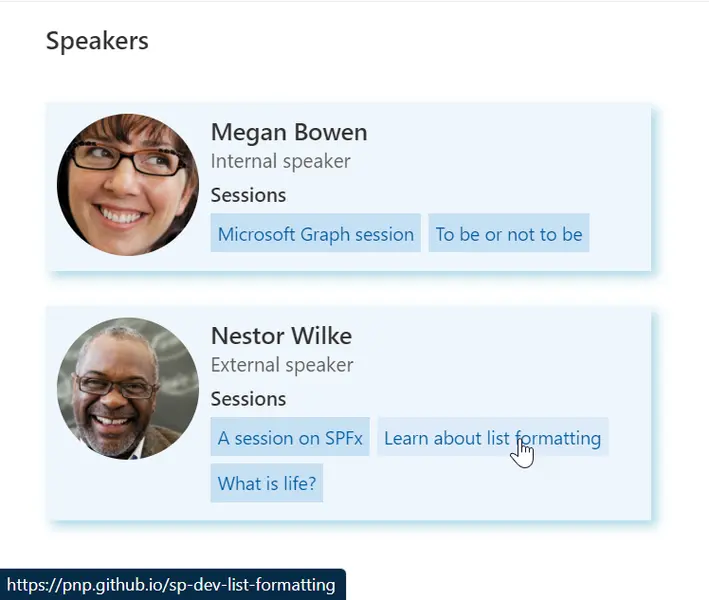
screenshot of the sample

View requirements

Type Internal Name Required
Single line of text Title Yes
Single line of text JobTitle
Choice (allow multiple selections) Sessions
Picture Picture

Important requirement

The sample expects the choices in the Sessions column to be in the format <Link Title>|<The actual link>|.

For Example - if the link we want to display has the title Learn about list formatting and the actual link is https://pnp.github.io/sp-dev-list-formatting then the choice for that in the Sessions column should have a value of Learn about list formatting|https://pnp.github.io/sp-dev-list-formatting|.

Session column's choice values used in the example screenshot above:
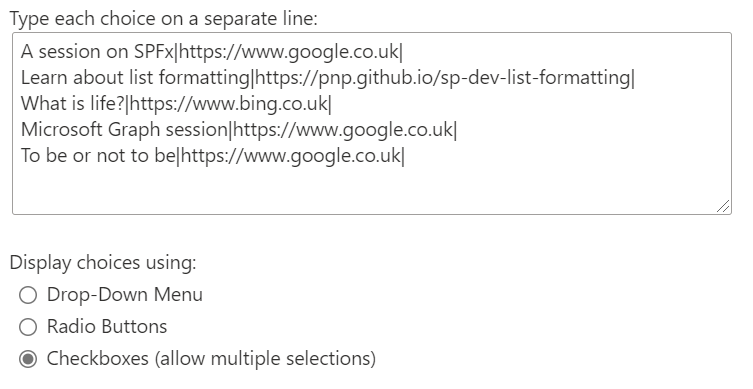
Example choice values

Details of the sample

To display the links, we loop through the values present in the Sessions column of the current item and extract the <Link title> using this formula:

"=substring([$sessionIterator], 0, indexOf([$sessionIterator], '|'))"

We then extract <the actual link> using this formula:

"=substring([$sessionIterator], indexOf([$sessionIterator], '|') + 1,  lastIndexOf([$sessionIterator], '|'))"

Sample

Solution Author(s)
multi-choice-links.json Anoop Tatti

Version history

Version Date Comments
1.0 April 14, 2021 Initial release

Disclaimer

THIS CODE IS PROVIDED AS IS WITHOUT WARRANTY OF ANY KIND, EITHER EXPRESS OR IMPLIED, INCLUDING ANY IMPLIED WARRANTIES OF FITNESS FOR A PARTICULAR PURPOSE, MERCHANTABILITY, OR NON-INFRINGEMENT.