
From the contributor
How to use this sample
Summary
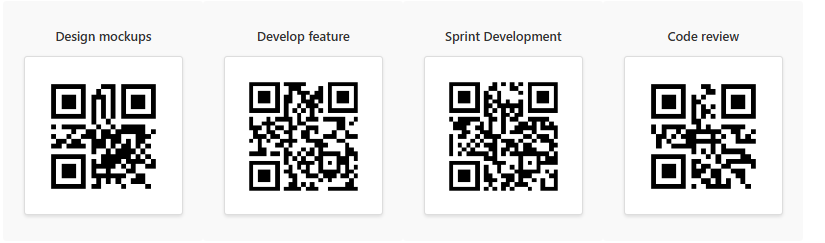
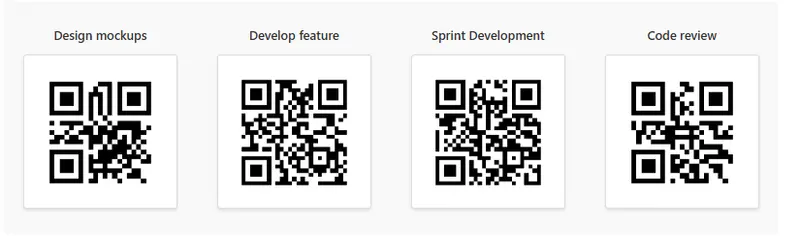
This sample uses SharePoint List Formatting to automatically generate QR codes for each list item in a tile view based on the Title field.
Each tile displays the item title above a dynamically generated QR code in a clean, centered card layout, making it ideal for visual dashboards, inventory displays, or quick-scan directories.
View Requirements
Create a list with the following columns:
| Internal Name | Type |
|---|---|
| Title | Single line of text |
Note: Additional columns can be added as needed for your specific use case.
Configure the view as Tiles layout for the best experience.
Sample Data
| Title |
|---|
| Design mockups |
| Develop feature |
How it Works
- The formatter displays each list item in a 300x250px tile with centered content
- Each tile shows the Title above a corresponding QR code
- QR codes are generated dynamically using the QuickChart.io API
- Each QR code contains the exact text from the Title field
- The layout features a modern card design with proper spacing, shadows, and rounded corners
- QR codes are displayed at 180x180 pixels with padding and border styling
Security Configuration
CRITICAL: Before the QR codes will display, you must configure SharePoint security settings:
- Navigate to SharePoint Site
- Go to Settings > Advanced Settings
- Find "HTML Field Security" section
- Add
quickchart.ioto the allowed domains list - Save the configuration
Without this security configuration, QR codes will not display due to SharePoint's content security policies.
Sample
| Solution | Author(s) |
|---|---|
| qr-code-tile.json | Sai Bandaru |
Version history
| Version | Date | Comments |
|---|---|---|
| 1.0 | October 13, 2025 | Initial release with tile formatter |
Disclaimer
THIS CODE IS PROVIDED AS IS WITHOUT WARRANTY OF ANY KIND, EITHER EXPRESS OR IMPLIED, INCLUDING ANY IMPLIED WARRANTIES OF FITNESS FOR A PARTICULAR PURPOSE, MERCHANTABILITY, OR NON-INFRINGEMENT.
Additional Notes
Customization Options
Change Tile Size: Modify the dimensions in the JSON:
"height": 350,
"width": 300
Change QR Code Size: Modify the CSS dimensions:
"style": {
  "width": "200px",
  "height": "200px"
}
Use Different Data Source:
Replace [$Title] with any other text field:
"src": "='https://quickchart.io/qr?text=' + [$QR]"
Styling Modifications:
- Adjust background color: Change
"background-color": "#f9f9f9" - Modify title styling: Update font-size, color, or weight
- Customize borders and shadows: Adjust
border,box-shadowvalues - Change spacing: Modify
paddingandmargin-bottomvalues
Advantages of QuickChart.io
- Simple, reliable API with no authentication required
- Fast QR code generation
- Supports URL encoding for special characters
- No rate limiting for basic usage
- Clean, scannable QR codes
Limitations
- Requires internet connectivity for QR code generation
- External dependency on QuickChart.io API
- Consider data privacy when using external QR code services
- Performance may vary with large lists due to multiple API calls
- Tile view may not be suitable for lists requiring detailed column information
Tips for Best Results
- Keep titles concise for better QR code readability
- Test QR codes with multiple scanner apps before deployment
- Use URLs or structured data for most reliable scanning
- Consider adding a description column for additional context
- Ensure adequate lighting when scanning printed QR codes
License
This formatting solution is provided as-is for educational and professional use. The QuickChart.io API has its own terms of service.