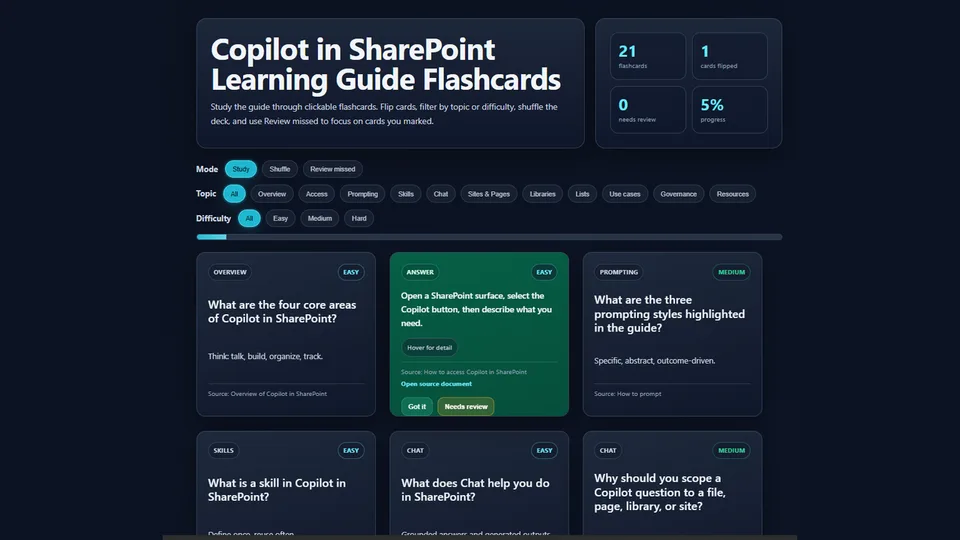
Generates a fully self-contained interactive HTML learning dashboard from PowerPoint, PDF, Word, or other readable files.
Extracts key concepts into validated flashcards that include question, concise answer, expanded detail, hint, category, difficulty, and source anchors with clickable links back to the original document.
Includes animated flip cards, category and difficulty filters, hover/focus detail panels, Study / Shuffle / Review missed modes, and progress tracking.
Designed for training, onboarding, revision, and knowledge checks inside SharePoint and Microsoft 365 Copilot experiences.
Creates an interactive HTML learning dashboard from a source file (PowerPoint, PDF, Word, etc.) by extracting key concepts into validated flashcards. Includes animated flip cards, category and difficulty filters, hover-detail answers, source links, Review missed mode, Shuffle, and progress tracking.
What you get
- Self-contained interactive HTML dashboard with animated flip flashcards
- Cards extracted from the source file (12–25 by default) with question, concise answer, expanded detail, hint, category, difficulty, and source anchor
- Category and difficulty filters
- Hover / keyboard-focus detail panels that stay visible and are not clipped
- Source links that open the original document in a new tab with one left-click in SharePoint
- Study, Shuffle, and Review missed modes
- Progress tracking and “Got it” / “Needs review” actions
- Stable card IDs so review tracking survives filtering and shuffling
- Fully inline CSS/JS — no external dependencies
- Refined dark design system with clear hierarchy and accessibility considerations
SharePoint Skill
| Solution | Author(s) |
|---|---|
| flashcards-dashboard | Anand Ragavan | GitHub | LinkedIn |
Version history
| Version | Date | Comments |
|---|---|---|
| 1.0 | July 2026 | Initial Release |
Disclaimer
THIS CODE IS PROVIDED AS IS WITHOUT WARRANTY OF ANY KIND, EITHER EXPRESS OR IMPLIED, INCLUDING ANY IMPLIED WARRANTIES OF FITNESS FOR A PARTICULAR PURPOSE, MERCHANTABILITY, OR NON-INFRINGEMENT.
Package
Ready to install
The ZIP contains only the upload-ready inner skill folder.
bdd78e2652984cb2c01b0d61f0034313ee1cebf824f85df8ed82c8c8bd129559View SKILL.md
---
name: flashcards-dashboard
description: |-
  Creates an interactive HTML learning dashboard from a source file by extracting key concepts into validated flashcards with source links, hover-detail answers, filters, review tracking, shuffle, and progress tracking.

  Use when the user says:
    - "Create flashcards from this file"
    - "make an HTML learning dashboard"
    - "turn this deck into flip cards"
    - "Create an HTML dashboard with animated Flashcards that flip when clicked"
    - "help me learn the content in this file"
    - "make a study dashboard from this deck"
---
# Flashcard Dashboard from File

## When to use
Use this skill when the user wants to learn, revise, or review the content of a SharePoint/OneDrive file through an interactive HTML dashboard with animated flip flashcards.

Use it for PowerPoint decks, PDFs, Word documents, or other readable files where the goal is comprehension, training, revision, onboarding, or knowledge checks.

## Inputs
- Source file name, URL, selected file, or file reference.
- Optional preferences: audience/difficulty, number of cards, language, destination, topics to emphasize/exclude.
- Modes to include by default: Study, Shuffle, Review missed. Do not include Quiz mode unless explicitly requested.
- Theme: use the required refined dark theme below unless the user explicitly asks for another theme.

## Steps
1. Locate the source file.
   - If the user gives a filename, use SharePoint/OneDrive file discovery tools.
   - If exact search fails, retry broader keywords and semantic search.
   - If outside the current site, use tenant search as fallback.
   - If no file is found, say so plainly and ask for a link or selected file.

2. Read or digest the file content.
   - Use a file-reading tool when raw content is needed.
   - Use file digest only when a summary is enough.
   - For PowerPoint files with speaker notes, preserve slide content and presenter-note insights.
   - For long files, create cards from section summaries and say the dashboard is summary-based.

3. Extract cards using this schema:

```json
{
  "id": "Stable unique card id, e.g. c0",
  "category": "Short topic label",
  "question": "Question shown on the front",
  "answer": "Concise answer shown on the back",
  "detail": "Expanded answer for hover/focus detail panel",
  "hint": "Short clue or memory hook",
  "sourceAnchor": "Slide/page/section/table name, or Source file if unknown",
  "sourceUrl": "Clickable source document URL when available",
  "difficulty": "Easy | Medium | Hard"
}
```

   - Produce 12–25 cards unless the user requests another count.
   - Keep `answer` concise; put longer explanation in `detail`.
   - Do not fabricate source anchors, URLs, slide counts, page numbers, or facts.

4. Generate a self-contained HTML dashboard.
   - Use sandboxed code and store the full HTML as a data reference before file creation.
   - Include flip cards, category filters, difficulty filters, progress tracking, source anchors, source links, hover-detail answers, Study, Shuffle, and Review missed.
   - Cards flip on click and keyboard Enter/Space.
   - Hover-detail panels must also work on keyboard focus.
   - Detail panels must not be clipped: use visible overflow, high z-index on hovered/focused cards, and right-align panels for cards near the right edge.
   - Keep card widths consistent even when filters leave only one visible card. Use `max-width:360px`, grid columns like `repeat(auto-fill, minmax(280px, 360px))`, and `justify-content:start`. Never use `1fr` in a way that lets a single card stretch across the dashboard.
   - Use inline CSS and JS only. No external scripts, stylesheets, fonts, images, or CSS URL dependencies.

5. Apply the required refined dark design system.
   - This color system is mandatory unless the user explicitly asks for another theme. Do not fall back to brighter neon cyan/green gradients or pure-white text on near-black backgrounds.
   - Define these design tokens in CSS and use them consistently:

```css
:root {
  --page-bg: #0B1120;
  --page-bg-2: #0F172A;
  --card-bg: #1E293B;
  --card-bg-2: #0F172A;
  --answer-bg: #064E3B;
  --answer-bg-2: #065F46;
  --border: #334155;
  --text: #F1F5F9;
  --muted: #94A3B8;
  --soft: #CBD5E1;
  --accent: #22D3EE;
  --accent-soft: #67E8F9;
  --easy: #67E8F9;
  --medium: #34D399;
  --hard: #FBBF24;
}
```

   - Required usage:
     - Page background: `#0B1120` / `#0F172A`, preferably a subtle gradient.
     - Question card background: `#1E293B` to `#0F172A` subtle gradient.
     - Answer card background: `#065F46` to `#064E3B` subtle gradient.
     - Card border: `1px solid #334155`.
     - Primary question/answer text: `#F1F5F9`.
     - Secondary text, source text, hints, labels: `#94A3B8` or `#CBD5E1` depending on importance.
     - Source links and active/progress accents: `#22D3EE` at 80–90% opacity or `#67E8F9`; accents must not overpower body text.
     - Easy difficulty: `#67E8F9`.
     - Medium difficulty: `#34D399`.
     - Hard difficulty: `#FBBF24`.
   - Typography rules:
     - Body text minimum 15–16px with line-height 1.55–1.65.
     - Question text 22–24px with font-weight 500–650.
     - Answer text 16–17px with line-height 1.55–1.65.
     - Source text about 13px and muted.
     - Avoid pure white on pure black for long sentences.
   - Card treatment:
     - Border radius 14–20px.
     - Visible border plus soft shadow.
     - Optional subtle inner top highlight: `inset 0 1px 0 rgba(255,255,255,.04)`.
     - Consistent spacing between category, question/answer, details, source, and action buttons.
   - Filters and mode buttons:
     - Inactive state: subdued dark fill, subtle border, lower opacity but still readable.
     - Active state: solid accent fill with soft outer glow.
   - Progress area:
     - Large numbers use `#67E8F9` or `#22D3EE`.
     - Labels use `#94A3B8` so numbers stay dominant.
   - Action buttons:
     - “Got it” uses a soft green treatment.
     - “Needs review” uses a soft amber/warning treatment and must be visually distinct.
   - Hierarchy rule:
     - Most important: question/answer text.
     - Secondary: topic and difficulty badges.
     - Tertiary: source links and helper text.
     - Status/progress: accented but not brighter than main text.

6. Make browser storage safe for SharePoint sandboxed previews.
   - Never access `localStorage` or `sessionStorage` directly. SharePoint file preview may run the HTML in a sandbox without `allow-same-origin`; direct access throws `SecurityError` and can stop the dashboard.
   - If persistence is needed, use a safe wrapper with an in-memory fallback. The dashboard must work even when storage is blocked; only persistence may be disabled.
   - Use this pattern or equivalent:

```js
function createSafeStorage(namespace){
  const memory = {};
  let store = null;
  try {
    const testKey = namespace + ':test';
    window.localStorage.setItem(testKey, '1');
    window.localStorage.removeItem(testKey);
    store = window.localStorage;
  } catch (e) {
    store = null;
  }
  return {
    get(key, fallback){
      try {
        const raw = store ? store.getItem(namespace + ':' + key) : memory[key];
        return raw == null ? fallback : JSON.parse(raw);
      } catch (e) { return fallback; }
    },
    set(key, value){
      try {
        const raw = JSON.stringify(value);
        if (store) store.setItem(namespace + ':' + key, raw);
        else memory[key] = raw;
      } catch (e) { memory[key] = JSON.stringify(value); }
    },
    remove(key){
      try {
        if (store) store.removeItem(namespace + ':' + key);
        delete memory[key];
      } catch (e) { delete memory[key]; }
    }
  };
}
```

   - If no persistence is required, omit storage entirely.

7. Make source links work with one left-click in SharePoint.
   - Put source links only on the answer side.
   - Use a normal `<a>` element with `href`, `target="_blank"`, `rel="noopener noreferrer"`, and `data-interception="off"`.
   - Add pointer/mouse handlers to prevent card flipping from taking the click:

```html
<a class="sourceLink"
   href="SOURCE_URL"
   target="_blank"
   rel="noopener noreferrer"
   data-interception="off"
   onpointerdown="event.stopPropagation()"
   onmousedown="event.stopPropagation()"
   onclick="event.preventDefault(); event.stopPropagation(); if(event.stopImmediatePropagation){event.stopImmediatePropagation();} window.open(this.href, '_blank', 'noopener,noreferrer'); return false;">
  Open source document
</a>
```

   - Add CSS so the link remains clickable inside transformed cards:

```css
.sourceLink { pointer-events:auto; position:relative; z-index:1000; }
```

   - In the delegated card click handler, ignore `.sourceLink` before other card click logic:

```js
if (e.target.closest('.sourceLink')) return;
```

8. Implement Review missed and action buttons correctly.
   - Track cards by stable `data-id`, never array index alone.
   - Maintain `missed` as a set of card ids.
   - “Needs review” adds the card id to `missed`.
   - “Got it” removes the card id from `missed` and flips the current card back to the front side with `card.classList.remove('flipped')`.
   - In Study and Shuffle mode, clicking “Got it” should visibly flip the card back to the front side.
   - In Review missed mode:
     - Show only cards whose ids are in `missed`.
     - Hide “Needs review”; only “Got it” shows.
     - Clicking “Got it” removes that card from Review missed immediately and flips it to the front side.
   - Shuffle must reorder DOM/cards without changing card ids or breaking review tracking.

9. Validate before saving.
   - Confirm the HTML contains: grid, front/back faces, flip behavior, filters, progress, source anchors, hover/focus details, stable `data-id`, Review missed by id, and CSS/JS hiding “Needs review” in Review missed.
   - Confirm card layout uses fixed max card width and doesn't stretch a single filtered card to full dashboard width.
   - Confirm “Got it” removes `flipped` from the current card.
   - Confirm refined dark palette values are present in the CSS: `#0B1120`, `#0F172A`, `#1E293B`, `#334155`, `#F1F5F9`, `#94A3B8`, `#22D3EE`, `#67E8F9`, `#34D399`, `#FBBF24`, `#064E3B`, and `#065F46`.
   - Confirm storage safety: no direct `localStorage` or `sessionStorage` access outside a `try/catch` safe-storage wrapper; ideally validate that `createSafeStorage` exists if persistence is used.
   - Confirm source links include `data-interception="off"`, `onpointerdown`, `onmousedown`, `stopImmediatePropagation`, `window.open(this.href, '_blank', ...)`, and `.sourceLink { pointer-events:auto; position:relative; z-index:1000; }`.
   - Confirm source links do not trigger card flipping.
   - Confirm no external `<script src>`, stylesheet links, or remote image/font dependencies.
   - If validation fails, fix and validate again before file creation.

10. Save the dashboard.
   - Create an `.html` file in SharePoint/OneDrive.
   - Prefer saving beside the source file when writable; otherwise use the current site’s primary Documents library.
   - If access is denied, retry in the current site’s primary document library or ask for a destination.
   - Use a descriptive filename like `<source topic> Flashcard Dashboard.html`.

## Output format
Respond with:

```markdown
Created the HTML flashcard dashboard:

[File name](file URL)

Includes clickable animated flip cards, category/difficulty filters, source links, hover-detail answers, Review missed, Shuffle, and progress tracking.
```

If the file couldn’t be created:

```markdown
I couldn’t create the dashboard because: <reason>.
```

## Quality checklist
- Real `.html` file saved in SharePoint/OneDrive.
- Every card has required fields and stable id.
- Dashboard works in SharePoint sandboxed preview without `localStorage` SecurityError.
- Any browser storage is accessed only through a try/catch safe wrapper with memory fallback.
- Source links open in a new browser tab on one left-click in SharePoint.
- Hover-detail panels are visible, not clipped, and keyboard accessible.
- Cards retain original width in filtered views and never stretch full dashboard width.
- “Got it” flips the card back to the front side in Study, Shuffle, and Review missed.
- Required refined dark palette is present and used consistently.
- Softer dark palette, improved hierarchy, card depth, calm accents, and difficulty colors are applied.
- Review missed hides “Needs review”; “Got it” removes the current card from review.
- Shuffle does not break review tracking.
- Quiz mode is not included by default.
- Content is grounded in the source file.
- If tools fail or return empty, say so plainly — don’t invent content.
References
- agentskills.io specification
The specification that SharePoint AI skills follow for installation and discovery.
Discuss this skill
Ask a question, share how you used it, or suggest an improvement with the community.
Open GitHub Discussions