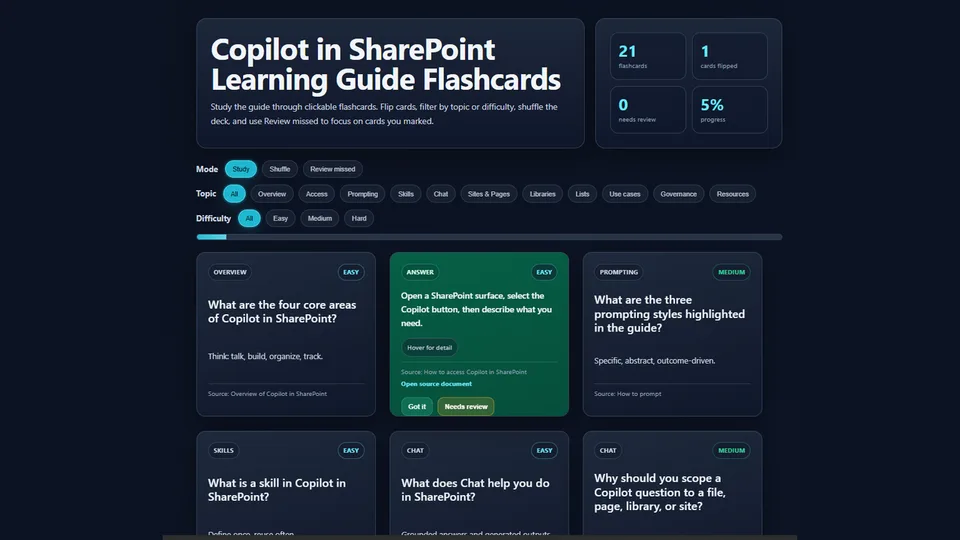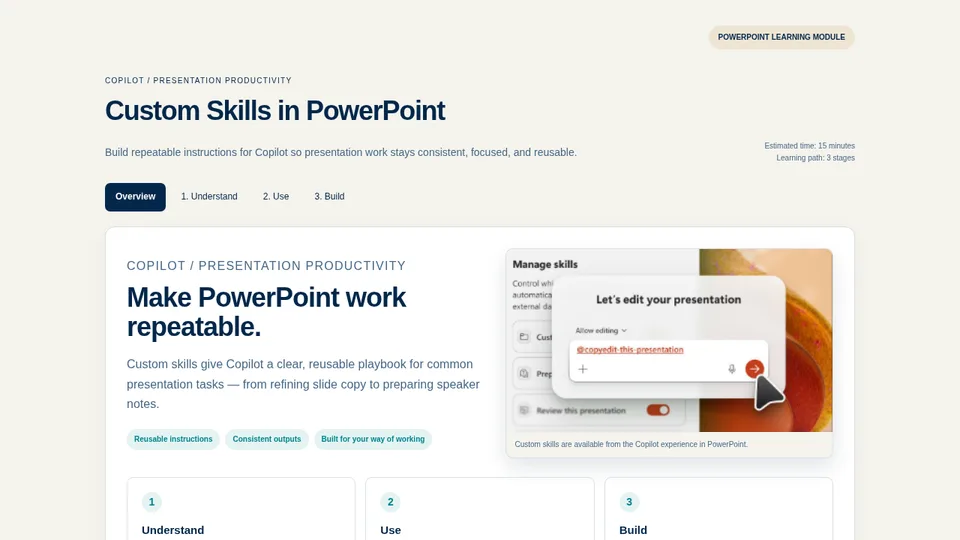
Reads a Learning Request Brief .docx generated from a Structured Document Generation form and maps every field — topic, audience, goals, up to three stages, flashcard concepts, practice exercise, success criteria, knowledge checks and next steps — into a guided learning dashboard.
The output is one self-contained HTML file that follows the bundled reference dashboard: a staged learning path, Why / When / How / Check blocks, CSS flip cards and an optional embedded overview visual. Content is grounded in the brief's authoritative source, and unverified details are flagged with a visible warning.
Turns a filled Learning Request Brief (a .docx generated from a SharePoint Structured Document Generation form) into a single self-contained HTML learning dashboard with up to 3 stages, flashcards, practice and checks. Content comes from the brief; the layout and visual system come from the reference dashboard bundled with the skill.
What you get
- One self-contained
.htmllearning dashboard (inline styles, SVGs and script, embedded image, no external assets or libraries), typically 40–70 KB - A hero with the topic, audience, goals and a duration chip (if supplied)
- A learning-path rail with exactly the stages in the brief (1–3), and one section per stage using Why / When / How / Check blocks for procedural content
- CSS flip-card decks built from the brief's flashcard concepts and knowledge checks, flipping on hover and keyboard focus
- A practice exercise with success criteria, a "Take it further" next-steps section and a footer with owner and source notes
- An optional overview visual: a
learning-visual.png(or.jpg) in the same folder as the brief is embedded as a base64 data URI; if it is missing, the image is omitted - Content grounded in the brief's authoritative source when one is given, with unverified details marked by a visible amber warning callout
- A short plain-language summary of what was built and any gaps left for the owner
When to use
Ask Copilot:
- "build the learning dashboard from this brief"
- "turn this brief into a learning experience"
- "design the page for this topic"
Select or attach a Learning Request Brief .docx generated from the form first. The skill is not meant for plain articles or support pages without stages, general slide decks, or topics that need more than 3 stages.
Form → Brief → Dashboard flow
- Upload
learning-request-brief-template.docx(indemo/sample-files/) to a SharePoint library and create a Structured Document Generation form from it. - Share the form. Required fields: LearningTopic, TargetAudience, LearningGoals and the Stage 1 set (Stage1Name, Stage1Description, Stage1KeyPoints). Stage 2 and Stage 3 are optional complete sets; Stage 3 requires Stage 2. Leave unused stage fields blank.
- Each submission produces a filled Learning Request Brief .docx.
- Select or attach the brief and invoke the Learning Designer skill.
- Save the HTML file, upload it to a SharePoint document library, and open it from there. Don't paste it into a SharePoint text web part: text web parts remove the page's styles and script, so the layout, tabs and quizzes stop working.
Package contents
The upload-ready package is learning-designer/:
SKILL.md— instructionsmapping/mapping.md— field-to-dashboard-component mapping, image handling and constraintsreferences/test-output-custom-skills.html— the reference dashboard ("Custom Skills in PowerPoint") that defines the layout, class names and visual system
Demo content
The Word template and a filled sample brief are in demo/sample-files/. Do not upload demo/ with the skill package.
SharePoint Skill
| Solution | Author(s) |
|---|---|
| learning-designer | Anand Ragavan | GitHub | LinkedIn |
Version history
| Version | Date | Comments |
|---|---|---|
| 1.0 | October 2026 | Initial Release |
Disclaimer
THIS CODE IS PROVIDED AS IS WITHOUT WARRANTY OF ANY KIND, EITHER EXPRESS OR IMPLIED, INCLUDING ANY IMPLIED WARRANTIES OF FITNESS FOR A PARTICULAR PURPOSE, MERCHANTABILITY, OR NON-INFRINGEMENT.
Package
Ready to install
The ZIP contains only the upload-ready inner skill folder.
View SKILL.md
---
name: learning-designer
description: "Turns a structured Learning Request Brief (from a SharePoint Structured Document Generation form) into a self-contained HTML learning dashboard with up to 3 stages, flashcards, practice, and checks. Use when the user attaches or selects a Learning Request Brief and asks to build a learning experience, create a dashboard from the brief, or design a guided learning page."
---

# Learning Designer

Turn a filled Learning Request Brief into a single self-contained HTML learning dashboard that matches the established visual system (navy/yellow, CSS-only flip cards, staged path, Why/When/How/Check blocks).

## When to use

- User provides or selects a Learning Request Brief `.docx` generated from the form.
- User asks to “build the learning dashboard”, “turn this brief into a learning experience”, or “design the page for this topic”.

## When not to use

- Plain article or support page with no stages or interactivity.
- General slide deck without the dashboard request.
- Topics that require more than 3 stages (ask the user to revise the brief before generating).

## Image handling

- Look in the same folder as the Learning Request Brief for a file named exactly `learning-visual.png` (preferred) or `learning-visual.jpg`.
- If found, embed it as a base64 data URI inside the HTML so the page remains fully self-contained.
- Place it in the hero grid (right side) or immediately below the hero as the overview visual — the same prominent position used in the Custom Skills in PowerPoint example.
- Add a short caption if the brief supplies one; otherwise use a neutral caption such as “Overview”.
- If the image is missing, omit it cleanly and continue. Never invent an image or use a placeholder that implies content exists.

## Flashcards

- Turn `{FlashcardConcepts}` and `{KnowledgeChecks}` into CSS flip cards using the `.flip` / `.flipInner` / `.flipFace` pattern added to the reference.
- Front = question or concept, back = answer.
- Cards must flip on hover and on keyboard focus (`:hover` and `:focus-within`).
- Place the deck in its own section or after the relevant stage. Do not use static button quizzes for these items.

- Do **not** add any organisational branding, logos, or text such as company names or site headers that are not present in the reference template.
- Clone only the structure and content from `references/test-output-custom-skills.html`. Do not invent or inject extra header elements.
- If the generated page includes any external branding, remove it before finishing.

Use `references/test-output-custom-skills.html` as the exact structural and visual reference.

Match its:
- Overall layout, CSS variables, and class names
- Tab navigation (Overview plus one tab per supplied stage, using the brief's stage names)
- Hero with figure image placement
- Card grids, control views, quiz blocks, and next-step buttons
- Typography, spacing, and colour system

When generating a new dashboard:
- Keep the CSS and JavaScript intact.
- Replace only the content (headings, body text, stage names, quiz questions, practice text, image src if a new `learning-visual.png` is supplied).
- Replace all sample-topic content, including the page title, metadata, labels, footer and image; omit the reference image when no new visual is supplied.
- Preserve the tab panel structure and interactive behaviour for the supplied stages. Use the existing stage IDs in order (`understand`, `use`, `build`), even when stage names change. Remove unused stage tabs, panels and learning-path tiles. Retarget every `data-next` button to the next supplied stage, or `overview` after the final stage.
- The reference button quizzes are examples, not extra required content. Render the brief's FlashcardConcepts and KnowledgeChecks as CSS flip cards as specified above; remove unused sample quizzes.
- Embed any new image as a base64 data URI in the same hero `<figure>` position.

Do not switch to a different design system. This file is the source of truth for look and interaction.

## Core workflow

1. **Read the brief**
   Extract all fields from the attached/selected Learning Request Brief. Required fields: LearningTopic, TargetAudience, LearningGoals, and Stage1Name / Stage1Description / Stage1KeyPoints. Stage 2 and Stage 3 are optional complete sets (Name / Description / KeyPoints); supplied stages must be consecutive. Treat blank values and unchanged `{Field}` placeholders as missing. If a required field is missing, a stage is incomplete, or Stage 3 is supplied without Stage 2, ask the user to complete or correct the brief before generating. Do not invent missing stages.

2. **Apply the mapping**
   Use `mapping/mapping.md` to place each field into the correct dashboard component. Include exactly the complete stages supplied (1-3).

3. **Ground the content**
   If `{AuthoritativeSource}` is present, read it and base facts on it. Never fabricate product behaviour, URLs, or claims. Mark any unverified detail with a visible amber warning callout.

4. **Build the HTML**
   Produce one self-contained `.html` file:
   - Hero with topic, audience, goals, duration chip (if supplied).
   - Learning-path rail with exactly the stages provided (1–3).
   - One section per stage using Why/When/How/Check blocks where the content is procedural.
   - Flip-card decks from FlashcardConcepts and KnowledgeChecks.
   - Practice exercise + success criteria.
   - “Take it further” / next-steps section.
   - Footer with owner and source notes.

5. **Validate**
   Confirm: the only script is the inline `<script>` block from the reference page (no external scripts, libraries or CDNs), no `on*` handlers, no external assets, keyboard-reachable flip cards, prints fully. Copy the design-system CSS verbatim. Check that the tab count is one overview plus the supplied stage count, all navigation targets exist, no unchanged field placeholders remain, and no reference-topic content remains unless it is supported by the brief.

6. **Deliver**
   Save the HTML and give a short summary: topic, stages, any placeholders left, and how to publish the page: save the HTML file, upload it to a SharePoint document library, and open it from there.

## Field placement (quick reference)

| Field | Dashboard location |
|-------|--------------------|
| LearningTopic | Hero h1 + title |
| TargetAudience | Hero lede / chips |
| LearningGoals | Hero short card + opening lead |
| StageNName | Rail tile + stage h2 |
| StageNDescription | Stage lead |
| StageNKeyPoints | Stage body (bullets or Why/When/How/Check) |
| FlashcardConcepts | Flip decks |
| PracticeExercise + SuccessCriteria | Practice block |
| KnowledgeChecks | Final quiz cards |
| NextSteps | Take-it-further section |
| Prerequisites, Owner, Source, Duration | Supporting notes, chips, footer |

## Design system rules

- Flip cards use CSS (`:hover` / `:focus-within`) and accordions use `<details>`, as in the reference page.
- Inline script only, as in the reference page: keep its single inline `<script>` block for the tabs and quiz buttons. No external scripts, libraries or CDNs.
- Self-contained (inline styles, inline SVGs).
- Maximum 3 stages.
- Written instructions must stand alone without images.

## Output

- One `.html` file (typically 40–70 KB).
- Short plain-language summary of what was built and any gaps left for the owner.
References
- agentskills.io specification
The specification that SharePoint AI skills follow for installation and discovery.
Discuss this skill
Ask a question, share how you used it, or suggest an improvement with the community.
Open GitHub Discussions