Back to view formats
View formattingSharePoint Online

Bookmarks

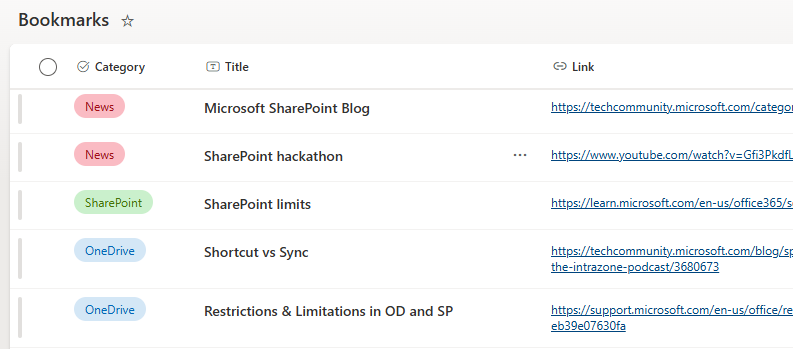
Creating custom bookmarks for SharePoint page.

Bookmarks formatting preview
Sample preview · View original image

Copy. Apply. Make it yours.

Get this format

1 definition

Review the requirements below, then paste this JSON into the matching formatting panel. Show me where.

Use your list's internal column names and replace any tenant-specific URLs or flow IDs. Formatting is presentation, not a way to secure data.

View formatting
Download JSON
{
  "$schema": "https://developer.microsoft.com/json-schemas/sp/v2/row-formatting.schema.json",
  "hideSelection": true,
  "hideColumnHeader": true,
  "groupProps": {
    "headerFormatter": {
      "elmType": "div",
      "customRowAction": {
        "action": "defaultClick"
      },
      "style": {
        "width": "100%",
        "margin-right": "25px",
        "background-color": "=if(@group.fieldData == 'OneDrive', '#0078D4',if(@group.fieldData == 'SharePoint', '#0b8466',if(@group.count == 3, '#FF980E',if(@group.fieldData == 'Teams', '#6264A7','Gray'))))",
        "color": "white",
        "padding": "4px 8px 5px",
        "border-radius": "8px",
        "cursor": "pointer"
      },
      "children": [
        {
          "elmType": "div",
          "children": [
            {
              "elmType": "div",
              "children": [
                {
                  "elmType": "div",
                  "txtContent": "=@group.fieldData+' ('+@group.count+')'",
                  "style": {
                    "padding-left": "5px"
                  }
                }
              ]
            }
          ]
        }
      ]
    }
  },
  "rowFormatter": {
    "elmType": "a",
    "txtContent": "[$Title]",
    "attributes": {
      "class": "ms-bgColor-neutralLight--hover ms-fontColor-neutralSecondary-hover",
      "href": "[$Link]",
      "target": "=if(indexOf([$Link],'/sites/')>-1,'','_blank')"
    },
    "style": {
      "font-size": "14px",
      "font-weight": "400",
      "text-decoration": "none",
      "color": "#323130",
      "padding": "3px 6px 6px 6px",
      "margin-left": "40px"
    }
  }
}

From the contributor

How to use this sample

Summary

This sample shows how to create SharePoint page bookmarks using list items with custom JSON formatting, inspired by João Ferreira's post.

Features:

  1. Navigate to specific sections of a SharePoint page using heading styles (H2, H3,...) to generate anchor links
  2. Open external links in a new tab (e.g https://google.com)
  3. Group and filter content by category

screenshot of the sample

screenshot of the sample

View requirements

Column Name Required Type
Title Yes Text
Category Yes Choice
Link Yes Hyperlink

[!NOTE] It is necessary to group the view by the Category column.

Sample

Solution Author(s)
bookmarks.json Watana

Version history

Version Date Comments
1.0 June 22, 2025 Initial release

Disclaimer

THIS CODE IS PROVIDED AS IS WITHOUT WARRANTY OF ANY KIND, EITHER EXPRESS OR IMPLIED, INCLUDING ANY IMPLIED WARRANTIES OF FITNESS FOR A PARTICULAR PURPOSE, MERCHANTABILITY, OR NON-INFRINGEMENT.