
Back to view formats
View formattingSharePoint Online

Contact Custom Avatar Card

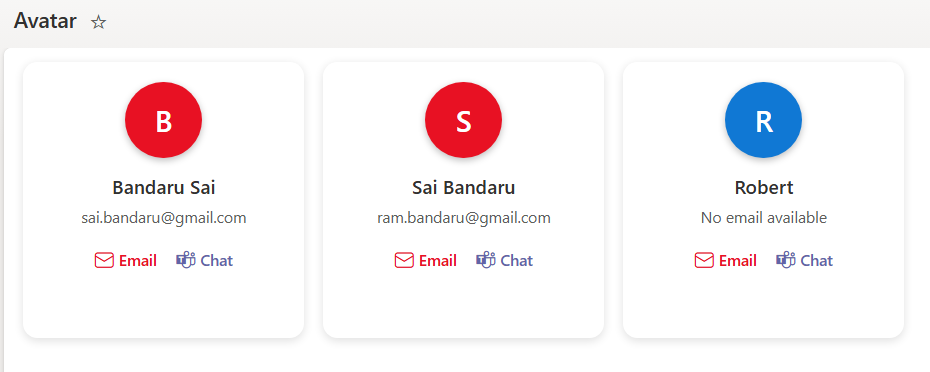
This sample uses SharePoint List Formatting to display Contact Custom Avatar data as a Card view.

Contact Custom Avatar Card formatting preview
Sample preview · View original image

Copy. Apply. Make it yours.

Get this format

1 definition

Review the requirements below, then paste this JSON into the matching formatting panel. Show me where.

Use your list's internal column names and replace any tenant-specific URLs or flow IDs. Formatting is presentation, not a way to secure data.

View formatting
Download JSON
{
  "$schema": "https://developer.microsoft.com/json-schemas/sp/v2/tile-formatting.schema.json",
  "height": "230",
  "width": "250",
  "formatter": {
    "elmType": "div",
    "style": {
      "display": "flex",
      "flex-direction": "column",
      "align-items": "center",
      "justify-content": "flex-start",
      "padding": "16px",
      "gap": "12px",
      "background-color": "white",
      "border-radius": "12px",
      "overflow": "hidden",
      "box-shadow": "0 2px 8px rgba(0,0,0,0.12)",
      "margin": "8px"
    },
    "children": [
      {
        "elmType": "div",
        "style": {
          "width": "64px",
          "height": "64px",
          "border-radius": "50%",
          "overflow": "hidden",
          "background-color": "=if([$Email.email], '#e81123', '#1078D4')",
          "display": "flex",
          "align-items": "center",
          "justify-content": "center",
          "font-weight": "600",
          "font-size": "24px",
          "color": "white",
          "box-shadow": "0 2px 6px rgba(0,0,0,0.25)",
          "text-transform": "uppercase"
        },
        "txtContent": "=if([$Email.title], substring([$Email.title], 0, 1), '?')"
      },
      {
        "elmType": "div",
        "style": {
          "display": "flex",
          "flex-direction": "column",
          "align-items": "center",
          "gap": "6px",
          "text-align": "center"
        },
        "children": [
          {
            "elmType": "div",
            "style": {
              "font-size": "16px",
              "font-weight": "600",
              "color": "#323130"
            },
            "txtContent": "[$Email.title]"
          },
          {
            "elmType": "div",
            "style": {
              "font-size": "13px",
              "color": "#605e5c"
            },
            "txtContent": "=if([$Email.email], [$Email.email], 'No email available')"
          }
        ]
      },
      {
        "elmType": "div",
        "style": {
          "display": "flex",
          "flex-direction": "row",
          "gap": "16px",
          "margin-top": "6px"
        },
        "children": [
          {
            "elmType": "a",
            "attributes": {
              "href": "=if([$Email.email], 'mailto:' + [$Email.email], '')",
              "target": "_blank"
            },
            "style": {
              "text-decoration": "none",
              "cursor": "pointer",
              "display": "flex",
              "align-items": "center",
              "gap": "4px",
              "color": "#e81123",
              "font-size": "13px",
              "font-weight": "500"
            },
            "children": [
              {
                "elmType": "span",
                "attributes": {
                  "iconName": "Mail"
                },
                "style": {
                  "font-size": "16px"
                }
              },
              {
                "elmType": "span",
                "txtContent": "Email"
              }
            ]
          },
          {
            "elmType": "a",
            "attributes": {
              "href": "=if([$Email.email], 'https://teams.microsoft.com/l/chat/0/0?users=' + [$Email.email], '')",
              "target": "_blank"
            },
            "style": {
              "text-decoration": "none",
              "cursor": "pointer",
              "display": "flex",
              "align-items": "center",
              "gap": "4px",
              "color": "#6264a7",
              "font-size": "13px",
              "font-weight": "500"
            },
            "children": [
              {
                "elmType": "span",
                "attributes": {
                  "iconName": "TeamsLogo"
                },
                "style": {
                  "font-size": "16px"
                }
              },
              {
                "elmType": "span",
                "txtContent": "Chat"
              }
            ]
          }
        ]
      }
    ]
  }
}

From the contributor

How to use this sample

Summary

This SharePoint view formatting sample provides a modern, interactive Contact custom avatar card for list items using JSON formatting. It enhances the display of user information and enables quick actions directly from the list. The column supports Person or Group type fields for Email, making it fully compatible with SharePoint user data.
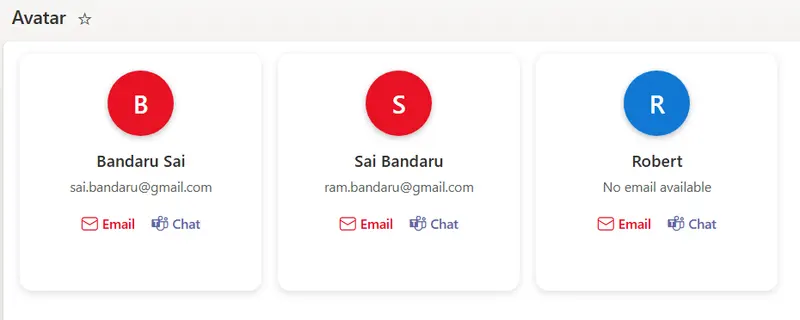
screenshot of the sample

View Requirements

This formatting works for lists with the following fields:

Field Type Description
Email Person or Group column User’s email (must be of Person/Group type)

Key Features

Custom Avatar

  • Displays the first letter of the user’s name inside a circular avatar.
  • Dynamic background color:
    • Red (#e81123) if the user has an email.
    • Blue (#1078D4) if no email is provided.
  • Rounded circle with shadow and uppercase initials for visibility.

Person/Email Integration

  • Works with Person or Group column type to extract the user's email and display name.

Quick Actions

  • Email icons opens the default mail client with the user's email.
  • Teams icons opens Microsoft Teams for direct conversation.

Usage Instructions

  1. Navigate to your SharePoint list.
  2. Click All items → Add view.
  3. Select Gallery as the layout and give it a name of your choice.
  4. Open the new view → click Format current view.
  5. Choose Advanced mode and paste the JSON sample into the formatting editor.
  6. Save the formatting.

Your list will now display in a Gallery (card-style) layout with custom avatars and action buttons.

Requirements

  • SharePoint Online (Modern Experience)
  • Person or Group column type for Email
  • Modern browser for full functionality

Sample

Solution Author(s)
contact-custom-avatar.json Sai Bandaru

Version history

Version Date Comments
1.0 August 25, 2025 Initial release

Disclaimer

THIS CODE IS PROVIDED AS IS WITHOUT WARRANTY OF ANY KIND, EITHER EXPRESS OR IMPLIED, INCLUDING ANY IMPLIED WARRANTIES OF FITNESS FOR A PARTICULAR PURPOSE, MERCHANTABILITY, OR NON-INFRINGEMENT.