
From the contributor
How to use this sample
Summary
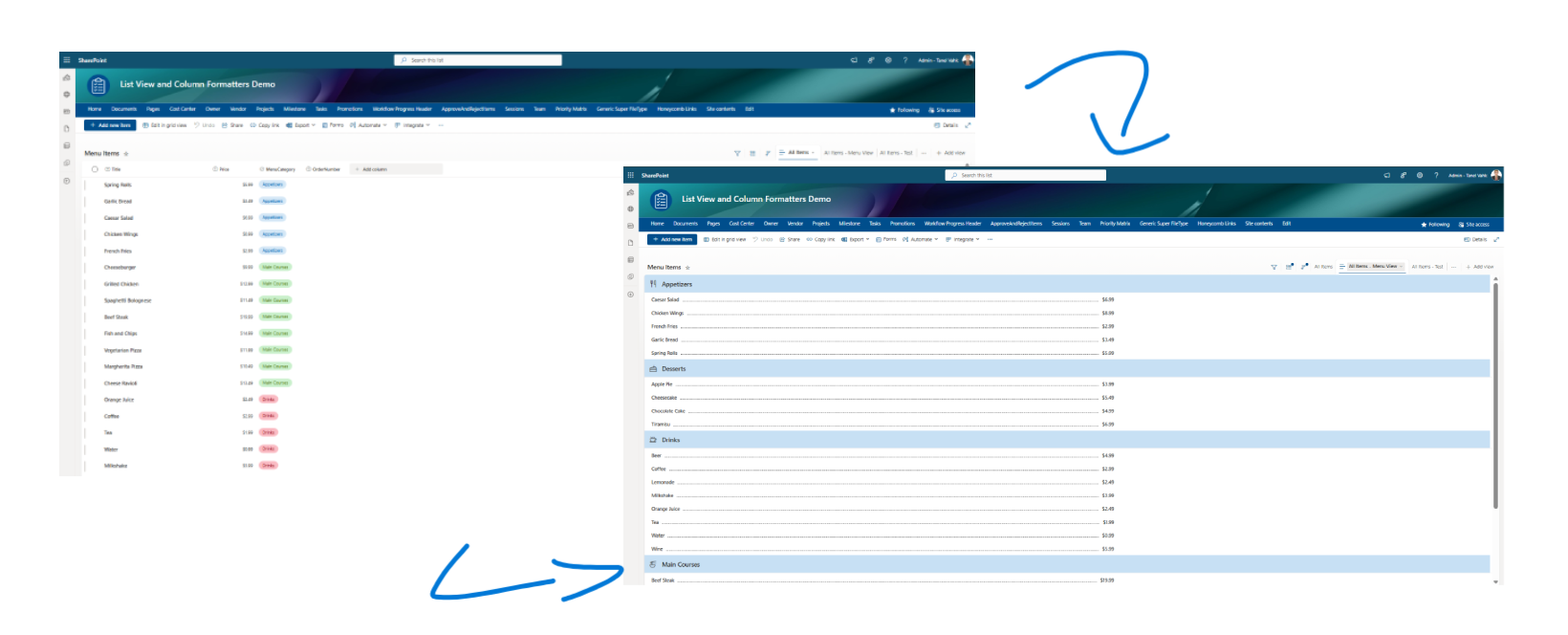
This sample transforms SharePoint list items into a styled menu layout using list view formatting. Each row is automatically formatted to visually separate the item name and price, mimicking a clean, restaurant-style pricing table - perfect for food menus, service lists, or product offerings.
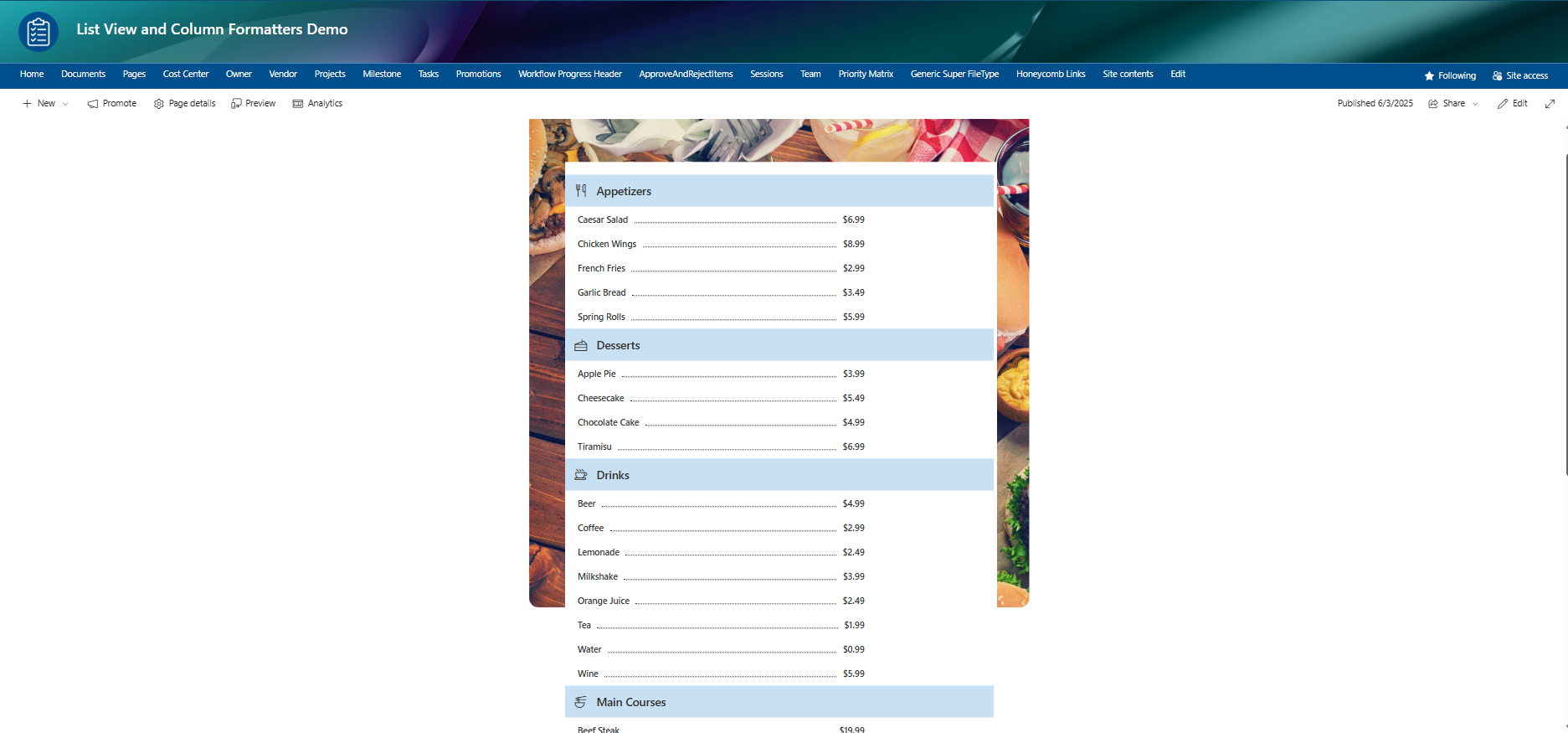
Note: To customise group icons (e.g. for MainCategory), edit the iconName attribute in the JSON (around line 42).
"attributes": {
  "iconName": "=if(@group.fieldData.displayValue == 'Appetizers', 'EatDrink', if(@group.fieldData.displayValue == 'Drinks', 'CoffeeScript', if(@group.fieldData.displayValue == 'Desserts', 'Cake', if(@group.fieldData.displayValue == 'Main Courses', 'Chopsticks', ''))))"
}
View requirements
| Type | Internal Name | Required |
|---|---|---|
| Single line of text | Title | Yes |
| Number | Price | Yes |
| Choice | MainCategory | Yes |
- Make sure to use the List View and include all the specified fields in the view.
- To customize the menu order, add a sorting column (e.g.,
OrderNumber) and use it as the sort field in the view.
Sample
| Solution | Author(s) |
|---|---|
| menu-style-list.json | Tanel Vahk |
Version history
| Version | Date | Comments |
|---|---|---|
| 1.0 | June 3, 2025 | Initial release |
Disclaimer
THIS CODE IS PROVIDED AS IS WITHOUT WARRANTY OF ANY KIND, EITHER EXPRESS OR IMPLIED, INCLUDING ANY IMPLIED WARRANTIES OF FITNESS FOR A PARTICULAR PURPOSE, MERCHANTABILITY, OR NON-INFRINGEMENT.