From the contributor
How to use this sample
Summary
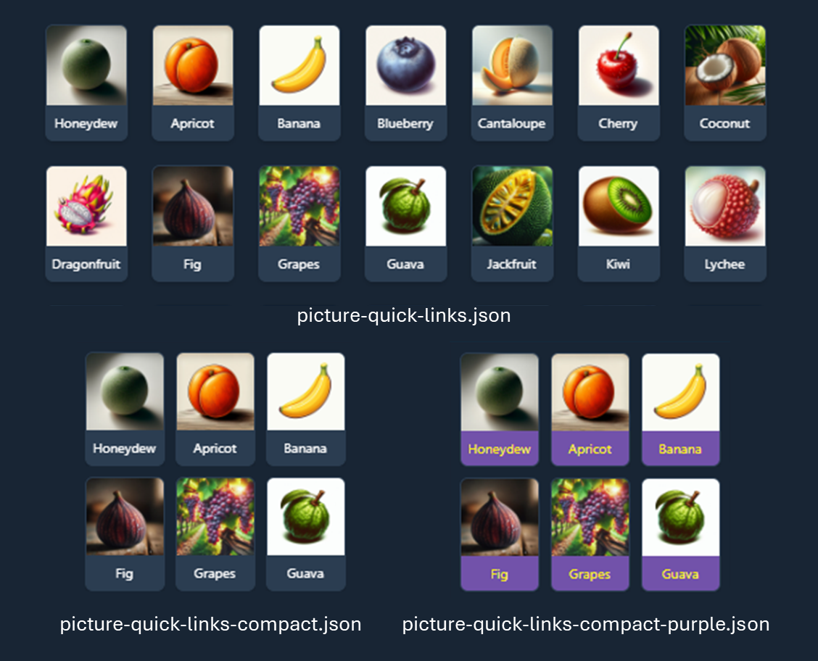
This sample shows custom quick links for adding to a vertical section in a SharePoint page.
Images are stored in a central location, so updating an image automatically updates it everywhere it's used. This is especially useful for large companies with many divisions and departments.
View requirements
The view must be set to gallery.
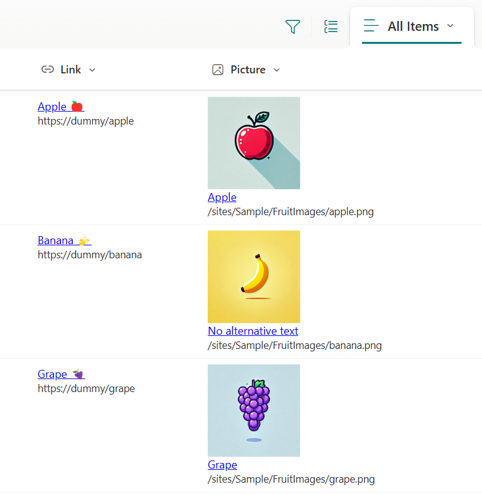
This format expects the following columns to be part of the view:
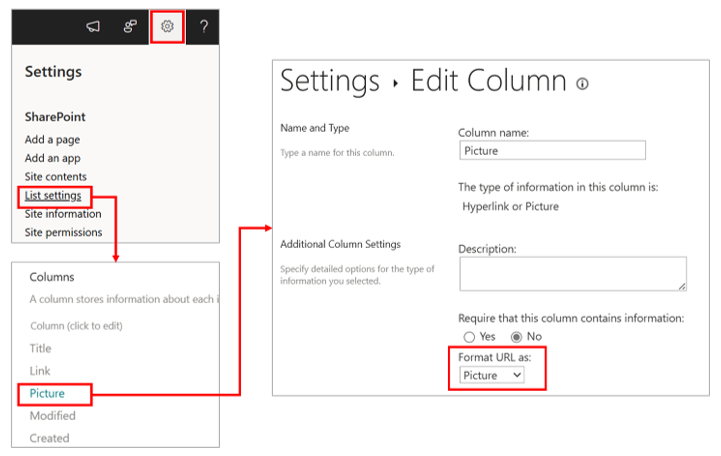
Field Name Required Type Link Yes Hyperlink or Picture (Format URL as: Hyperlink) Picture Yes Hyperlink or Picture (Format URL as: Picture)
[!NOTE]
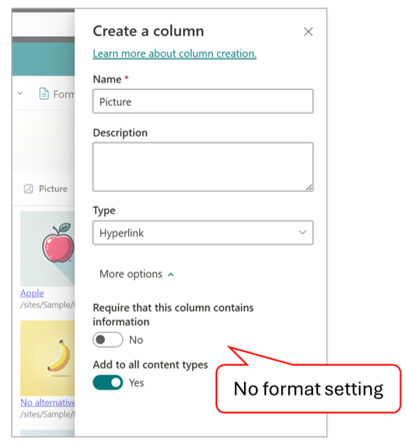
The hyperlink column format cannot be set to Picture in the modern column create or edit pane.
To set the hyperlink column format to Picture, you must do so from the classic create or edit column screen.
When setting an external site's image URL in the
Picturecolumn, the image may not be displayed. This happens when attempting to retrieve images from a domain that is not allowed. To enable image display, you'll need to configure the HTML Field Security settings. For more details, refer to Allow or restrict the ability to embed content on SharePoint pages.
Sample
| Solution | Author(s) |
|---|---|
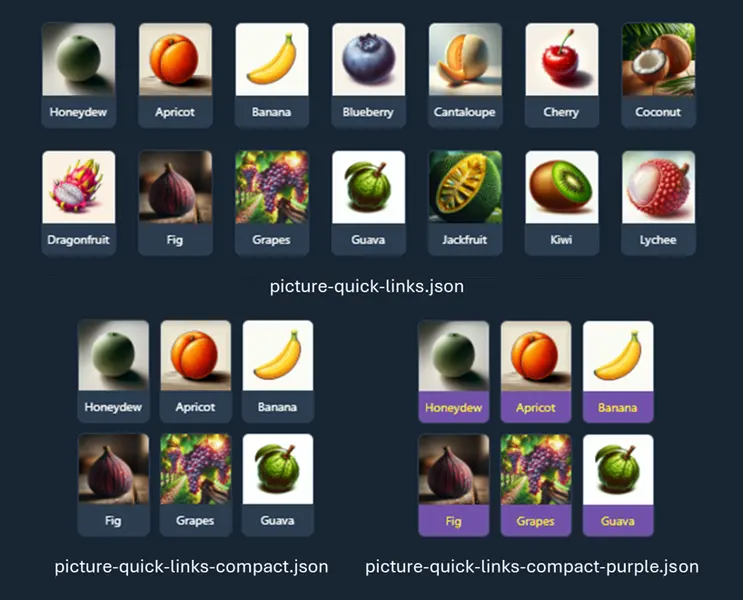
| picture-quick-links.json | Watana |
| picture-quick-links-compact.json | Watana |
| picture-quick-links-compact-purple.json | Watana |
Version history
| Version | Date | Comments |
|---|---|---|
| 1.0 | September 16, 2024 | Initial release |
Disclaimer
THIS CODE IS PROVIDED AS IS WITHOUT WARRANTY OF ANY KIND, EITHER EXPRESS OR IMPLIED, INCLUDING ANY IMPLIED WARRANTIES OF FITNESS FOR A PARTICULAR PURPOSE, MERCHANTABILITY, OR NON-INFRINGEMENT.
Additional notes
If you create a list view and apply hyperlink-display-url to format the Link or Picture columns, you can display the URLs set in the hyperlink column on the view, making it easier to check the link destinations and manage maintenance.