
From the contributor
How to use this sample
Summary
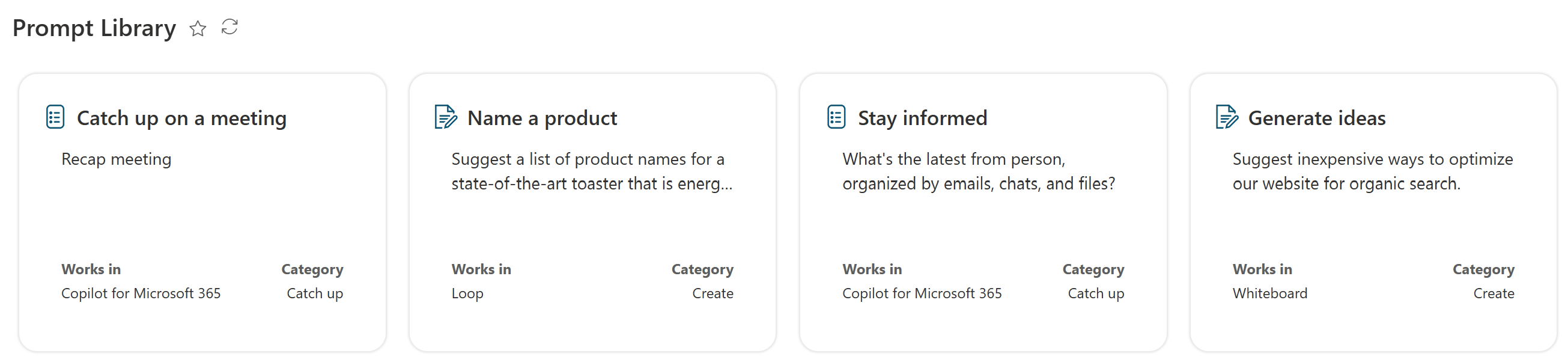
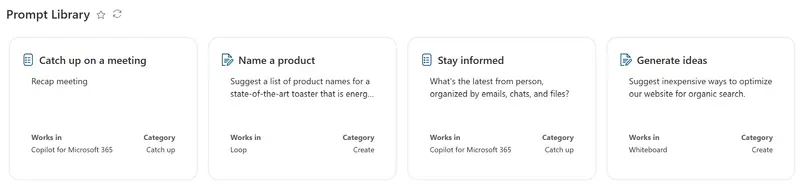
This sample demonstrates how to format list items as prompt cards. The design is inspired from the Copilot Lab prompt library. It features the following:
- Responsive tile layout: Items are displayed in a card-based layout that adjusts to different screen sizes.
- Conditional Icons: Icons change dynamically based on the value of the PromptCategory column.
- Theme Color Classes: Uses theme color classes to ensure the format displays as intended regardless of the site's theme (light, dark, custom, etc.).
- Gallery View: The formatting is designed to work with the Gallery view style.
View requirements
Important: This formatting depends on the Gallery view style. Make sure to set your view to Gallery before applying the formatting.
| Type | Internal Name | Required |
|---|---|---|
| Single line of text | Title | Yes |
| Multiple lines of text | Prompt | Yes |
| Choice | PromptCategory | Yes |
| Choice (allow multiple) | Worksin | Yes |
| Calculated (Single line of text) | Icon | Yes |
Column Details
Title (Single line of text): A concise name for the prompt.
Prompt (Multiple lines of text): The full text of the prompt.
PromptCategory (Choice): Categorize prompts for easy filtering. Choices include:
- Understand
- Create
- Catch up
- Ask
- Edit
- Learn
- Design
- Code
- Analyze
- Manage
Worksin (Choice - allow multiple selections): Specify applications or contexts where the prompt is effective. Choices include:
- Business Chat (work)
- Copilot chat (web)
- ChatGPT
- GitHub Copilot
- Teams
- Outlook
- Word
- Excel
- PowerPoint
- OneNote
- Loop
- Whiteboard
- SharePoint
- OneDrive
- Planner
- Stream
- Forms
- Viva Engage
Icon (Calculated - Single line of text): This column calculates the appropriate icon based on the PromptCategory. You need the Icon calculated column to display the icon associated with the PromptCategory column. Use the following formula for this calculated column:
=IF(ISBLANK([PromptCategory]),"PageEdit",IF([PromptCategory]="Understand","Lightbulb",IF([PromptCategory]="Create","TextDocumentEdit",IF([PromptCategory]="Catch up","PageList",IF([PromptCategory]="Ask","Feedback",IF([PromptCategory]="Edit","Edit",IF([PromptCategory]="Learn","LearningTools",IF([PromptCategory]="Design","EditCreate",IF([PromptCategory]="Code","CodeEdit",IF([PromptCategory]="Analyze","ComplianceAudit",IF([PromptCategory]="Manage","DateTime","PageEdit")))))))))))
[!NOTE] The separator character in the Calculated column is either
,(comma) or;(semicolon), depending on your locale. If your locale uses;as a separator, replace,with;in the formula provided above.
If you'd like to require approval before the prompt is shown in the prompt library list, you can use Microsoft Power Automate to request approval when a SharePoint item is created and use the "Stop sharing an item or a file" action until the item is approved.
Sample
| Solution | Author(s) |
|---|---|
| prompt-cards.json | Pat McGown (@pmcgown) |
Version history
| Version | Date | Comments |
|---|---|---|
| 1.0 | October 11, 2024 | Initial release |
Disclaimer
THIS CODE IS PROVIDED AS IS WITHOUT WARRANTY OF ANY KIND, EITHER EXPRESS OR IMPLIED, INCLUDING ANY IMPLIED WARRANTIES OF FITNESS FOR A PARTICULAR PURPOSE, MERCHANTABILITY, OR NON-INFRINGEMENT.
Additional notes
- Be sure to check your locale’s separator setting when creating Calculated columns. Refer to the Calculated column documentation for more details.