
From the contributor
How to use this sample
Summary
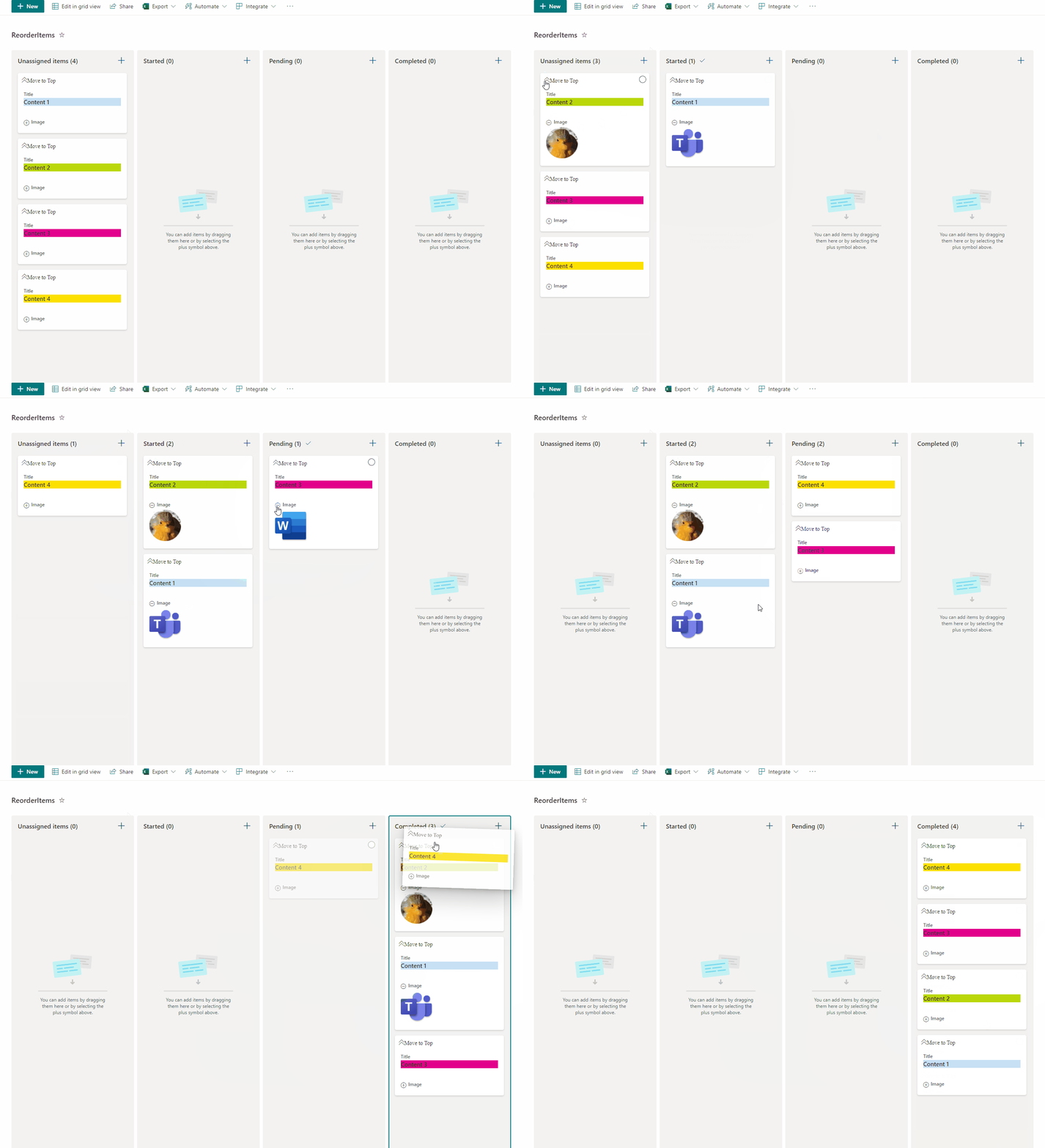
This sample allow users to manage card order in Board Views and also enables expanding and collapsing images. This sample has the option "Move to Top" that allows users to move cards to the top of the board view as a way to rearrange card positions.
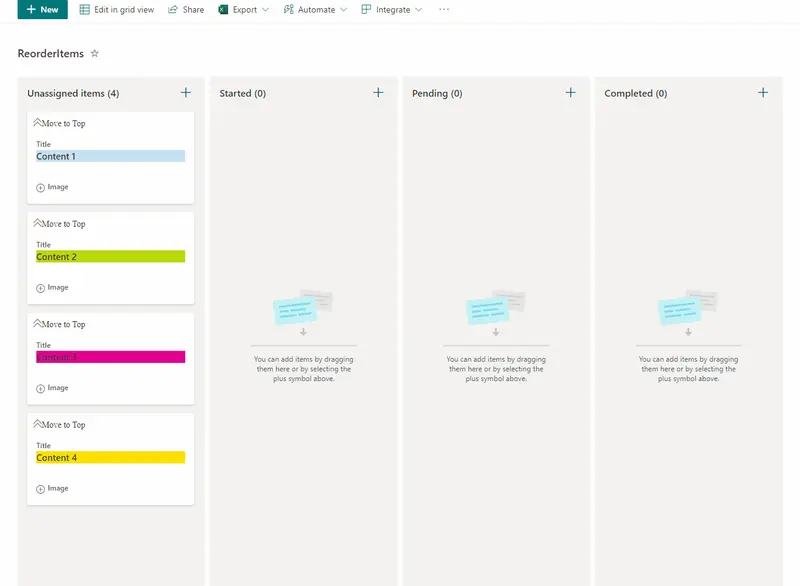
View requirements
- The format expect the following fields:
| Field | Type |
|---|---|
| Title | Single line of text |
| Category | Choice - Include the following options "Started,Pending,Completed" |
| Order | Single line of text - Manage the order of cards |
| Image | Single line of text - This field allow to include url to image. |
| Expand | Yes/No - default value "No" |
Create Board View
- Access to View dropdown and select "Create new view"
- Add new Name and select option "Board"
Edit List View requirements
- Access to List Settings > access to "Views" area and select created view.
- Edit View where format will be included:
- Access to "Sort" Area and select column "Order" and check as descending order, this option order the cards based on changed.
Sample
| Solution | Author(s) |
|---|---|
| reorder-expand-board-items.json | André Lage |
Version history
| Version | Date | Comments |
|---|---|---|
| 1.0 | February 15, 2022 | Initial release |
Disclaimer
THIS CODE IS PROVIDED AS IS WITHOUT WARRANTY OF ANY KIND, EITHER EXPRESS OR IMPLIED, INCLUDING ANY IMPLIED WARRANTIES OF FITNESS FOR A PARTICULAR PURPOSE, MERCHANTABILITY, OR NON-INFRINGEMENT.