
From the contributor
How to use this sample
Summary
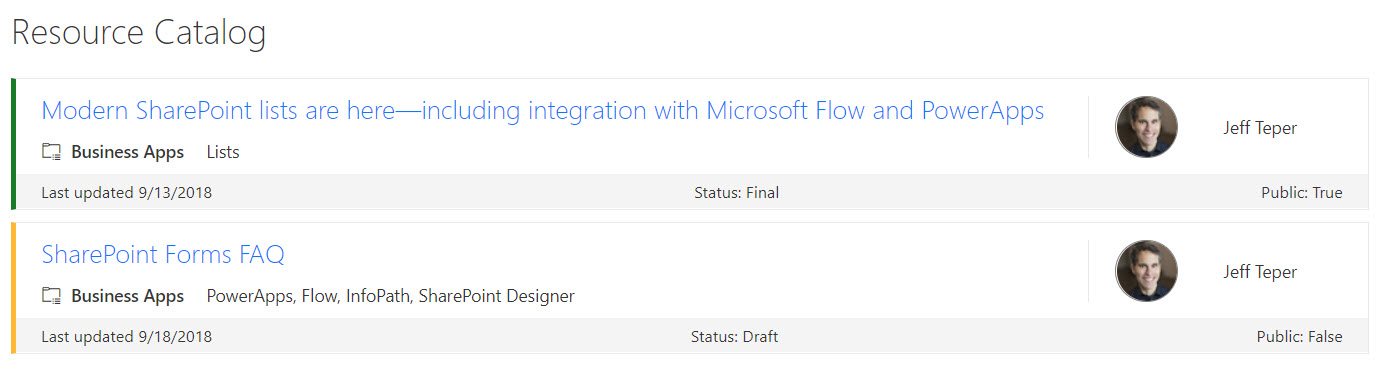
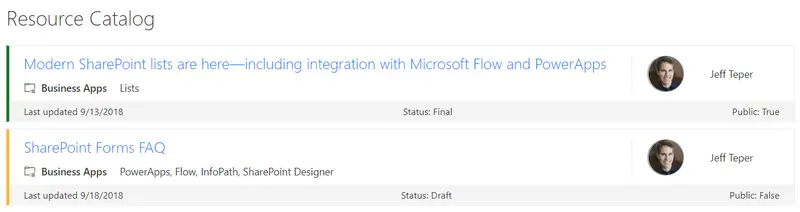
SharePoint lists are excellent places to store information. This example demonstrates how to use a custom SharePoint list to implement a marketing resources catalog. This sample defines a custom view to bring focus to the status of items in the resource catalog. It also provides a better visual experience by displaying all the data in an easy to read format by using icons, colors, and profile pictures.
View requirements
The view must include these columns:
Standard columns
- LinkTitle
- Modified
Custom columns
| Column Name | Type |
|---|---|
| ResourcePillar | Text |
| ResourceTechnology | Text |
| ResourceStatus | Text |
| ResourcePublic | Boolean |
| ResourceOwner | User |
Site Script
This sample includes a site script (create-list.json) that creates the required site columns, the Resource Catalog list, and a new view named All Items - customized in the list that contains all the required columns.
See the SharePoint site design and site script overview article to learn how to use the site script.
Sample
| Solution | Author(s) |
|---|---|
| resource-catalog.json | Todd Baginski, Lincoln DeMaris, Chris McNulty, Tyler Lui, Justin So |
Version history
| Version | Date | Comments |
|---|---|---|
| 1.0 | October 9, 2018 | Initial release |
Disclaimer
THIS CODE IS PROVIDED AS IS WITHOUT WARRANTY OF ANY KIND, EITHER EXPRESS OR IMPLIED, INCLUDING ANY IMPLIED WARRANTIES OF FITNESS FOR A PARTICULAR PURPOSE, MERCHANTABILITY, OR NON-INFRINGEMENT.
Additional notes
None