
From the contributor
How to use this sample
Summary
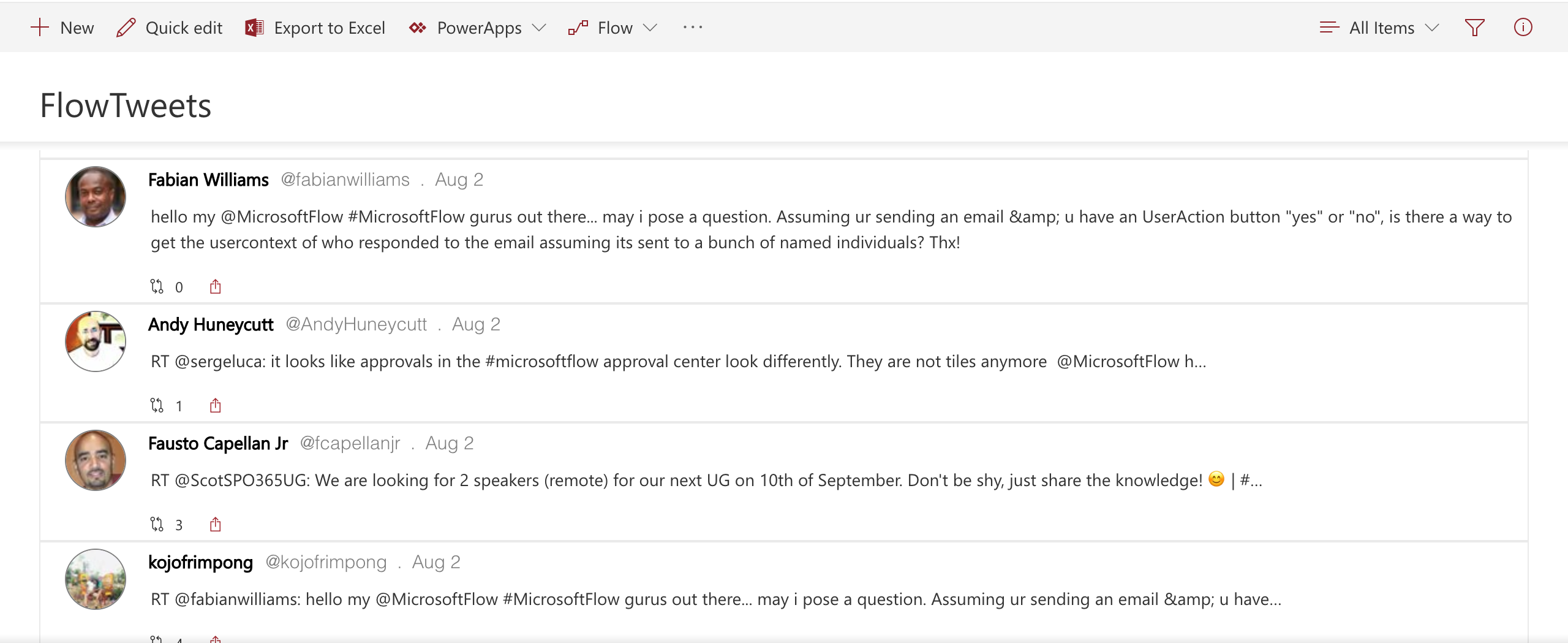
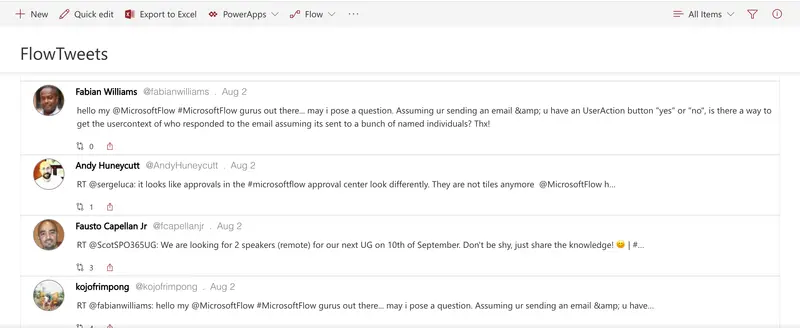
This sample formats your SharePoint list view to look like Twitter. If you are using the Microsoft Flow Templates to track tweets in a SharePoint list, this is a great way to format your list so that it looks more like Twitter. For more info on Flow Templates that take Tweets and add them to a SharePoint list check out this template: https://us.flow.microsoft.com/en-us/galleries/public/templates/e78571e5c70e4806a18eeacba5a897c8/save-tweets-that-include-a-specific-hashtag-to-a-sharepoint-list/
This sample features the following:
- Responsive layout through flexbox
- Shows the number of retweets
- Share icon which takes you to the Tweet in Twitter so you can like, retweet, etc
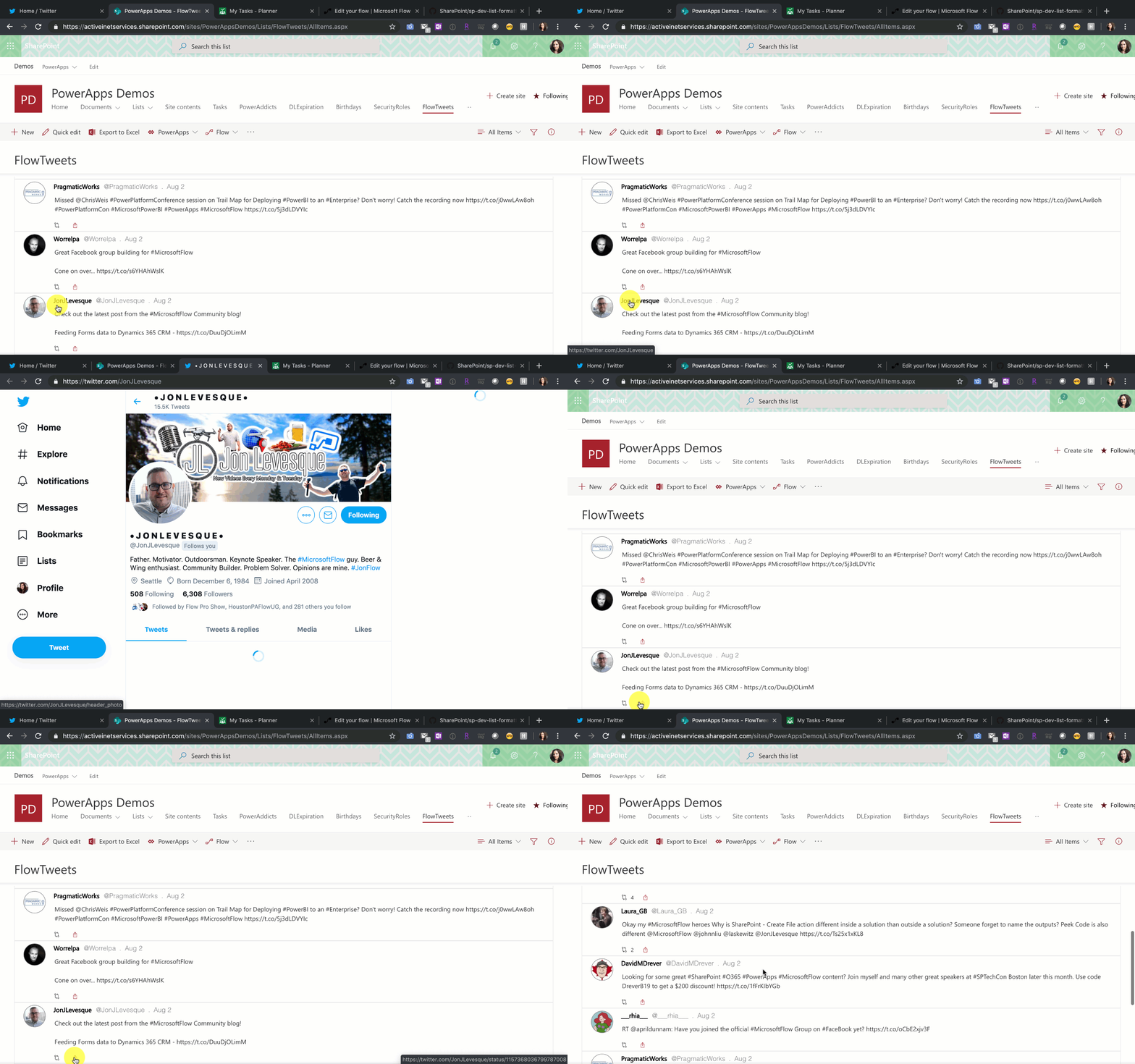
- The Person's name is a hyperlink to their Profile
- Pulls in Twitter Profile Pictures
Screen Capture of working Links
View requirements
| Type | Internal Name | Required |
|---|---|---|
| Single line of text | Title | Yes |
| Single line of text | TweetBy | Yes |
| Single line of text | TweetByFullName | Yes |
| Date Time | TweetDate | Yes |
| Calculated Column | TweetFormattedDate | Yes |
| Hyperlink | TwitterProfilePic | Yes |
| Hyperlink | ProfileLink | Yes |
| Hyperlink | LinkToTweet | Yes |
| Multi Line of Text | FullTweet | Yes |
| Number | NumbRetweets | Yes |
You need the TweetFormattedDate Calculated Column so that it only shows the current month name spelled out and date (not the year or time). The formula for this calculated column is below:
=TEXT(TweetDate,"mmm d")
Sample
| Solution | Author(s) |
|---|---|
| twitter-timeline.json | April Dunnam |
Version history
| Version | Date | Comments |
|---|---|---|
| 1.0 | August 2, 2019 | Initial release |
Disclaimer
THIS CODE IS PROVIDED AS IS WITHOUT WARRANTY OF ANY KIND, EITHER EXPRESS OR IMPLIED, INCLUDING ANY IMPLIED WARRANTIES OF FITNESS FOR A PARTICULAR PURPOSE, MERCHANTABILITY, OR NON-INFRINGEMENT.