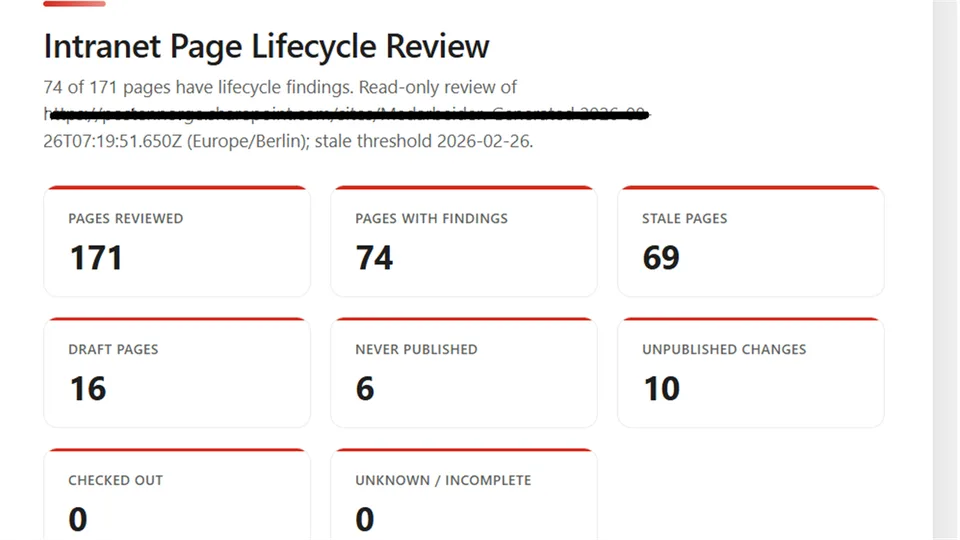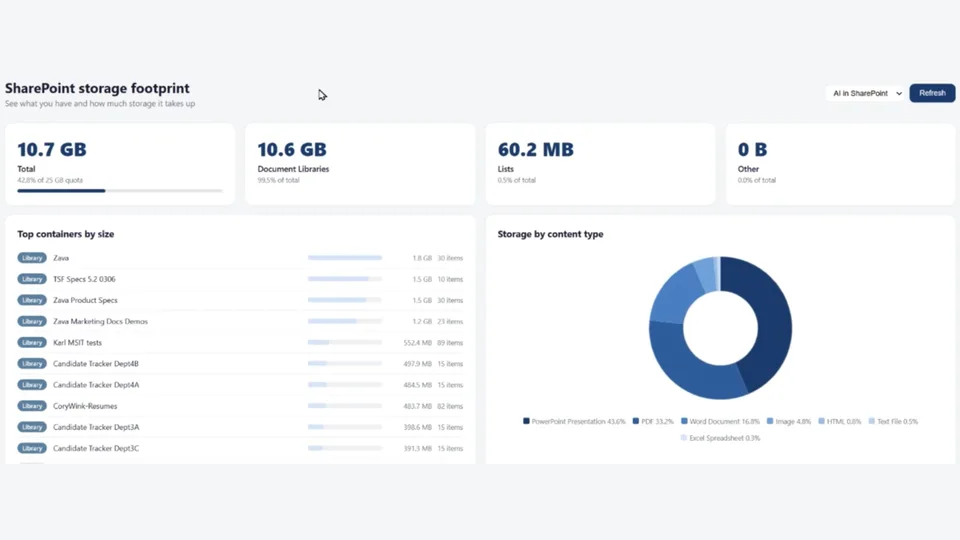
Broken or stale links quietly erode trust in SharePoint sites, especially after migrations, restructures, and content handovers. This skill audits the current site, a named library, or selected items for internal SharePoint links, external URLs, and hyperlink-column targets without modifying any content.
It resolves SharePoint targets when possible, validates external links with safe read-only checks, classifies findings by severity, and saves a self-contained HTML report with summary totals, per-item results, status details, and a prioritized remediation list in a Link Reports folder.
Scans SharePoint pages, news posts, and hyperlink fields for broken or risky links and saves a self-contained HTML link-health report to the site. It stays read-only for content and only writes the final report file.
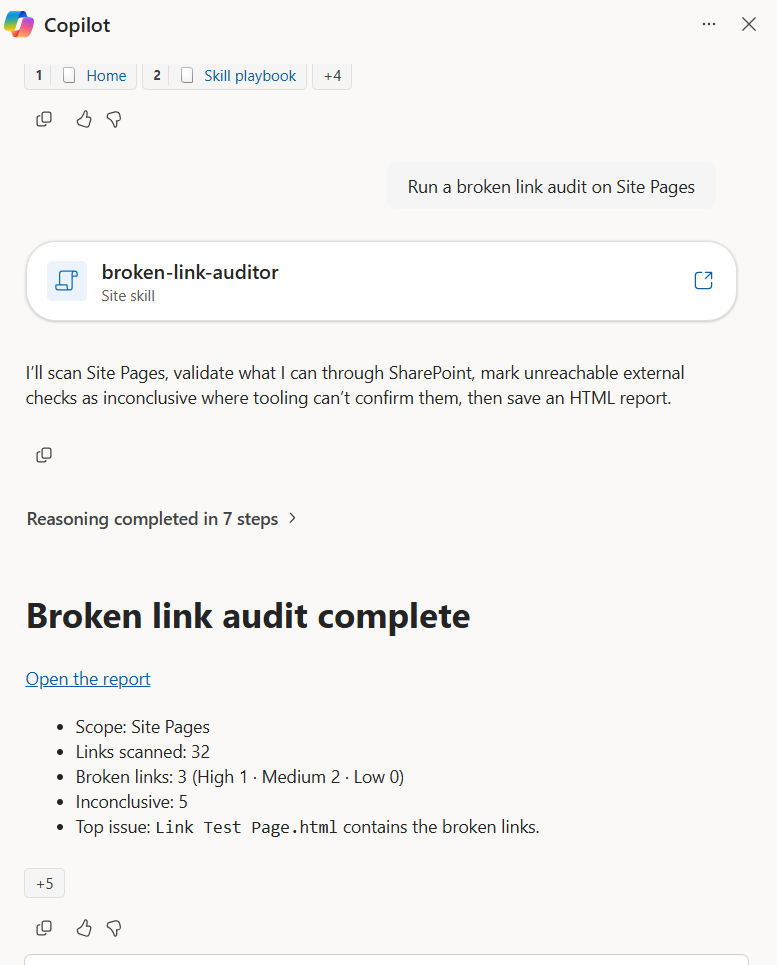
Skill invoked in Copilot in SharePoint:
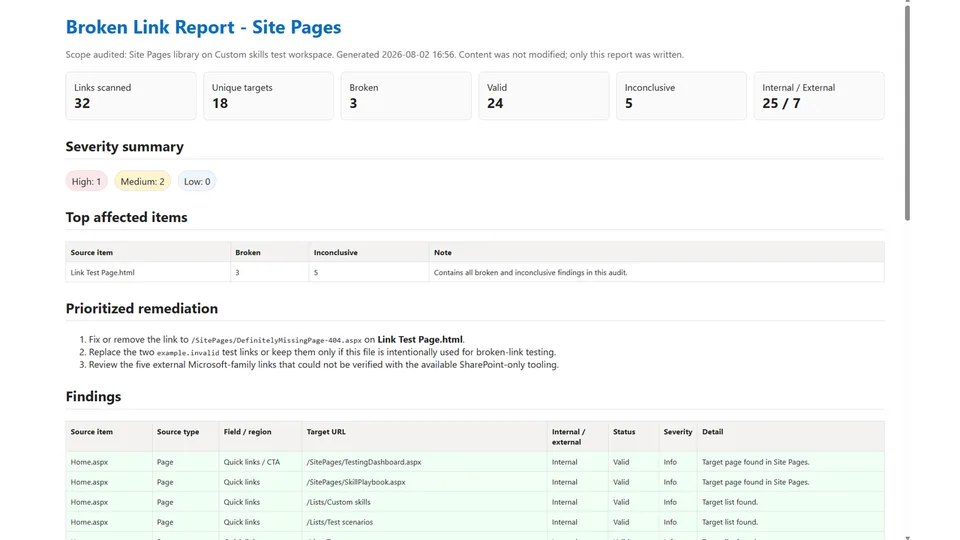
Generated HTML report:
What you get
- A link-health summary with total links scanned, broken link count, internal vs external split, and inconclusive checks
- A severity-ranked findings list for missing SharePoint targets, dead external URLs, malformed links, redirects, and permission-limited checks
- A color-coded HTML report with per-item findings, status details, and a prioritized remediation section
- The report saved to a
Link Reportsfolder with a clear timestamped filename - Strictly read-only behavior for pages, files, lists, and links
When to use
Ask Copilot:
- "broken link audit" / "find broken links"
- "check dead links on this site"
- "audit links in this library"
- "scan pages for broken links"
- "which SharePoint links are broken"
Use it before a site launch, migration, handover, or content governance review when you need a defensible snapshot of link health without editing anything.
Prerequisites
- A SharePoint site with pages, news posts, lists, libraries, or selected items in scope
- Read access to the scoped content
- Permission to create the HTML report file in a document library on the current site
SharePoint Skill
| Solution | Author(s) |
|---|---|
| broken-link-auditor | Valeras Narbutas | GitHub |
Version history
| Version | Date | Comments |
|---|---|---|
| 1.0 | August 2026 | Initial Release |
Disclaimer
THIS CODE IS PROVIDED AS IS WITHOUT WARRANTY OF ANY KIND, EITHER EXPRESS OR IMPLIED, INCLUDING ANY IMPLIED WARRANTIES OF FITNESS FOR A PARTICULAR PURPOSE, MERCHANTABILITY, OR NON-INFRINGEMENT.
Package
Ready to install
The ZIP contains only the upload-ready inner skill folder.
View SKILL.md
---
name: broken-link-auditor
description: |-
  Audits SharePoint pages, news posts, and hyperlink fields for broken or risky links and
  saves a self-contained HTML link-health report to the site. It is strictly read-only for
  content and only writes the final report file.

  Use when the user says:
    - "broken link audit"
    - "find broken links"
    - "check dead links on this site"
    - "audit links in this library"
    - "scan pages for broken links"
    - "which SharePoint links are broken"
---
# Broken Link Auditor

## Purpose
Broken or stale links make SharePoint sites feel unreliable, especially after migrations,
re-orgs, and content cleanups. This skill audits link health across SharePoint pages, news
posts, libraries, lists, or selected items and saves a self-contained HTML report that teams
can act on. It is **strictly read-only** for content: it never edits pages, files, metadata,
or links. The only thing it writes is the final HTML report file.

## Trigger Phrases
Activate this skill when the user says any of the following (or close variations):
- "broken link audit" / "dead link audit"
- "find broken links" / "check broken links"
- "check dead links on this site"
- "audit links in this library"
- "scan pages for broken links"
- "which SharePoint links are broken"

## Inputs & Scope
Determine the reporting scope from the user's request and the current context, in this order:
1. **Selected items** — if the user has pages, files, or folders selected or says "these/this",
   audit those items first.
2. **Named library, list, or Site Pages** — if the user names one, resolve it on the current
   site.
3. **Current library or current Site Pages context** — if the user is already in one, use it.
4. **Whole current site** — if no narrower scope is clear, scan accessible Site Pages plus
   hyperlink-bearing items in accessible user-created lists and libraries.
5. If no scope can be resolved, ask the user which library, page set, or site scope to audit.
   Do not guess.

Only inspect content the current user can already read. Never invent pages, items, targets, or
HTTP outcomes.

## What counts as a link
Audit the following when present:
- Links embedded in SharePoint page and news post content
- Hyperlink / URL columns on list items or library items
- Obvious SharePoint links stored in plain text fields when the user explicitly asks for a
  broader scan

Ignore the following unless the user explicitly asks:
- Mailto links
- Telephone links
- JavaScript pseudo-links
- Anchors that only jump within the same page and do not reference another resource

## Steps

### Step 1 — Resolve the scan targets
- Resolve the site, list/library, folder, page set, or selected items from the user's request
  and current SharePoint context.
- For whole-site audits, enumerate accessible user-created lists/libraries plus the Site Pages
  library.
- Record the resolved scope exactly as it exists. If resolution is partial, keep going with the
  resolvable part and note the limitation in the report.

### Step 2 — Discover candidate fields and content
- For each list or library in scope, inspect the schema first and identify:
  - hyperlink / URL columns,
  - page or rich-text fields that can contain embedded links,
  - label fields to identify each item in the report.
- For Site Pages and news posts, include the page title, URL/path, last modified date, editor,
  and the rich page content fields needed to extract links.
- Exclude system-only columns from the report unless they are needed to identify the source item.

### Step 3 — Read items and extract links
- Page through every item in scope. Do not stop at the first page.
- For each source item, extract links and retain:
  - source item title/name,
  - source item URL/path,
  - source type (page, news post, file, list item),
  - field or content region where the link was found,
  - the raw target URL.
- Normalize URLs before checking them:
  - trim whitespace,
  - decode obvious HTML-escaped forms,
  - resolve relative SharePoint URLs against the current site,
  - preserve the original value for reporting.
- Deduplicate exact duplicate checks so the same target is not revalidated unnecessarily, but
  still report every source occurrence.

### Step 4 — Validate internal SharePoint links
For links that point to the current tenant or to relative SharePoint URLs:
- Try to resolve the target as a page, file, folder, list, or item using SharePoint discovery,
  path-based lookup, or item retrieval tools.
- Classify the result:
  - **Valid** — target exists and is reachable in the available data.
  - **Broken** — target is clearly missing, deleted, malformed, or resolves to a not-found
    outcome.
  - **Inconclusive** — target may exist but cannot be confirmed because of permission limits or
    unavailable tooling.
- Do **not** label a permission-denied target as broken. Mark it **Inconclusive
  (permission-limited)** instead.

### Step 5 — Validate external links carefully
For links outside SharePoint:
- Use safe read-only URL checks where available, preferring a lightweight `HEAD` request and
  falling back to a minimal `GET` only when needed.
- Follow normal redirects up to a small limit and record the final outcome.
- Use a short timeout and never let one slow domain block the whole scan.
- Classify the result:
  - **Valid** — reachable 2xx response
  - **Redirected** — target resolves after redirect
  - **Broken** — 4xx/5xx, DNS failure, malformed URL, or unreachable after retry
  - **Inconclusive** — timeout, bot protection, authentication wall, or network restriction
- Treat transient failures carefully. Retry once before calling an external link broken.

### Step 6 — Score severity and prepare findings
Assign severity at the link-occurrence level:
- **High** — missing internal SharePoint target, malformed internal URL, or clearly broken
  navigation link from a page/news post
- **Medium** — broken external link, repeated redirect chain, or broken library/list hyperlink
- **Low** — redirected but reachable link, suspicious formatting, or other cautionary finding
- **Info** — valid result recorded only for rollups or when the user explicitly asks for a full
  inventory

Track:
- total links scanned,
- unique targets checked,
- broken count,
- valid count,
- redirected count,
- inconclusive count,
- internal vs external split,
- top affected source items,
- most common broken domains or missing SharePoint paths.

### Step 7 — Build a self-contained HTML report
Draft a single **self-contained** HTML file:
- No scripts. No external CSS, fonts, images, or other resources. **Inline CSS only.**
- Include a **summary band** with: scope audited, total links scanned, broken count, internal /
  external counts, inconclusive checks, and unique targets checked.
- Include a **severity summary** showing High / Medium / Low findings.
- Include a **top affected items** section showing the pages or items with the most broken links.
- Include a **findings table** with one row per link occurrence:
  - source item,
  - source type,
  - field/region,
  - displayed or raw target URL,
  - normalized target URL,
  - internal/external,
  - status,
  - severity,
  - detail / HTTP result / limitation note
- Highlight rows by severity and status:
  - red for broken high-risk findings,
  - amber for medium-risk or inconclusive findings,
  - blue/gray for redirects and informational rows.
- Include a **prioritized remediation list** in plain English, for example:
  - "Update 6 links on the Benefits page that still point to the old HR site."
  - "Review 4 permission-limited links in the Executive library."
  - "Replace 3 malformed relative URLs in the Policies list."
- Include a **limitations section** whenever data was partial, throttled, inaccessible, or not
  externally checkable.

### Step 8 — Save the report
- Save the HTML file in a `Link Reports` folder in an appropriate document library on the current
  site.
- If the folder does not exist, create **only** that report folder and only when needed for
  saving the report.
- Use a clear filename:
  `Broken-Link-Report-<Scope>-YYYY-MM-DD-HHMM.html`

### Step 9 — Respond to the user
After saving, reply with a compact Markdown summary and the report link:

```markdown
# Broken link audit complete

[Open the report](<link>)

- Scope: <site, library, pages set, or selected items>
- Links scanned: <n>
- Broken links: <n>  (High <n> · Medium <n> · Low <n>)
- Inconclusive: <n>
- Top issue: <1 concise sentence about the highest-impact finding>
```

## Example

**User:** "Run a broken link audit on Site Pages."

**Agent response after processing:**

> I audited **Site Pages** and checked 184 links across 27 pages.
>
> | Metric | Result |
> |---|---|
> | Broken links | 19 |
> | High / Medium / Low | 7 / 9 / 3 |
> | Inconclusive | 4 |
> | Top affected page | Benefits Hub (5 broken links) |
>
> I saved the report to `Link Reports/Broken-Link-Report-Site-Pages-2026-08-02-1615.html`.
> Highest-impact issue: 7 page links still point to deleted legacy pages under `/sites/hr-old/`.

## Constraints
- **Strictly read-only for content.** Never edit pages, replace links, update list items, rename
  files, move content, or change site structure. The only write is the final HTML report file
  (and, if needed, the `Link Reports` folder that holds it).
- Never invent HTTP results, target existence, or permissions. If a check cannot be completed,
  say so plainly.
- Do not classify a target as broken when the only evidence is lack of permission. Mark it
  **Inconclusive (permission-limited)** instead.
- Page through the full scope; if any read is partial or throttled, surface that in the report.
- Keep the HTML fully self-contained: no scripts, no external assets, inline CSS only.
- Prefer validating internal SharePoint links before external links so the most actionable site
  issues are always covered first.
References
- agentskills.io specification
The specification that SharePoint AI skills follow for installation and discovery.
Discuss this skill
Ask a question, share how you used it, or suggest an improvement with the community.
Open GitHub Discussions