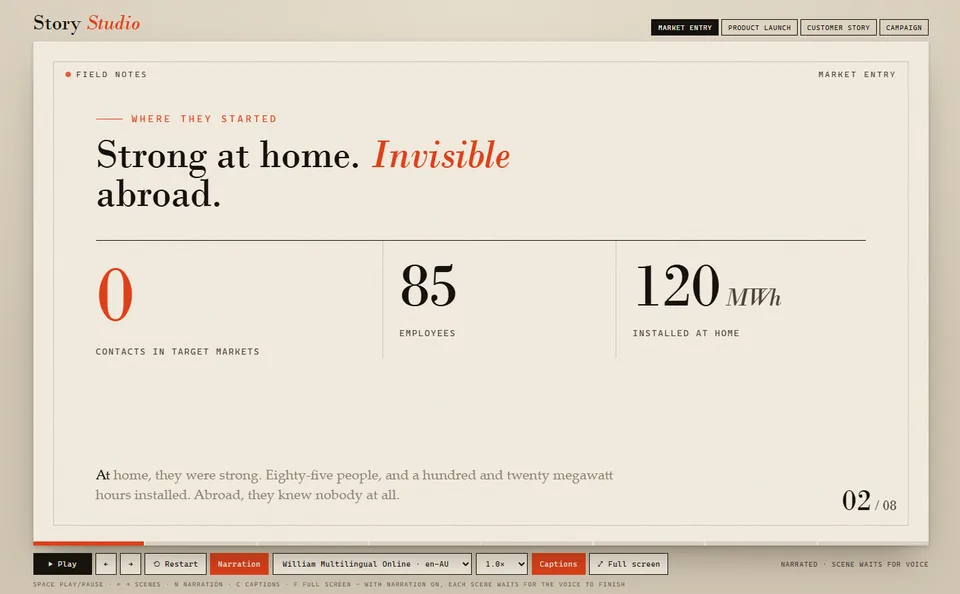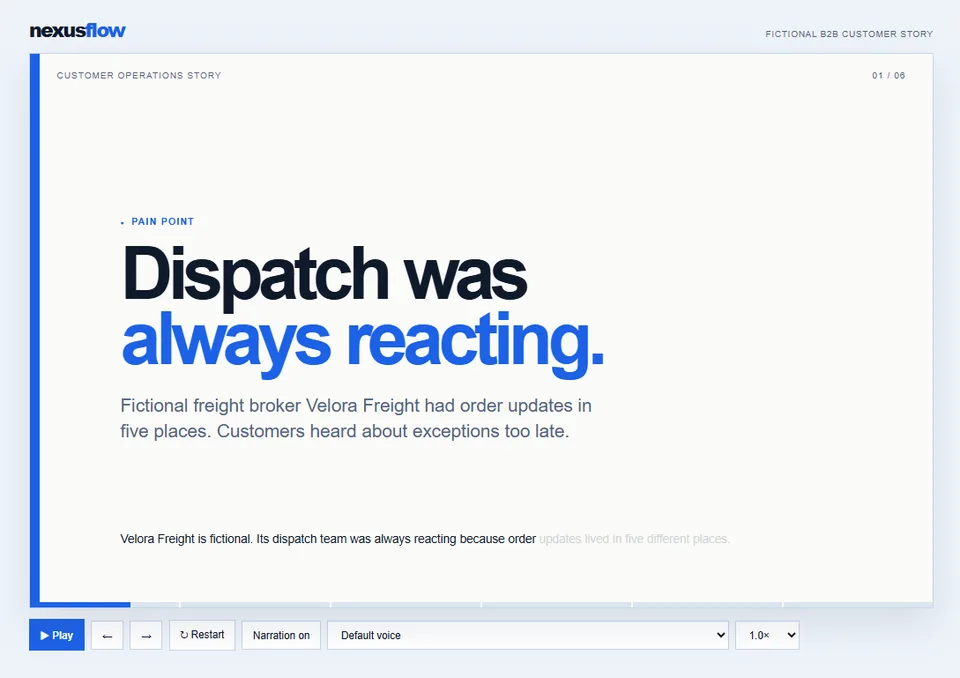
Turns a source brief or SharePoint file into a one-minute campaign story with a tight 5–6 scene arc: pain point, three improvement moments, a measurable outcome, and a payoff with CTA.
Outputs a single self-contained HTML file in the NexusFlow premium B2B application design. The file includes scene progress, motion-driven action cards, checkmarks, a count-up result scene, and a confetti finale, with no external images, fonts, or libraries.
Narration uses the viewer’s installed browser voices. Playback includes play/pause, previous, next, restart, narration toggle, voice picker, and speed. If a real source is supplied, the skill does not invent names, quotes, or metrics.
Turns a product narrative, customer case, launch, or operational transformation into a self-contained animated HTML campaign story. Uses the NexusFlow premium B2B application design with short narrated scenes, playback controls, a voice picker, motion-driven action cards, and a confetti finale.
What you get
- A one-minute, 5–6 scene campaign arc (pain, three improvement moments, measurable outcome, payoff and CTA)
- A single self-contained
.htmlfile with no CDNs, fonts, or external libraries - Playback controls for play/pause, previous, next, restart, narration, voice, and speed
- Word-by-word captions synchronized with browser
speechSynthesis - Motion that respects
prefers-reduced-motion - Output saved to the site’s Reports library
- A clear fictional-data label when the story is a sample rather than source-backed
When to use
Ask Copilot:
- "create a campaign story"
- "make a one-minute customer story"
- "turn this case study into a campaign animation"
- "create an animated product campaign"
- "make a premium B2B story demo"
Works from a source document, a named file on the site, or a brief. If no source is provided, the skill builds a labelled fictional sample.
Demo content
A finished fictional story is in demo/sample-files/. Open NexusFlow-Velora-Freight-Campaign-Story.html in a browser to see the output. Do not upload demo/ with the skill package.
SharePoint Skill
| Solution | Author(s) |
|---|---|
| campaign-story | Anand Ragavan | GitHub | LinkedIn |
Version history
| Version | Date | Comments |
|---|---|---|
| 1.0 | September 2026 | Initial Release |
Disclaimer
THIS CODE IS PROVIDED AS IS WITHOUT WARRANTY OF ANY KIND, EITHER EXPRESS OR IMPLIED, INCLUDING ANY IMPLIED WARRANTIES OF FITNESS FOR A PARTICULAR PURPOSE, MERCHANTABILITY, OR NON-INFRINGEMENT.
Package
Ready to install
The ZIP contains only the upload-ready inner skill folder.
View SKILL.md
---
name: campaign-story
description: Create a polished, self-contained HTML campaign story for a product, customer case, launch, or operational transformation using the NexusFlow premium B2B application design with narrative scenes, voice narration, voice picker, animated progress, motion-driven action cards, checkmarks, and a confetti finale. Use when the user says create a campaign story, make a one-minute customer story, turn this case study into a campaign animation, create an animated product campaign, or make a premium B2B story demo.
---
# Campaign Story

## When to use
Use this skill to turn a product narrative, B2B customer case, product launch, operational transformation, or campaign idea into a self-contained animated HTML story. Create HTML only unless the user explicitly requests another format.

Use a tight campaign arc rather than a slide deck. The default is a one-minute story with 5–6 scenes:
1. Pain point
2. Moment one — first improvement
3. Moment two — second improvement
4. Moment three — third improvement
5. Measurable outcome
6. Campaign payoff and CTA

## Inputs
- A source document, user brief, or named SharePoint file.
- Optional audience, product name, customer name, CTA, length, language, and destination.
- If no source is provided, create a clearly fictional story and label every invented company, person, quote, result, and metric as fictional.

## Steps
1. Read the supplied source before writing. Use only source facts, figures, customer names, and quotes. If there is no source, build a fictional sample.
2. Write concise scene data. Keep narration to 45 words or fewer per scene. Use clear everyday language designed to be heard.
3. Use the campaign arc above unless the user gives a different structure. Make each journey beat a discrete, useful change rather than a vague benefit.
4. Build a complete HTML file with no external images, fonts, libraries, network calls, CDNs, or script imports.
5. Use the NexusFlow design system:
   - premium, subject-led B2B application interface, not a slide deck;
   - high-contrast ink, paper, operational blue, electric-blue emphasis, restrained green success state, and semantic progress rail;
   - strong purposeful type scale, sentence-case labels, clear hierarchy, fine functional borders, and an uncluttered layout;
   - avoid generic AI dashboard tropes such as glassmorphism, decorative gradient orbs, excessive pill UI, newspaper styling, all-caps metadata overload, and ornamental arrows;
   - cards slide in for each journey beat, with one action per card — see, assign, act, or an equivalent story-specific sequence;
   - animate checkmark icons when a key action completes;
   - use a bold measurable result scene with a count-up metric;
   - use a full confetti burst only on the final campaign-payoff scene.
6. Keep interactions snappy and purposeful — slide scene transitions, card entrance motion, pulsing primary playback button, count-ups, checkmarks, word-by-word captions, scene progress, and clickable progress segments. Respect `prefers-reduced-motion`.
7. Include playback controls — play/pause, previous, next, restart, narration on/off, voice picker, and speed picker. Do not include a full-screen control.
8. Narration is ON by default. On load, attempt to speak the first scene with browser `speechSynthesis`. Populate the voice picker from installed English browser/system voices plus a Default voice option. When the user changes voice, restart the current scene narration with that choice.
9. Browsers can block audible autoplay. If narration cannot start until a user gesture, retain the enabled state and show the in-stage message `Narration is ready — select Play to hear it.` Start narration after the first click, tap, or keypress. Never claim automatic sound is guaranteed.
10. Synchronize caption highlighting and progress with narration. Each narrated scene must wait for speech to finish before auto-advancing.
11. Save every completed HTML animation to the site’s **Reports** library.

## Output format
Reply briefly with:
- the scene arc in one line;
- the exact HTML filename and link;
- controls — Space for play/pause, Left/Right arrows for scenes, and N for narration;
- a note that narration uses the viewer’s installed browser/system voice and that the picker lists available English voices;
- a clear fictional-data notice where relevant.

## Constraints
- Never invent real names, results, quotes, customer claims, or metrics when a real source is provided.
- Attribute source quotes accurately.
- Keep the HTML self-contained and browser-openable.
- If a source cannot be read, state that plainly and do not fabricate source-specific facts.
- Do not include a full-screen button or keyboard shortcut.
- If speech synthesis or installed voices are unavailable, keep the visual story usable and state the limitation in the in-stage message.
References
- agentskills.io specification
The specification that SharePoint AI skills follow for installation and discovery.
Discuss this skill
Ask a question, share how you used it, or suggest an improvement with the community.
Open GitHub Discussions