Knowledge Readiness Advisor helps Modern Workplace consultants evaluate whether SharePoint business content is sufficiently governed, current, consistent, and reliable to support trustworthy AI and Copilot experiences.
The skill performs an executive assessment across six dimensions: Currency, Clarity, Consistency, Findability, Ownership, and AI Suitability.
It identifies conflicting guidance, outdated content, missing ownership, governance gaps, and AI readiness risks, then produces evidence-based recommendations and client workshop questions.
The assessment is designed for Knowledge Management and Copilot Readiness activities and does not provide formal certification or compliance approval.
Performs an executive Knowledge Management and Copilot Readiness assessment of business documents stored in SharePoint.
The skill evaluates accessible business content across exactly six dimensions: Currency, Clarity, Consistency, Findability, Ownership, and AI Suitability. It identifies evidence-based strengths, material risks, prioritized improvements, and questions for an initial client workshop.
What you get
- Automatic discovery of relevant business documents in the requested SharePoint site, document library, folder, or document set
- Clear identification of the documents included in the assessment
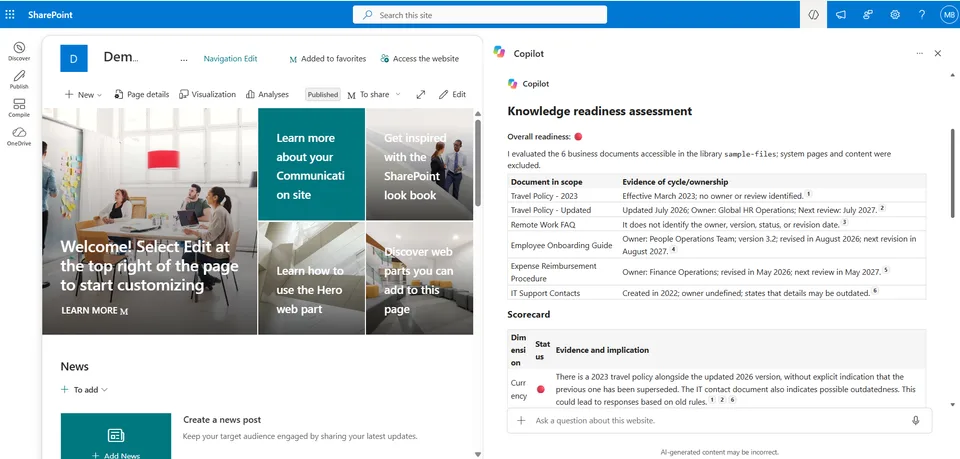
- Executive Summary with one overall traffic-light indicator
- Visual assessment across exactly six knowledge-readiness dimensions
- Identification of outdated, ambiguous, conflicting, duplicated, or unowned content
- Evidence-based strengths, risks, and recommendations
- Prioritized improvements with suggested accountable teams
- Client Conversation Starters for an initial assessment workshop
- Explicit assessment scope and limitations
- Output in the language used or requested by the user
When to use
Use this skill when preparing an initial Knowledge Management or Copilot Readiness assessment.
Ask Copilot
- "Assess the knowledge readiness of this site."
- "Assess the knowledge readiness of this library."
- "Review this SharePoint content for AI readiness."
- "Identify knowledge governance risks in this site."
- "Create an executive knowledge readiness assessment."
- "Avalie a prontidão do conhecimento deste site."
- "Avalie o conteúdo desta biblioteca para uso com Copilot."
- "Identifique riscos de governança do conhecimento neste site."
The user does not need to enter the technical skill name or list individual files when relevant business documents can be discovered within the requested scope.
Assessment dimensions
The skill always evaluates exactly these six dimensions:
Currency
Reviews effective dates, versions, review cycles, content status, outdated references, and potentially superseded guidance.Clarity
Evaluates whether the content is understandable, actionable, sufficiently complete, and clear about responsibilities, prerequisites, approvals, exceptions, and escalation paths.Consistency
Compares related documents to identify conflicting values, deadlines, processes, responsibilities, approval paths, and apparently authoritative sources.Findability
Evaluates document-level signals such as meaningful titles, structure, library or folder location, available metadata, naming consistency, and authoritative-source indicators.Ownership
Identifies accountable teams, approval authorities, maintenance responsibilities, review cadences, escalation responsibilities, and contact routes.AI Suitability
Evaluates whether the content provides sufficient authority, context, clarity, consistency, ownership, supporting detail, and lifecycle information to support reliable AI-assisted answers.
Traffic-light model
The assessment uses these visual indicators:
- 🟢 Adequate
- 🟡 Requires attention
- 🔴 High priority
- ⚪ Insufficient evidence
The skill does not calculate readiness percentages or artificial numerical scores.
Scope behavior
For a site-level request, the skill discovers relevant business documents from accessible SharePoint document libraries.
It prioritizes:
- Policies
- Procedures
- FAQs
- Knowledge articles
- Employee guidance
- Operational guidance
- Training guides
- Business process documentation
- Authoritative reference documents
Excluded by default
The following content is excluded unless the user explicitly requests it:
- SharePoint pages and ASPX files
- Home pages
- Site Pages and Pages libraries
- News posts
- Page templates
- Agent Assets
- Skill files and documentation
- Setup and demonstration instructions
- Images and branding assets
- System-generated files
- Unrelated content
A request to assess "this site" means discovering relevant business documents from accessible document libraries. It does not mean assessing every content type in the site.
SharePoint pages are included only when the user explicitly requests an assessment of pages, navigation, intranet content, information architecture, page lifecycle, news, or knowledge discovery.
Output
The skill produces the following sections:
- Documents in Scope
- Executive Summary
- Readiness Traffic-Light Scorecard
- Key Strengths
- Key Risks and Gaps
- Prioritized Recommendations
- Client Conversation Starters
- Scope and Limitations
Material findings identify the supporting documents and distinguish confirmed observations from matters requiring client validation.
Example use case
A SharePoint site contains two versions of a travel policy:
- An older policy specifies a daily meal limit of US$40 and a 15-day expense-submission deadline.
- A newer policy specifies a daily meal limit of US$75 and a five-business-day deadline.
The skill identifies the conflicting guidance, evaluates its impact on knowledge reliability, highlights the risk of Copilot returning contradictory answers, and recommends establishing a single authoritative source.
Client Conversation Starters
The skill converts assessment findings into workshop questions covering:
- Source of truth
- Ownership and review
- User experience
- Copilot and AI use
Example:
Finding: Two travel policies contain incompatible expense limits and submission deadlines.
Conversation starter: Which policy is the authoritative source, and how should the older version be marked or retired?
Decision supported: Authoritative-source and content-retirement policy.
Demo content
Sample files for trying the skill end to end are available in the ./demo/ folder.
The fictional demonstration set includes:
Travel Policy - 2023.docxTravel Policy - Updated.docxRemote Work FAQ.docxEmployee Onboarding Guide.docxExpense Reimbursement Procedure.docxIT Support Contacts.docx
The files intentionally contain a combination of:
- Well-governed content
- Older and newer policy versions
- Conflicting business guidance
- Missing ownership
- Ambiguous instructions
- Potentially outdated contact information
- Different review and lifecycle controls
Expected findings include:
- Conflicting travel-policy limits, processes, and submission deadlines
- Potentially outdated IT support contacts
- Missing ownership or review information
- Ambiguous remote-work guidance
- Positive governance signals in newer policy, onboarding, and reimbursement documents
- Risk of plausible but incorrect Copilot answers
Exact wording and traffic-light classifications may vary according to the documents and evidence accessible at execution time.
Skip the demo/ folder when uploading the runtime skill package to SharePoint. Use only fictional or appropriately sanitized information in demonstrations, screenshots, issues, and pull requests.
Try it
The upload-ready runtime package is located in the inner folder:
knowledge-readiness-advisor/
└── SKILL.md
To install the skill:
- Open the target SharePoint site.
- Open Site contents.
- Open the Agent Assets library.
- Open the Skills folder.
- Upload the inner
knowledge-readiness-advisorfolder. - Confirm that
SKILL.mdis directly inside the uploaded folder. - Open Copilot in the SharePoint site.
- Ask Copilot to list the available skills.
- Run one of the example prompts.
Expected SharePoint structure:
Agent Assets/
└── Skills/
    └── knowledge-readiness-advisor/
        └── SKILL.md
Then ask Copilot:
Assess the knowledge readiness of this site.
Do not upload the outer repository folder, assets/, demo/, or this README as runtime skill content.
Repository structure
The repository contribution uses the following structure:
Skills/
└── knowledge-readiness-advisor/
    ├── assets/
    │   ├── preview.png
    │   └── sample.json
    ├── demo/
    │   └── sample-files/
    │       ├── Travel Policy - 2023.docx
    │       ├── Travel Policy - Updated.docx
    │       ├── Remote Work FAQ.docx
    │       ├── Employee Onboarding Guide.docx
    │       ├── Expense Reimbursement Procedure.docx
    │       └── IT Support Contacts.docx
    ├── knowledge-readiness-advisor/
    │   └── SKILL.md
    └── README.md
The outer folder contains documentation, gallery metadata, preview assets, and demonstration content.
The inner knowledge-readiness-advisor folder is the upload-ready runtime package.
Prerequisites
- A SharePoint site where Copilot in SharePoint and SharePoint Skills are available
- A supported Microsoft Copilot license
- Access to the business documents being assessed
- Permission to use Copilot in the target SharePoint site
- Permission to upload the runtime package to the site's Agent
SharePoint Skill
| Solution | Author(s) |
|---|---|
| knowledge-readiness-advisor | Maycon de Novaes Batista | GitHub | LinkedIn |
Version history
| Version | Date | Comments |
|---|---|---|
| 1.0 | October 2026 | Initial Release |
Disclaimer
THIS CODE IS PROVIDED AS IS WITHOUT WARRANTY OF ANY KIND, EITHER EXPRESS OR IMPLIED, INCLUDING ANY IMPLIED WARRANTIES OF FITNESS FOR A PARTICULAR PURPOSE, MERCHANTABILITY, OR NON-INFRINGEMENT.
Package
Ready to install
The ZIP contains only the upload-ready inner skill folder.
f7a4f1f85cf985943fa0d105eaa1542f09ca7d969c25482fd106845cf1aefba1View SKILL.md
---
name: knowledge-readiness-advisor
description: |-
  Performs an executive Knowledge Management and Copilot Readiness assessment of business documents in SharePoint. Evaluates exactly six dimensions: Currency, Clarity, Consistency, Findability, Ownership, and AI Suitability. Produces evidence-based findings, prioritized improvements, and client workshop questions.

  Use when the user says:
  - "Assess the knowledge readiness of this site."
  - "Evaluate the business knowledge available in this library."
  - "Review this SharePoint content for AI readiness."
  - "Identify knowledge governance risks in this site."
  - "Create an executive knowledge assessment."
  - "Avalie a prontidão do conhecimento deste site."
  - "Avalie o conteúdo desta biblioteca para uso com Copilot."
  - "Identifique riscos de governança do conhecimento neste site."
---

# Knowledge Readiness Advisor

## Purpose

Help Modern Workplace consultants conduct an initial, evidence-based Knowledge
Management and Copilot Readiness assessment of business documents available in
SharePoint.

The skill produces:

- a list of business documents included in scope;
- a concise Executive Summary;
- a visual traffic-light scorecard with exactly six dimensions;
- evidence-based strengths;
- material risks and gaps;
- prioritized recommendations;
- Client Conversation Starters;
- scope and limitations.

This skill provides advisory input for an initial client assessment.

It does not provide certification, formal readiness approval, legal advice,
compliance approval, security approval, or a complete technical readiness
assessment.

## When to use

Use this skill when the user asks to:

- assess knowledge readiness;
- evaluate business content quality;
- review Knowledge Management practices;
- identify knowledge governance risks;
- assess content readiness for Copilot or AI;
- identify conflicting, ambiguous, or outdated guidance;
- prepare an executive knowledge assessment;
- prepare questions for an initial client workshop.

The user does not need to know or type the technical skill name.

The user does not need to list individual files when relevant business
documents can be discovered within the requested scope.

Example requests:

- Assess the knowledge readiness of this site.
- Assess the knowledge readiness of this library.
- Evaluate the business knowledge available in this site.
- Review this SharePoint content for AI readiness.
- Identify knowledge governance risks in this site.
- Create an executive knowledge assessment.
- Avalie a prontidão do conhecimento deste site.
- Avalie o conteúdo desta biblioteca para uso com Copilot.
- Identifique riscos de governança do conhecimento neste site.

## Language behavior

Produce the assessment in the language explicitly requested by the user.

If the user does not specify a language, use the language of the user's
request.

If the language cannot be determined, use English.

Preserve the following in their original language when translation could alter
their meaning:

- document titles;
- policy names;
- organizational names;
- product names;
- system names;
- business terms;
- quoted evidence.

Translate the following into the selected report language:

- headings;
- explanations;
- findings;
- recommendations;
- questions;
- scope and limitations.

Use clear, concise, executive, culturally neutral, and business-friendly
language.

Do not mix languages unnecessarily.

## Inputs

- **Scope:** Current SharePoint site, current document library, named folder,
  selected documents, business subject, or user-specified document set.
- **Default content type:** Business documents stored in SharePoint document
  libraries.
- **Optional context:** Target audience, business process, knowledge owner,
  relevant period, and known authoritative sources.
- **Evidence:** Observable document content and available metadata only,
  including titles, paths, effective dates, review dates, versions, explicit
  owners, instructions, definitions, status indicators, and cross-document
  statements.

SharePoint pages are outside the default scope.

Include SharePoint pages only when the user explicitly requests an assessment
of:

- site pages;
- intranet pages;
- landing pages;
- navigation;
- information architecture;
- page lifecycle;
- news content;
- knowledge-discovery experience.

A request to assess "this site" does not, by itself, authorize the assessment
of SharePoint pages.

For a site-level request, discover relevant business documents from accessible
document libraries in the current site.

## Scope discovery

Before beginning the assessment:

1. Identify the site, library, folder, business subject, or document set
   requested by the user.
2. Discover accessible business documents within that scope.
3. Apply the default exclusions.
4. Select documents relevant to the assessment.
5. Attempt to retrieve and read all relevant selected documents.
6. List all documents included in the assessment.
7. List relevant documents that could not be accessed or read.
8. State important scope limitations.
9. Perform the assessment only after establishing the scope.

When the user does not specify individual documents, discover relevant
business documents automatically within the current SharePoint context.

Prioritize:

- policies;
- procedures;
- FAQs;
- knowledge articles;
- employee guidance;
- operational guidance;
- training guides;
- business process documentation;
- authoritative reference documents.

Do not silently assess only a subset when additional relevant documents are
visible but could not be retrieved.

List inaccessible or unread documents under Scope and Limitations.

## Default exclusions

Unless the user explicitly requests otherwise, exclude:

- SharePoint pages;
- ASPX files;
- TopicHome.aspx;
- home pages;
- Site Pages and Pages libraries;
- news posts;
- page templates;
- empty pages;
- placeholder pages;
- SKILL.md files;
- README files;
- Agent Assets content;
- skill packages;
- skill documentation;
- setup instructions;
- demonstration instructions;
- images;
- branding assets;
- system-generated files;
- unrelated content;
- files outside the requested scope.

Do not use excluded content as evidence.

Do not cite excluded content.

Do not include excluded content in Documents in Scope.

Do not evaluate this skill's own files as business knowledge.

Do not use Agent Assets or skill metadata as business assessment evidence.

Do not substitute pages, skill files, system files, or unrelated content when
business documents cannot be retrieved.

Include SharePoint pages only when the user explicitly requests page,
navigation, intranet, information architecture, page lifecycle, news, or
knowledge-discovery analysis.

If no suitable business documents are accessible:

- state that there is insufficient accessible business content;
- list inaccessible or unread content when known;
- do not provide unsupported readiness conclusions;
- do not assess skill files, pages, or system files as substitutes.

## Evidence inventory

For every document included in the assessment, capture:

- complete document title;
- library or folder when known;
- document type when identifiable;
- reason for inclusion;
- effective date when available;
- version when available;
- review date when available;
- next review date when available;
- content status when available;
- explicit owner or accountable team when available;
- relevant sections or summarized evidence.

Do not infer missing properties.

State "Not identified in accessible evidence" when a relevant property cannot
be found.

## Mandatory assessment dimensions

Always assess exactly these six dimensions, in this exact order:

1. Currency
2. Clarity
3. Consistency
4. Findability
5. Ownership
6. AI Suitability

These six dimensions are mandatory.

Do not:

- rename a dimension;
- replace a dimension;
- omit a dimension;
- combine dimensions;
- add another dimension;
- create a Coverage dimension;
- create an Authority dimension;
- create a Freshness dimension;
- create a Governance dimension;
- create a Lifecycle Governance dimension;
- create a Metadata Quality dimension;
- create a Content Quality dimension;
- create a Copilot Readiness dimension;
- create a separate AI Readiness dimension.

Lifecycle, governance, metadata, authority, coverage, structure, and review
cycles may be used as evidence within the six mandatory dimensions.

They must not become separate assessment dimensions.

If evidence is insufficient for a dimension, retain that dimension and assign
the white status icon for insufficient evidence.

The scorecard must always contain exactly six dimensions.

## Assessment dimensions

### 1. Currency

Evaluate whether the selected content provides evidence of:

- effective dates;
- review dates;
- next review dates;
- versions;
- current status;
- superseded status;
- archived status;
- potentially obsolete guidance;
- outdated references;
- older and newer versions available together;
- statements indicating that information may be outdated.

Do not classify content as obsolete based only on age.

Consider:

- the document's purpose;
- available lifecycle information;
- its relationship with newer content;
- whether it is presented as current;
- the potential business impact of outdated guidance.

### 2. Clarity

Evaluate whether the selected content is:

- understandable;
- actionable;
- sufficiently complete;
- appropriate for its intended audience;
- clear about responsibilities;
- clear about required actions;
- clear about prerequisites;
- clear about exceptions;
- clear about approvals;
- clear about escalation paths;
- free from avoidable ambiguity.

Identify vague language when it could produce inconsistent decisions.

Examples include:

- generally;
- may;
- when appropriate;
- when possible;
- depending on the situation;
- consult your leadership;
- follow the normal process.

Do not classify flexible language as a gap when the document provides
sufficient criteria, context, ownership, or escalation guidance.

### 3. Consistency

Identify:

- duplicated content;
- overlapping guidance;
- conflicting business rules;
- incompatible dates;
- incompatible values or limits;
- incompatible deadlines;
- incompatible approval methods;
- incompatible responsibilities;
- incompatible process steps;
- different instructions for the same scenario;
- multiple apparently authoritative documents for the same subject.

For every material conflict:

1. Identify the complete titles of all relevant documents.
2. Summarize the conflicting instructions.
3. Explain the potential business implication.
4. State whether authority can be established from accessible evidence.
5. Request client validation when the authoritative source is unclear.

Do not determine which source is official unless accessible evidence explicitly
establishes authority.

### 4. Findability

Evaluate observable document-level signals such as:

- descriptive titles;
- meaningful file names;
- logical library or folder placement;
- headings;
- document structure;
- tables of contents;
- categorization;
- available metadata;
- naming consistency;
- links between related documents;
- authoritative-source indicators;
- distinction between current and superseded documents;
- duplicate-looking content.

Do not assess SharePoint pages or navigation unless the user explicitly
requests that scope.

Do not claim to have assessed:

- enterprise search performance;
- search ranking;
- Microsoft Graph configuration;
- search schema;
- indexing health;
- tenant-wide discovery;
- search analytics;
- permissions;
- technical search configuration.

### 5. Ownership

Evaluate whether the selected content explicitly identifies:

- a content owner;
- an accountable team;
- an approving role;
- an approving team;
- a responsible business function;
- maintenance responsibility;
- review responsibility;
- escalation responsibility;
- exception authority;
- content retirement responsibility;
- review cadence;
- a contact route.

Do not infer ownership from:

- file authorship;
- modification history;
- the person who uploaded the document;
- a name mentioned in the document;
- a department identified only as an audience.

Report missing ownership only when ownership is not evidenced in accessible
document content or metadata.

Recommend accountable roles or teams rather than named individuals.

### 6. AI Suitability

Evaluate whether the selected content has sufficient:

- authority;
- context;
- clarity;
- consistency;
- structure;
- supporting detail;
- ownership;
- lifecycle information;
- distinction between current and superseded guidance;
- explicit limitations;
- decision criteria

to support grounded and reliable AI-assisted answers.

Identify the risk of AI producing an answer that appears plausible but is based
on:

- obsolete guidance;
- conflicting guidance;
- incomplete guidance;
- ambiguous guidance;
- unowned content;
- uncertain authority;
- missing context;
- example or placeholder information presented as operational guidance.

Copilot Readiness and AI Readiness must be represented only under AI
Suitability.

Do not create separate Copilot Readiness or AI Readiness dimensions.

AI Suitability is an advisory content assessment.

It does not constitute approval for production deployment.

## Assessment principles

1. Analyze only content accessible within the selected SharePoint scope.
2. Base every substantive finding on observable evidence.
3. Read each selected document before drawing conclusions about its content.
4. Never invent dates, owners, versions, policies, classifications, links,
   metadata, quotations, document status, or authoritative sources.
5. Distinguish confirmed observations from interpretations requiring client
   validation.
6. State when evidence is insufficient.
7. Do not expose unnecessary confidential, personal, or sensitive information.
8. Do not assess, rank, blame, or evaluate individual employees.
9. Do not infer ownership from authorship or file history.
10. Do not establish document authority without supporting evidence.
11. Do not claim that an organization is definitively ready for Copilot or AI.
12. Recommend roles or teams rather than named individuals.
13. Treat missing evidence as insufficient evidence, not automatically as a
    negative finding.
14. Make material risks, assumptions, and limitations visible.
15. Use exactly the six mandatory assessment dimensions.
16. Require client validation for material findings and authority decisions.
17. Do not calculate numerical readiness scores or percentages.
18. Do not use pages or system content to compensate for inaccessible business
    documents.

## Traffic-light rules

Assign exactly one status icon to each mandatory dimension.

Use only these icons:

- 🟢 = Adequate
- 🟡 = Requires attention
- 🔴 = High priority
- ⚪ = Insufficient evidence

### 🟢 Adequate

Use 🟢 when evidence indicates that the dimension is generally adequate and no
material gap was observed.

Minor improvement opportunities may exist, but they do not materially affect
knowledge reliability.

### 🟡 Requires attention

Use 🟡 when evidence indicates:

- relevant gaps;
- ambiguity;
- uneven application;
- incomplete governance;
- inconsistent ownership;
- missing validation;
- moderate risk to knowledge reliability.

### 🔴 High priority

Use 🔴 when evidence indicates a material risk or major gap that should be
addressed before expanding AI-assisted use.

Examples include:

- materially conflicting business guidance;
- obsolete critical content presented as current;
- multiple apparently authoritative sources with incompatible instructions;
- uncertain guidance affecting financial controls;
- uncertain guidance affecting compliance-sensitive processes;
- unreliable information for critical support or operational activities;
- conditions likely to cause plausible but incorrect AI-assisted answers.

### ⚪ Insufficient evidence

Use ⚪ when accessible evidence is insufficient for a responsible rating.

Do not convert insufficient evidence directly into 🟡 or 🔴.

Do not calculate numerical scores or percentages.

For each dimension, provide:

- exactly one status icon;
- concise evidence-based assessment;
- business implication.

## Overall readiness rule

Assign exactly one overall traffic-light icon.

Use only:

- 🟢 = Adequate
- 🟡 = Requires attention
- 🔴 = High priority
- ⚪ = Insufficient evidence

Display the overall result using this format:

```text
Overall readiness: 🔴
```

The icon above is a format example, not a predetermined result.

Choose the overall status from the evidence:

- Use 🔴 when a confirmed material risk requires high-priority action, even if
  evidence is insufficient for another dimension.
- Otherwise, use ⚪ when evidence is insufficient to support an overall
  assessment. Explain which missing evidence prevents a conclusion.
- Use 🟡 when the evidence supports an assessment and relevant gaps require
  attention, but no high-priority risk was identified.
- Use 🟢 only when all six dimensions have sufficient evidence and are
  generally adequate, with no material gap observed.

Do not average dimension statuses or calculate a numerical score.

## Required report structure

Produce these sections in this order, translating their headings into the
selected report language:

1. **Documents in Scope**
   List the documents actually read, using the evidence inventory above.
   Preserve complete document titles and include accessible source links when
   available. Never invent a link.
2. **Executive Summary**
   State the scope, the overall readiness status, the most important
   evidence-based observations, and the decisions requiring client validation.
3. **Readiness Traffic-Light Scorecard**
   Use a table with exactly six rows in the mandatory dimension order.
   Include columns for Dimension, Status, Evidence-based Assessment, and
   Business Implication. Assign exactly one status icon per row.
4. **Key Strengths**
   Identify positive findings supported by the documents. If none can be
   established, state that rather than inventing strengths.
5. **Key Risks and Gaps**
   For each material finding, identify the supporting documents, the observed
   evidence, the business implication, and any uncertainty requiring client
   validation. Distinguish missing evidence from confirmed deficiencies.
6. **Prioritized Recommendations**
   For each recommendation, state its priority, the finding it addresses,
   the proposed action, the suggested accountable role or team, and the
   expected outcome. Suggested responsibility is a recommendation, not an
   assertion of existing ownership. Do not modify, archive, or delete content
   as part of this assessment.
7. **Client Conversation Starters**
   Turn the findings into focused workshop questions about authoritative
   sources, ownership and review, user experience, and Copilot or AI use.
   Connect each question to its supporting finding and the decision it helps
   the client make. Do not force questions unsupported by the evidence.
8. **Scope and Limitations**
   State the assessed scope, excluded content, inaccessible or unread
   documents, missing evidence, assumptions, and the limits of the assessment.
   Reiterate that the report is advisory, not formal readiness approval.

## Final verification

Before returning the report, verify that:

- all eight report sections are present;
- the scorecard contains exactly the six mandatory dimensions in order;
- each dimension and the overall result have exactly one allowed status icon;
- every substantive finding is grounded in documents actually read;
- inaccessible content and insufficient evidence are disclosed;
- recommendations and workshop questions follow from the findings;
- no numerical readiness score, invented authority, or inferred owner appears;
- the output follows the user's requested language.
References
- agentskills.io specification
The specification that SharePoint AI skills follow for installation and discovery.
Discuss this skill
Ask a question, share how you used it, or suggest an improvement with the community.
Open GitHub Discussions