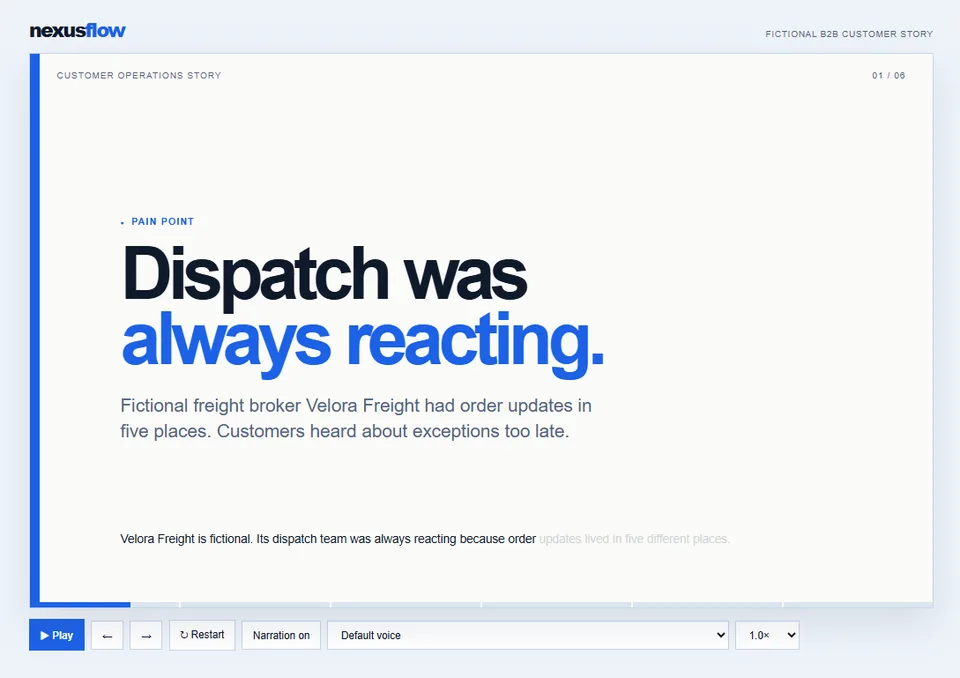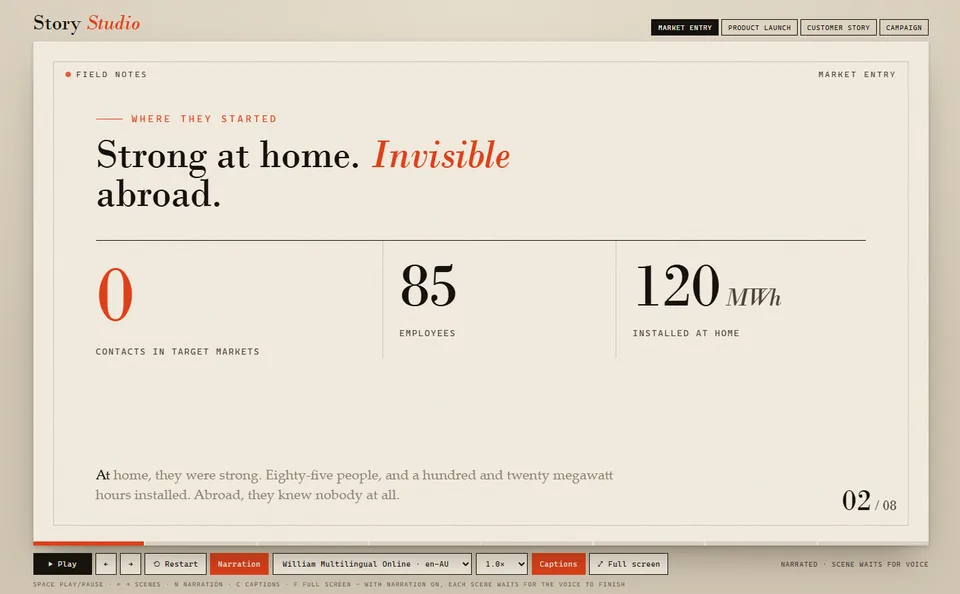
Turns a brief or SharePoint source into a 6–9 scene narrated HTML story using the Story Studio editorial system: title, stats, bars, route, network, timeline, quote, result, and CTA.
Outputs one offline file with wipe transitions, count-ups, captions synced to browser speech, a voice picker, and playback controls. Fictional names and figures are labelled when no source is supplied.
Save the finished HTML to the site Reports library.
Turns a customer story, market-entry journey, product launch, campaign, case study, or learning tutorial into a self-contained cinematic HTML story. Uses the Story Studio editorial design — warm paper stage, serif headlines, scene motion, captions, narration, and playback controls.
What you get
- A 6–9 scene narrated story (title, stats, bars, route, network, timeline, quote, result, CTA as the story requires)
- One offline HTML file with no CDNs, fonts, or external libraries
- Playback, captions, narration, voice picker, speed, scrubber, and full screen
- Keyboard shortcuts: Space, arrows, N, C, F
- Output saved to the site Reports library
- Fictional samples clearly labelled when no source is supplied
When to use
Ask Copilot:
- "make a narrated animation"
- "turn this case study into an animated story"
- "create a customer story animation"
- "make a narrated tutorial"
- "make a story demo like the story studio"
Demo content
Finished samples are in the demo folder:
demo/sample-files/story-studio.html— Story Studio reference with multiple story typesdemo/sample-files/Routewise-Fictional-Logistics-Customer-Story.html— labelled fictional customer story
Do not upload the demo folder with the skill package.
SharePoint Skill
| Solution | Author(s) |
|---|---|
| narrated-story-animation | Anand Ragavan | GitHub | LinkedIn |
Version history
| Version | Date | Comments |
|---|---|---|
| 1.0 | September 2026 | Initial Release |
Disclaimer
THIS CODE IS PROVIDED AS IS WITHOUT WARRANTY OF ANY KIND, EITHER EXPRESS OR IMPLIED, INCLUDING ANY IMPLIED WARRANTIES OF FITNESS FOR A PARTICULAR PURPOSE, MERCHANTABILITY, OR NON-INFRINGEMENT.
Package
Ready to install
The ZIP contains only the upload-ready inner skill folder.
b5df568dda3098916d37d2d7fac57db2de600c37c051ba47f7889e959e6f88dcView SKILL.md
---
name: narrated-story-animation
description: Create a self-contained cinematic narrated HTML story animation for a customer story, market-entry journey, product launch, campaign, or learning tutorial using the Story Studio editorial design system with scene motion, captions, always-on narration, voice picker, and interactive playback. Use when the user says make a narrated animation, turn this case study into an animated story, create a customer story animation, make a narrated tutorial, or make a story demo like the story studio.
---
# Narrated Story Animation

## When to use
Use for a customer story, campaign, product launch, market-entry journey, case study, learning tutorial, or narrative explainer that should play as a self-contained animated HTML experience. Produce HTML only. Do not create a PowerPoint, narration text file, audio file, or video unless the user explicitly asks for one.

Match the editorial Story Studio experience rather than creating a generic slide-like animation. A finished Story Studio reference and a fictional Routewise sample live in this skill's `demo/` folder on GitHub.

## Inputs
- Story source: user-provided brief, facts, or a named SharePoint source.
- Optional: story type, audience, language, call to action, brand direction, and destination folder.
- If the user supplies no source, create a clearly fictional sample. Never present fictional names, figures, outcomes, or quotes as real.

## Steps
1. Gather the story. Read a supplied SharePoint source before writing. Use only source facts or the user's stated details. If no source is supplied, label the completed story as fictional.
2. Plan a 6–9 scene arc. Use only story-appropriate scene types from the Story Studio system: title, stats, bars, route, network, timeline, quote, result, and CTA.
3. Write narration-ready scene data. Keep each `say` field to 45 words or fewer, with short clauses and natural pauses. Headlines must be concise and may use only `<em>` for editorial emphasis. Every visible number must come from the source. Use `[placeholder]` where a number is needed but not provided.
4. Build one complete, offline-capable HTML file. Do not use CDNs, external fonts, external images, network calls, or `<script src>`.
5. Reproduce the Story Studio design and UX:
   - warm editorial paper palette, serif display typography, mono labels, red accent, fine borders, grain, framed 16:9 stage, masthead, running labels, folio, and scene count;
   - scene-picker buttons when more than one story variant is included;
   - animated wipe transitions, staggered text reveals, masked headline lines, reduced-motion support, and responsive full-screen stage;
   - scene-specific motion: count-up statistics, bar fills, animated route and map pins, partner-network reveal, timeline progression, word-by-word quote reveal, and result confetti burst;
   - caption words synchronized to narration progress, scene scrubber/progress indicators, previous, next, restart, captions toggle, narration toggle, voice picker, speed picker, full-screen control, keyboard shortcuts, and status text;
   - accessibility labels, visible controls, responsive behavior, and `prefers-reduced-motion` handling.
6. Narration is ON by default. On load, set narration to enabled and immediately attempt browser speech synthesis for the first scene. Keep narration enabled across scenes and wait for each scene's speech to end before auto-advancing.
7. Include a voice picker. Populate it using `speechSynthesis.getVoices()` with the viewer's installed English browser/system voices plus a Default voice option. React to `voiceschanged` so late-loading voices appear. Selecting a voice must restart the current scene narration using that voice. Do not invent a shared voice library or claim named voices are available to every viewer.
8. Handle browser autoplay restrictions honestly. Browsers may block audible speech until the viewer interacts with the page. When blocked, show a prominent in-stage message such as `Narration is ready — select Play to hear it`, preserve the enabled narration state, and start speech on the first click, keypress, or touch. Do not claim audio is guaranteed to play automatically.
9. Do not hand-edit a separate animation engine after generating the complete file. Validate that the result is a complete HTML document with working controls and no external dependencies.
10. Save all HTML dashboards and animated HTML stories on this site to the **Reports** library. Do not upload or publish elsewhere unless the user asks for another destination.

## Output format
Reply briefly with:
- the story's scene arc in one line;
- the exact HTML filename and link;
- controls: Space for play/pause, Left/Right arrows for scenes, N for narration, C for captions, and F for full screen;
- a note that the voice picker lists English voices installed in the viewer's browser/device and uses the selected voice for narration;
- a clear statement when the story is fictional or contains placeholders;
- a note that narration starts automatically when the browser allows it, otherwise the first interaction starts it.

## Constraints
- Never fabricate client names, figures, quotes, or outcomes when a real source is provided.
- Attribute real quotes to the supplied source.
- Keep the finished experience self-contained and browser-openable.
- Use the viewer's browser voice for narration.
- If speech synthesis or voices are unavailable, show a clear in-stage message and keep the visual story usable.
- If an input source cannot be read, say so plainly and do not invent source facts.
References
- agentskills.io specification
The specification that SharePoint AI skills follow for installation and discovery.
Discuss this skill
Ask a question, share how you used it, or suggest an improvement with the community.
Open GitHub Discussions