
From the contributor
How to use this sample
Summary
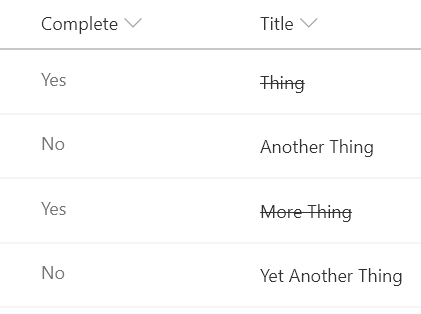
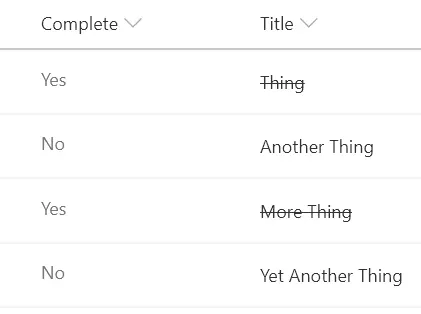
Classic task lists add a strikethrough style to the task name when the task is marked as completed. This sample shows how to achieve this in a modern list view.
If this is NOT the title field, then the
ms-fontColor-neutralPrimaryclass can be removed to ensure styles match.
View requirements
- This format can be applied to any column type (but is intended for text fields)
- This format expects a Yes/No field with an internal name of
Complete
Sample
| Solution | Author(s) |
|---|---|
| text-strikethrough.json | Chris Kent |
Version history
| Version | Date | Comments |
|---|---|---|
| 1.0 | August 18, 2018 | Initial release |
Disclaimer
THIS CODE IS PROVIDED AS IS WITHOUT WARRANTY OF ANY KIND, EITHER EXPRESS OR IMPLIED, INCLUDING ANY IMPLIED WARRANTIES OF FITNESS FOR A PARTICULAR PURPOSE, MERCHANTABILITY, OR NON-INFRINGEMENT.
Additional notes
An additional version using Abstract Tree Syntax (AST) is also provided for environments where the Excel-style expressions are not supported.