
Back to view formats
View formattingSharePoint Online

Product Catalog

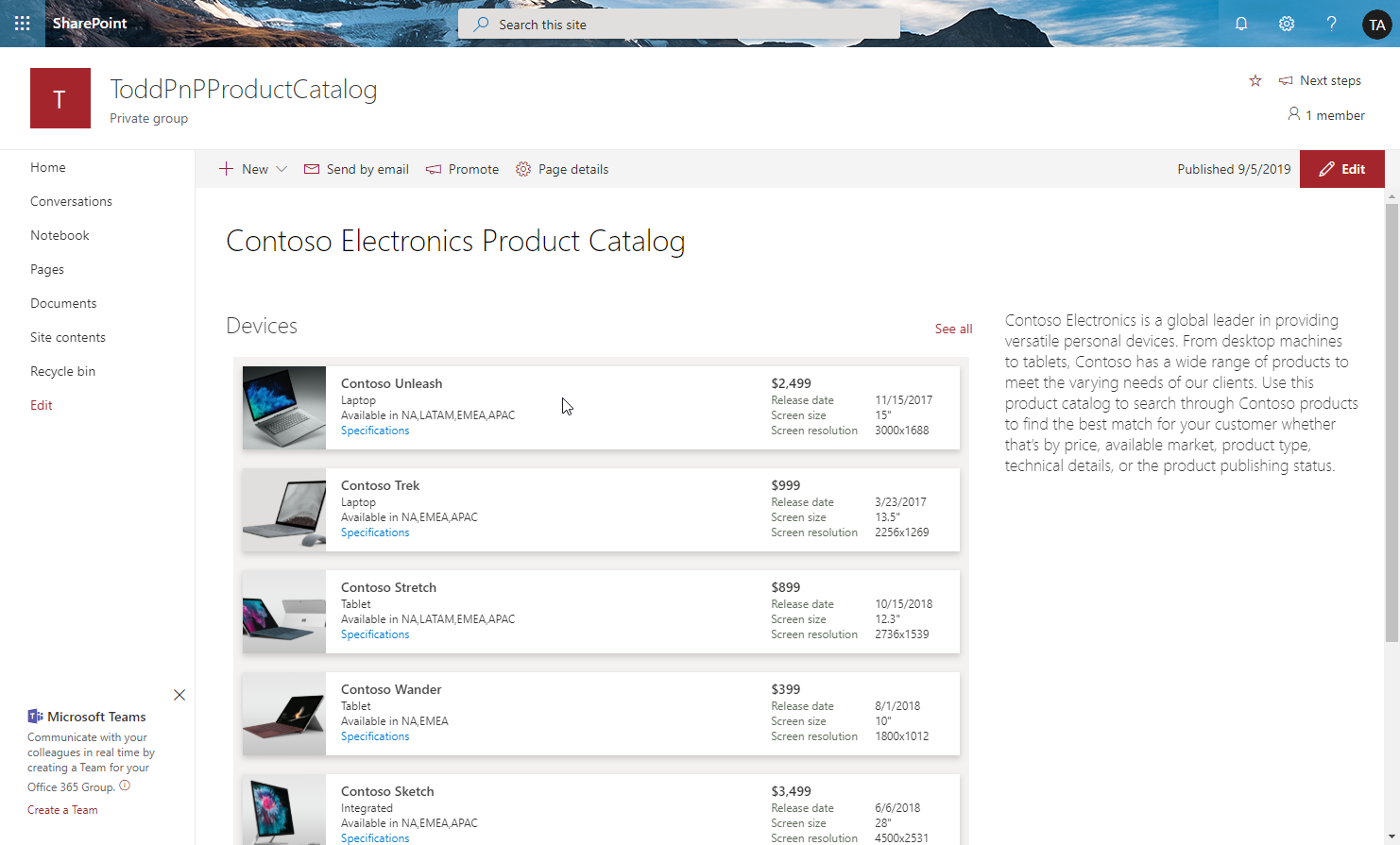
The product catalog sample demonstrates how to use view formatting to format lists and display views of the lists inside web parts. It also demonstrates how to create links to download documents from the SharePoint Document libraries.

Product Catalog formatting preview
Sample preview · View original image

Copy. Apply. Make it yours.

Get this format

2 definitions

Review the requirements below, then paste this JSON into the matching formatting panel. Show me where.

Use your list's internal column names and replace any tenant-specific URLs or flow IDs. Formatting is presentation, not a way to secure data.

View formatting
Download JSON
{
  "$schema": "https://developer.microsoft.com/json-schemas/sp/v2/row-formatting.schema.json",
  "hideSelection": true,
  "hideColumnHeader": true,
  "rowFormatter": {
    "elmType": "div",
    "style": {
      "text-align": "left",
      "display": "flex",
      "font-family": "Segoe UI",
      "padding": "20px 20px 20px 20px",
      "border": "solid 1px #e6e6e6",
      "margin-top": "21px"
    },
    "children": [
      {
        "elmType": "img",
        "style": {
          "width": "50px",
          "height": "50px"
        },
        "attributes": {
          "src": "='https://spoprod-a.akamaihd.net/files/fabric/assets/item-types/40/'+[$File_x0020_Type]+'.svg'"
        }
      },
      {
        "elmType": "div",
        "style": {
          "flex": "1",
          "margin-left": "20px"
        },
        "children": [
          {
            "elmType": "div",
            "children": [
              {
                "elmType": "a",
                "style": {
                  "font-size": "16px",
                  "color": "#0078d4",
                  "text-decoration": "none"
                },
                "attributes": {
                  "target": "_blank",
                  "href": "[$FileRef]"
                },
                "txtContent": "[$FileLeafRef]"
              }
            ]
          },
          {
            "elmType": "div",
            "style": {
              "margin-top": "15px",
              "color": "#444444",
              "font-size": "11px"
            },
            "children": [
              {
                "elmType": "span",
                "txtContent": "=toString([$File_x0020_Size])+' bytes'"
              },
              {
                "elmType": "span",
                "style": {
                  "margin-left": "20px"
                },
                "txtContent": "='Last modified ' + toLocaleDateString([$Modified])"
              }
            ]
          }
        ]
      }
    ]
  }
}

From the contributor

How to use this sample

Summary

The product catalog sample demonstrates how to use view formatting to format lists and display views of the lists inside web parts. It also demonstrates how to create links to download documents from SharePoint Document libraries.
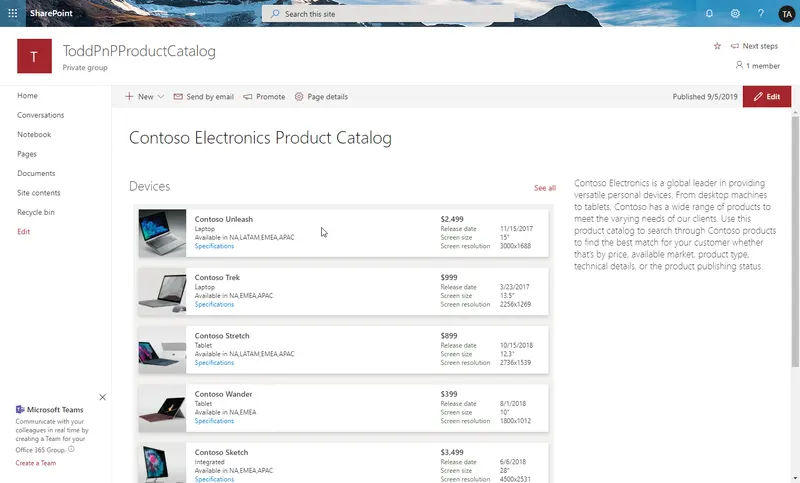
screenshot of the sample

View requirements

This solution is comprised of 2 libraries, a list, and multiple files. This is a complicated setup. Fortunately, you can also have all lists (including sample data) setup for you by using the provisioning instructions below.

Prerequisites

Install PnP PowerShell modules

  • To install PnP PowerShell modules, open PowerShell as an administrator and run the following command:

    Install-Module SharePointPnPPowerShellOnline -AllowClobber

Deployment

  1. Open PowerShell as an administrator and go to the provisioning folder where the script is located. Then run the following command:

    .\ProductCatalog.ps1

    Notes:

    • Please make sure all files are downloaded, including the two folders "documents" and "images".

    • Before the script will run, the following "Security Warning" may appear, type R to allow the script to run:

    avatar

    • After entering the adminUPN you will be asked for the user password in a pop up window.
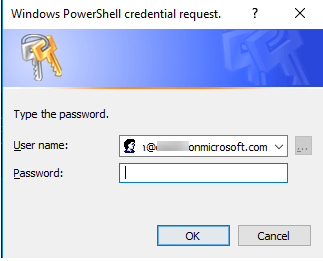
    avatar

  2. Please refer to the below table to enter the parameters:

Name Value Description
orgName <orgName> The name of the tenant.
adminUPN <user>@<orgName>.onmicrosoft.com The site administrator account. For example: If your SharePoint URL is http://contoso.sharepoint.com then your orgName is contoso.
fileNameOfPnPTemplate ProductCatalogPNP The file name of the PnP Provisioning Template.
  1. Please choose if you would like to apply the PnP Template to existing site or a new site.
Name Value Description
Input new site title <Site Title> The title for the new site.
Input existing site url <Existing Site URL> The url of existing site.

After the script has successfully run you will see the following screen.
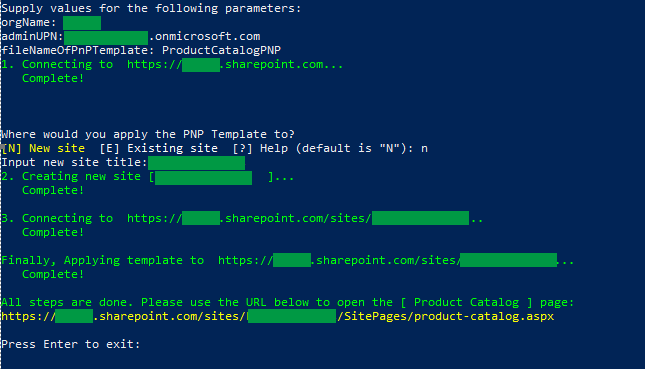
avatar

  1. Copy the [Product Catalog] URL.

  2. Open a web broswer and navigate to the URL.

  3. Verify the page appears like this:

avatar

Sample

Solution Author(s)
product-catalog.json Todd Baginski, Chris McNulty, Chad Liu, Damian Gibbs, Randy Wang
product-catalog-library.json Todd Baginski, Chris McNulty, Chad Liu, Damian Gibbs, Randy Wang

Version history

Version Date Comments
1.0 January 29, 2020 Initial release

Disclaimer

THIS CODE IS PROVIDED AS IS WITHOUT WARRANTY OF ANY KIND, EITHER EXPRESS OR IMPLIED, INCLUDING ANY IMPLIED WARRANTIES OF FITNESS FOR A PARTICULAR PURPOSE, MERCHANTABILITY, OR NON-INFRINGEMENT.