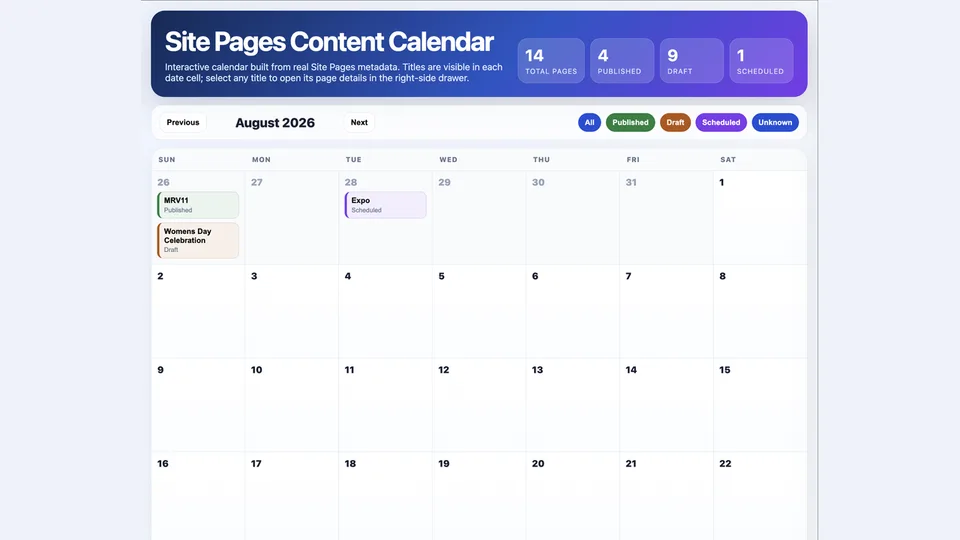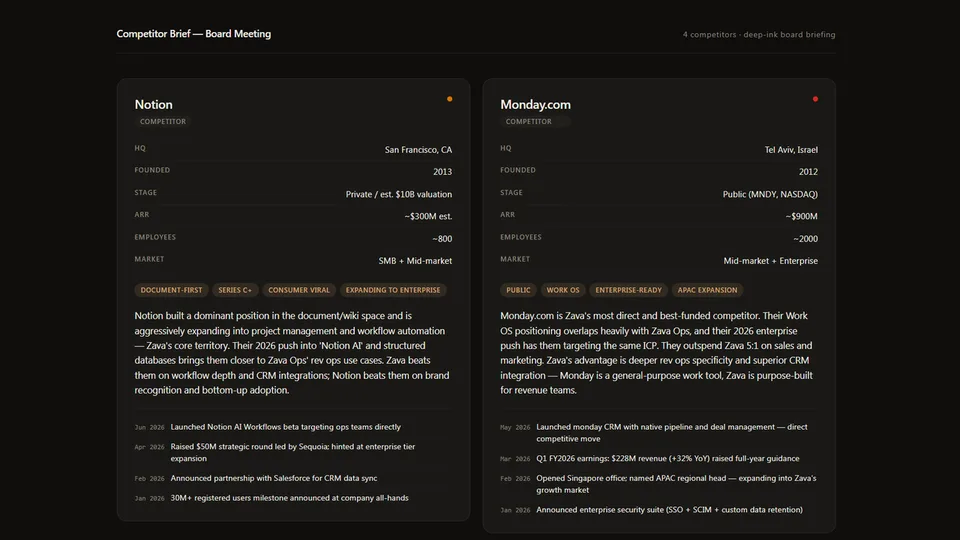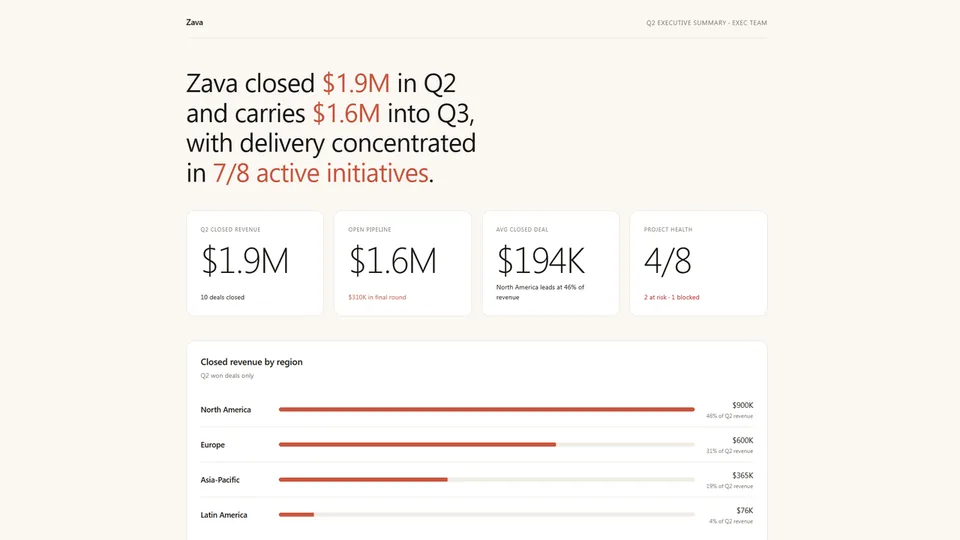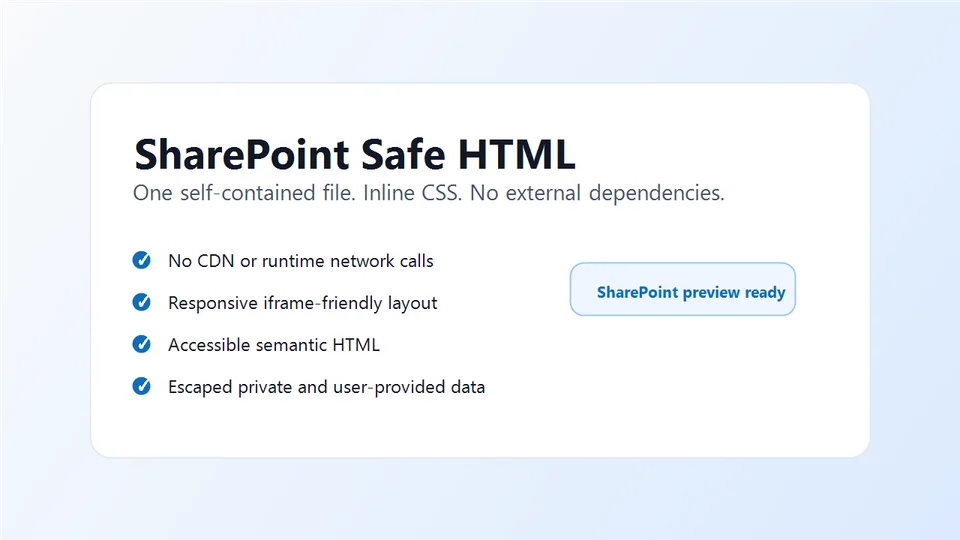
Creates a SharePoint-safe HTML file for SharePoint and OneDrive preview surfaces. The skill enforces inline CSS, semantic HTML targeting WCAG 2.2 AA, responsive iframe-friendly layouts, and privacy-safe escaping of untrusted content.
Use it for HTML reports, dashboards, decks, one-pagers, and visual artifacts that must run without external CSS, JavaScript, images, fonts, APIs, CDNs, local file paths, secrets, or runtime network calls. When the user needs auto-updating data, the skill allows the supported SharePoint/OneDrive exception of up to 10 live-linked CSV or XLSX files in the same folder as the HTML artifact, with defensive schema validation and empty/error states so changed data files do not crash the render. Live-linked reports must be live-only: no embedded backup rows, fallback datasets, cached snapshots, sample rows, or stale hardcoded business data. The skill also requires a deterministic render pipeline, explicit empty/error states, and source checks for unresolved placeholders or leaked JavaScript values.
An accessibility implementation contract covers live-region announcements for dynamic content, accessible KPI cards and data tables, chart-to-text/table equivalents, color/contrast, keyboard/focus, reduced motion, and responsive/zoom behavior, each backed by a matching validation checklist.
Creates single-file HTML artifacts that render reliably in SharePoint, OneDrive, Teams, File Viewer, and embedded iframe preview surfaces. The skill turns general requests for reports, dashboards, decks, one-pagers, and visual pages into sandbox-safe, WCAG 2.2 AA-oriented HTML with no external dependencies, plus an explicit exception for supported live-linked CSV/XLSX data files.
What you get
- A single self-contained
.htmlfile designed for SharePoint and OneDrive preview surfaces - Inline CSS, system fonts, responsive iframe-friendly layout, and semantic accessible HTML targeting WCAG 2.2 AA
- An accessibility implementation contract covering live-region announcements, accessible KPI cards and tables, chart equivalents, color/contrast, keyboard/focus, reduced motion, and responsive/zoom behavior — see references/accessibility.md
- Optional live links to up to 10 SharePoint/OneDrive
.csvor.xlsxfiles in the same folder as the HTML artifact so data-backed artifacts can update when source files change - Defensive live-data rendering rules that prevent blank pages and errors when linked files are empty, renamed, or missing expected columns
- Live-only behavior for live-linked reports: no hardcoded backup rows, fallback datasets, cached snapshots, sample rows, or stale render data
- A deterministic render contract with input normalization, explicit empty states, visible error panels, and source checks for unresolved placeholders or leaked JavaScript values
- Guardrails against CDNs, runtime network calls, local file paths, external assets, secrets, and unsafe raw HTML
- Validation checklists for source scanning, responsive rendering, accessibility, and privacy review
When to use
Ask Copilot:
- "make this a SharePoint-safe HTML page"
- "build an HTML dashboard I can upload to SharePoint"
- "create a self-contained HTML report for OneDrive preview"
- "make an HTML dashboard that live-links to this Excel workbook"
- "turn this into an embeddable HTML artifact for Teams or File Viewer"
- "generate a visual one-pager with no external dependencies"
SharePoint Skill
| Solution | Author(s) |
|---|---|
| sharepoint-safe-html | Zach Rosenfield | GitHub | LinkedIn |
Version history
| Version | Date | Comments |
|---|---|---|
| 1.0 | June 2026 | Initial Release |
| 1.1 | August 2026 | Added a WCAG 2.2 AA-oriented accessibility implementation contract (live-region announcements, accessible KPI cards/tables/charts, color/contrast, keyboard/focus, reduced motion, responsive/zoom rules) and matching validation checklist, contributed by James Dellow |
Disclaimer
THIS CODE IS PROVIDED AS IS WITHOUT WARRANTY OF ANY KIND, EITHER EXPRESS OR IMPLIED, INCLUDING ANY IMPLIED WARRANTIES OF FITNESS FOR A PARTICULAR PURPOSE, MERCHANTABILITY, OR NON-INFRINGEMENT.
Package
Ready to install
The ZIP contains only the upload-ready inner skill folder.
View SKILL.md
---
name: sharepoint-safe-html
description: >
Creates accessible, single-file HTML artifacts that render reliably in SharePoint, OneDrive,
Teams, File Viewer, and embedded iframe preview surfaces. Use this skill whenever the user
asks for SharePoint-safe HTML, an HTML report, dashboard, deck, artifact, visual page,
one-pager, or embeddable HTML file for Microsoft 365 preview surfaces. Enforces inline CSS,
no external dependencies, no runtime network calls, responsive iframe-friendly layout,
optional live-linked CSV/XLSX data files, WCAG 2.2 AA-oriented accessibility, and
privacy-safe escaping.
metadata:
author: zrosenfield
---
# SharePoint Safe HTML
Generate a single self-contained `.html` file that works reliably when hosted in SharePoint or OneDrive and opened through preview, File Viewer, Teams, or an embedded iframe.
If a narrower installed skill matches the artifact type (for example, an executive report, dossier, scorecard, or roadmap), use that skill for content structure and apply this skill's safety and accessibility contract to the final HTML.
---
## Core Contract
Create exactly one `.html` file that works with:
- No network access.
- No external files by default, except explicitly approved SharePoint/OneDrive live-linked `.csv` or `.xlsx` data files.
- No external CSS, JavaScript, images, fonts, APIs, analytics, or CDNs.
- No privileged browser APIs.
- No secrets or tokens.
- No dependency on local filesystem paths.
- Semantic, accessible HTML that targets WCAG 2.2 AA unless the user explicitly asks for a different standard.
Assume SharePoint and OneDrive render the file inside a restricted sandboxed iframe. If it works locally but relies on anything outside the file, it is not SharePoint-safe.
SharePoint/OneDrive can live link up to 10 `.csv` or `.xlsx` files in the same folder as the HTML file, so the artifact updates when those files change. Treat this as the only approved external-file exception, and use it only when the user wants an auto-updating data-backed artifact.
---
## Default Decision Rule
Prefer static, self-contained, CSS-driven HTML.
Use JavaScript only when the user explicitly needs interactivity and accepts that SharePoint/OneDrive sandbox behavior may vary. If JavaScript is used, it must be inline, dependency-free, non-networked, and progressive enhancement only. The artifact must remain useful if scripts are blocked.
Accessibility is not a final polish step. It must shape the content model, visual design, render logic, and validation pass.
---
## Workflow
### Step 1: Confirm the artifact purpose
Identify the requested output type and audience:
- Report, dashboard, deck, one-pager, comparison, timeline, scorecard, briefing, or visual page.
- Intended SharePoint/OneDrive location if provided.
- Whether interactivity is truly required.
- Source/freshness notes needed for any data shown.
- Accessibility needs implied by the artifact, including charts, tables, status messages, and keyboard interaction.
Do not ask for information the user already provided. If the request can be completed from the prompt or attached data, proceed.
### Step 2: Build a static content model
Before writing HTML, decide the page sections and data to embed. Keep only the information the user intended to publish in the artifact.
For private M365, email, Teams, SharePoint, CRM, or customer data:
- Include only data required for the artifact.
- Do not hide raw source data in comments, scripts, attributes, or unused markup.
- Do not embed full source transcripts unless explicitly requested.
- Do not include tokens, cookies, connection strings, debug logs, or internal-only URLs that should not be shared.
For accessibility, define the semantic purpose of each section before rendering it:
- Page introduction.
- Summary metrics.
- Charts or visual summaries.
- Data tables.
- Notes, caveats, source, and freshness information.
- Empty, loading, and error states.
If the user wants the artifact to auto-update from source files, use live-linked `.csv` or `.xlsx` data files instead of embedding stale snapshots. Follow the live-linked data rules below before generating the final HTML.
### Step 2A: Decide whether to use live-linked data files
Use live-linked data only when all conditions are true:
- The user wants the artifact to update when source data changes.
- The data source is a `.csv` or `.xlsx` file in SharePoint or OneDrive.
- Every linked `.csv` or `.xlsx` file is in the same folder as the HTML artifact.
- There are 10 or fewer linked files total.
- The linked files are appropriate for the artifact's audience and SharePoint location.
- The artifact remains safe without runtime network code written by the agent.
Rules:
- Never live link more than 10 `.csv` or `.xlsx` files.
- Keep the HTML file and every linked `.csv` or `.xlsx` file in the same SharePoint/OneDrive folder. Do not link across folders, sites, drives, tenants, or local paths.
- Do not use live-linked files for secrets, tokens, credentials, or hidden raw exports the user did not intend to publish.
- Do not mix live links with arbitrary external URLs, REST calls, Graph calls, CDNs, or local paths.
- Prefer live links for data that must stay current; prefer embedded static data for final snapshots, executive-ready exports, or sensitive data that should not expose a source workbook.
- Document every linked file in a visible source/freshness note so readers understand what drives the artifact.
- When the user asks for a live-linked report, do not embed backup rows, fallback datasets, cached snapshots, sample rows, or stale hardcoded render data. The report must be live-only.
### Step 2B: Make live-linked rendering resilient
Live-linked `.csv` and `.xlsx` files can change after the HTML is created. Generate defensive render logic so updated, empty, renamed, or partially missing data does not crash the artifact.
Required reliability rules:
- Define the expected schema for every linked file before rendering: file name, sheet/table if applicable, required columns, optional columns, and how each column maps to the visual sections.
- Normalize linked data into a canonical object with safe defaults before any rendering happens.
- Initialize every collection used by the renderer as an array, even when the source file is empty or missing optional data.
- For live-linked reports, safe defaults may prevent JavaScript crashes but must not invent business data. Defaults are allowed for presentation fields such as `""`, `0`, `false`, or `[]`; they are not allowed to create backup records, fake rows, placeholder metrics, or cached content.
- Never call `.map`, `.filter`, `.reduce`, `.forEach`, or similar array methods on a value unless it has first been normalized with `Array.isArray(value) ? value : []`.
- Never assume nested properties exist. Read them through a normalization layer and provide explicit defaults such as `""`, `0`, `false`, or `[]`.
- If required columns are missing, render a visible configuration error panel that lists the expected columns and the columns found. Do not throw an uncaught exception or leave the page blank.
- If a linked file fails to load, cannot be parsed, is not in the same folder, exceeds the 10-file limit, or returns an unexpected shape, render a visible live-link error panel. Do not replace it with embedded backup content.
- If a linked file has zero rows, render an empty-state message for that section instead of failing.
- If individual cell values are blank or malformed, render a safe placeholder such as `Not provided` and keep the rest of the artifact usable.
- Keep source/freshness notes visible and include the names of linked files so users know what to fix.
Use this defensive pattern for any live-linked array before rendering:
```js
const rows = Array.isArray(sourceRows) ? sourceRows : [];
const cards = rows.map(row => ({
title: String(row.Title ?? row.Name ?? "Untitled"),
status: String(row.Status ?? "Not provided"),
value: Number.isFinite(Number(row.Value)) ? Number(row.Value) : 0
}));
```
Before handoff, test the generated artifact logic against these data states:
1. Normal rows with all expected columns.
2. Empty file or empty sheet.
3. Missing optional columns.
4. Missing required columns.
5. Blank cells in required columns.
6. Failed live-link load or parse failure.
The expected result for state 6 is a visible error message such as: `Live data failed to load. Check that the linked CSV/XLSX files are in the same folder as this HTML file and match the expected schema.` It must not show stale, sample, or hardcoded business data.
### Step 3: Generate one self-contained HTML file
Use semantic HTML and inline CSS:
- Use `main`, `section`, `article`, `header`, `footer`, `h1`-`h6`, `p`, `ul`, `ol`, `dl`, `table`, `figure`, and `figcaption` where appropriate.
- Use exactly one `h1` and maintain accessible heading order.
- Inline all CSS in a `<style>` block.
- Scope page styles under a root wrapper such as `.sp-html-artifact`.
- Use system fonts: `"Segoe UI", Aptos, Arial, sans-serif`.
- Design for iframe width and variable height.
- Use responsive layouts from about 360px wide to desktop.
- Make charts readable without hover-only interactions.
- Include source and freshness notes when presenting data.
- Ensure the artifact remains readable at 200% browser zoom.
Use this base pattern unless the requested design requires a different layout:
```html
<!doctype html>
<html lang="en">
<head>
<meta charset="utf-8">
<meta name="viewport" content="width=device-width, initial-scale=1">
<meta name="color-scheme" content="light">
<title>SharePoint-safe HTML artifact</title>
<style>
:root { color-scheme: light; }
* { box-sizing: border-box; }
body {
margin: 0;
font-family: "Segoe UI", Aptos, Arial, sans-serif;
background: #f8fafc;
color: #111827;
line-height: 1.5;
}
.sp-html-artifact {
width: 100%;
max-width: 1440px;
margin: 0 auto;
padding: 24px;
}
.sr-only {
position: absolute;
width: 1px;
height: 1px;
padding: 0;
margin: -1px;
overflow: hidden;
clip: rect(0, 0, 0, 0);
white-space: nowrap;
border: 0;
}
:focus-visible {
outline: 3px solid #2563eb;
outline-offset: 3px;
}
@media (max-width: 640px) {
.sp-html-artifact { padding: 14px; }
}
@media (prefers-reduced-motion: reduce) {
*, *::before, *::after {
animation-duration: 0.01ms !important;
animation-iteration-count: 1 !important;
scroll-behavior: auto !important;
transition-duration: 0.01ms !important;
}
}
</style>
</head>
<body>
<main class="sp-html-artifact" id="main-content">
<header aria-labelledby="page-title">
<h1 id="page-title">Artifact title</h1>
<p>Lead with the most important message.</p>
</header>
</main>
</body>
</html>
```
### Step 4: Use a deterministic render contract
Generate HTML through a small, explicit render pipeline so the artifact is predictable and debuggable:
1. **Collect inputs**: source data, user requirements, artifact title, audience, and freshness notes.
2. **Normalize inputs**: convert all data into canonical objects with explicit defaults.
3. **Validate inputs**: check required fields, expected schemas, row counts, and date/number parsing before rendering.
4. **Render sections**: produce each visual section from normalized data only.
5. **Assemble HTML**: insert rendered sections into the final document shell.
6. **Validate output source**: run the validation checklist before handoff.
Do not intermix raw source parsing, normalization, and HTML string construction in the same code path. Most broken artifacts come from rendering directly from unknown data shapes.
Required render safeguards:
- Every dynamic section must have an explicit empty state.
- Every known failure mode must render a visible error panel with actionable fix text.
- Errors must never be swallowed silently. If recovery is possible, show what was recovered; if recovery is not possible, show the error panel.
- Do not leave unresolved template tokens such as `{{TITLE}}`, `{{CONTENT}}`, `TODO`, `undefined`, `null`, `[object Object]`, or `NaN` in visible output.
- Do not use placeholder business data unless the user explicitly asked for a mockup or sample. For live-linked reports, placeholder business data is always forbidden.
- Use stable section IDs and anchors so links keep working after data refreshes.
- Keep the artifact useful with JavaScript disabled unless the user explicitly accepted a JavaScript-dependent experience.
For live-linked reports, wrap the live-data initialization in a visible error boundary. The boundary may catch parsing/loading exceptions only to replace the broken section with an error panel. It must not render backup business data.
### Step 5: Escape untrusted content
Escape all values from emails, chats, documents, lists, spreadsheets, M365, CRM, or user-provided data before inserting into HTML:
| Character | Escape |
|---|---|
| `&` | `&` |
| `<` | `<` |
| `>` | `>` |
| `"` | `"` |
| `'` | `'` |
Never render raw untrusted HTML.
### Step 6: Validate before handoff
Before handing the file to the user, verify the source, layout, and accessibility:
1. Search the source for banned patterns listed in the validation checklist.
2. Confirm all CSS is inline.
3. Confirm no external dependencies are referenced.
4. Confirm the page is readable at 360px, 768px, and desktop widths, and at 200% browser zoom.
5. Confirm there is no horizontal scrolling.
6. Confirm all meaningful images have alt text and decorative images use `alt=""`.
7. Confirm charts and tables are readable without hover, and every chart has a text, list, or table equivalent.
8. Confirm KPI cards and status indicators expose label/value relationships and don't rely on color alone.
9. Confirm dynamic loading, refresh, success, and error states are announced through `role="status"`/`role="alert"` live regions.
10. Confirm visible focus is present and keyboard users can operate every interactive control.
11. Confirm private data is intentional and appropriate for the SharePoint location.
12. Confirm there are no unresolved placeholders, leaked JavaScript values, or accidental mock rows.
13. If possible, upload to SharePoint or OneDrive and open through preview or File Viewer.
14. If embedded on a SharePoint page, verify the actual web part/container size.
Run the full [Validation Checklist](#validation-checklist) and [Accessibility validation checklist](#accessibility-validation-checklist) below before handoff.
---
## Accessibility Implementation Contract
Target WCAG 2.2 AA unless the user explicitly asks for a different standard.
The artifact must be perceivable, operable, understandable, and robust. Build accessibility into the content model and rendering approach rather than treating it as a final checklist.
This skill's [Accessibility Rules](#accessibility-rules) and [Accessibility validation checklist](#accessibility-validation-checklist) below cover the rules to apply and verify on every artifact. For the full implementation patterns behind those rules — semantic page structure, live-region markup for dynamic content, accessible KPI card and table markup, accessible chart patterns, color/contrast, keyboard/focus, reduced motion, responsive/zoom behavior, image/SVG alt handling, link/button text, and plain-language guidance, each with runnable HTML/CSS examples — see [references/accessibility.md](references/accessibility.md). Read it before building any section that involves dynamic status, charts, tables, or KPI cards.
---
## Allowed Patterns
Use these freely:
- Inline `<style>`.
- CSS variables.
- Flexbox and CSS Grid.
- Media queries.
- CSS-only charts, bars, badges, status strips, cards, timelines, matrix cells, inline SVG, and tables.
- Print styles when useful.
- `details` and `summary` for progressive disclosure.
- Inline SVG created by the agent if it contains no scripts, external references, or unsafe content.
- Small `data:image/svg+xml` or `data:image/png;base64` assets only when necessary and size-safe.
- Native HTML controls for interaction.
- Screen-reader-only CSS for essential accessible labels or summaries when visible text would be duplicative.
Prefer CSS-only visuals over external chart libraries. For example, use horizontal bars, status chips, sparklines, timelines, matrix cells, inline SVG, or semantic tables.
---
## Banned Patterns
Do not use:
- External `<script src=...>`.
- External `<link rel="stylesheet" ...>`.
- Google Fonts, CDN fonts, icon CDNs, npm CDNs, Tailwind CDN, Bootstrap CDN, React CDN, Chart.js CDN, D3 CDN, or remote CSS.
- `fetch`, `XMLHttpRequest`, WebSocket, EventSource, Graph, SharePoint REST, Dataverse, Power BI, or any runtime network API from the HTML file.
- Images next to the HTML file unless the user explicitly approved a multi-file package and confirmed the SharePoint hosting path preserves relative URLs.
- External data files other than the supported live-linked `.csv` or `.xlsx` exception.
- `file://`, `C:\...`, `/Users/...`, `localhost`, blob URLs created outside the page, or temporary paths.
- Secrets, bearer tokens, API keys, cookies, passwords, connection strings, internal-only URLs, or hidden sensitive data.
- Iframes that load external sites.
- Browser APIs that require permissions or privileged context: clipboard write, microphone, camera, geolocation, notifications, service workers, web workers, storage persistence, IndexedDB as a requirement, or downloads as the primary workflow.
- Hover as the only way to see data.
- Color as the only way to understand status, category, or priority.
- Fixed-width layouts that clip inside SharePoint.
- Huge base64 assets that make preview slow or unreliable.
- Focus outlines removed with `outline: none` unless an equally visible replacement is applied.
- Visual-only charts with no text, list, or table equivalent.
- Anonymous KPI cards that do not expose label and value relationships.
---
## JavaScript Rules
Default to no JavaScript.
JavaScript is allowed only if all conditions are true:
- The user needs interactivity.
- The script is inline only.
- There are no external dependencies or network calls.
- There is no `eval`, dynamic script injection, or remote code loading.
- There are no secrets.
- There are no required privileged browser permissions.
- The artifact remains useful if the script is blocked.
- It is tested in the target SharePoint/OneDrive preview surface when possible.
Acceptable JavaScript use cases include local tab switching, expand/collapse, sorting/filtering embedded table data, lightweight client-side search over embedded data, and optional failure-tolerant copy-to-clipboard.
Prefer `details`/`summary`, anchor links, static tables/charts, and CSS bars/sparklines when they satisfy the need.
When JavaScript changes visible content:
- Update an appropriate `role="status"` live region for meaningful state changes.
- Use `role="alert"` for blocking errors.
- Keep focus management simple and predictable.
- Do not move focus unless the interaction requires it.
---
## Accessibility Rules
Use these rules for every artifact:
- Target WCAG 2.2 AA unless another standard is requested.
- Use one `h1`.
- Use headings in order.
- Include a `main` landmark.
- Use semantic sections for major content groups.
- Make text readable at normal zoom and 200% zoom.
- Use sufficient contrast.
- Do not encode meaning only by color.
- Provide visible labels for status chips and charts.
- Add `alt` text for meaningful images.
- Mark decorative images with `alt=""` or `aria-hidden="true"` as appropriate.
- Use table headers for data tables.
- Use table captions or nearby summary text for data tables.
- Make links descriptive.
- Ensure keyboard navigation works for any interactive elements.
- Preserve visible focus.
- Avoid motion; if used, respect `prefers-reduced-motion`.
- Ensure dynamic loading, refresh, success, and error states are announced correctly.
- Ensure every chart has an equivalent text, list, or table representation.
- Ensure KPI cards expose label and value relationships semantically.
---
## Validation Checklist
Search the final HTML source for these banned strings and remove any unsafe usage:
- `http://`
- `https://`
- `cdn`
- `<script src=`
- `<link rel="stylesheet"`
- `fetch(`
- `XMLHttpRequest`
- `WebSocket`
- `EventSource`
- `file://`
- `localhost`
- `C:\`
- `/Users/`
- `{{`
- `TODO`
- `undefined`
- `[object Object]`
- `NaN`
Then verify:
- [ ] The output is exactly one `.html` file, unless the user approved live-linked `.csv` or `.xlsx` data files.
- [ ] Any live-linked data uses 10 or fewer `.csv`/`.xlsx` files in the same folder as the HTML artifact and no other external file types.
- [ ] Every live-linked file has an expected schema and a normalization layer with safe defaults.
- [ ] Live-linked reports contain no embedded backup rows, fallback datasets, cached snapshots, sample rows, or hardcoded business data.
- [ ] No renderer calls `.map`, `.filter`, `.reduce`, `.forEach`, or nested property reads on unnormalized data.
- [ ] Empty, missing-column, blank-cell, load-failure, and parse-failure states render visible messages instead of uncaught errors or backup content.
- [ ] All CSS is inline.
- [ ] Any JavaScript is inline, optional, dependency-free, and non-networked.
- [ ] No external assets, fonts, APIs, runtime network calls, or non-approved external files exist.
- [ ] No secrets, tokens, cookies, or hidden raw data exist.
- [ ] All untrusted content is escaped.
- [ ] No unresolved placeholders, leaked JavaScript sentinel values, accidental mock rows, or sample business data exist.
- [ ] Every dynamic section has an empty state and every known live-data failure has a visible error state.
- [ ] Layout is responsive and iframe-friendly.
- [ ] Charts and tables are readable without hover.
- [ ] Source/freshness notes are included when data is presented.
### Accessibility validation checklist
Verify the following before handoff:
- [ ] Exactly one `h1` exists.
- [ ] Heading order is logical.
- [ ] `main` landmark exists.
- [ ] Major content groups have accessible headings.
- [ ] Dynamic status areas use `role="status"` and `aria-live="polite"`.
- [ ] Blocking errors use `role="alert"`.
- [ ] Buttons have clear accessible names.
- [ ] Keyboard users can operate all controls.
- [ ] Visible focus is present and clear.
- [ ] Links are descriptive.
- [ ] Charts have equivalent text, list, or table data.
- [ ] Visual chart elements that duplicate text are hidden with `aria-hidden="true"`.
- [ ] Tables have captions or nearby summaries.
- [ ] Table headers use `th` and `scope` where appropriate.
- [ ] No meaning is conveyed by color alone.
- [ ] Contrast has been checked for text, badges, muted labels, errors, chart labels, and status chips.
- [ ] Content is readable at 200% zoom.
- [ ] Layout works at 360px width.
- [ ] No content is available only on hover.
- [ ] Meaningful images have alt text or equivalent.
- [ ] Decorative visuals are hidden from assistive technology.
- [ ] Reduced motion is respected.
- [ ] Error messages explain the problem and the likely fix.
---
## Short Instruction Block
When a user asks for SharePoint-safe HTML, follow this instruction:
> Create a single self-contained HTML file for SharePoint/OneDrive preview. Use inline CSS only. Do not use external CSS, JS, images, fonts, APIs, CDNs, local file references, secrets, or runtime network calls. Avoid JavaScript unless explicitly required; if used, keep it inline, dependency-free, non-networked, optional, and accessible. Escape all untrusted content. Use semantic accessible HTML, responsive iframe-friendly layout, system fonts, and CSS-only visuals where possible. Target WCAG 2.2 AA by default. Include a `main` landmark, exactly one `h1`, logical headings, visible focus, sufficient contrast, descriptive links, accessible buttons, accessible loading/error states, and reduced-motion support. KPI cards must expose label/value relationships, preferably with a definition list. Tables must include captions or nearby summaries and proper headers. Charts must never be visual-only — every chart must provide the same data as text, a list, or a table, and must not rely on color, hover, width, or position alone to communicate meaning. Validate that the source contains no external dependencies and that the file renders in SharePoint/OneDrive preview.
If the user wants auto-updating data, use only the SharePoint/OneDrive live-linked data exception: up to 10 linked `.csv` or `.xlsx` files in the same folder as the HTML artifact, with visible source/freshness notes and no agent-authored runtime fetch/API code. Live-linked reports must be live-only: never embed backup rows, fallback datasets, cached snapshots, sample rows, or stale hardcoded business data. If the live link fails, render a visible error explaining what to fix. Because linked files can change after generation, define each file's expected schema, normalize all data to safe defaults, never call array methods on unverified values, and render visible empty/error states instead of uncaught render errors.
References
- agentskills.io specification
The specification that SharePoint AI skills follow for installation and discovery.
Discuss this skill
Ask a question, share how you used it, or suggest an improvement with the community.
Open GitHub Discussions