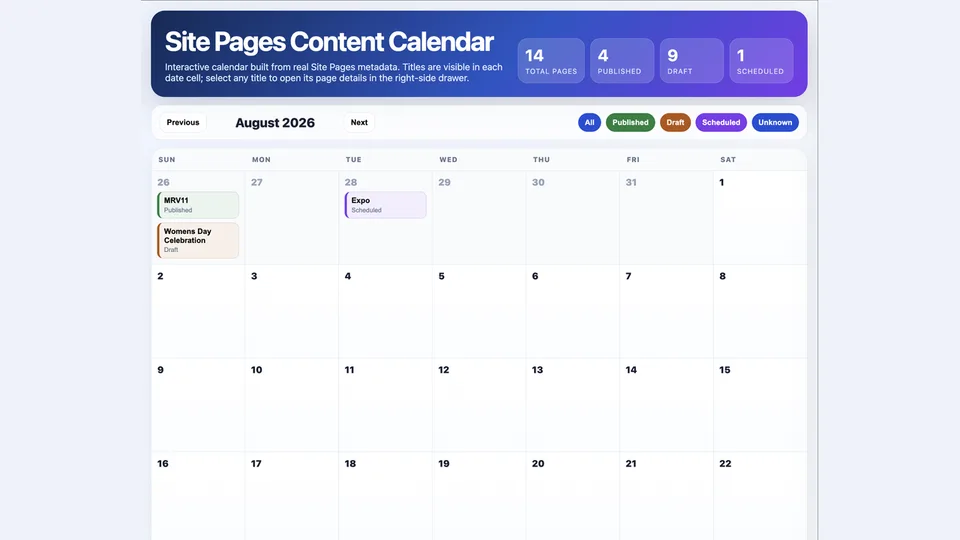
Creates a self-contained HTML dashboard from a SharePoint Site Pages library, showing pages in a full-size responsive calendar with visible page titles, status filters, and source page links.
Use it to review drafts, published pages, scheduled pages, page metadata, authors, editors, layout types, descriptions, and publishing-related dates. Scheduled pages are classified only when _ScheduledVersion is present or _ModerationStatus explicitly indicates Scheduled; _PublishStartDate alone is not treated as proof of scheduling. Clicking a page title opens a true right-side overlay drawer with detailed metadata and placement logic.
Builds a full-size, interactive SharePoint Site Pages publishing/content calendar as a self-contained HTML dashboard.
What you get
- Calendar coverage for the current SharePoint site's Site Pages library
- Safe page status classification for Published, Draft, Scheduled, and Unknown pages
- Strict scheduled-page logic that only treats pages as scheduled when
_ScheduledVersionis present or_ModerationStatusexplicitly says Scheduled - Full-size responsive HTML calendar that uses the available page and browser viewport area
- Visible page titles directly in calendar cells, with compact status indicators and overflow handling
- True right-side overlay drawer with detailed metadata when a page title is clicked
- Source page links, placement logic, page metadata, author/editor details, version, layout, and description
- A self-contained HTML dashboard saved back to SharePoint
When to use
Ask Copilot:
- "create an interactive content calendar for site pages"
- "build a site pages calendar dashboard"
- "make a SharePoint page publishing calendar"
- "show drafts, published, and scheduled pages in a calendar"
- "generate an HTML dashboard for page status and publish dates"
Best when you need a quick visual review of SharePoint page activity, publishing status, draft inventory, scheduled content, and page-level metadata without changing any pages.
SharePoint Skill
| Solution | Author(s) |
|---|---|
| site-pages-content-calendar | Sandeep P S ( GitHub | LinkedIn ) |
Version history
| Version | Date | Comments |
|---|---|---|
| 1.0 | July 2026 | Initial Release |
Disclaimer
THIS CODE IS PROVIDED AS IS WITHOUT WARRANTY OF ANY KIND, EITHER EXPRESS OR IMPLIED, INCLUDING ANY IMPLIED WARRANTIES OF FITNESS FOR A PARTICULAR PURPOSE, MERCHANTABILITY, OR NON-INFRINGEMENT.
Package
Ready to install
The ZIP contains only the upload-ready inner skill folder.
a6a2b1c6488b6d5ae37db5c1c211cf0666543a0b0d1795c24ce55f7a24faa407View SKILL.md
---
name: site-pages-content-calendar
description: |-
  Build a full-size, interactive, visually rich HTML content calendar from a SharePoint Site Pages library, using real page metadata and safe status classification.

  Use when the user says:
  - "create an interactive content calendar for site pages"
  - "build a site pages calendar dashboard"
  - "make a SharePoint page publishing calendar"
  - "show drafts, published, and scheduled pages in a calendar"
  - "generate an HTML dashboard for page status and publish dates"
---
# Build Site Pages Content Calendar

## When to use
Use this skill when the user wants an interactive HTML calendar/dashboard for SharePoint Site Pages, especially with page names, published/draft/scheduled status, dates, and click-through detail views. The generated calendar should be full-size by default, using the available browser viewport and content area instead of a small embedded or fixed-height calendar.

## Inputs
- Current SharePoint site URL.
- Site Pages library/list ID if available from context. If not available, discover or resolve it before querying.
- Optional user preferences for destination file name, folder, colors, or layout.

## Steps
1. Inspect the Site Pages schema with `get_list_schema`.
   - Include hidden and read-only fields so status fields are visible.
   - Confirm internal names for: `FileLeafRef`, `FileRef`, `Title`, `Created`, `Modified`, `FirstPublishedDate`, `_PublishStartDate`, `_ScheduledVersion`, `_ModerationStatus`, `_UIVersionString`, `_Level`, `Author`, `Editor`, `PageLayoutType`, `Description`, and `File_x0020_Type`.
2. List the Site Pages items with `list_items`.
   - Use `rowLimit` large enough for the whole library.
   - Use `viewFields` with the verified internal names.
   - Filter to actual pages where possible: `File_x0020_Type = aspx`.
   - If `hasMore` is true, process the returned `dataRef`, not the inline preview.
3. Classify status without guessing.
   - Scheduled: only when `_ScheduledVersion` is non-empty or `_ModerationStatus` explicitly contains “Scheduled”.
   - Do not classify pages as scheduled just because `_PublishStartDate` exists; it can be defaulted/populated without a scheduled page.
   - Draft: `_ModerationStatus` contains “Draft” or item URL indicates draft.
   - Published: `_ModerationStatus` contains “Approved/Published” or item URL indicates published.
   - Unknown: no reliable status signal returned.
4. Choose calendar placement date.
   - Scheduled pages: `_PublishStartDate` if available; otherwise Created with a label saying scheduled date unavailable.
   - Published pages: `FirstPublishedDate` if available; otherwise Created with a label saying published date unavailable.
   - Draft pages: Created date, labeled as draft placement.
   - Never invent missing dates; display “Not available” where absent.
5. Render the calendar at full size.
   - Make the main calendar fill the available page width and height, using responsive layout such as `min-height: 100vh`, flexible columns/rows, and no narrow fixed-width wrapper around the calendar.
   - Use a full-width dashboard shell and let the calendar grid expand to the browser viewport.
   - Avoid small embedded previews, constrained cards, or fixed-height containers that make the calendar look miniaturized.
6. Show page titles directly in calendar cells.
   - Each date cell must make the page title visible for pages on that date, using `Title` when present and falling back to `FileLeafRef`/file name.
   - Keep titles compact with truncation, wrapping, or a visible “+N more” affordance if the cell has many pages.
   - Do not hide all titles behind counts only; counts may supplement titles but must not replace them.
7. Open a true right-side overlay drawer when a page title is clicked.
   - Clicking a visible page title in the calendar cell must open a fixed-position drawer that slides in from the right side of the browser viewport.
   - Implement the drawer with CSS such as `position: fixed; top: 0; right: 0; height: 100vh; z-index: ...; transform: translateX(...)`, plus an overlay/backdrop and close button.
   - Do not render details below the calendar, below the selected date, or as an inline panel that appears after the calendar.
   - The drawer should overlay the page or sit above the calendar without causing the calendar to collapse into a compact widget.
   - The drawer should show all available metadata for the clicked page, including title, file name, source link, status, source status field, placement logic, created/modified dates, first published date, publish start date, scheduled version, moderation status, version, level, author, editor, page layout, and description.
   - Include a clear source page link that opens the page.
8. Avoid congested calendar cells.
   - Show visible titles while keeping cells readable.
   - Provide compact status counts and a “+N more” affordance when useful.
   - Include month previous/next buttons and status filters.
9. Generate the HTML using `execute_code` with `outputDataRef: true`.
   - Keep all CSS and JavaScript inline.
   - Do not reference external scripts, fonts, or images.
10. Save the dashboard with `create_file` as `.html` using `contentDataRef`; omit `contentDataPath` for raw HTML output from `execute_code`.

## Output format
Reply with:
- A markdown link to the created HTML dashboard.
- A short note summarizing the status logic, especially that scheduled pages only use `_ScheduledVersion` or explicit scheduled status.
- A short note that the calendar is rendered full-size to use the available page/viewport area.
- A short note that page titles are visible on the calendar and clicking a title opens a true right-side overlay drawer.
- If any status/date fields are missing, say what was unavailable instead of filling gaps.

## Constraints
- Don’t hallucinate status, dates, page names, or URLs.
- Don’t treat `_PublishStartDate` alone as proof of a scheduled page.
- Don’t use the inline preview for final counts if a `dataRef` is available.
- Don’t constrain the calendar to a small fixed-size widget unless the user explicitly asks for an embedded compact view.
- Don’t make page details accessible only through hover.
- Don’t place details below the calendar; clicking a visible title must open a right-side overlay drawer.
- If tool calls fail or return empty data, say so plainly and don’t invent content.
References
- agentskills.io specification
The specification that SharePoint AI skills follow for installation and discovery.
Discuss this skill
Ask a question, share how you used it, or suggest an improvement with the community.
Open GitHub Discussions