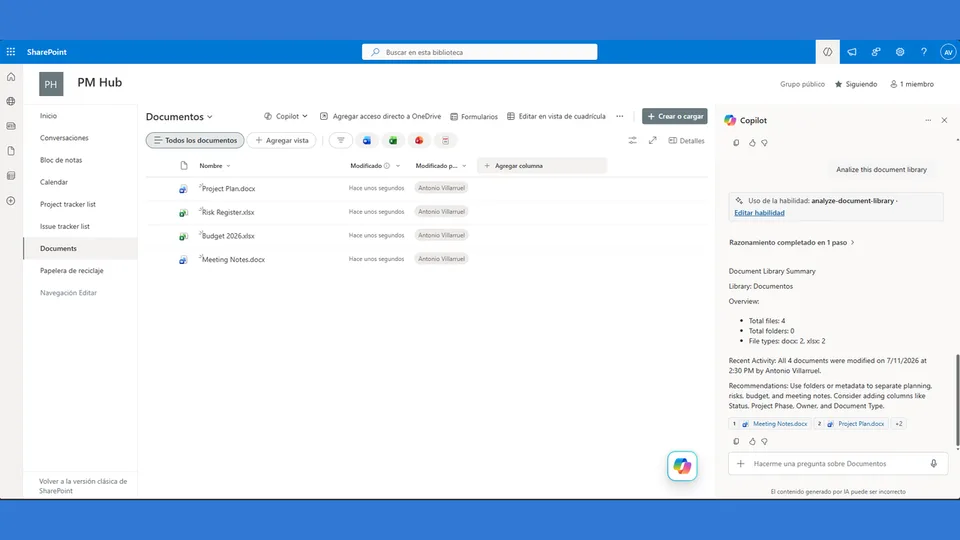
Analyzes files, folders, naming consistency, and document organization.
Provides recommendations without modifying SharePoint content.
Analyzes a SharePoint document library and provides a structured summary of files, folders, activity, and organization recommendations.
What you get
- Document library overview
- File and folder counts
- File type analysis
- Recent activity summary
- Organization recommendations
- Read-only analysis with no content changes
SharePoint Skill
| Solution | Author(s) |
|---|---|
| analyze-document-library | Antonio Villarruel | GitHub |
Version history
| Version | Date | Comments |
|---|---|---|
| 1.0 | July 2026 | Initial Release |
Disclaimer
THIS CODE IS PROVIDED AS IS WITHOUT WARRANTY OF ANY KIND, EITHER EXPRESS OR IMPLIED, INCLUDING ANY IMPLIED WARRANTIES OF FITNESS FOR A PARTICULAR PURPOSE, MERCHANTABILITY, OR NON-INFRINGEMENT.
Package
Ready to install
The ZIP contains only the upload-ready inner skill folder.
1.6 KB Download Analyze Document Library
f1bec7edaeafd2ec2c3159032262ef977c562f99bd7d1dd75ee650ef9dbbafd6View SKILL.md
---
name: analyze-document-library
description: |-
  Analyze the current SharePoint document library in read-only mode and produce a structured summary of files, folders, file types, recent activity, naming issues, and organization recommendations.

  Use when the user says:
    - "analyze this document library"
    - "summarize the contents of this library"
    - "review this library organization"
    - "show me files, folders, file types, and recent activity"
    - "find documents without meaningful names"
---
# Analyze Document Library

## When to use
Use this skill when the user wants a read-only analysis of the current SharePoint document library, including its contents, structure, recent changes, naming quality, and recommendations for improving organization.

Do not use this skill for requests to modify the library, rename files, delete content, move files, change permissions, or create/update metadata. If the user asks for changes, explain that this skill is read-only and only provides analysis and recommendations.

## Inputs
- Current SharePoint site context.
- Current SharePoint document library context.
- Optional user constraints, such as a folder scope, time window for recent activity, or specific naming pattern to review.

## Steps
1. Identify the current SharePoint document library from the active SharePoint context. Use the current library name and path when available.
2. Retrieve library contents in read-only mode using SharePoint listing/search tools. Include files and folders. If the tool fails or returns empty, say so plainly and do not invent content.
3. Analyze the library contents:
   - Count the total number of files.
   - Count the total number of folders.
   - Group files by file extension or file type, such as Word, Excel, PowerPoint, PDF, image, archive, or other.
   - Identify recently modified documents by sorting or filtering on modified date. Prefer the most recent 5–10 documents unless the user requests a different number.
   - Identify documents without meaningful names. Treat names as potentially non-meaningful when they are generic, vague, system-generated, overly short, duplicated with numeric suffixes, or mostly dates/numbers/random characters. Examples include `Document.docx`, `New Microsoft Word Document.docx`, `Untitled.xlsx`, `Scan001.pdf`, `IMG_1234.jpg`, `Copy of ...`, or names with no clear subject.
4. Produce observations about recent activity, such as active folders, frequently changed file types, stale areas if visible, or concentration of recent edits.
5. Provide practical organization recommendations. Base recommendations only on the observed library contents. Examples include creating clearer folder groupings, adding metadata columns, standardizing file naming, archiving stale content, creating filtered views, or separating working files from final deliverables.
6. Keep the skill read-only at all times:
   - Do not modify files.
   - Do not rename files.
   - Do not delete content.
   - Do not move content.
   - Do not change permissions.
   - Do not create or update columns, views, rules, workflows, or approvals.

## Output format
Use this exact structure:

```markdown
Document Library Summary

Library:
[Name]

Overview:
- Total files: [number]
- Total folders: [number]
- File types: [type counts]

Recent Activity:
[List observations]

Recommendations:
[List recommendations]
```

If data is incomplete, include a brief note in the relevant section, such as `Unable to determine from available library data.` Keep the response concise and avoid more detail than the user requested.
References
- agentskills.io specification
The specification that SharePoint AI skills follow for installation and discovery.
Discuss this skill
Ask a question, share how you used it, or suggest an improvement with the community.
Open GitHub Discussions