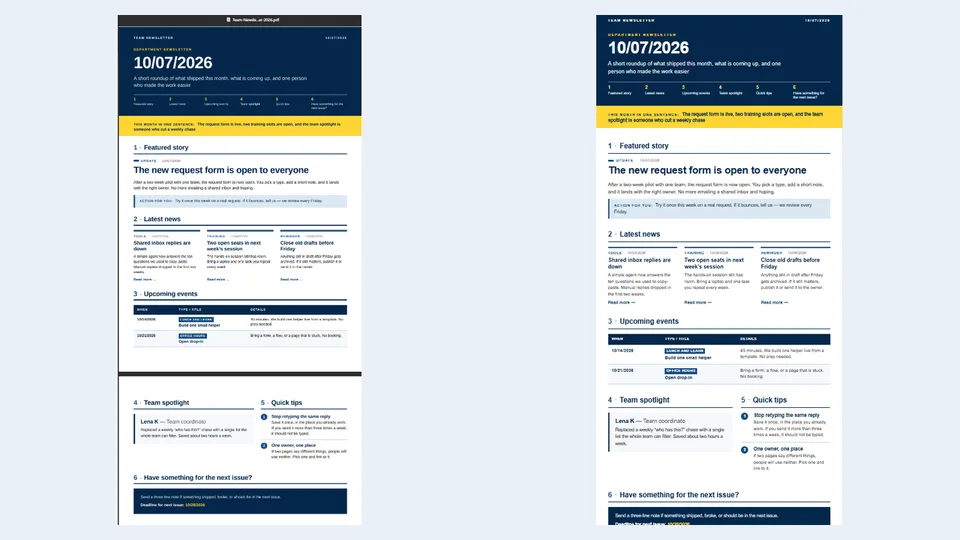
Reads a .docx created from the Team Newsletter Word template and maps every field — masthead, featured story with hero image, latest news, upcoming events, team spotlight, quick tips and contribution call — into a bundled HTML design master.
Text is copied exactly from the Word file and never invented. Empty slots are removed, sections are renumbered, and the output is saved as a self-contained HTML page and/or an A4 PDF next to the source file.
Turns a filled Team Newsletter Word file (.docx created from the Team Newsletter Word template) into a finished, designed newsletter as a PDF and/or a single self-contained HTML page. Content comes only from the Word file; the fixed layout and styling come from the template bundled with the skill.
What you get
- A self-contained HTML newsletter (inline CSS, embedded hero image, no external scripts or fonts) named
Team-Newsletter-<Month>-<Year>.html - An A4 portrait PDF with the same layout and a running footer, named
Team-Newsletter-<Month>-<Year>.pdf - Fixed section order: Featured story, Latest news, Upcoming events, Team spotlight, Quick tips, and a call for contributions
- Text copied exactly from the Word file — nothing rewritten, summarised or invented
- Empty slots removed cleanly (cards, rows, sections), with sections and the contents strip renumbered
- A short report of the files created, hidden empty fields, and anything unusual in the source
When to use
Ask Copilot:
- "turn this newsletter Word file into a PDF"
- "publish the team newsletter"
- "make the newsletter HTML"
- "convert the newsletter doc"
Download the Word template (Team-Newsletter-Template.docx) to create your newsletter files.
Select a .docx created from the Team Newsletter template first. The skill is not meant for writing newsletter content from scratch or for other document types.
Package contents
The upload-ready package is team-newsletter-publisher/:
SKILL.md— instructionsfield-mapping.md— field-to-layout mapping, styling, length guidance, empty-field rules and checklistnewsletter-template.html— the design master with{{Field}}placeholders
The Word template, Team-Newsletter-Template.docx, sits next to this README and is not part of the package. Do not upload it with the skill; its {{Field}} names match field-mapping.md.
Demo content
An example output with fictional content is in demo/sample-files/. Do not upload demo/ with the skill package.
SharePoint Skill
| Solution | Author(s) |
|---|---|
| team-newsletter-publisher | Anand Ragavan | GitHub | LinkedIn |
Version history
| Version | Date | Comments |
|---|---|---|
| 1.0 | October 2026 | Initial Release |
| 1.1 | October 2026 | Added the Team Newsletter Word template |
Disclaimer
THIS CODE IS PROVIDED AS IS WITHOUT WARRANTY OF ANY KIND, EITHER EXPRESS OR IMPLIED, INCLUDING ANY IMPLIED WARRANTIES OF FITNESS FOR A PARTICULAR PURPOSE, MERCHANTABILITY, OR NON-INFRINGEMENT.
Package
Ready to install
The ZIP contains only the upload-ready inner skill folder.
9e0c33864a3d7a8b08bb2c1d3b2e40f5c59a5e43dc0d9602194def07ba212161View SKILL.md
---
name: team-newsletter-publisher
description: Converts a Word newsletter generated from the Team Newsletter Word template (Team-Newsletter-Template.docx) into a designed newsletter as a PDF and/or a single self-contained HTML page, using the fixed Team Newsletter layout. Use when the user asks to "turn this newsletter Word file into a PDF", "publish the team newsletter", "make the newsletter HTML", "convert the newsletter doc", or selects a .docx created from the newsletter form. Do not use for writing newsletter content from scratch or for other document types.
---

# Team Newsletter Publisher

Turn one filled Team Newsletter Word file into a finished newsletter that looks exactly like the Team Newsletter design. The content comes only from the Word file; the layout and styling come only from the files beside this SKILL.md.

## Files in this skill
- `newsletter-template.html` — the exact layout and CSS with `{{Field}}` placeholders. Treat it as the design master: keep its structure, class names and styles; only replace placeholders and remove hidden blocks.
- `field-mapping.md` — where each Word field goes, its styling, length guidance, the empty-field rules, the hero-image rules, colours, type scale and a checklist.

The Word template users fill in, `Team-Newsletter-Template.docx`, is not part of this skill package. It is a download in the sample README (next to the README, outside this folder) and defines the `{{Field}}` names this skill reads. If a user needs a starting file, point them to that sample README.

## Inputs
- One Word file (.docx) created from the Team Newsletter form/template (`Team-Newsletter-Template.docx`, downloadable from the sample README). If the user has not selected one, ask which file to use (it normally sits in the same library as the template, e.g. "DUG Newsletter Demo").
- Output format: PDF, HTML or both. If not stated, create both.

## Instructions
1. **Read the Word file.** Collect the value of every field in this order:
   IssueMonth, IssueSummary, OneSentenceSummary; FeaturedTag, FeaturedDate, FeaturedTitle, FeaturedImage, FeaturedBody, FeaturedAction; News1–3 (_Tag, _Date, _Title, _Body, _Link); Event1–2 (_DateTime, _Type, _Title, _Desc); Spot1_Name, Spot1_Role, Spot1_Story; Tip1–2 (_Title, _Body); ContributeNote, NextDeadline.
   Find values by their position under the fixed labels and section headings of the Word layout:
   - "DEPARTMENT NEWSLETTER" → the next lines are IssueMonth then IssueSummary.
   - "This month in one sentence:" → OneSentenceSummary.
   - "1 · Featured story" box → line "Tag · Date", then the title, then the picture, then the body, then "Action for you:" + FeaturedAction.
   - "2 · Latest news" → up to three stories, each as "Tag · Date", title, body, link.
   - "3 · Upcoming events" table (When | Type / Title | Details) → one row per event; the middle cell has the type on line 1 and the title on line 2.
   - "4 · Team spotlight" → "Name — Role", then the story.
   - "5 · Quick tips" → title + body, twice.
   - "6 · Have something for the next issue?" → ContributeNote, then "Deadline for next issue:" + NextDeadline.
   Ignore instruction text that is not content, and never copy it into the newsletter:
   - "Hero image (map this field as Image)" (caption in older copies of the template).
   - The whole bracketed guidance note under {{FeaturedImage}} that starts "(Image from Word to HTML has shown mixed results" and ends "…uses that image from the library in the HTML.)".
   - The sentence after that note: "Update the Skill if you choose the Library route for the image."
   - "Three short updates. Leave a slot empty if you have fewer stories."
2. **Treat a field as empty** when it is blank or still shows its placeholder (for example `{{News3_Title}}`).
3. **Copy text exactly.** Do not rewrite, summarise, shorten, translate or add content. Never invent a value for an empty field. Keep paragraph breaks in FeaturedBody.
4. **Hero image.** Use the picture embedded in the Featured story box of the Word file. Embed it (HTML: `data:` URI in `<img data-field="FeaturedImage">`; PDF: embedded image), full column width, 16:9 cropped to fill (object-fit: cover), max height 70 mm in print, alt text = FeaturedTitle. If there is no picture, remove the whole `<figure>` — never show the placeholder text, an empty box or a broken image.
5. **Fill the design.** Start from `newsletter-template.html`. Replace each `{{Field}}` with its value, escaping HTML special characters. Put the URL from NewsN_Link in `{{NewsN_Href}}` (the link target) and its link text in `{{NewsN_Link}}`; if the link is only a URL, show the text "Read more".
6. **Apply the empty-field rules** from `field-mapping.md`:
   - News card with no title → remove the card; remaining cards share the row. No news → remove section 2.
   - Event row with no title → remove the row. No events → remove section 3.
   - No Spot1_Name or Spot1_Story → remove section 4. No role → drop the dash and role.
   - Tip with no title → remove it. No tips → remove section 5.
   - Empty IssueSummary, OneSentenceSummary, FeaturedAction or NextDeadline → remove that line/box.
   - Empty ContributeNote → use "Send your ideas to the newsletter team."
   - Renumber the remaining sections 1, 2, 3… with no gaps, and update the contents strip in the masthead to match.
7. **Create the outputs.**
   - HTML: one self-contained file (inline CSS, image as data URI, no external scripts or fonts), named `Team-Newsletter-<Month>-<Year>.html`.
   - PDF: A4 portrait, 13 mm side margins, same layout as the HTML print view, running footer "Internal newsletter · Page N", named `Team-Newsletter-<Month>-<Year>.pdf`.
   - Save both in the same folder as the source Word file unless the user names another location.
8. **Check before you finish** (see the checklist in `field-mapping.md`): no `{{` left anywhere; IssueMonth matches in masthead and footer; empty slots removed, not blank; image present and undistorted or removed; no cut-off text; no heading alone at the bottom of a page.
9. **Report back** in two or three lines: the file names created, which fields were empty and therefore hidden, and anything that looked unusual in the Word file (for example a missing label or a picture outside the Featured story box).

## Design rules (summary)
- Colours only: navy #03274A, mid blue #164C80, body #161616, muted #5A5A57, pale blue #DCE8F3, tint #F5F8FB, yellow #FFD633, white.
- Font: Arial, Helvetica, Liberation Sans, sans-serif. Masthead title 40 pt bold, featured headline 22 pt bold, section headings 16 pt bold, body 10 pt / 1.45.
- Section order is fixed: 1 · Featured story, 2 · Latest news, 3 · Upcoming events, 4 · Team spotlight, 5 · Quick tips, 6 · Have something for the next issue?
- No organisation logos or branding beyond what the Word file contains.
References
- agentskills.io specification
The specification that SharePoint AI skills follow for installation and discovery.
Discuss this skill
Ask a question, share how you used it, or suggest an improvement with the community.
Open GitHub Discussions