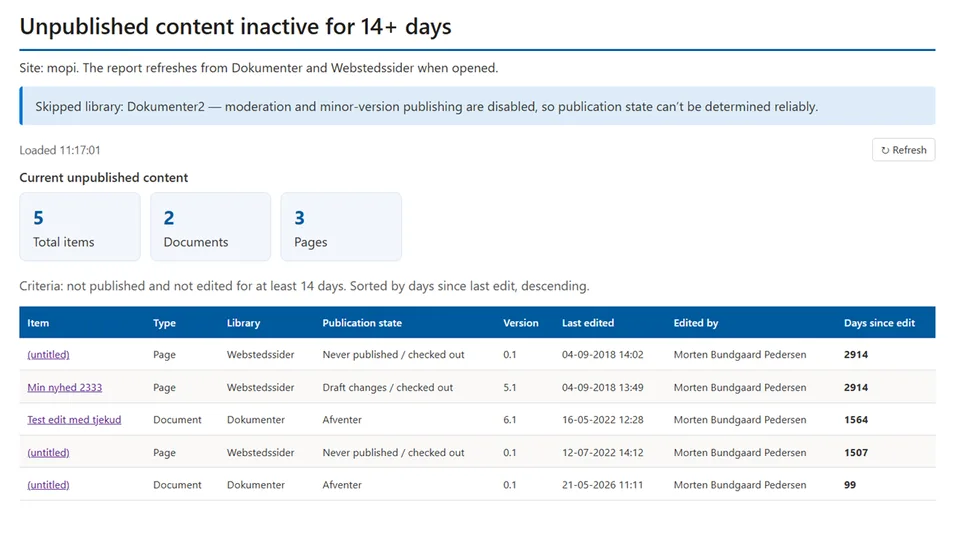
This skill generates a HTML report in a specific library (default: Reports) showing documents and pages that are in an unpublished or checked out state and has been so for 14 (default) days.
At top of report it shows a short summary of the findings. Below follows a detailed list of documents and pages with their current state and the number of days since the item was last edited. The list is ordered by 'days since edit' in descending order (default)
Ideal for content administrators to get an easy overview of content that authors or approvers forgot to publish or has been checked out by mistake and blocking other users from editing.
This skill generates a HTML report in a specific library (default: Reports) showing documents and pages that are in an unpublished or checked out state and has been so for 14 (default) days.
At top of report it shows a short summary of the findings. Below follows a detailed list of documents and pages with their current state and the number of days since the item was last edited. The list is ordered by 'days since edit' in descending order (default).
Ideal for content administrators to get an easy overview of content that authors or approvers forgot to publish or has been checked out by mistake and blocking other users from editing.
What you get
You will get a HTML based report across all documents and pages on your site showing which documents and pages are either not published or checked out and has not been edited for 14 days default or the number of days you choose.
Report will be stored by default in a Reports library which will be created if it is not created already. You can ask to have the report stored elsewhere or modify the skill.md file for permanent change.
Report contains a summary first and then a list of documents/pages found that are either checked out or unpublished for more than the chosen number of days (default 14). The list shows details like
- Item type
- Library name
- Publication state
- Version
- Last edited
- Edited by
- Days since edit.
SharePoint Skill
| Solution | Author(s) |
|---|---|
| unpublished-content-report | Morten Bundgaard Pedersen | GitHub | LinkedIn |
Version history
| Version | Date | Comments |
|---|---|---|
| 1.0 | August 2026 | Initial Release |
Disclaimer
THIS CODE IS PROVIDED AS IS WITHOUT WARRANTY OF ANY KIND, EITHER EXPRESS OR IMPLIED, INCLUDING ANY IMPLIED WARRANTIES OF FITNESS FOR A PARTICULAR PURPOSE, MERCHANTABILITY, OR NON-INFRINGEMENT.
Package
Ready to install
The ZIP contains only the upload-ready inner skill folder.
339a4a3f66504a70b6a7ec8664a6de00b4ed28c769e2183fbcfb9749b185d98fView SKILL.md
---
name: unpublished-content-report
description: |-
  Create a live HTML governance report of unpublished or draft documents and site pages that haven't been edited for a specified number of days, sorted with the stalest items first, and save it in a SharePoint report library.

  Use when the user says:
    - "Create a report of unpublished documents and pages"
    - "Show stale draft content on this site"
    - "Find content not published and not edited for 14 days"
    - "Generate an unpublished content report"
    - "Save a report of old drafts in the Reports library"
---
# Unpublished content report

## When to use
Use this skill when the user wants an HTML governance report covering SharePoint documents and site pages that aren't published and haven't been edited for a specified period. Use it for stale drafts, pending/rejected content, checked-out pages, or unpublished changes. The report must sort by days since last edit in descending order and be saved in a document library.

## Inputs
- Current SharePoint site URL and context.
- Inactivity threshold in days. Default to 14 only when the user doesn't provide one.
- Destination document library. Default to `Reports` only when the user doesn't provide one.
- Optional report filename. Otherwise use `Unpublished-content-inactive-<days>-days.html`.
- Scope is documents in user-facing document libraries plus pages in the site's Site Pages library. Exclude system, asset, style, preservation, template, report, and `AgentAssets` libraries unless the user includes them.

## Steps
1. Get the current date/time before calculating relative ages.
2. Discover the site's lists and libraries, including the Site Pages library. Identify user-facing document libraries and exclude system libraries.
3. Verify the destination library exists. If it doesn't, create it as a document library with a clear report-oriented description.
4. Retrieve schemas before querying items. Identify these internal fields where available: `FileLeafRef`, `FileRef`, `Modified`, `Editor`, `_ModerationStatus`, `_UIVersionString`, `CheckoutUser`, and page fields such as `Title`, `FirstPublishedDate`, and `PromotedState`.
5. Query all files recursively with a row limit equal to the known item count, or 50,000 when unknown. Retrieve the complete dataset before filtering.
6. Determine publication state from SharePoint metadata rather than filenames:
   - In moderated libraries, treat `_ModerationStatus` values equivalent to Approved/Published as published. Pending, Draft, Rejected, or other non-approved values are unpublished.
   - In versioned libraries, a version ending in `.0` is a published major version. A version ending in a non-zero minor number indicates draft or unpublished changes.
   - Treat checkout-only pages, never-published pages, and pages with draft changes as unpublished.
   - Don't classify an item as unpublished solely because the library doesn't use moderation or minor versions. If no reliable publication-state signal exists, omit the item and note the skipped library in the report.
7. Calculate whole days since `Modified`. Keep items whose age is greater than or equal to the requested threshold.
8. Normalize each match with item name and link, type, library, publication state, version, last edited date/time, editor, and days since last edit.
9. Sort by days since last edit descending, then item name ascending as a stable tie-breaker.
10. Build the HTML using `Report.html` and, when practical, `LiveData.html` so results refresh from source libraries when opened. Pass every source list identity to the live-data tool; don't hand-write REST or Graph calls.
11. Include summary cards for total items, documents, and pages; a concise criteria note; and a table containing all matching items. Escape user-controlled values before inserting them into raw HTML.
12. Route generated HTML through an output data reference, then create the `.html` file in the destination library using that reference. Don't reconstruct content from a truncated preview.
13. Verify the file was created and return a link. If any tool fails or data is incomplete, say so plainly and don't invent results.

## Output format
Return a concise completion message containing:
- A markdown link to the created HTML report.
- The threshold and destination library.
- A note that the report refreshes when opened if LiveData was used; otherwise state that it's a point-in-time report.
- Any libraries skipped because publication state couldn't be determined reliably.

The HTML report must contain:
1. Title: `Unpublished content inactive for <days>+ days`
2. Site and criteria statement
3. KPI cards: Total items, Documents, Pages
4. Table columns: Item, Type, Library, Publication state, Version, Last edited, Edited by, Days since edit
5. Rows sorted by Days since edit descending

Example request: `Create a HTML report showing documents and pages that aren't published and haven't been edited for 30 days. Save it in Governance Reports.`
References
- agentskills.io specification
The specification that SharePoint AI skills follow for installation and discovery.
Discuss this skill
Ask a question, share how you used it, or suggest an improvement with the community.
Open GitHub Discussions