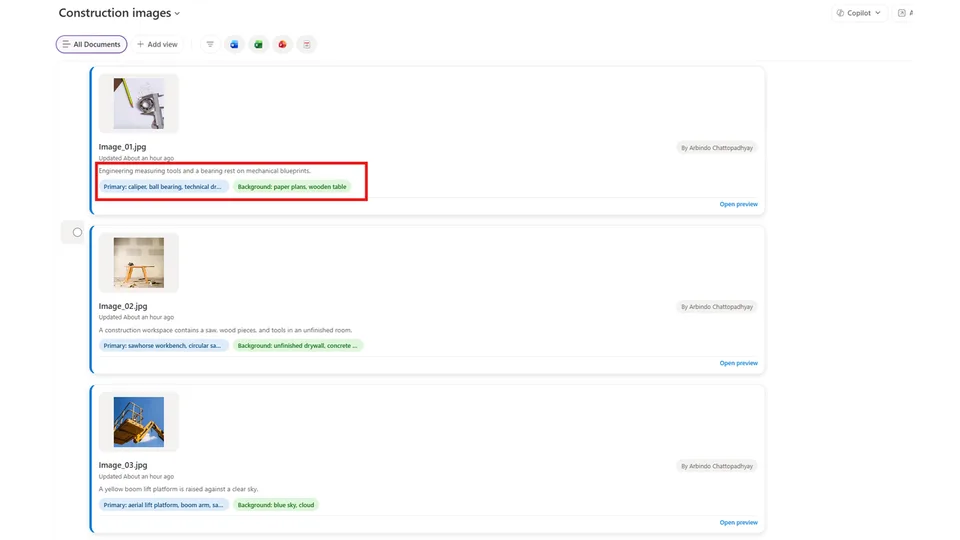
Analyzes selected construction images and updates SharePoint columns with concise visual metadata.
Creates the metadata columns for image objects (primary objects, background objects), extracts objects from each image, and saves them automatically. Enables search and Copilot reasoning based on visual content.
A simple Copilot-in-SharePoint Skill that analyzes a selected images, extracts primary and background objects, and writes those values back into a SharePoint document library's metadata columns.
What you get
- Skill definition: SKILL.md — the skill manifest and instructions used by Copilot in SharePoint.
- Demo script: Demo Script — step-by-step demo prompts and the SharePoint demo link.
- Article / background: Blogpost on Substack — long-form writeup and rationale.
- Sample images: Sample Images
Purpose
Make images in a SharePoint library searchable by content rather than filename by automatically populating the Primary Objects and Background Objects columns with comma-delimited object lists produced by image analysis.
Usage
- Open the target SharePoint document library and select one or more image files.
- Invoke the skill by using natural-language trigger phrases described in SKILL.md (for example: "Tag these images").
- The skill will:
- Extract a single-line, comma-delimited list of primary objects.
- Extract a single-line, comma-delimited list of background objects.
- Update the file's
Primary ObjectsandBackground Objectscolumns. - If the columns do not exist, the skill will create them.
- Refer the sample-files in the demo folder for sample reference images for testing purposes.
- Now users can search for images based on the tags extracted in the primary objects and background objects - use the search bar to search by objects inside the images
- Images can also be reasoned over by Copilot. Use Copilot to find images - "show me images with wooden table"
Output format
- Primary: a single line like
workbench, circular saw, tape measure - Background: a single line like
wall, drywall patches, floor
Demo
Follow the steps in Demo Script to try the skill in the SharePoint demo site referenced there.
Notes
- The skill is designed to fail loudly: if image analysis returns empty or an update fails, the skill will report the failure rather than invent tags.
- For context and narrative on why this helps, see Blogpost on Substack.
SharePoint Skill
| Solution | Author(s) |
|---|---|
| custom-image-tagger | Arbindo Chattopadhyay (Microsoft) | GitHub | LinkedIn |
Version history
| Version | Date | Comments |
|---|---|---|
| 1.0 | July 2026 | Initial Release |
Disclaimer
THIS CODE IS PROVIDED AS IS WITHOUT WARRANTY OF ANY KIND, EITHER EXPRESS OR IMPLIED, INCLUDING ANY IMPLIED WARRANTIES OF FITNESS FOR A PARTICULAR PURPOSE, MERCHANTABILITY, OR NON-INFRINGEMENT.
Package
Ready to install
The ZIP contains only the upload-ready inner skill folder.
View SKILL.md
---
name: custom-image-tagger
description: |-
  Analyze selected construction images, create missing object metadata columns, and write concise visual metadata back to SharePoint columns using explicit image-analysis, list-schema, list-update, and list-configuration tools.

  Use when the user says:
    - "Tag these images"
    - "Tag this construction image"
    - "Analyze these images and update the object columns"
    - "Populate Primary Objects and Background Objects for these photos"
    - "Identify visible objects in the selected construction photos"
---
# Custom Image Tagger

## When to use
Use this skill when the user wants selected construction images analyzed and tagged in the current SharePoint image library. It supports one or more selected image files and writes concise metadata into library columns for primary objects, background objects, scene content, and description.

Use it for image metadata tagging in construction image libraries, not for general document tagging or non-image files.

## Inputs
- One or more selected image files in the current SharePoint document library.
- Current site, library URL, library path, and list ID from SharePoint context.
- Target columns, resolved from schema when present:
  - `Primary Objects` / `primaryObjects`
  - `Background Objects` / `backgroundObjects`
  - `Scene content` / `sceneContent`
  - `Description` / `_ExtendedDescription`

## Steps
1. Confirm selected files are images by extension or file metadata. If no selected image is available, say so plainly and stop.
2. Use `analyze_image({listFullUrl, relativePaths, question})` once for all selected images. Ask for per-image output with:
   - primary objects as a single comma-delimited line
   - background objects as a single comma-delimited line
   - scene content as one concise sentence
   - optional tags as a concise comma-delimited line
3. Use `get_list_schema({listId, webUrl, includeFields: true, includeContentTypes: false, includeHidden: false, includeReadOnly: false})` to resolve available target columns and exact internal names.
4. If `Primary Objects` / `primaryObjects` or `Background Objects` / `backgroundObjects` is missing, use `create_or_update_list` on the current library before updating items:
   - Keep the existing library settings.
   - Add a single-line text column titled `Primary Objects` with internal name `primaryObjects` when missing.
   - Add a single-line text column titled `Background Objects` with internal name `backgroundObjects` when missing.
   - Do not recreate or modify these columns if they already exist.
   - After creating columns, use the expected internal names `primaryObjects` and `backgroundObjects`; re-read schema only if the create/update result does not confirm the fields.
5. Use `list_items({listId, webUrl, filter, viewFields: ["ID", "FileLeafRef"], itemType: "files", recursive: true})` to find the list item IDs for the selected file names. Use `FileLeafRef` in CAML filters, not `Title`.
6. Build one `update_list_items_v2({items, listUrl, webUrl})` call for all matched images. Update only target columns that exist or were just created:
   - `primaryObjects` = primary objects line
   - `backgroundObjects` = background objects line
   - `sceneContent` = concise scene sentence, only when the column exists
   - `_ExtendedDescription` = `Tags: <tag line>` or a concise description if tags are not requested, only when the column exists
7. Keep each value under 255 characters for single-line text columns. Prefer fewer, high-confidence terms over long tag lists.
8. If image analysis returns empty or uncertain content for an image, write `Not found` only when appropriate and do not invent objects.
9. Return a concise per-image summary and confirm how many SharePoint items were updated. If object columns were created, mention that once. If any selected file could not be matched to a list item, name it in the response.

## Output format
Return a concise result:

```markdown
Updated <N> image(s). Created missing columns: <Primary Objects, Background Objects | none>.

- <filename>: Primary: <comma-delimited objects>; Background: <comma-delimited objects>; Scene: <sentence>
```

If an update fails, include the plain-language failure and do not claim the item was updated.

## Example
User: "Tag these images"

Expected behavior:
1. Analyze all selected images with `analyze_image`.
2. Resolve columns with `get_list_schema`.
3. Create `Primary Objects` and/or `Background Objects` as single-line text columns if missing.
4. Find selected files with `list_items` using `FileLeafRef`.
5. Batch update metadata with `update_list_items_v2`.
6. Report the updated filenames, extracted metadata, and whether columns were created.
References
- agentskills.io specification
The specification that SharePoint AI skills follow for installation and discovery.
Discuss this skill
Ask a question, share how you used it, or suggest an improvement with the community.
Open GitHub Discussions