KB AI Review Lite performs an AI-driven accuracy validation pass on knowledge base documents stored in a SharePoint document library. The skill reads each document, extracts concrete factual claims such as URLs, version numbers, ports, timeouts, and procedural steps, and validates them against category-specific sources including Microsoft MSRC, vendor documentation, and public runbooks.
On first run the skill creates all 9 required review columns automatically. A one-time manual step is required to enable unlimited text length on two columns — the skill detects this condition, stops before writing any data, and provides exact step-by-step instructions. All subsequent runs proceed directly to the review with no interruption.
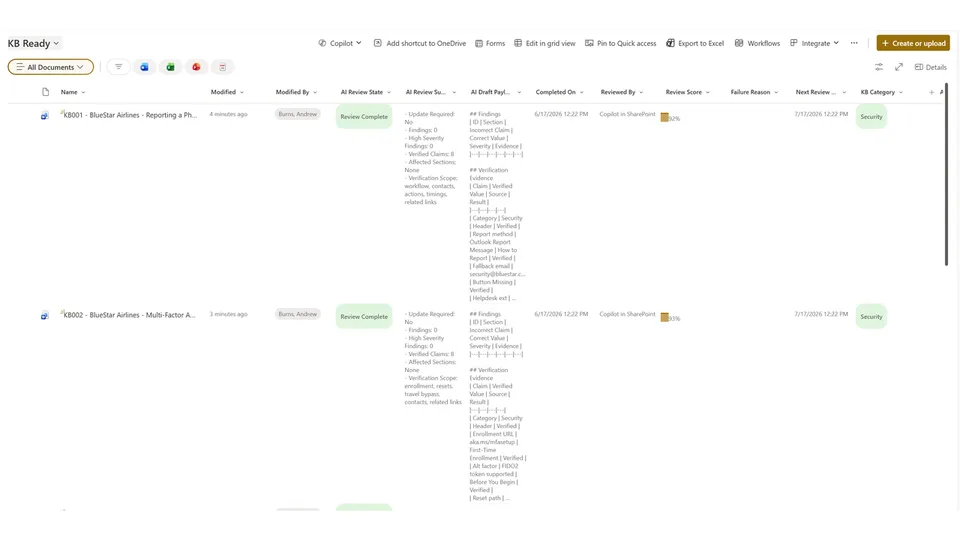
Review output is written entirely as library metadata. The skill never modifies the original document content. Each reviewed file receives an AI Review Summary, a structured Markdown draft payload with findings and evidence, a Review Score displayed as a percentage bar, a color-coded AI Review State pill, an inferred KB Category, and a Next Review Date calculated from a category-based cadence.
Performs a lightweight AI quality-check pass on one or more KB documents in a SharePoint document library. Validates factual accuracy against category-specific sources, writes structured review output as metadata, sets review status, scores the document, and schedules the next review date — all without touching the original file content. Designed for Microsoft 365 Copilot experiences in SharePoint.
What you get
- AI-generated review summary per KB document written directly to library metadata
- Structured Markdown draft payload with findings, evidence, proposed updates, and risks
- Color-coded AI Review State column (green = Review Complete, blue = Published, orange = Not Run)
- Review Score displayed as a percentage bar (green ≥80, orange ≥50, red <50)
- Automatic KB Category classification (Security, Infrastructure, Applications, General, Other)
- Next Review Date calculated per category cadence (Security 30 days, Infrastructure 60 days, all others 90 days)
- Quality gates that prevent incomplete or generic output from being written back
- All 9 review columns created automatically on first run with correct names and types
When to use
Ask Copilot any of the following (or close variations):
- "run kb-ai-review-lite on the selected KBs"
- "review these KB files"
- "run AI review"
- "create AI review columns and summarize"
- "generate review notes"
Works on any SharePoint document library containing KB documents in Word, PDF, or plain text format. The skill reads file content and validates factual claims — it works best on documents with concrete values such as URLs, version numbers, ports, timeouts, phone numbers, and procedural steps.
Prerequisites
- Copilot license enabled for Microsoft 365
- AI in SharePoint enabled on the target site (opt-in required during public preview)
- Contributor permissions on the target library
First Run Behavior
On the first run against a new library, the skill will:
- Create all 9 required review columns with the correct names and types
- Stop and display a setup notice asking you to change one setting on two columns
- Provide exact step-by-step instructions for that change
You must complete this manual step before the review can run:
- Go to Library Settings → Columns
- Click AI Review Summary
- Find Allow unlimited length in document libraries
- Select Yes → Save
- Click AI Draft Payload
- Find Allow unlimited length in document libraries
- Select Yes → Save
Once saved, run the skill again. The review will proceed immediately — this step is not required on any subsequent run.
If you are new to SharePoint column settings, use the example below when enabling Allow unlimited length in document libraries for both AI Review Summary and AI Draft Payload:

Why is this step required? SharePoint's AI skill platform cannot set the
UnlimitedLengthInDocumentLibraryproperty during column creation. This is a known platform limitation as of June 2026. Without this setting, both columns default to a 255-character cap, which is insufficient for AI-generated review output. The skill detects this condition automatically and stops before writing any data.
Columns Created
| Display Name | Internal Name | Type | Notes |
|---|---|---|---|
| AI Review State | AIReviewState |
Choice | Review Complete / Not Run / Published |
| AI Review Summary | AIReviewSummary |
Note | Requires unlimited length — see First Run |
| AI Draft Payload | AIDraftPayload |
Note | Requires unlimited length — see First Run |
| Completed On | CompletedOn |
DateTime | UTC timestamp of last review |
| Reviewed By | ReviewedBy |
Text | Agent or user display name |
| Review Score | ReviewScore |
Number | 0–100, displayed as percentage bar |
| Failure Reason | FailureReason |
Note | Blank on success |
| Next Review Date | NextReviewDate |
DateTime | Calculated from category cadence |
| KB Category | KBCategory |
Choice | Security / Infrastructure / Applications / General / Other |
SharePoint Skill
| Solution | Author(s) |
|---|---|
| kb-ai-review-lite | Andrew Burns | GitHub | LinkedIn |
Version history
| Version | Date | Comments |
|---|---|---|
| 1.0 | June 2026 | Initial Release |
Disclaimer
THIS CODE IS PROVIDED AS IS WITHOUT WARRANTY OF ANY KIND, EITHER EXPRESS OR IMPLIED, INCLUDING ANY IMPLIED WARRANTIES OF FITNESS FOR A PARTICULAR PURPOSE, MERCHANTABILITY, OR NON-INFRINGEMENT.
Package
Ready to install
The ZIP contains only the upload-ready inner skill folder.
View SKILL.md
---
name: kb-ai-review-lite
description: Minimal KB quality-check skill for SharePoint libraries. It creates missing review columns, writes short review outputs in Markdown, sets review status, records completion time, and schedules the next review by category.
---

# KB AI Review Lite

## Goal

Perform a lightweight AI validation pass on one or more KB files and store the result as metadata only.

This sample intentionally focuses on one pattern: create required list columns when absent, then populate them.

---

## Use Cases

Use this skill when the user asks to:
- run a KB review
- generate review notes
- add missing review columns
- mark completion and next review timing

Prompt examples:
- "review these KB files"
- "run AI review"
- "create AI review columns and summarize"

---

## Guardrails

- Do NOT modify the original KB document content.
- Do NOT create or upload draft Word files.
- Do NOT publish content.
- Only update the fields defined in this skill.
- Return results in Markdown.

---

## Required Columns (Create If Missing)

Before processing, inspect library schema and ensure all columns below are present.

1. **AI Review State**
- Type: `Choice`
- Internal name: `AIReviewState`
- Choices: `Review Complete`, `Not Run`, `Published`
- Recommended default: `Not Run`

2. **AI Review Summary**
- Type: `Note` (multi-line text)
- Internal name: `AIReviewSummary`
- Required capacity: long text
- **When creating in a document library, you MUST set `UnlimitedLengthInDocumentLibrary: true`
  in the field schema at creation time. The default is false and caps input at 255 characters,
  which will cause writeback failures. This is not optional.**

3. **AI Draft Payload**
- Type: `Note` (multi-line text)
- Internal name: `AIDraftPayload`
- Content format: Markdown
- Required capacity: long text
- **When creating in a document library, you MUST set `UnlimitedLengthInDocumentLibrary: true`
  in the field schema at creation time. The default is false and caps input at 255 characters,
  which will cause writeback failures. This is not optional.**

4. **Completed On**
- Type: `DateTime`
- Internal name: `CompletedOn`

5. **Reviewed By**
- Type: `Text`
- Internal name: `ReviewedBy`
- Value guidance: current user or active agent display name

6. **Review Score**
- Type: `Number`
- Internal name: `ReviewScore`
- Range: `0` to `100`

7. **Failure Reason**
- Type: `Note` (multi-line text)
- Internal name: `FailureReason`
- Keep blank on success; set concise reason on failures

8. **Next Review Date**
- Type: `DateTime`
- Internal name: `NextReviewDate`

9. **KB Category**
- Type: `Choice`
- Internal name: `KBCategory`
- Choices: `Security`, `Infrastructure`, `General`, `Applications`, `Other`
- Recommended default: `Other`

Create missing columns with `create_or_update_list` and avoid duplicates.

When creating these columns for a document library, set them to unlimited-length multi-line mode.

---

## Recertification Cadence

Set `NextReviewDate` using category-based intervals:
- `Security` -> `CompletedOn + 30 days`
- `Infrastructure` -> `CompletedOn + 60 days`
- `General` -> `CompletedOn + 90 days`
- `Applications` -> `CompletedOn + 90 days`
- `Other` -> `CompletedOn + 90 days`

If the user supplies an override cadence, apply it instead.

---

## Accuracy Baseline

Assess KB content using category-specific sources:

- **Security**: Validate against Microsoft MSRC, vendor CVE databases, and internal security policies.
- **Infrastructure**: Validate against vendor documentation (AWS, Azure, Cisco, etc.), public runbooks, and internal standards.
- **Applications**: Validate against application vendor docs, public APIs, and internal implementation standards.
- **General**: Validate for internal consistency and alignment with internal policy.
- **Other**: Validate for internal consistency only.

When using web sources, prioritize official vendor documentation first. Include source URLs for any critical correction.

---

## Output Quality Gates

The review is considered weak and must be regenerated if any of the following occur:

- Findings are generic (for example: "validate details" or "recheck meanings") without concrete wrong and correct values.
- `Update Required: Yes` is set but no specific section identifiers are listed.
- Fewer than 5 concrete findings are reported when a document has obvious factual issues.
- Critical operational or safety issues are found but not labeled as `High` severity.
- No evidence source is provided for material factual corrections.
- `Update Required: No` is returned with `Findings: 0` for a parameter-heavy document (URLs, versions, timeouts, ports, phone numbers, thresholds, procedures) without explicit claim-by-claim verification evidence.
- Summary says `Update Required: No` but payload still contains open questions that imply unresolved factual uncertainty.

Minimum detail requirements when updates are needed:

- Summary must include at least 5 concrete findings; target 8+ for heavily incorrect documents.
- Each finding must include: section identifier, incorrect claim, corrected value, and severity (`High`, `Medium`, `Low`).

Minimum detail requirements when no updates are claimed:

- If `Update Required: No`, include `Verified Claims: <count>` in summary.
- `Verified Claims` must be at least 8 for operational KBs.
- Payload must include a `## Verification Evidence` section with at least 8 verified claim rows and sources.
- If these conditions are not met, treat the review as failed quality gate.

---

## Payload Contract (Strict)

When `Update Required: Yes`, `AIDraftPayload` MUST include all sections below in this exact order:

1. `## Findings`
2. Markdown table with columns exactly:
	`ID | Section | Incorrect Claim | Correct Value | Severity | Evidence`
3. `## Proposed Updates`
4. `## Suggested Replacement Text`
5. `## Open Questions`
6. `## Risks`

Additional strict rules:

- `Evidence` must contain a source URL or internal reference per finding.
- For `High` severity findings, evidence is mandatory (never blank).
- If the document has obvious factual conflicts, include at least 5 finding rows.
- Do not output `## Proposed Updates` before `## Findings`.
- Do not mark review complete if this contract is not met.
- If `Update Required: No`, include `## Verification Evidence` after `## Findings` and before `## Proposed Updates`.

`## Verification Evidence` table format when `Update Required: No`:

`Claim | Verified Value | Source | Result`

`Result` must be `Verified` for each row.

---

## Process

### Step 1 - Resolve Target and Schema

- Determine target library and files (selected items, named files, or full library).
- Run `get_list_schema` to inspect column definitions.
- If an item is already `Published`, skip it unless re-review is explicitly requested.

### Step 2 - Provision Missing Columns

- For each required column, check by **internal name** first.
- Create only missing columns using standard column creation. Do not create duplicates.
- Always create columns as **standard columns**, not autofill or content extraction columns.
  Column values are written explicitly by this skill. Never prompt the user to choose
  between column modes.

Before creating any columns, set an internal flag: `columns_created = false`

If any column was missing and was created during this run:
- Set `columns_created = true`

After all provisioning is complete, evaluate the flag:

If `columns_created = true`:
- Do NOT proceed to Step 2.1 or Step 3.
- Do NOT touch any file metadata.
- Do NOT set `AIReviewState` or `FailureReason` on any item.
- Display the following setup notice and stop all processing:

---

✅ All review columns have been created with the correct names and types.

⚠️ One manual step is required before the review can run.

Two columns need their text length limit changed in SharePoint:

1. Go to **Library Settings** → **Columns**
2. Click **AI Review Summary**
   - Find **Allow unlimited length in document libraries**
   - Select **Yes** → **Save**
3. Click **AI Draft Payload**
   - Find **Allow unlimited length in document libraries**
   - Select **Yes** → **Save**

Once both settings are saved, run the review again. All other columns are ready.

---

This is a one-time setup step per library. It will not be required on subsequent runs.

If the user replies in the same session confirming the column settings have been
changed, proceed directly to Step 2.1 without re-provisioning or re-evaluating
the flag.

If `columns_created = false`:
- All columns already existed before this run.
- Proceed directly to Step 2.1.

### Step 2.1 - Apply Column Formatting

After provisioning columns, apply column formatting to these fields:
- `AIReviewState`: colored pill (green=Review Complete, blue=Published, orange=Not Run)
- `ReviewScore`: percentage bar with color thresholds (green ≥80, orange ≥50, red <50)
- `KB Category`: colored pill (green=Security, blue=Infrastructure, orange=General, purple=Applications, gray=Other)

Apply formatting via the Format column option. This is a display-only change and does
not affect stored values.

### Step 3 - Read Content (Read-Only)

- Read each file with `cat_file`.
- If a file cannot be read, mark as failed and continue processing the rest.
- Extract concrete assertions to verify (versions, URLs, ports, protocols, thresholds, timing values, part numbers, and procedural safety steps).
- Validate those assertions against the Accuracy Baseline for that KB category.

### Step 4 - Generate Outputs

For each readable KB, generate:

0. **KB Category**
- Infer exactly one from: `Security`, `Infrastructure`, `General`, `Applications`, `Other`.
- Use the dominant subject area and operational scope.
- If uncertain, choose `Other`.

1. **AI Review Summary** (plain-language, concise)
- Include an explicit verdict line: `Update Required: Yes` or `Update Required: No`.
- Include affected section identifiers when updates are needed (for example: `Section 2.1`, `Prerequisites`, `Step 4`, `FAQ - Password Reset`).
- Include finding counts: `Findings: <total>` and `High Severity Findings: <count>`.
- If verdict is `No`, include `Verified Claims: <count>`.
- Keep output concise but specific, normally 5 to 10 bullets when updates are required.
- Suggested summary shape:

```markdown
- Update Required: Yes
- Findings: 9
- High Severity Findings: 3
- Affected Sections: Section 2.1; Step 4 - Validation; FAQ - Error Code 403
- Accuracy: <short finding>
- Completeness: <short finding>
- Clarity/Currency: <short finding>
```

No-update summary shape:

```markdown
- Update Required: No
- Findings: 0
- High Severity Findings: 0
- Verified Claims: 10
- Affected Sections: None
- Verification Scope: URL, timeout, browser minimum versions, lockout timing, support contact, cache-clear steps
```

2. **AI Draft Payload** (Markdown)
- Use this structure:

```markdown
## Findings
| ID | Section | Incorrect Claim | Correct Value | Severity | Evidence |
|---|---|---|---|---|---|
| F-01 | Step 3 | <wrong value> | <correct value> | High | <source URL or internal reference> |

## Verification Evidence
| Claim | Verified Value | Source | Result |
|---|---|---|---|
| Session timeout | 30 minutes | <source URL or internal reference> | Verified |

## Proposed Updates
- [Section] What should change and why

## Suggested Replacement Text
### <Section Name>
<proposed text>

## Open Questions
- <question>

## Risks
- <risk>
```

- Generate this payload for every successful review, including `Update Required: No` cases.
- `AIDraftPayload` must never be blank when `AIReviewState = Review Complete`.
- Ensure the payload satisfies the **Payload Contract (Strict)** above.
- Contradiction rule: if extracted claims conflict with baseline sources, verdict cannot be `Update Required: No`.

### Step 5 - Write Metadata

Set these values per reviewed file:
- `AIReviewSummary` = generated summary text
- `AIDraftPayload` = generated Markdown draft payload
- `AIReviewState` = `Review Complete`
- `CompletedOn` = current UTC datetime
- `ReviewedBy` = current user or agent name
- `ReviewScore` = integer 0 to 100 based on quality signals
- `FailureReason` = blank
- `KBCategory` = inferred category
- `NextReviewDate` = `CompletedOn + category cadence` (or user-provided cadence)

Writeback routing rules:

- Write `AIReviewSummary` only to `AIReviewSummary`.
- Write `AIDraftPayload` only to `AIDraftPayload`.
- Write both content fields before setting `AIReviewState = Review Complete`.
- Treat `AIDraftPayload` as a required success field, not an optional extra.
- If either field is not configured with `Allow unlimited length in document libraries`, stop writeback, set `FailureReason`, and tell the user to enable that property on both columns before rerunning.
- After writeback, re-read both fields and confirm persisted length/content.
- If `AIDraftPayload` reads back blank, null, truncated, or missing, treat the file as failed writeback.
- If the platform's refreshed-field summary does not include `AI Draft Payload`, assume the payload field was not updated and do not mark the file complete.

Do not set state to `Published` in this skill.

Quality-gate enforcement before metadata write:

- If summary or payload fails any quality gate or payload contract requirement:
	- Set `AIReviewState` = `Not Run`
	- Set `FailureReason` = `Quality gate failed: missing concrete findings/evidence or invalid payload structure`
	- Do NOT write incomplete payload as final output
	- Continue to next file

- If `AIDraftPayload` is empty, omitted, or not confirmed after writeback:
	- Set `AIReviewState` = `Not Run`
	- Set `FailureReason` = `Writeback failed: AI Draft Payload was not persisted`
	- Do NOT report success for that file
	- Continue to next file

- If output writeback fails due field length/type constraints:
	- Set `AIReviewState` = `Not Run`
	- Set `FailureReason` = `Schema/writeback failed: review output columns do not support required payload length`
	- Continue to next file

- If verdict is `Update Required: No` and `Findings = 0` but verification evidence is missing or below threshold:
	- Set `AIReviewState` = `Not Run`
	- Set `FailureReason` = `Quality gate failed: no-update verdict lacks required verification evidence`
	- Continue to next file

For failed files:
- `FailureReason` = concise failure message
- Keep or set `AIReviewState` to `Not Run`
- Leave `CompletedOn` and `NextReviewDate` unchanged unless user requests overwrite

### Step 6 - Return Run Report (Markdown)

Return a Markdown table with:
- File name
- Action Taken (`Review Completed` / `Failed`)
- AI Review State (after)
- KB Category
- Update Required (`Yes/No`)
- Findings (count)
- High Severity Findings (count)
- Affected Sections (summary identifiers)
- Completed On
- Next Review Date
- Reviewed By
- Review Score
- Summary Present (`Yes/No`)
- Draft Payload Present (`Yes/No`)
- Refreshed Fields
- Failure Reason (if any)

---

## Example Run

User: "Run AI review on all KB files in this library"

Agent actions:
- Check schema.
- Create missing columns (`AIReviewState`, `AIReviewSummary`, `AIDraftPayload`, `CompletedOn`, `ReviewedBy`, `ReviewScore`, `FailureReason`, `NextReviewDate`, `KBCategory`) if needed.
- Read all target KB files.
- Infer KB category per file.
- Generate concise summary + Markdown payload per file.
- Update metadata fields.
- Return Markdown table of outcomes.

---

## Constraints

- Never edit the body content of source KB files.
- Never publish content.
- Always run schema check before updates.
- Never create duplicate columns with alternate naming.
- Continue processing remaining files if one file fails.
- If a file is already `Published`, skip it unless user explicitly asks to re-review published content.
- Always map each reviewed file to exactly one KB category.
References
- agentskills.io specification
The specification that SharePoint AI skills follow for installation and discovery.
- Extend AI in SharePoint with skills
Microsoft Learn documentation on creating and deploying SharePoint AI skills.
- Allow unlimited length in document libraries
SharePoint column setting required for multiline text columns used by this skill.
Discuss this skill
Ask a question, share how you used it, or suggest an improvement with the community.
Open GitHub Discussions