Missing or inconsistent metadata is the most common reason SharePoint search, filtering, views, and retention stop working. This skill measures the metadata quality of a document library or list without any Power Automate or custom code. It reads the list schema, decides the required set of columns to audit, pages through every item, and flags each value that is missing, blank, or a placeholder such as 'N/A', 'TBD', '-', or 'Choose an option'.
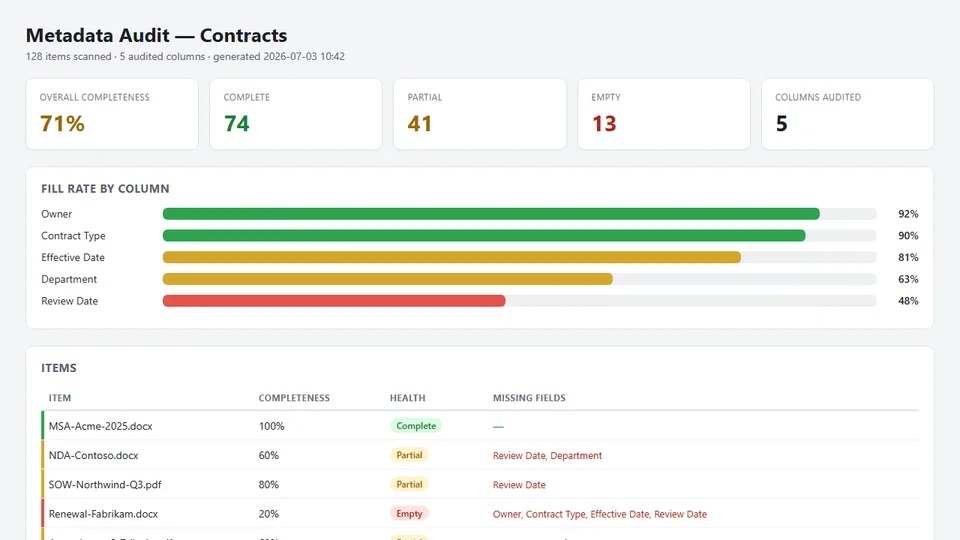
For each item it computes a completeness score and a verdict of Complete, Partial, or Empty, and it tracks a fill rate for every audited column and a rollup by last editor. It then saves a color-coded, self-contained HTML dashboard (summary band, per-column fill-rate bars, item table, owner breakdown, and a prioritized remediation list) to a Metadata Reports folder. The skill is strictly read-only — it never creates columns, changes items, or modifies the list; the only thing it writes is the HTML report. Trigger phrases include 'metadata audit', 'metadata completeness', 'missing metadata', 'metadata health', and 'metadata gap report'.
Audits the metadata quality of a SharePoint document library or list. It scans every item
against its required columns, flags missing, blank, and placeholder values (like TBD or
N/A), scores completeness per item and per column, and saves a self-contained HTML gap-report
dashboard to the site — no Power Automate, no custom code. It is strictly read-only.
What you get
- A completeness score for the whole library, for every audited column, and for every item
- Each item classified as Complete, Partial, or Empty, with the exact list of missing fields
- Placeholder detection — values like
N/A,TBD,-,Choose an option, andpendingare treated as missing, not filled - A color-coded HTML dashboard: summary band, per-column fill-rate bars, item table, owner
breakdown, and a prioritized remediation list — saved to a
Metadata Reportsfolder - Strictly read-only: it never creates columns, changes items, or modifies the list — the only thing it writes is the HTML report
When to use
Ask Copilot any of the following (or close variations):
- "metadata audit" / "audit metadata"
- "metadata completeness" / "metadata health" / "metadata quality"
- "missing metadata" / "which items are missing metadata"
- "check metadata" / "metadata gap report"
- "find blank columns"
Be in the library you want to audit, name one, or have items selected — the skill audits the current library by default.
Prerequisites
- A SharePoint document library or list with metadata columns.
- Read access to the library. The skill only reads the schema and items and writes an HTML report file — it never changes the list or its items, so no contributor permission or column setup is required.
Demo content
Sample content for trying this skill end-to-end is in the demo/ subfolder. It includes a ready-made Contracts CSV (30 rows with deliberately uneven metadata) plus the expected audit results to verify against. Skip this folder when uploading the skill to SharePoint.
SharePoint Skill
| Solution | Author(s) |
|---|---|
| metadata-completeness-auditor | Lovy Jain | GitHub |
Version history
| Version | Date | Comments |
|---|---|---|
| 1.0 | July 2026 | Initial Release |
Disclaimer
THIS CODE IS PROVIDED AS IS WITHOUT WARRANTY OF ANY KIND, EITHER EXPRESS OR IMPLIED, INCLUDING ANY IMPLIED WARRANTIES OF FITNESS FOR A PARTICULAR PURPOSE, MERCHANTABILITY, OR NON-INFRINGEMENT.
Package
Ready to install
The ZIP contains only the upload-ready inner skill folder.
4d8930e79cd3d01b4018b7f505f7c856e179e554b0ba8d1714475fabf81105b8View SKILL.md
---
name: metadata-completeness-auditor
description: |-
  Audits the metadata quality of a SharePoint document library or list. Scans every item
  against its required columns, flags missing, blank, or placeholder values, computes a
  completeness score per item and per column, and saves a self-contained HTML gap-report
  dashboard to the site. It is strictly read-only — it never changes the list or its items.

  Use when the user says:
    - "metadata audit"
    - "metadata completeness"
    - "metadata health"
    - "missing metadata"
    - "audit metadata"
    - "metadata quality"
    - "check metadata"
    - "metadata gap report"
    - "which items are missing metadata"
    - "find blank columns"
---
# Metadata Completeness Auditor

## Purpose
Missing or inconsistent metadata is the single most common reason SharePoint search,
filtering, views, and retention stop working. This skill measures the metadata quality of a
library (or list), flags every item with gaps, and produces a color-coded HTML dashboard the
team can act on. It is **strictly read-only**: it inspects the schema and reads items, but never
creates columns, writes to items, or changes the list in any way.

## Trigger Phrases
Activate this skill when the user says any of the following (or close variations):
- "metadata audit" / "audit metadata"
- "metadata completeness" / "metadata health" / "metadata quality"
- "missing metadata" / "which items are missing metadata"
- "check metadata" / "metadata gap report"
- "find blank columns" / "find empty fields"

## Inputs & Scope
Determine the reporting scope from the user's request and the current context, in this order:
1. **Selected items** — if the user has items selected or says "these/this", audit the
   library that contains the selection.
2. **Named library or list** — if the user names one (e.g., "audit the Contracts library"),
   resolve it on the current site.
3. **Current library** — if the user is in a library and gives no other scope, audit it.
4. If no scope can be resolved, ask the user which library or list to audit. Do not guess.

Only audit content the current user can already see. Never invent items or values.

## Steps

### Step 1 — Resolve the target list and read its schema
Use `get_list_schema` on the resolved library/list to enumerate its columns. Record for each
column: internal name, display name, type (text, choice, number, date, person, managed
metadata, multi-value, etc.), and whether it is marked **required**.

### Step 2 — Decide the "required set" of columns to audit
Choose which columns count toward completeness, in this order of preference:
1. **Explicit user request** — if the user names specific columns (e.g., "check Owner and
   Review Date"), audit exactly those.
2. **Columns marked required** in the schema — if any exist, default to auditing those.
3. **All user-created content columns** — if nothing is marked required, audit every
   non-system content column.

Always **exclude system/internal and label columns** from the audit and from gap counts, e.g.:
`ID`, `Title`, `LinkTitle`, `FileLeafRef` (Name), `ContentType`, `Modified`, `Created`,
`Author`, `Editor`, `_ModerationStatus`, `FileSizeDisplay`, thumbnail/compliance/checkout
columns, and other underscore-prefixed system fields. (You still read `Editor`/`Author` for
owner grouping and `FileLeafRef`/`Title` as the item label — just don't score them.)

Do **not** count `Title`/`Name` toward completeness: it is the item's label, is almost always
populated, and scoring it inflates the completeness % and hides truly-empty items. Only audit
it if the user explicitly asks to include it.

Briefly tell the user which columns you are auditing before proceeding. If the required set
is ambiguous and the user gave no guidance, state the set you selected and continue; only
pause to ask if the schema is unreadable.

### Step 3 — Read every item
Use `list_items` with field projection limited to the audited columns plus `Editor`/`Author`
(for owner grouping) and `FileLeafRef`/`Title` (for item labels). **Page through the whole
library** — do not stop at the first page. For very large libraries, process in batches and
keep running totals. If a read fails or returns partial data, record that plainly in the
report's limitations section rather than filling gaps with assumptions.

### Step 4 — Evaluate each item
For each item, evaluate each audited column and classify the value as **Missing** when it is:
- empty or null,
- whitespace-only,
- an empty multi-value / empty person / empty managed-metadata field, or
- a **placeholder** value (case-insensitive), including:
  `N/A`, `NA`, `TBD`, `TBC`, `-`, `--`, `.`, `none`, `null`, `n\a`, `pending`,
  `choose an option`, `select...`, `enter value`, `xxx`, `test`, and the column's own
  default choice when it clearly means "not set".

If the user provides their own placeholder list, use it instead of (or in addition to) the
defaults, and note that in the report.

Then compute:
- **Per-item completeness %** = present columns / audited columns.
- **Item verdict**: **Complete** (all audited columns present), **Partial** (some present),
  or **Empty** (none present).
- **Per-column fill rate** = items with a present value / total items, tracked across the run.
- **Overall completeness %** = total present values across every audited cell ÷ (number of items
  × number of audited columns). This is a cell-level fill rate — **not** the share of Complete
  items and **not** the average of the per-item percentages. Report it as a whole number.
- **Per-owner rollup** = completeness grouped by `Editor` (fallback `Author`).

### Step 5 — Build a self-contained HTML dashboard
Draft a single **self-contained** HTML file:
- No scripts. No external CSS, fonts, images, or resources. **Inline CSS only.**
- **Summary band** with: items scanned, overall completeness %, counts of Complete /
  Partial / Empty, number of columns audited, and the 3 worst-filled columns.
- **Per-column gap chart** — one row per audited column showing its fill-rate as a
  horizontal bar drawn with inline-CSS width (e.g., a colored `<div>` at `width: 72%`).
  Color by health: green ≥ 90%, amber 50–89%, red < 50%.
- **Item table** — color-coded rows (green = Complete, amber = Partial, red = Empty) listing
  the item name, completeness %, health verdict, and its missing fields.
- **Owner breakdown** — completeness % grouped by last editor, so gaps can be routed to the
  right people.
- **Remediation list** — a short, prioritized, plain-English list ("Fill `Review Date` on 14
  items", "Replace `TBD` in `Owner` on 6 items").
- **Limitations section** — only if any data was unavailable or partial.

### Step 6 — Save the report
- Save the HTML file in a `Metadata Reports` folder in an appropriate document library on the
  current site. Create that folder **only if it does not exist** and only for saving the report.
- Use a clear filename: `Metadata-Audit-<Library>-YYYY-MM-DD-HHMM.html`.

### Step 7 — Respond to the user
After saving, reply with a compact Markdown summary and the report link:

```markdown
# Metadata audit complete

[Open the report](<link>)

- Scope: <library/list audited>
- Items scanned: <n>
- Overall completeness: <n>%  (Complete <n> · Partial <n> · Empty <n>)
- Worst columns: <col> (<x>%), <col> (<y>%), <col> (<z>%)
```

## Example

**User:** "Run a metadata audit on the Contracts library."

**Agent response after processing:**

> I audited the **Contracts** library (128 items) against its 5 required columns: Owner,
> Contract Type, Effective Date, Review Date, Department.
>
> | Metric | Result |
> |---|---|
> | Overall completeness | 71% |
> | Complete / Partial / Empty | 74 / 41 / 13 |
> | Worst columns | Review Date (48%), Department (63%) |
>
> I saved the dashboard to `Metadata Reports/Metadata-Audit-Contracts-2026-07-03-1042.html`.
> Top fix: 66 items are missing **Review Date**.

## Constraints
- **Strictly read-only.** Never create, rename, or modify columns, never write to items, and
  never change the list, its views, or its settings. The only thing this skill writes is the
  HTML report file (and, if needed, the `Metadata Reports` folder to hold it).
- Never fabricate items, columns, or values — everything comes from the actual list.
- Always inspect the real schema with `get_list_schema` first and adapt to the actual column
  names and types (text, choice, number, date, person, managed metadata, multi-value).
- Exclude system/internal and label columns from scoring; in particular never count
  `Title`/`Name` unless the user explicitly asks — it is almost always filled and inflates the
  result. Do not count excluded columns as gaps.
- Page through the entire library; report partial results plainly if a tool fails.
- The HTML report must be fully self-contained: no scripts, no external resources, inline CSS
  only.
- Show completeness percentages as whole numbers and be consistent across the report.
References
- agentskills.io specification
The specification that SharePoint AI skills follow for installation and discovery.
Discuss this skill
Ask a question, share how you used it, or suggest an improvement with the community.
Open GitHub Discussions