Fully organizes a SharePoint document library end-to-end by orchestrating the file-classifier skill and reading SHAREPOINT.md for brand colors.
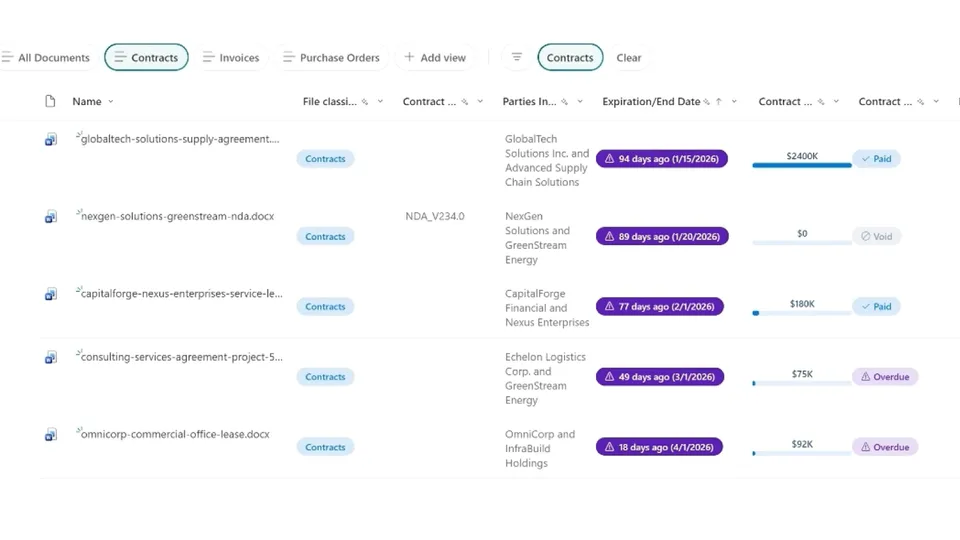
Applies color-coded classification pills, data bars on financial columns, and overdue highlighting on date columns. Creates a default view grouped by content type with styled headers, per-content-type views in the view picker, folder colors, and automated notification rules that alert a reviewer when any document is flagged Overdue.
Fully organizes a SharePoint document library end-to-end. Classifies files by content type, applies brand-consistent column formatting, creates filtered views per content type, colors folders, and sets up notification rules for overdue items.
What you get
- Files classified and metadata extracted using the file-classifier skill
- Color-coded classification pills, data bars on financial columns, and overdue highlighting on date columns
- A default view grouped by content type with styled group headers
- Per-content-type views (Contracts, Invoices, Purchase Orders) in the view picker
- Folder colors applied using brand colors from
SHAREPOINT.md - Automated notification rules that alert a reviewer when any document is flagged Overdue
When to use
Ask Copilot:
- "organize library" / "organize document library"
- "set up library" / "structure library"
- "brand library" / "apply brand to library"
- "full library makeover" / "organize and format library"
Best on a document library that already contains a mix of contracts, invoices, and purchase orders. The skill orchestrates the file-classifier skill end-to-end and reads SHAREPOINT.md for brand colors — if no SHAREPOINT.md is present, a fallback palette is used (see the skill instructions).
Demo content
Sample files for trying this skill end-to-end are in the demo/ subfolder. Includes a mix of contracts, invoices, and purchase orders to upload to a library before running the skill. Skip this folder when uploading the skill to SharePoint.
SharePoint Skill
| Solution | Author(s) |
|---|---|
| organize-library | Joe Komban (Microsoft) | GitHub | LinkedIn |
Version history
| Version | Date | Comments |
|---|---|---|
| 1.0 | May 2026 | Initial Release |
Disclaimer
THIS CODE IS PROVIDED AS IS WITHOUT WARRANTY OF ANY KIND, EITHER EXPRESS OR IMPLIED, INCLUDING ANY IMPLIED WARRANTIES OF FITNESS FOR A PARTICULAR PURPOSE, MERCHANTABILITY, OR NON-INFRINGEMENT.
Package
Ready to install
The ZIP contains only the upload-ready inner skill folder.
View SKILL.md
---
name: organize-library
description: End-to-end orchestrator that fully organizes a SharePoint document library — classifies files by content type (via the file-classifier skill), creates and extracts metadata columns, applies brand-consistent column and view formatting, builds per-content-type views, colors folders, and creates notification rules for overdue items. Use when the user asks to organize, set up, structure, or transform a document library, or to apply branding and views across content types. Trigger phrases: organize library, organize document library, set up library, structure library, brand library, full library makeover, apply brand to library, organize and format library.
---
# Organize Library

## Purpose

Fully organize a SharePoint document library by:
- Classifying files by content type and extracting metadata
- Applying brand-consistent column and view formatting
- Creating filtered views per content type
- Setting folder colors
- Creating notification rules for overdue items

Orchestrates the **file-classifier** skill for classification and reads **SHAREPOINT.md** for brand guidelines.

## Design Principle — Incremental Visual Feedback

Give the user visible progress at each step rather than a long silent period:
- **After Step 2**: Colored folders appear
- **After Step 3b**: Color-coded classification pills appear
- **After Step 3c**: Grouped default view with styled headers
- **After Step 4**: Metadata columns formatted with pills, data bars, overdue highlights
- **After Step 5**: Per-content-type views appear in the view picker
- **After Step 6**: Notification rules active — library is fully operational

Always report progress after each sub-step.

## Brand Colors

**Always read SHAREPOINT.md before applying any formatting.** Resolve all color role names to hex values at runtime. For semi-transparent pill backgrounds, convert hex to `rgba()` at the specified opacity. Always use 4 parameters — never `rgb()`.

**Disambiguation:** SHAREPOINT.md defines two Blue-Gray values. "Blue-Gray (Status)" = On Hold (#94A3B8). "Blue-Gray (Muted)" = muted text (#6B7280). Never swap them.

### Fallback palette (no SHAREPOINT.md)

If `SHAREPOINT.md` is not present in the workspace, or if the read fails, **do not abort**. Tell the user `SHAREPOINT.md` was not found, that a neutral fallback palette is being used, and that they can re-run after adding a brand file for branded results. Then continue with these hex values mapped to the same role names used elsewhere in this skill:

| Role | Hex |
|---|---|
| Primary (Contoso Blue) | `#0078D4` |
| Deep Navy | `#1B2A4E` |
| Light Blue (group header bg) | `#EFF6FC` |
| Medium Purple | `#7B68EE` |
| Deep Purple (overdue) | `#5B21B6` |
| Soft Green | `#22C55E` |
| Blue-Gray (Status / On Hold) | `#94A3B8` |
| Blue-Gray (Muted text) | `#6B7280` |
| Default Folder Color | `darkBlue` |
| Folder — Contracts | `darkPurple` |
| Folder — Invoices | `darkBlue` |
| Folder — Purchase Orders | `darkGreen` |

Use the fallback values exactly as if they had come from `SHAREPOINT.md`. All other rules in this skill apply unchanged.

## Content Type Column Pattern

Each content type gets exactly **5 metadata columns**:

| # | Role | Type | Formatting |
|---|---|---|---|
| 1 | Identifier | Text | — |
| 2 | Key Party | Text | — |
| 3 | Critical Date | DateTime | Overdue highlighting |
| 4 | Financial Amount | Number | Data bars |
| 5 | Status | Text | Icon pills |

### Column Definitions

**Contracts**

| # | Column | InternalName | Type | Default |
|---|---|---|---|---|
| 1 | Contract ID/Number | ContractID | Text | — |
| 2 | Parties Involved | PartiesInvolved | Text | — |
| 3 | Expiration/End Date | ExpirationEndDate | DateTime | — |
| 4 | Contract Value | ContractValue | Number | — |
| 5 | Contract Status | ContractStatus | Text | Active |

**Invoices**

| # | Column | InternalName | Type | Default |
|---|---|---|---|---|
| 1 | Invoice Number | InvoiceNumber | Text | — |
| 2 | Vendor/Supplier Name | VendorSupplierName | Text | — |
| 3 | Payment Due Date | PaymentDueDate | DateTime | — |
| 4 | Total Amount Due | TotalAmountDue | Number | — |
| 5 | Payment Status | PaymentStatus | Text | Overdue |

**Purchase Orders**

| # | Column | InternalName | Type | Default |
|---|---|---|---|---|
| 1 | PO Number | PONumber | Text | — |
| 2 | Vendor/Supplier Name | VendorSupplierName | Text | — |
| 3 | Required Delivery Date | RequiredDeliveryDate | DateTime | — |
| 4 | Total Order Value | TotalOrderValue | Number | — |
| 5 | PO Status | POStatus | Text | Open |

VendorSupplierName is shared across Invoices and Purchase Orders — create once, reuse.

## Workflow

### Step 1 — Assess the Library
- Call `get_list_schema` to get columns, views, item count, and settings.
- Call `list_items` (itemType="folders") and (itemType="files") to inventory the library.
- Present summary: file count, folder count, existing columns, existing views.
- **Confirm with the user before proceeding.**

### Step 2 — Color Folders
- Apply **Default Folder Color** from SHAREPOINT.md to all folders using `set_folder_color`. Batch in a single call.
- If content-type-named folders exist, assign: Contracts → DARK_PURPLE, Invoices → DARK_BLUE, Purchase Orders → DARK_GREEN.
- **Report**: "Folders are now color-coded."

### Step 3 — Classify Files & Configure Default View

#### 3a — Run file-classifier
- Load with `load_skill(skillName="file-classifier")`.
- Follow the full file-classifier workflow: create FileClassification column, read files, classify, create metadata columns, extract values, save with `update_list_items_v2`.

#### 3b — Format File Classification column
Apply pill formatting to **FileClassification** using brand colors from SHAREPOINT.md.

**Pill structure (use everywhere pills appear):**
- Root div: `display: flex; align-items: center; height: 100%` — no background.
- Inner span: `display: inline-block; border-radius: 16px; padding: 4px 12px; font-size: 12px; font-weight: 600; white-space: nowrap` — carries background and text color.

**Color assignment:**

| Content Type | Palette Color | BG Opacity | Text |
|---|---|---|---|
| Contracts | Primary (Contoso Blue) | 15% | Primary |
| Invoices | Medium Purple | 15% | Medium Purple |
| Purchase Orders | Soft Green | 15% | Soft Green (darkened for contrast) |
| Unclassified | Blue-Gray (Status) | 10% | Blue-Gray (Status) |

Use `apply_column_formatting` with a conditional JSON formatter checking `@currentField` against each content type.

**Report**: Classification results — file counts per type, any unclassified files. User should now see color-coded pills.

#### 3c — Update default view & format group headers
- Update "All Documents" view with `create_or_update_list`:
  - viewFields: FileLeafRef, FileClassification, Modified, Editor only. **Do not add metadata columns to the default view.**
  - Group by FileClassification (Collapse="FALSE"), sort by Modified descending.
- Apply view formatting with `apply_view_formatting` (row-formatting schema):
  - Group headers: Deep Navy text on Light Blue background, bold, shows `@group.fieldData.displayValue` + item count.
  - Rows: clean white, no alternating colors.
  - Schema: `https://developer.microsoft.com/json-schemas/sp/v2/row-formatting.schema.json`

**Report**: "Default view is now grouped by classification with styled headers."
**Confirm with the user before proceeding to metadata formatting.**

### Step 4 — Format Metadata Columns

Metadata was written in Step 3a. This step applies visual formatting only. Check schema before formatting — only format columns that exist.

#### Date Columns (ExpirationEndDate, PaymentDueDate, RequiredDeliveryDate)
- Root div with icon span + text span.
- **Not overdue** (`@currentField > @now`): CalendarDay icon (`"Event"`) in Blue-Gray (Status) + `@currentField.displayValue` in normal text.
- **Overdue** (`@currentField <= @now`): Pill — Deep Purple background, white text and icon.
  - Warning icon + relative display string: `"{N} days ago ({date})"` where:
    - N = `toString(floor((toNumber(@now) - toNumber(@currentField)) / 86400000))`
    - date = `@currentField.displayValue`
  - Full expression: `"=" + toString(floor((toNumber(@now) - toNumber(@currentField)) / 86400000)) + " days ago (" + @currentField.displayValue + ")"`
  - 86400000 = milliseconds per day (1000 × 60 × 60 × 24); `floor()` drops the fractional day so the count is always whole numbers.
  - **Example output**: `⚠ 79 days ago (January 31, 2026)`

#### Number Columns (ContractValue, TotalAmountDue, TotalOrderValue)
- Data bar formatting using Primary (Contoso Blue).
- `sp-field-dataBars` class with width expression based on field value.

#### Status Columns (ContractStatus, PaymentStatus, POStatus)
- Inner-element pill structure (same structure as FileClassification pills above).
- Icon span (`iconName`) + text span inside the inner pill span.

**Status color mapping:**

| Status Values | Color Role | Hex | Icon |
|---|---|---|---|
| Paid, Active, Open | In Progress / Active | #0078D4 | CheckMark |
| Pending, Draft, In Progress | Not Started / Pending | #BDD7EE at 40% opacity | Clock |
| Completed, Done, Closed, Awarded | Completed / Done | #7B68EE | Completed |
| Overdue, Rejected, Cancelled | Overdue / Blocked | #5B21B6 | Warning |
| Void, Expired, Terminated, On Hold | On Hold | #94A3B8 | Blocked |

Pill background: status color at 15% opacity (40% for Pending). Text: full status color hex. Exception: Pending uses a darker shade of #BDD7EE for text contrast.

**Report**: "Formatted X date columns with overdue highlighting, X status columns with icon pills, X number columns with data bars."

### Step 5 — Create Per-Content-Type Views

For each content type detected, create one view with `create_or_update_list`:
- View name: content type name ("Contracts", "Invoices", "Purchase Orders").
- viewFields: FileLeafRef, FileClassification, the 5 metadata columns for that type, Modified, Editor.
- CAML Where filter: `<Where><Eq><FieldRef Name='FileClassification'/><Value Type='Choice'>[ContentTypeName]</Value></Eq></Where>`
- Sort by the Critical Date column (col 3) ascending, then Modified descending.
- `isNewView: true`.

Batch views in groups of 5 or fewer per call.

**Report**: "Created X views — one per content type. Switch between them in the view picker."

### Step 6 — Create Notification Rules

Create an automated notification rule for each status column so that documents flagged as overdue trigger a reviewer alert.

- **Ask the user** for the reviewer's name or email before creating rules.
- For each status column present (PaymentStatus, POStatus, ContractStatus), create a rule using `create_list_rule` (or the available rule-creation tool):
  - **Trigger**: column value changes to **"Overdue"**
  - **Action**: Send email notification to the configured reviewer
  - **Message**: Include the document name, status column name, the relevant date column value (due date or expiration date), and the financial amount column value
- Create one rule per status column — do not merge into a single rule.

#### If `create_list_rule` is unavailable or fails

The rule-creation tool may not be present in every tenant, may fail per-rule due to permissions, or may return an error mid-batch. **Do not abort the run** — the rest of the organization work is already valuable on its own.

- **If the tool is not available at all**: skip rule creation, tell the user explicitly ("automated notification rules are not available in this tenant — the rest of the library is fully organized"), and provide a one-paragraph manual fallback: open the library → **Automate** → **Rules** → **Create a rule** → *"A column changes"* → select the status column → set to **Overdue** → notify the reviewer. List each status column that would have had a rule.
- **If one or more rules fail to create**: continue with the rest. Record the failure (column name + error message) and surface it in the Step 7 Summary Report under a **"Rules that need attention"** row. Never silently drop a rule.
- **One retry, then move on.** Transient failures get exactly one retry per rule.

**Talking point for demo**: This rule fires automatically as documents are uploaded or status changes — no manual monitoring required. The metadata we extracted is what makes the rule possible: without structured columns, there's nothing to trigger on.

**Report**: "Created X notification rules — one per status column. [Reviewer] will be notified when any document is flagged Overdue."
**Confirm with the user** before proceeding to the summary.

### Step 7 — Summary Report

| Category | Details |
|---|---|
| Files classified | X files → Y content types |
| Columns created | List of new columns |
| Columns reused | List of existing columns kept |
| Views created | List of views |
| Formatting applied | X columns formatted, X views formatted |
| Folder colors | X folders colored |
| Notification rules | X rules created, reviewer: [name/email] |

Offer next steps:
- "Would you like to refine any views or formatting?"
- "Want to add more files and classify them?"
- "Need to adjust the reviewer for notification rules?"

## Key Principles
- **Always read SHAREPOINT.md** for brand guidelines before formatting.
- **Always load file-classifier** — don't duplicate its logic.
- **Incremental visual feedback** — apply and report after each sub-step.
- **Idempotent** — safe to re-run. Check for existing columns, views, and rules.
- **Schema-first** — always check before creating or formatting.
- **Batch operations** where possible.
- **Confirm with user** before bulk operations and before creating notification rules.
- **Never fabricate** data.

## Constraints
- Only use content type names from the file-classifier valid list.
- Only format columns that exist in the library schema.
- Never create duplicate columns — check internal name first.
- `rgba()` must always have 4 parameters.
- **Do not add metadata columns to the All Documents default view** — only FileLeafRef, FileClassification, Modified, Editor.
- **Per-content-type views must include a CAML Where filter** on FileClassification.
- **Per-content-type views carry the 5 metadata columns** for that type plus FileLeafRef, FileClassification, Modified, Editor.
- Process files in batches (20 items per update call, 100 files per search).
- Never auto-navigate the user.

## Example

**User:** "Organize this document library"

- **Step 1**: Schema check — 12 files, no custom columns, no folders. Confirm: "I found 12 files across invoices, purchase orders, and agreements. I'll classify files, create metadata, apply formatting, create views, and set up notification rules. Ready to proceed?"
- **Step 2**: No folders — skip. Report: "No folders to color."
- **Step 3a**: Load file-classifier. Classify 12 files: 4 Invoices, 3 Purchase Orders, 5 Contracts. Create 14 columns (VendorSupplierName created once, reused). Write classification + metadata for all 12 files.
- **Step 3b**: Format FileClassification with color-coded pills. Report: "Classification pills are now visible — 5 Contracts (blue), 4 Invoices (purple), 3 Purchase Orders (green)."
- **Step 3c**: Update default view — grouped by classification, styled group headers. Report: "Default view is now grouped with styled headers." Confirm before continuing.
- **Step 4**: Format 3 date columns (overdue highlighting), 3 status columns (icon pills), 3 number columns (data bars). Report: "Formatted 9 metadata columns."
- **Step 5**: Create 3 views: Contracts, Invoices, Purchase Orders — each with CAML filter and 5 type-specific columns. Report: "Created 3 views."
- **Step 6**: Ask for reviewer email. Create 3 notification rules (PaymentStatus, POStatus, ContractStatus) — each triggers on "Overdue", notifies reviewer. Report: "Created 3 notification rules."
- **Step 7**: Summary report and offer next steps.
References
- agentskills.io specification
The specification that SharePoint AI skills follow for installation and discovery.
Discuss this skill
Ask a question, share how you used it, or suggest an improvement with the community.
Open GitHub Discussions