Creates a read-only permission and sharing access review report for selected files/folders, a named list or library, or the whole current SharePoint site, based only on data the current user can already access.
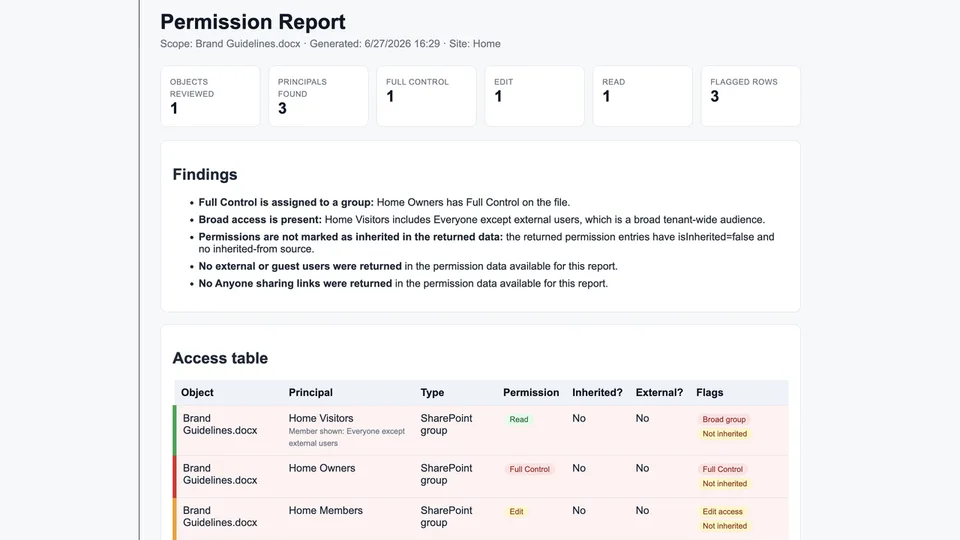
Generates and saves a self-contained HTML report with summary totals, a color-coded access table, and flagged risks for Anyone links, external or guest users, broad tenant-wide groups, broken inheritance, and individual Full Control assignments.
Creates a read-only SharePoint permission and sharing access review report as a self-contained HTML file.
What you get
- Access review coverage for selected files/folders, a named list or library, or the current site scope
- A risk-focused findings summary that flags Anyone links, external/guest users, broad groups, unique permissions, and individual Full Control grants
- A self-contained HTML report with summary cards, a color-coded access table, and a limitations section when data is partial
- The file saved in an
Access Reportsfolder with a clear timestamped report name - Strictly read-only behavior for permissions and sharing (no grants/revokes/sharing changes)
When to use
Ask Copilot:
- "who has access" / "permission report" / "sharing report"
- "access review" / "review permissions"
- "check external sharing" / "audit permissions on this library"
Best when you need a fast, defensible access snapshot for audit, handover, or governance reviews without changing any permissions.
SharePoint Skill
| Solution | Author(s) |
|---|---|
| permission-report | Sandeep P S ( GitHub | LinkedIn ) |
Version history
| Version | Date | Comments |
|---|---|---|
| 1.0 | June 2026 | Initial Release |
Disclaimer
THIS CODE IS PROVIDED AS IS WITHOUT WARRANTY OF ANY KIND, EITHER EXPRESS OR IMPLIED, INCLUDING ANY IMPLIED WARRANTIES OF FITNESS FOR A PARTICULAR PURPOSE, MERCHANTABILITY, OR NON-INFRINGEMENT.
Package
Ready to install
The ZIP contains only the upload-ready inner skill folder.
View SKILL.md
---
name: permission-report
description: |-
  Create a read-only permission and sharing access review report as a self-contained HTML file saved to SharePoint.

  Use when the user says:
    - "who has access"
    - "permission report"
    - "sharing report"
    - "access review"
    - "review permissions"
    - "create a Permission Report"
---
# Permission Report

## When to use
Use this skill when the user wants a read-only review of who has access to SharePoint files, folders, libraries, lists, or a site, especially requests such as “who has access,” “permission report,” “sharing report,” “access review,” or “review permissions.”

## Inputs
Use the current SharePoint context by default. Determine the reporting scope from the user’s request and available context:
- Selected files or folders, if the user has selected items or says “these/this.”
- A named library or list, if the user names one.
- The whole current site, if no narrower scope is provided.

Only report content and permission details the current user can already see. Never invent access data.

## Steps
1. Stay strictly read-only on permissions.
   - Never grant, revoke, change, break, restore, or otherwise modify sharing or permissions.
   - Do not create sharing links or invite users.
   - Use only discovery, listing, permission-checking, and file-creation tools needed to produce the report.

2. Resolve the scope.
   - If items are selected, report on those selected files or folders.
   - If a list or library is named, resolve it from the current site and report on that list/library and representative or included items as supported by available permission tools.
   - If no narrower scope is clear, report across accessible user-created lists and libraries on the current site.
   - If a scope cannot be resolved, state that plainly in the report and do not guess.

3. Collect access information.
   For each scoped site/list/library/file/folder where available, read:
   - Who has access: users, groups, sharing principals, and links.
   - Permission level: normalize to Full Control, Edit, Read, or Other/Unknown.
   - Whether access is inherited or uniquely set.
   - Any sharing links, especially Anyone links.
   - External or guest users.
   If a tool fails or returns partial/empty permission data, record that limitation plainly; do not fill gaps from assumptions.

4. Flag risks.
   Mark rows and findings for:
   - Anyone links.
   - External or guest access.
   - Broad groups such as Everyone, Everyone except external users, All users, or similar tenant-wide groups.
   - Broken inheritance / unique permissions.
   - Individual users with Full Control.

5. Draft a single self-contained HTML report.
   - No scripts.
   - No external CSS, fonts, images, or resources.
   - Use inline CSS only.
   - Include a summary band with totals such as scoped objects reviewed, principals found, Full Control/Edit/Read counts, external/guest count, sharing link count, and flagged risk count.
   - Include a color-coded access table: red for Full Control/high risk, amber for Edit or caution, green for Read/low risk, gray for unknown. Highlight flagged rows.
   - Include a plain-English findings list explaining the main risks and safe observations.
   - Include a limitations section if permission details were unavailable or partial.

6. Save the report.
   - Save the HTML file in an `Access Reports` folder in an appropriate document library on the current site.
   - If the folder does not exist, create only that report folder and only if needed for saving the report.
   - Use a clear filename such as `Permission-Report-YYYY-MM-DD-HHMM.html`.

7. Respond to the user.
   - Provide the report link.
   - Give a short summary of the highest-risk findings.
   - Do not claim permissions were changed.

## Output format
After saving the report, respond:

```markdown
# Permission report created

[Open the report](<link>)

- Scope: <selected items, named list/library, or whole site>
- Reviewed: <count or brief description>
- Key findings: <1 concise sentence with highest-risk issues, or “No high-risk access was found in the data available.”>
```

## HTML report requirements
The saved file must be a complete HTML document:

```html
<!doctype html>
<html>
<head>
  <meta charset="utf-8">
  <title>Permission Report</title>
  <style>
    /* inline CSS only */
  </style>
</head>
<body>
  <h1>Permission Report</h1>
  <section><!-- summary band --></section>
  <section><!-- findings --></section>
  <section><!-- access table --></section>
  <section><!-- limitations, if any --></section>
</body>
</html>
```

## Constraints
- Strictly read-only for permissions and sharing.
- Never grant, revoke, share, unshare, create sharing links, or change inheritance.
- Never invent users, groups, permission levels, links, or inheritance status.
- If access data is unavailable, say so plainly in the report.
- HTML must be self-contained and must not include scripts or external resources.
References
- agentskills.io specification
The specification that SharePoint AI skills follow for installation and discovery.
Discuss this skill
Ask a question, share how you used it, or suggest an improvement with the community.
Open GitHub Discussions