SharePoint happily accepts file and folder names that the OneDrive sync client, File Explorer, and the Teams Files tab later refuse to handle. The result is the familiar 'we can't sync this file' error that surfaces one user at a time, long after the content was uploaded, with no way to see how widespread the problem is. This skill audits a whole document library against Microsoft's documented naming and path restrictions in one pass, with no Power Automate and no custom code.
It pages through every file and folder and applies a numbered rule set: Blockers such as illegal characters (" * : < > ? / \ |), leading or trailing whitespace, trailing periods, Windows reserved device names like CON and LPT1, reserved SharePoint and OneDrive names such as .lock, desktop.ini and _vti_, orphaned ~$ lock files, and full decoded URLs over the 400-character limit; Risks such as #, %, &, {, }, and + in names (fully supported by SharePoint Online since 2017, but still hostile to hand-built REST URLs, migration tools and on-premises clients), paths over the 260-character Windows limit that File Explorer and the Office desktop apps cannot open, nesting deeper than eight levels, .tmp files that OneDrive never syncs, and files checked out for more than seven days; and Info items such as Thumbs.db, .DS_Store, backup leftovers, and zero-byte files.
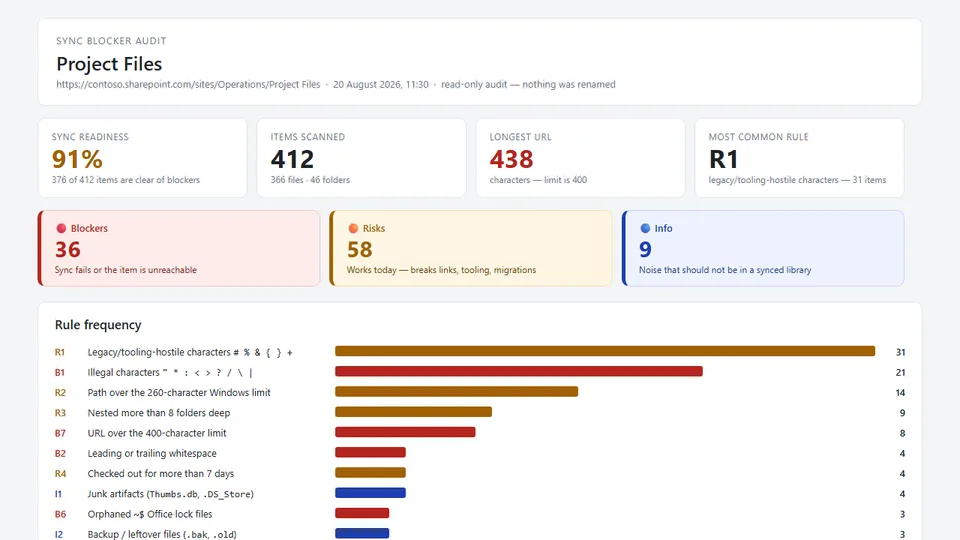
For every blocked item it derives a proposed safe name — illegal characters replaced, whitespace and trailing periods trimmed, reserved names escaped, and long names shortened while preserving the extension — and presents it for human approval. It then saves a colour-coded, self-contained HTML report (sync readiness score, severity strip, rule frequency chart, findings table, path-length table against the 400-character limit, checked-out table, folder hot spots, and a prioritised remediation list) to a Sync Reports folder. The skill is strictly read-only: it never renames, moves, deletes, or checks in anything. Unlike naming checks that look for vague or unhelpful names, this skill reports only technical sync and URL blockers. Trigger phrases include 'sync blockers', 'why won't this library sync', 'invalid file names', 'path too long', and 'files stuck checked out'.
Audits a SharePoint document library for the names and paths that break OneDrive sync, File
Explorer, and the Teams Files tab. It scans every file and folder, flags illegal characters,
trailing spaces and periods, Windows reserved names, #/% legacy characters, URLs over the
400-character limit, deep nesting, long-term checked-out files, and junk artifacts — then scores
sync readiness and saves a self-contained HTML report with a proposed safe name for every
blocked item. It is strictly read-only: nothing is ever renamed.
What you get
- A sync readiness score for the library, plus Blocker / Risk / Info counts
- Every finding mapped to a numbered rule (
B1–B8,R1–R6,I1–I3) with a plain-English explanation of what actually breaks - A proposed safe name for every blocked item — illegal characters replaced, whitespace and trailing periods trimmed, reserved names escaped, long names shortened without losing the extension
- A path-length table measuring the 10 longest full URLs against both the 400-character SharePoint limit and the 260-character Windows limit that breaks File Explorer first
- A checked-out table listing files locked for more than 7 days, and by whom
- Folder hot spots and a prioritised, plain-English remediation list
- A colour-coded, self-contained HTML report saved to a
Sync Reportsfolder — no scripts, no external resources, no Power Automate, no custom code - Strictly read-only: it never renames, moves, deletes, or checks in anything — the only thing it writes is the HTML report
How this differs from the naming checks in other skills
library-cleanup and analyze-document-library look for names that are unhelpful to humans
(Document.docx, Misc, Copy of Copy of...). This skill ignores readability entirely and
looks only for names that are technically invalid for the sync engine and the URL space. A
perfectly descriptive file name can still be a hard blocker, and a badly named file can be
completely sync-safe.
When to use
Ask Copilot any of the following (or close variations):
- "sync blockers" / "sync health check" / "sync readiness report"
- "why won't this library sync" / "OneDrive sync errors"
- "check file names" / "invalid file names" / "illegal characters"
- "path too long" / "url too long" / "400 character limit"
- "files stuck checked out"
Be in the library you want to audit, name one, or have a folder selected — the skill audits the current library recursively by default.
What it checks
| Severity | Rules |
|---|---|
| Blocker | Illegal characters " * : < > ? / \ |, leading/trailing whitespace, trailing period, Windows reserved device names (CON, PRN, AUX, NUL, COM0–COM9, LPT0–LPT9), reserved SharePoint/OneDrive names (.lock, desktop.ini, _vti_, root forms), ~$ lock files, URL over 400 characters, name segment over 255 characters |
| Risk | # % & { } + in names, path over the 260-character Windows limit, nesting deeper than 8 levels, checked out for more than 7 days, control/zero-width/bidirectional characters, .tmp files (which OneDrive never syncs) |
| Info | Thumbs.db, .DS_Store, ehthumbs.db, backup leftovers (.bak, .old, .partial, .crdownload, .laccdb), zero-byte files |
The # and % characters have been fully supported by SharePoint Online since 2017, so they
are reported as an advisory Risk, never as a sync failure — they still trip up
hand-constructed REST/CSOM URLs, migration tools, and on-premises clients.
Prerequisites
- A SharePoint document library.
- Read access to the library being audited — the skill only reads names, paths, sizes, and check-out state, and never modifies it.
- Contribute access somewhere on the site (the default Documents or Site Assets library) so the HTML report can be saved. If you have no write access at all, the skill returns the full findings inline instead of saving a file.
- No column setup, Power Automate flow, or admin role is required.
Demo content
Sample content for trying this skill end-to-end is in the demo/ subfolder. It includes a ready-made set of files covering the main rule categories, plus the expected audit results to verify against. Skip this folder when uploading the skill to SharePoint.
Sample output
A full example of the generated report is in
assets/Sync-Blocker-Audit-Project-Files-2026-08-20-1130.html.
SharePoint Skill
| Solution | Author(s) |
|---|---|
| sync-blocker-auditor | Bhupendra Kaushik | GitHub |
Version history
| Version | Date | Comments |
|---|---|---|
| 1.0 | August 2026 | Initial Release |
Disclaimer
THIS CODE IS PROVIDED AS IS WITHOUT WARRANTY OF ANY KIND, EITHER EXPRESS OR IMPLIED, INCLUDING ANY IMPLIED WARRANTIES OF FITNESS FOR A PARTICULAR PURPOSE, MERCHANTABILITY, OR NON-INFRINGEMENT.
Package
Ready to install
The ZIP contains only the upload-ready inner skill folder.
134e9f0a1beeecf8fcbf6f515936fa06ef5abbe09bc4794aea09ca4b3bbacfd5View SKILL.md
---
name: sync-blocker-auditor
description: |-
  Audits a SharePoint document library for names and paths that break OneDrive sync,
  File Explorer, and Teams file access. Flags illegal characters, leading/trailing spaces,
  trailing periods, Windows reserved names, "#"/"%" legacy characters, paths over the
  400-character URL limit, excessive nesting, long-term checked-out files, and junk
  artifacts. Scores sync readiness, proposes a safe rename for every blocker, and saves a
  self-contained HTML report. It is strictly read-only — it never renames, moves, or
  deletes anything.

  Use when the user says:
	- "sync blockers"
	- "why won't this library sync"
	- "OneDrive sync errors"
	- "sync health check"
	- "check file names"
	- "invalid file names"
	- "illegal characters"
	- "path too long"
	- "url too long"
	- "files stuck checked out"
	- "sync readiness report"
---
# Sync Blocker Auditor

## Purpose
SharePoint accepts file and folder names that the OneDrive sync client, File Explorer, and the
Teams Files tab later refuse to handle. The result is the classic "we can't sync this file"
error that surfaces one user at a time, long after the content was uploaded, with no way to see
how widespread the problem is.

This skill audits a document library against Microsoft's documented naming and path
restrictions, scores its **sync readiness**, and produces a severity-ranked HTML report with a
proposed safe name for every blocked item.

It is **strictly read-only**: it never renames, moves, deletes, checks in, or modifies any item.
The only thing it writes is the HTML report file.

## Trigger Phrases
Activate this skill when the user says any of the following (or close variations):
- "sync blockers" / "sync health check" / "sync readiness report"
- "why won't this library sync" / "OneDrive sync errors" / "sync is failing"
- "check file names" / "invalid file names" / "illegal characters" / "bad characters"
- "path too long" / "url too long" / "400 character limit"
- "files stuck checked out" / "who has files checked out"

Do **not** use this skill to actually rename or fix items. If the user asks for the fix to be
applied, explain that this skill is read-only, hand them the rename plan from the report, and
point them at a rename-capable skill or a bulk-rename tool.

## Inputs & Scope
Determine the audit scope from the user's request and the current context, in this order:
1. **Selected items or folder** — if the user has items selected or says "these/this folder",
   audit that subtree.
2. **Named library** — if the user names one (e.g., "audit the Project Files library"), resolve
   it on the current site.
3. **Current library** — if the user is in a library and gives no other scope, audit it
   recursively from its root.
4. If no scope can be resolved, ask the user which library to audit. Do not guess.

Only audit content the current user can already see. Never invent items, paths, or values.

## Steps

### Step 1 — Resolve the library and enumerate every item
1. Resolve the target library and capture its **server-relative root URL** (needed for accurate
   path-length maths).
2. Use `list_items` with `recursive=true` to enumerate **files and folders**, projecting at
   minimum: `FileLeafRef` (name), `FileRef` (server-relative path), `FileDirRef` (parent path),
   `FSObjType` (0 = file, 1 = folder), `File_x0020_Size`, `Modified`, `Editor`, and the
   check-out fields (`CheckoutUser` / `IsCheckedoutToLocal`) when available.
3. **Page through the entire library** — do not stop at the first page. A single recursive
   `list_items` call can exceed the response-size limit above roughly 1,000 items, which is
   exactly the size of the migrated libraries this skill targets. If that happens, fall back to
   walking one folder at a time and aggregating the running totals with `execute_code`. If a
   read fails or returns partial data, record that plainly in the report's Limitations section
   instead of guessing.

Tell the user the scope and item count before analysing.

### Step 2 — Apply the rule set
Do not evaluate the rules by eye. Use `execute_code` to do the character counting, pattern
matching, and aggregation — exact URL lengths, character-class matches, and per-rule totals must
be computed, not estimated.

An item can match several rules; record all matches, and rank the item by its **highest**
severity. The **Scope** column says which item types a rule applies to.

#### Blockers (severity: Blocker — sync fails, or the item is unreachable from Explorer)
| ID | Rule | Detection | Scope |
|---|---|---|---|
| `B1` | Illegal characters | Name contains any of `" * : < > ? / \ |` | files + folders |
| `B2` | Leading or trailing whitespace | Name starts or ends with a space or tab | files + folders |
| `B3` | Trailing period | The full name ends with `.`, **or** the base name (the text before the final extension) ends with `.`. A period *between* words, as in `Q3.Budget.docx`, is not a finding. | files + folders |
| `B4` | Reserved Windows device name | Base name (case-insensitive) is `CON`, `PRN`, `AUX`, `NUL`, `COM0`–`COM9`, or `LPT0`–`LPT9` | files + folders |
| `B5` | Reserved SharePoint/OneDrive name | Name is `.lock` or `desktop.ini`; `_vti_` appears **anywhere** in the name; a file or folder at the library root is named `forms`; a folder name begins with `゛` or `ဧ` | files + folders |
| `B6` | Leading tilde-dollar | Name starts with `~$` — an orphaned Office lock file, disallowed by OneDrive and SharePoint | files + folders |
| `B7` | URL over the SharePoint limit | Full **decoded** URL (`https://<tenant>/<site>/<library>/<path>/<name>`) exceeds **400 characters** | files + folders |
| `B8` | Name segment too long | Any single file or folder name exceeds **255 characters** — the per-name limit in File Explorer and Finder, not in SharePoint itself | files + folders |

#### Risks (severity: Risk — works in the browser, breaks desktop clients, tooling, or migrations)
| ID | Rule | Detection | Scope |
|---|---|---|---|
| `R1` | Characters hostile to legacy clients and tooling | Name contains `#`, `%`, `&`, `{`, `}`, or `+`. These have been fully supported by SharePoint Online since 2017 — modern sharing links encode them correctly. They remain a risk for **hand-constructed REST/CSOM URLs, migration tools, third-party integrations, and on-premises clients**. | files + folders |
| `R2` | Path over the Windows limit | Full path exceeds **260 characters** — File Explorer and the Office desktop apps cannot open, rename, or move the item, and the local sync root adds a further 30–60 characters on top. This bites long before `B7` does. | files + folders |
| `R3` | Deep nesting | Item is more than **8** folder levels below the library root | files + folders |
| `R4` | Long-term check-out | Checked out for more than **7 days** — colleagues only ever receive the last checked-in version | files only |
| `R5` | Non-printable or bidirectional characters | Name contains control characters, zero-width characters, or RTL/LTR override marks | files + folders |
| `R6` | TMP files | Extension is `.tmp` or `.temp` — OneDrive does not sync TMP files at all | files only |

#### Info (severity: Info — noise that should not be in a synced library)
| ID | Rule | Detection | Scope |
|---|---|---|---|
| `I1` | Junk artifacts | `Thumbs.db`, `.DS_Store`, `ehthumbs.db` | files only |
| `I2` | Backup / leftover files | Extension is `.bak`, `.old`, `.partial`, `.crdownload`, or `.laccdb` | files only |
| `I3` | Zero-byte files | File size is 0 bytes | files only |

`I1`–`I3` are advisory — never present them as sync failures. Never apply a **files only** rule
to a folder: folders report a size of 0 and would otherwise all be flagged by `I3`.

**Do not** flag names merely for being vague, generic, or unhelpful (`Document.docx`,
`Untitled.xlsx`, `Misc`), and do not flag leading-dot names such as `.gitignore` for having an
empty base name. Readability is a different problem, handled by other skills. This skill only
reports **technical** sync and URL blockers.

### Step 3 — Propose a safe name for every Blocker
For each item with a Blocker, derive a suggested name — as a **proposal only**, never applied:
1. Replace every illegal character (`B1`) with a single `-`.
2. Replace `#`, `%`, `&`, `{`, `}`, `+` with `-` only when the item already has a Blocker;
   otherwise leave them and report as `R1`.
3. Collapse runs of `-` or spaces into one, then trim leading/trailing spaces, tabs, and
   periods.
4. For `B4` reserved device names, prefix the name with `file-` (`CON.docx` → `file-CON.docx`).
   For `B5`/`B6`, first **strip** the reserved `~$` or `_vti_` prefix, then add `file-`
   (`~$Proposal.docx` → `file-Proposal.docx`) — never leave the reserved prefix in place.
5. For `B7`/`B8`, shorten the **base name** — keep the first meaningful words, drop filler,
   and always preserve the original extension. State the new full-URL length.
6. If the proposal collides with an existing name in the same folder, append ` (2)`, ` (3)`, …
7. If a name cannot be made safe by renaming alone (for example, the path is long because of
   folder depth, not the file name), say so and recommend the folder-level fix instead.

Show both the original and the proposal so a human can approve each one.

### Step 4 — Compute the scores
- **Sync readiness %** = items with no Blocker ÷ total items scanned, as a whole number.
- **Counts** of Blocker / Risk / Info items (an item counts once, at its highest severity).
- **Rule frequency** — how many items matched each rule ID, sorted descending.
- **Folder hot spots** — the folders containing the most affected items.
- **Longest URL** — the single worst path, with its character count.

### Step 5 — Build a self-contained HTML report
Draft one **self-contained** HTML file:
- No scripts. No external CSS, fonts, images, or resources. **Inline CSS only.**
- **Summary band** — items scanned, sync readiness %, Blocker / Risk / Info counts, longest URL
  length, and the single most common rule.
- **Severity strip** — three coloured cards: Blocker (red `#b3261e`), Risk (amber `#a16207`),
  Info (blue `#1e40af`).
- **Rule frequency chart** — one row per matched rule showing rule ID, plain-English label, and
  a horizontal bar drawn with inline-CSS width (e.g., a coloured `<div>` at `width: 62%`),
  coloured by the rule's severity.
- **Findings table** — one row per affected item: name, folder path, severity badge, matched
  rule IDs, a plain-English reason, and the proposed safe name. Sort Blockers first.
- **Path-length table** — the 10 longest URLs with their character counts, each drawn as a bar
  against the 400-character SharePoint limit, with the 260-character Windows limit marked so it
  is obvious which items already break the desktop clients.
- **Checked-out table** — file, who has it checked out, and for how many days (omit the section
  entirely if there are none).
- **Folder hot spots** — the folders with the most affected items.
- **Remediation list** — a short, prioritised, plain-English list, most impactful first
  ("Rename 12 files containing `:` — sync fails for every user", "Flatten
  `Projects/2026/Q3/...` — 6 files are within 40 characters of the URL limit").
- **Limitations section** — only if any data was unavailable or the scan was partial.

Keep percentages as whole numbers and be consistent throughout the report.

### Step 6 — Save the report
- Save the HTML file in a `Sync Reports` folder in the site's default **Documents** library (or
  **Site Assets**). **Never write into the library under audit** unless the user explicitly asks
  — writing a report into the audited scope changes the very thing that was just measured, and
  the reports accumulate as findings on the next run.
- Create the `Sync Reports` folder **only if it does not exist**, and only to hold the report.
- Use a clear filename: `Sync-Blocker-Audit-<Library>-YYYY-MM-DD-HHMM.html`.
- If the save fails because the user lacks write access anywhere on the site, **do not stop** —
  say the report could not be saved, and return the full findings inline as Markdown instead.

### Step 7 — Respond to the user
After saving, reply with a compact Markdown summary and the report link:

```markdown
# Sync blocker audit complete

[Open the report](<link>)

- Scope: <library / folder audited>
- Items scanned: <n> (<n> files, <n> folders)
- Sync readiness: <n>%  (Blockers <n> · Risks <n> · Info <n>)
- Top blocker: <rule label> on <n> items
- Longest URL: <n> characters (limit 400)
```

## Example

**User:** "Why won't the Project Files library sync?"

**Agent response after processing:**

> I audited **Project Files** (412 items — 366 files, 46 folders) against the OneDrive sync and
> URL rules.
>
> | Metric | Result |
> |---|---|
> | Sync readiness | 91% |
> | Blockers / Risks / Info | 36 / 58 / 9 |
> | Top blocker | Illegal characters (`B1`) on 21 items |
> | Longest URL | 438 characters (limit 400) |
>
> The worst offender is `Clients/Northwind/Contracts/Q3: Signed & Approved/` — the `:` in that
> folder name blocks every one of the 14 files inside it for every synced user.
>
> I saved the report to `Sync Reports/Sync-Blocker-Audit-Project-Files-2026-08-20-1130.html`,
> including a proposed safe name for all 36 blocked items. Nothing was renamed.

## Constraints
- **Strictly read-only.** Never rename, move, delete, check in, check out, or modify any item,
  folder, column, view, or setting. The only thing this skill writes is the HTML report file
  (and, if needed, the `Sync Reports` folder to hold it).
- Never fabricate items, paths, names, or check-out owners — everything comes from the actual
  library.
- Rename suggestions are **proposals only**. Always present them for human approval and state
  explicitly that nothing was changed.
- Measure URL length against the **full decoded URL**, not the file name alone, and always state
  the limit next to the number — 400 characters for SharePoint (`B7`), 260 for Windows (`R2`).
- Compute lengths, character matches, and totals with `execute_code`. Never estimate a character
  count by inspection.
- Report technical blockers only. Do not flag names for being vague, generic, or unhelpful.
- Page through the entire library; report partial results plainly if a tool fails.
- The HTML report must be fully self-contained: no scripts, no external resources, inline CSS
  only.
- Match on names case-insensitively, but always display the original name exactly as stored,
  including the whitespace that caused the finding (wrap such names in `` ` `` so trailing
  spaces stay visible).

## References
- [Restrictions and limitations in OneDrive and SharePoint](https://support.microsoft.com/office/64883a5d-228e-48f5-b3d2-eb39e07630fa) — the disallowed names (`.lock`, `desktop.ini`, `~$…`, `_vti_`, root `forms`) and the TMP-files behaviour behind `B5`, `B6`, and `R6`.
- [What are the file path length limits?](https://support.microsoft.com/onedrive/what-are-file-path-length-limits) — the 400-character decoded-path limit (`B7`), the 255-character per-name limit (`B8`), and the 260-character Windows limit (`R2`).
- [SharePoint Online limits](https://learn.microsoft.com/office365/servicedescriptions/sharepoint-online-service-description/sharepoint-online-limits)

> The illegal-character, whitespace, and trailing-period rules (`B1`–`B3`) are enforced by
> SharePoint and Windows at upload and rename time rather than being listed in the article
> above. They matter because content that arrived through migrations, the API, or third-party
> tools bypassed that enforcement — which is why these names exist in real libraries at all.
References
- agentskills.io specification
The specification that SharePoint AI skills follow for installation and discovery.
- Restrictions and limitations in OneDrive and SharePoint
The Microsoft documentation behind this skill's disallowed-name and TMP-file rules.
- What are the file path length limits?
The 400-character SharePoint, 260-character Windows, and 255-character per-name limits this skill measures against.
Discuss this skill
Ask a question, share how you used it, or suggest an improvement with the community.
Open GitHub Discussions