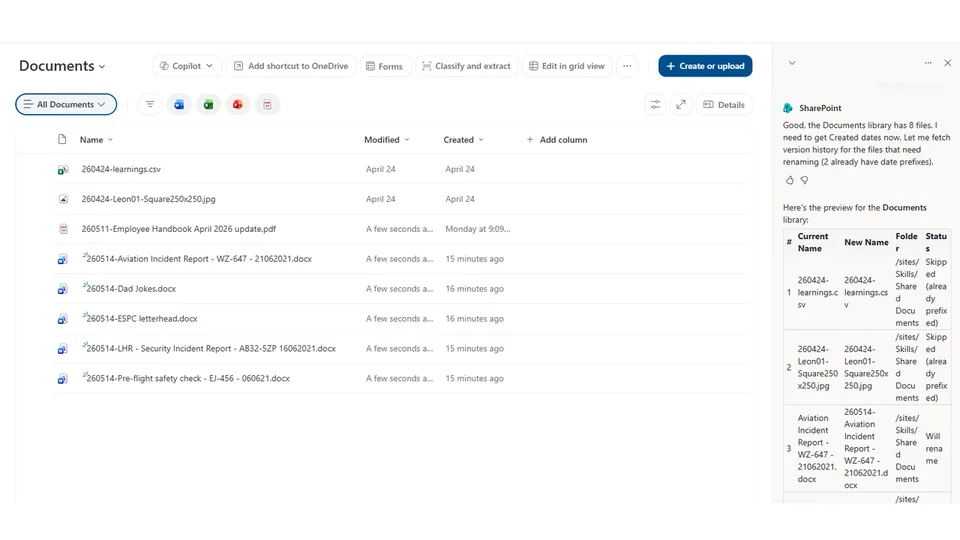
Renames all files in a SharePoint document library — including files in subfolders — to prefix them with their created date in yyMMdd format (e.g., 251203-Status Report.pdf).
Always shows a preview table before making any changes, listing current names, new names, folder paths, and skipped files. Files already prefixed with a 6-digit date are automatically skipped to avoid double-prefixing.
Renames all files in a SharePoint document library — including files in subfolders — to prefix them with their created date in yyMMdd format (e.g., 251203-Status Report.pdf). Always shows a preview before committing any changes.
What you get
- All files prefixed with their created date in
yyMMddformat (2-digit year, 2-digit month, 2-digit day) - A preview table showing current names, new names, folder paths, and status before any changes are made
- Automatic skip for files already prefixed with a 6-digit date — no double-prefixing
- Recursive processing across all subfolders
- Graceful error handling — one failure does not stop the rest of the batch
When to use
Ask Copilot:
- "prefix all files with their created date"
- "add date prefixes to files" / "add date prefix to filenames"
- "rename files with date prefix" / "prefix filenames with yyMMdd"
- "prefix files in this library with their created date"
Best on a library where you want files to sort chronologically by name. Files already prefixed with a 6-digit date are detected and skipped — the skill is safe to re-run.
SharePoint Skill
| Solution | Author(s) |
|---|---|
| rename-files-date-prefix | Leon Armston | GitHub | LinkedIn |
Version history
| Version | Date | Comments |
|---|---|---|
| 1.0 | May 2026 | Initial Release |
Disclaimer
THIS CODE IS PROVIDED AS IS WITHOUT WARRANTY OF ANY KIND, EITHER EXPRESS OR IMPLIED, INCLUDING ANY IMPLIED WARRANTIES OF FITNESS FOR A PARTICULAR PURPOSE, MERCHANTABILITY, OR NON-INFRINGEMENT.
Package
Ready to install
The ZIP contains only the upload-ready inner skill folder.
979990c5a87fb6fbd720add94458c8e64c9a338bf82935a43705d83329e139edView SKILL.md
---
name: "rename-files-date-prefix"
description: "Renames all files in a SharePoint document library (including subfolders) to prefix them with their created date in yyMMdd format (e.g., 251203-Status Report.pdf). Offers a preview before committing changes. Use when the user asks to prefix filenames with dates or add date prefixes to files."
---
# Rename Files with Date Prefix

Rename all files in a SharePoint document library to prefix them with their created date in `yyMMdd` format (e.g., `251203-Status Report.pdf`).

## Steps

### 1. Identify the Target Library
- Use the current document library if the user doesn't specify one.
- Call `get_current_list_or_library` to get the library ID.

### 2. Get the Library Schema
- Call `get_list_schema` to confirm the library has `Created` and `FileLeafRef` fields and to understand the structure.

### 3. Retrieve All Files (Including Subfolders)
- Call `get_list_item_metadata` with `fetchAll: true` to retrieve all items.
- Use a CAML query that filters to files only (`FSObjType` = 0):
  ```
  <Query><Where><Eq><FieldRef Name='FSObjType'/><Value Type='Integer'>0</Value></Eq></Where><OrderBy><FieldRef Name='FileLeafRef' Ascending='TRUE'/></OrderBy></Query>
  ```

### 4. Build the Preview
For each file returned:
1. Extract the `Created` date and format it as `yyMMdd` (2-digit year, 2-digit month, 2-digit day).
2. Get the current filename from `FileLeafRef`.
3. Determine the folder path from `FileRef` (strip the filename to get the folder).
4. **Skip check:** If the filename already matches the pattern `^\d{6}-` (six digits followed by a hyphen), mark it as **skipped** with reason "Already has date prefix".
5. Build the new filename: `yyMMdd-OriginalFilename`.

### 5. Show the Preview Table
**Always show the preview before making any changes.** Present a markdown table:

| # | Current Name | New Name | Folder | Status |
|---|---|---|---|---|
| 1 | Status Report.pdf | 251203-Status Report.pdf | /sites/Team/Docs | Will rename |
| 2 | 251203-Budget.xlsx | 251203-Budget.xlsx | /sites/Team/Docs/Finance | Skipped (already prefixed) |

Include a summary:
- **Total files found:** X
- **To be renamed:** Y
- **Skipped:** Z

Then ask: **"Ready to rename Y files? Confirm to proceed."**

### 6. Rename on Confirmation
Once the user confirms:
- For each file to be renamed, call `update_list_items` with:
  - `itemId`: the file's list item ID
  - `fieldInternalNames`: `["FileLeafRef"]`
  - `newValues`: `["yyMMdd-OriginalFilename"]`
- Process files one at a time to handle errors gracefully.
- If a rename fails, log the error and continue with the remaining files.

### 7. Report Results
After processing, show a summary:
- **Successfully renamed:** X files
- **Skipped (already prefixed):** Y files
- **Errors:** Z files (list the filenames and error details)

## Date Formatting Rules
- Use the file's `Created` date (not Modified).
- Format: `yyMMdd` — 2-digit year, 2-digit month (zero-padded), 2-digit day (zero-padded).
- Example: December 3, 2025 → `251203`
- Example: January 15, 2024 → `240115`
- **Time zone**: SharePoint returns `Created` in UTC. Format the prefix from **the site's regional time zone**, not raw UTC, so a file uploaded at 23:30 local time keeps its local-day date. If the site time zone cannot be determined, fall back to UTC and tell the user once in the preview header ("Dates are formatted in UTC — set the site regional settings to use local time.").

## Edge Cases
- **Already prefixed files:** Skip any file whose name starts with 6 digits followed by a hyphen (`^\d{6}-`).
- **Folders:** Never rename folders — only process items where `FSObjType` = 0.
- **Subfolders:** Process files in all subfolders recursively (use `fetchAll: true`).
- **Duplicate names after prefixing:** If the proposed `yyMMdd-Name` already exists in the same folder, **do not rename and do not overwrite**. Mark the file as `Skipped (name collision)` in the preview / results with the conflicting target name shown. Never append numeric suffixes (`-1`, `-2`) to disambiguate — the user must resolve the conflict manually. The other files in the batch still rename.
- **Special characters:** Preserve the original filename exactly as-is after the prefix.
- **Empty libraries:** If no files match the CAML query, tell the user the library has no files to rename and stop — do not show an empty preview table.

## Resuming after a mid-batch failure

Long runs can be interrupted — throttling, network drop, the user closing the chat. The skill must be **safe to re-run from scratch** without any extra bookkeeping:

- The `^\d{6}-` skip check automatically excludes every file that was successfully renamed in the previous run. Re-running picks up exactly where the failure stopped.
- If a file failed mid-rename (rare — SharePoint renames are atomic), it will still match the original name and be processed again in the next run.
- **Do not** keep an external "already processed" list, lock file, or marker column. The filename itself is the source of truth.
- After a partial run, the Step 7 results report must clearly distinguish **Renamed**, **Skipped (already prefixed)**, **Skipped (name collision)**, and **Errors** so the user can decide whether to re-run.

## Example

**User:** "Prefix all files in this library with their created date"

**Agent response (preview):**

| # | Current Name | New Name | Folder | Status |
|---|---|---|---|---|
| 1 | Quarterly Review.docx | 250915-Quarterly Review.docx | /sites/Team/Reports | Will rename |
| 2 | 241101-Notes.pdf | 241101-Notes.pdf | /sites/Team/Reports | Skipped (already prefixed) |
| 3 | Budget.xlsx | 250301-Budget.xlsx | /sites/Team/Finance | Will rename |

**Total files:** 3 | **To rename:** 2 | **Skipped:** 1

Ready to rename 2 files? Confirm to proceed.

## Constraints
- Never rename without showing the preview first.
- Never rename folders.
- Never double-prefix files.
- Never append numeric suffixes to resolve name collisions — mark as `Skipped (name collision)` instead.
- Always process errors gracefully — one failure should not stop the entire batch. Safe to re-run; the `^\d{6}-` skip check protects already-renamed files (see **Resuming after a mid-batch failure**).
References
- agentskills.io specification
The specification that SharePoint AI skills follow for installation and discovery.
Discuss this skill
Ask a question, share how you used it, or suggest an improvement with the community.
Open GitHub Discussions