
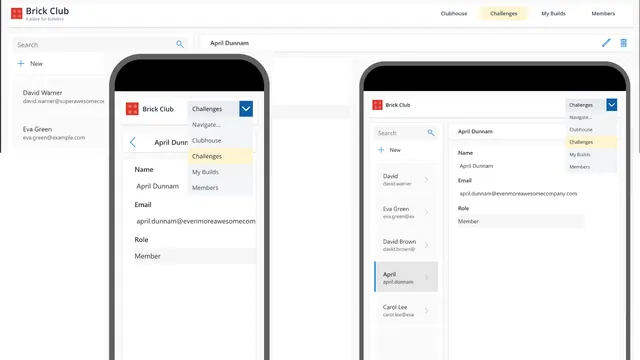
Brick Club Responsive Header
A responsive Power Apps navigation header with desktop buttons, a compact dropdown, and active-page highlighting.
 Power Apps
Microsoft 365 & Power Platform Community
A clever formula. A polished component. A helpful agent topic. Discover bite-sized Power Platform patterns, make them your own, and pass them on.
 Start small. Share big.

Your ideas can help someone build their next big thing
A small snippet can save someone hours. Share your patterns, help another maker, and build something better together.
The community contributor badge celebrates people who share their knowledge.
Sharing is caring. New to contributing? Our Sharing is Caring sessions help you take the first step.
Small building blocks for your next idea
A responsive Power Apps navigation header with desktop buttons, a compact dropdown, and active-page highlighting.
Power Apps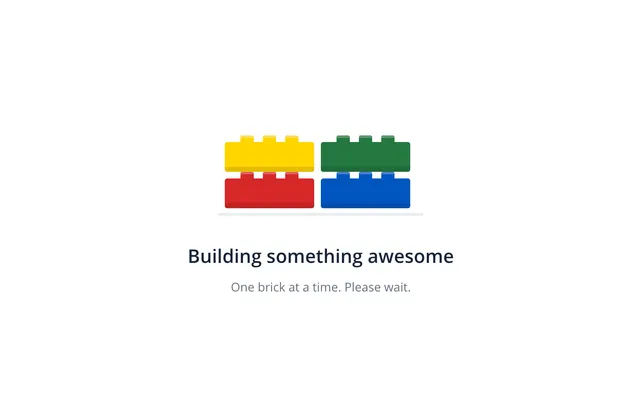
A customizable timer-free brick loading animation for Power Apps canvas apps, with colored bricks and editable loading messages.
Power Apps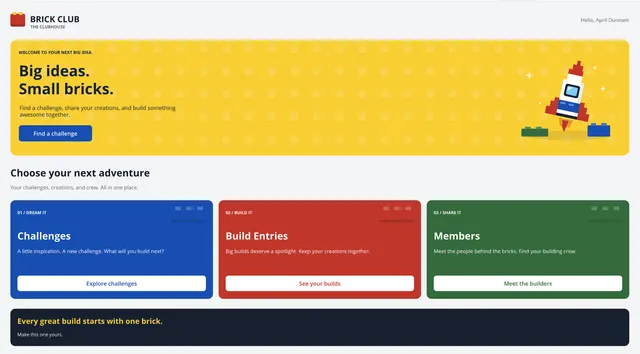
A customizable welcome and landing screen for Power Apps canvas apps, with a hero, editable content, and three navigation cards.
Power Apps
This component provides a clean and responsive chip‑based selector that allows the user to choose a single option. It is lightweight, intuitive, and easy to integrate into any Power Apps interface.
Power Apps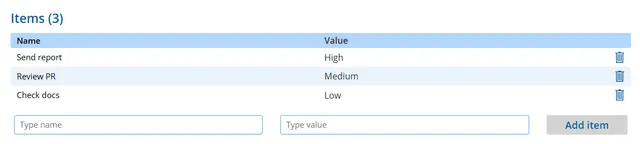
A canvas app snippet that lets users dynamically add and remove items from a gallery.
Power Apps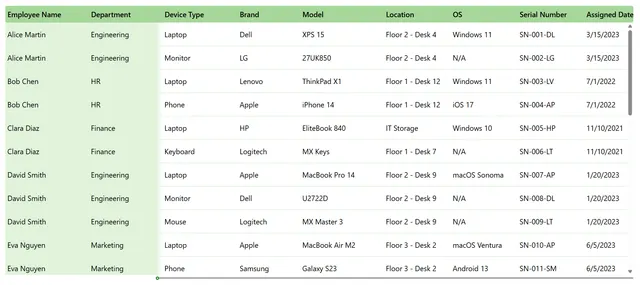
A gallery with frozen columns and horizontal scroll to display wide tabular data.
Power Apps
A loading screen featuring the animated Power Platform logo and a rotating set of loading phrases with slide and fade animations.
Power Apps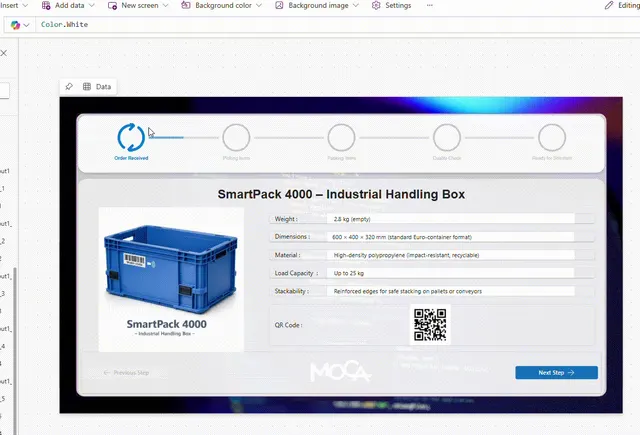
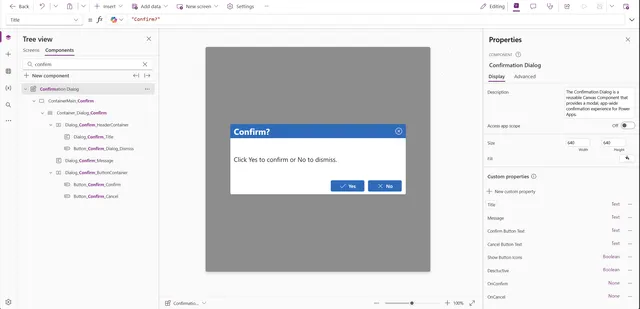
The Confirmation Dialog is a reusable Canvas Component that provides a modal, app-wide confirmation experience for Power Apps.
Power Apps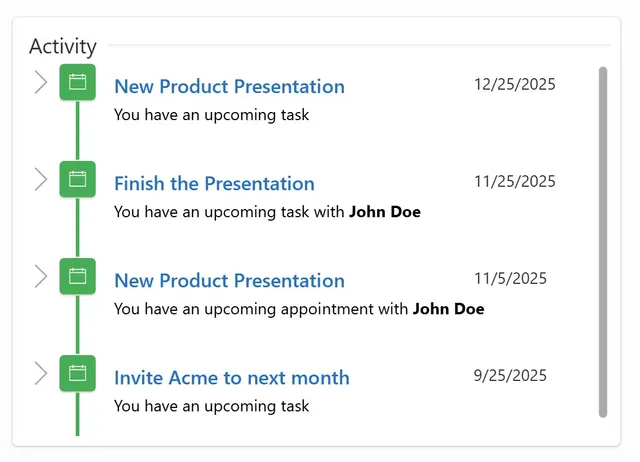
This snippet provides a real-time activity feed to display user actions and updates in a collaborative environment.
Power Apps
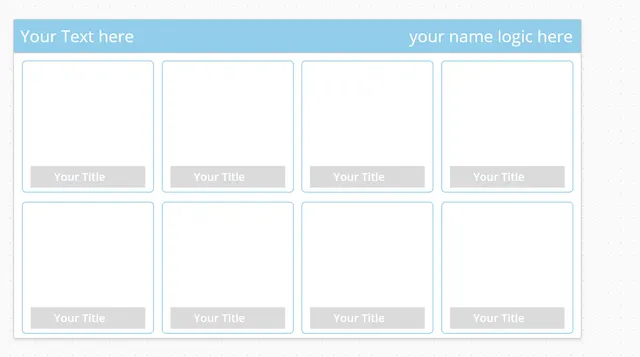
This snippet shows a tile like gallery screen. You can use that screen as a homescreen for example and navigate from there to different screens.
Power Apps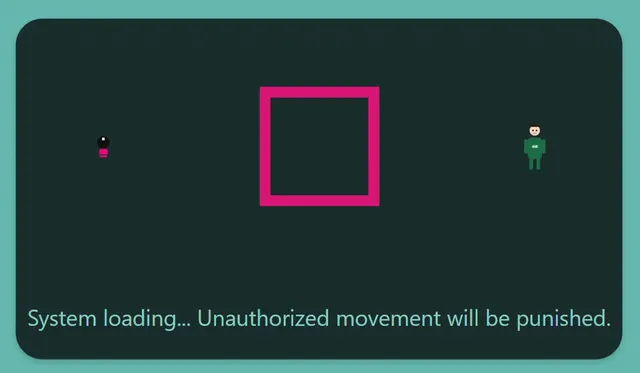
This loading screen is inspired by the Squid Game theme—don’t worry, no deadly games while you wait (probably).
Power Apps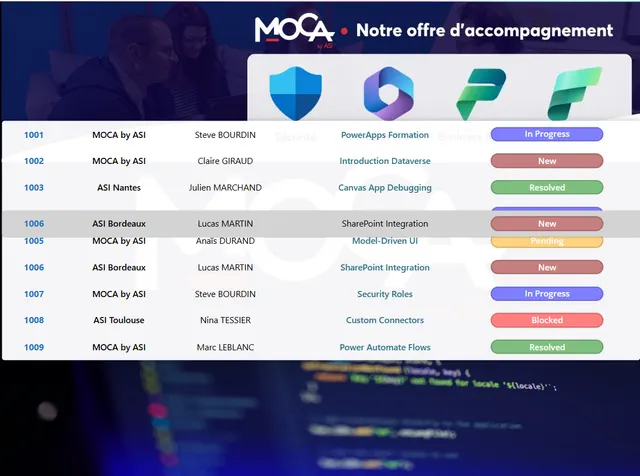
Here is a snippet that enables drag and drop functionality on a PowerApps gallery. This method only works if all gallery items are fully visible (no scrollbar).
Power Apps
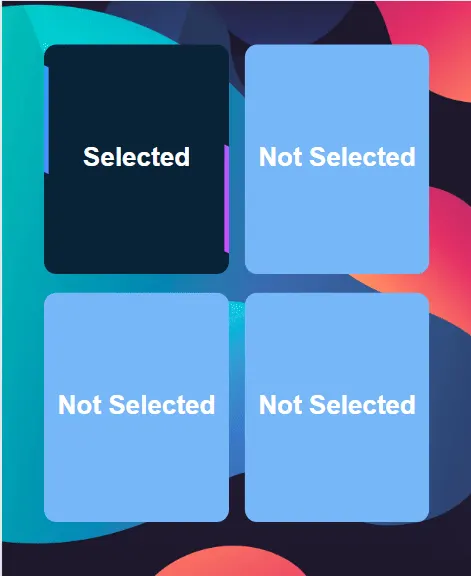
A fairly simple use of a dynamic SVG image in a gallery to highlight the selected item with an animation.
Power Apps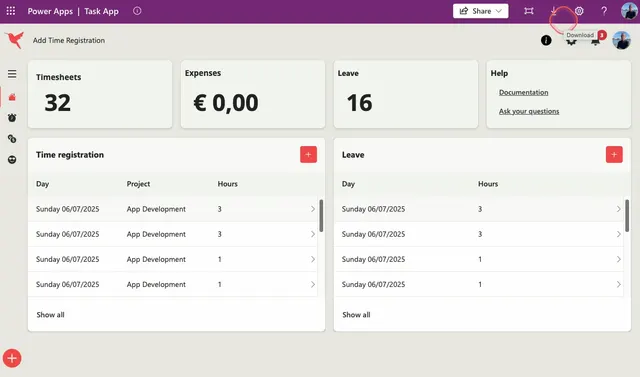
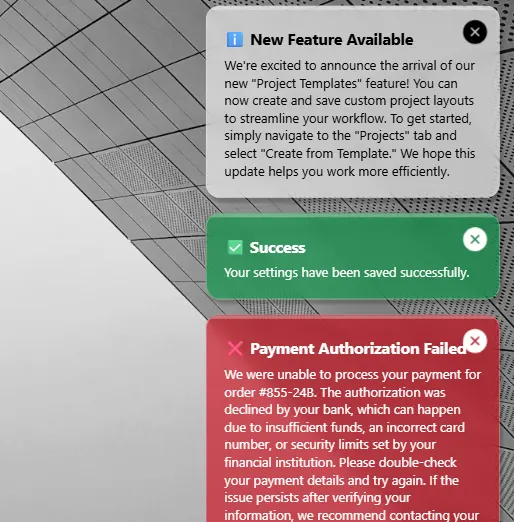
This snippet shows you how to build toast notifications for Canvas apps.
Power Apps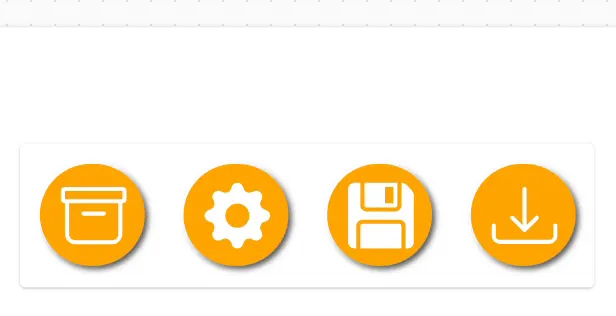
Bring your Canvas Power Apps to life with animated SVG buttons styled to mimic CSS hover and microinteraction effects.
Power Apps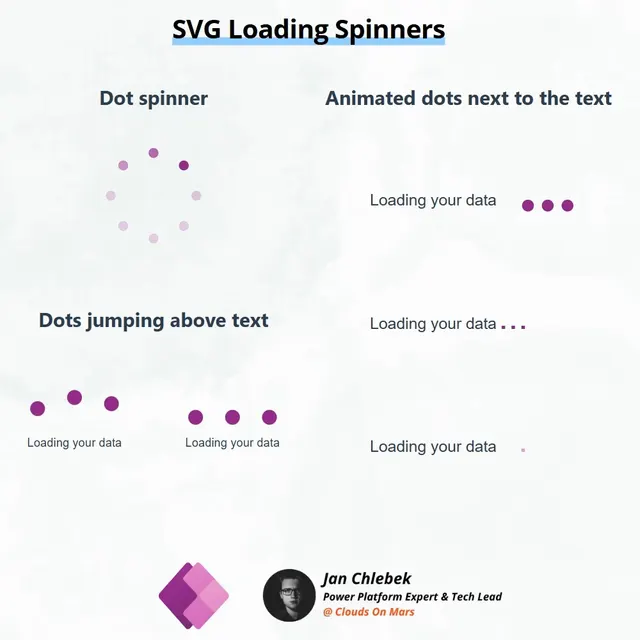
One of the best ways to learn to implement simple, static animations in Canvas Apps - learn SVG! Here are a few examples that may help you get started!
Power Apps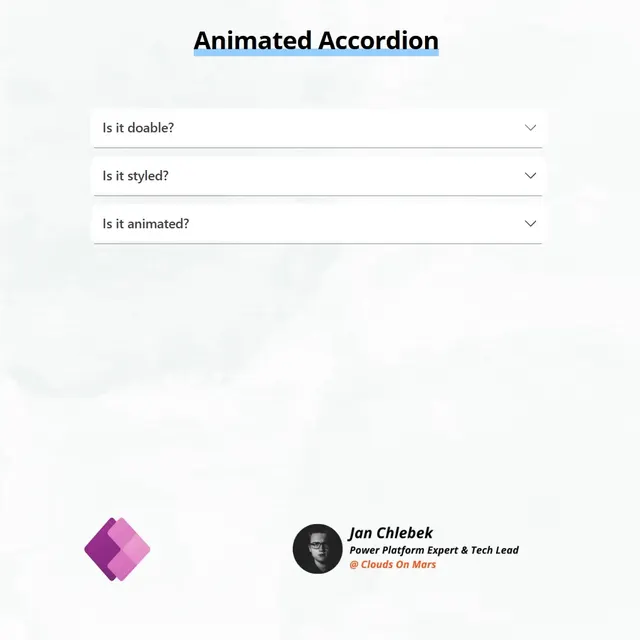
Animated accordion component implemented using native components in Power Apps Canvas.
Power Apps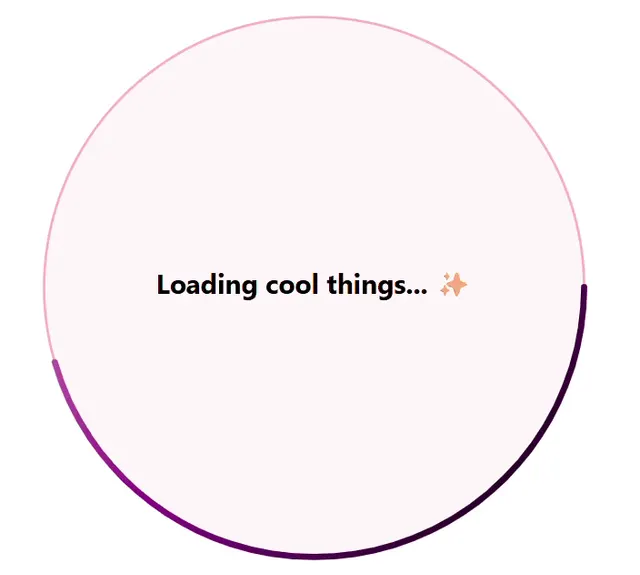
This is a custom animated loading visual of a circle with gradient border color changing from purple to pink to purple over three seconds.
Power Apps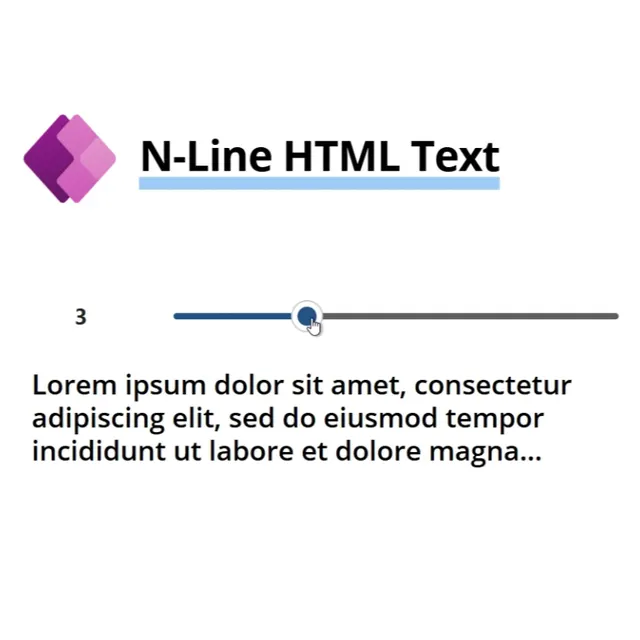
This code snippet provides a solution to dynamically truncate HTML text in a Power Apps Canvas app based on the desired number of lines (n).
Power Apps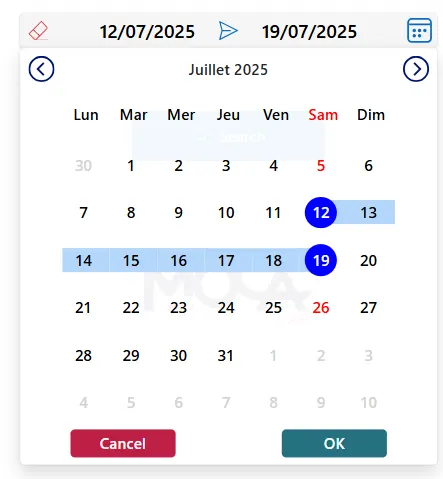
This snippet implements a date range picker, enabling users to select a start and end date, thus improving the overall UX
Power Apps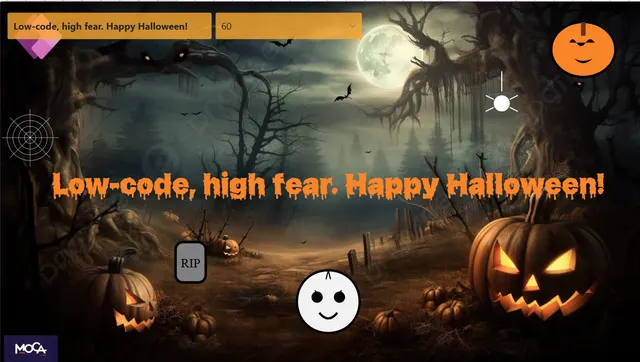
A spooky animated component with an embedded custom font — no installation needed! Perfect for Halloween screens, themed apps, or pranking your colleagues while showcasing how to use non-standard fonts in PowerApps
Power Apps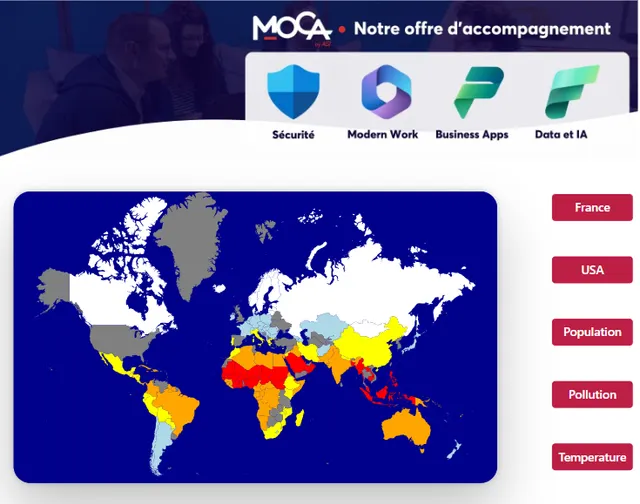
A customizable world map component for PowerApps that lets you dynamically color countries based on data—perfect
Power Apps
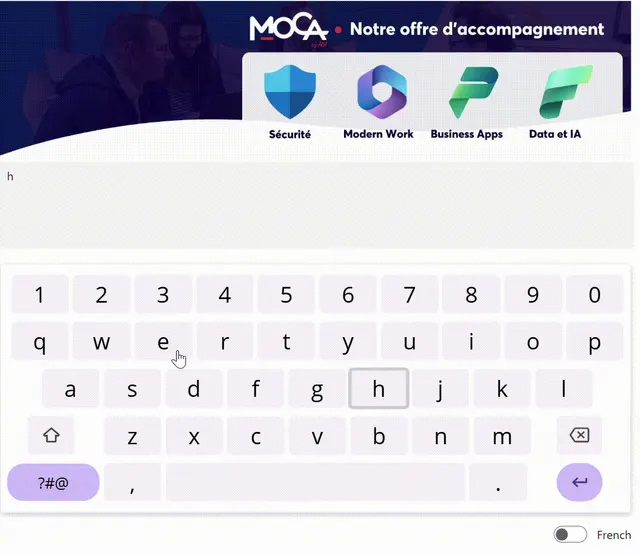
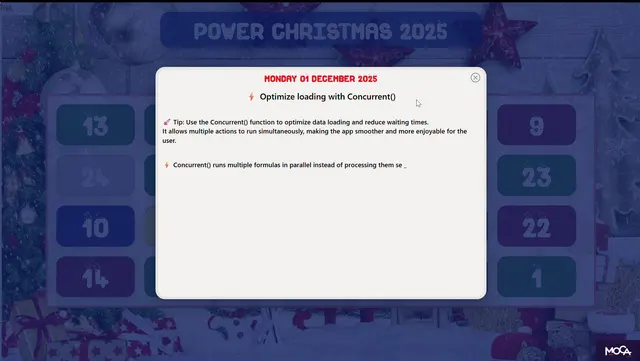
A festive custom component with 24 daily tips to boost your PowerApps skills—fun, practical, and inspiring!
Power Apps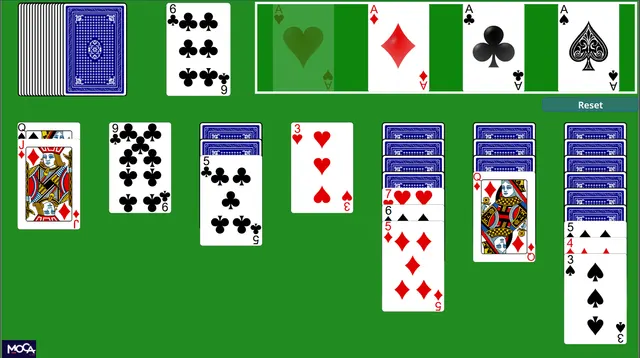
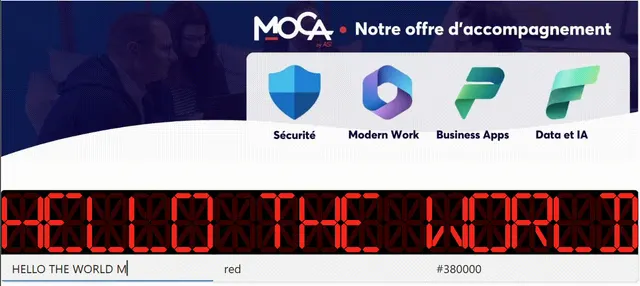
A reusable PowerApps component that mimics a 16-segment LCD display. It dynamically lights up segments to render digits, letters with a classic digital look. Perfect for dashboards, retro UIs, or industrial-style apps
Power Apps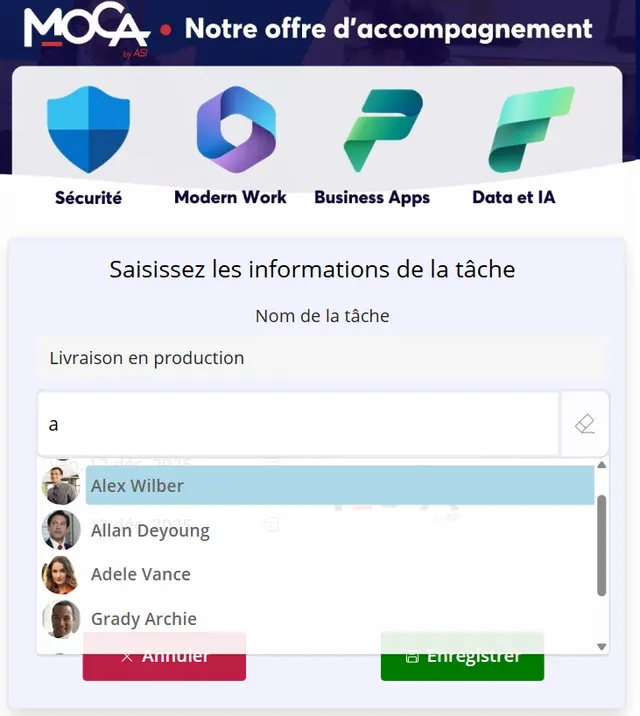
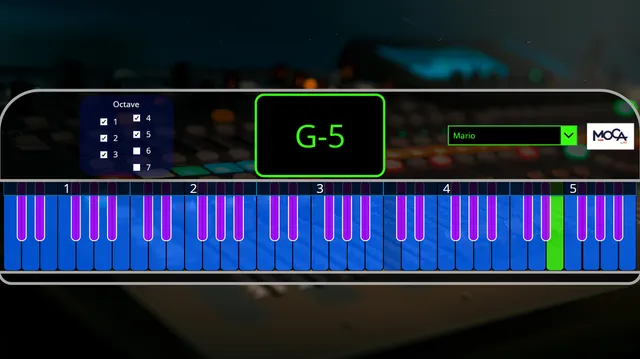
With this snippet, you can display a piano within a PowerApps application and play music.
Power Apps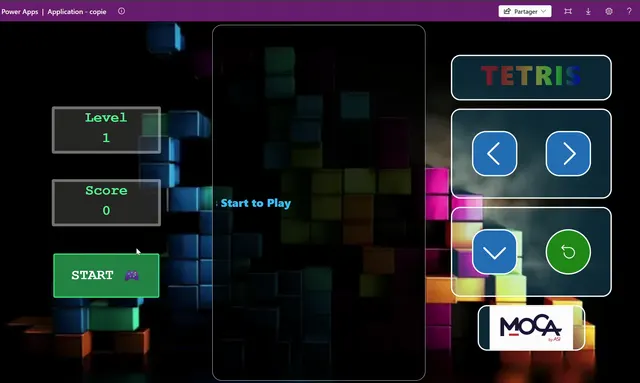
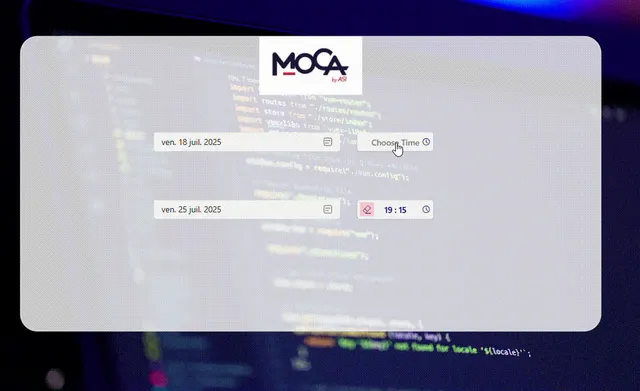
Select a specific time using the interactive time picker. This component lets you quickly choose any time between 00:00 and 23:59 with a clear display and intuitive input.
Power Apps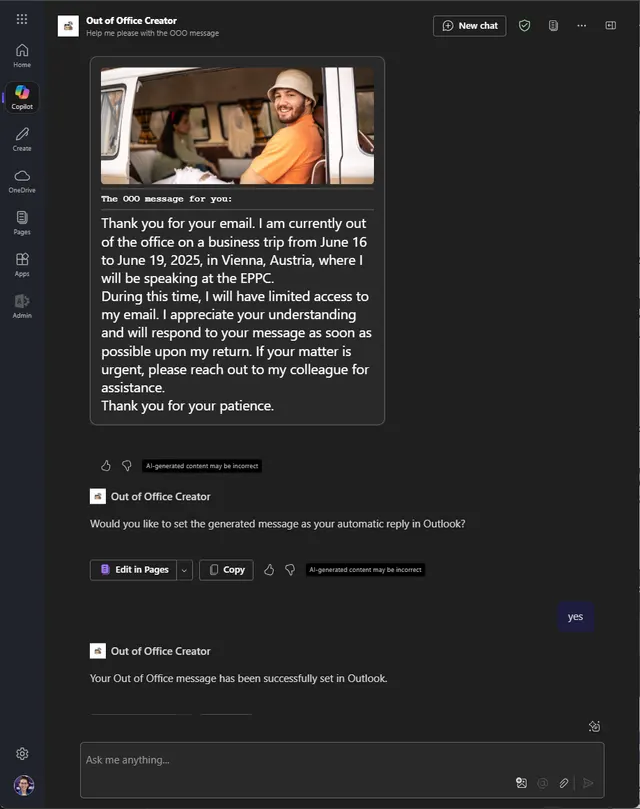
AI-powered agent for Microsoft Teams and/or Microsoft 365 Copilot that helps users easily create and set Out of Office automatic reply messages for Outlook.
 Copilot Studio
 Microsoft 365 Copilot
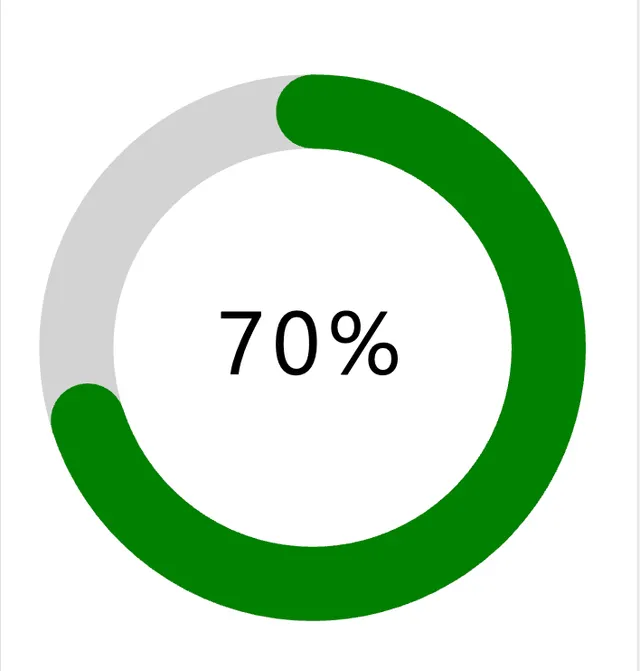
This snippet shows how to add an animated SVG donut visual that gets data dynamically from your Power App to fill in the donut to show an amount used and amount remaining.
Power Apps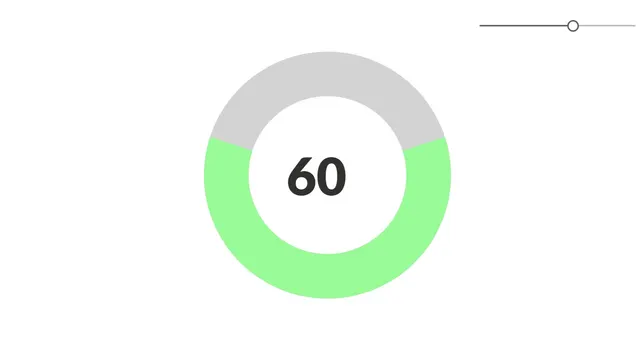
This is an animated progress chart which functions off of a slider value 0 - 100.
Power Apps
This is a snippet that creates a loading spinner with a user experience to add a visual sense to the user waiting for the app.
Power Apps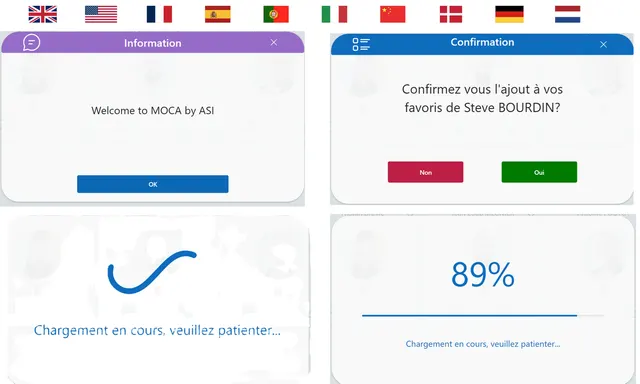
This snippet is composed of 4 pop-ins for your applications. Reduce the number of components in your PowerApps apps by always using this snippet. You can put this snippet in each of your screens.You can also customize the language.
Power Apps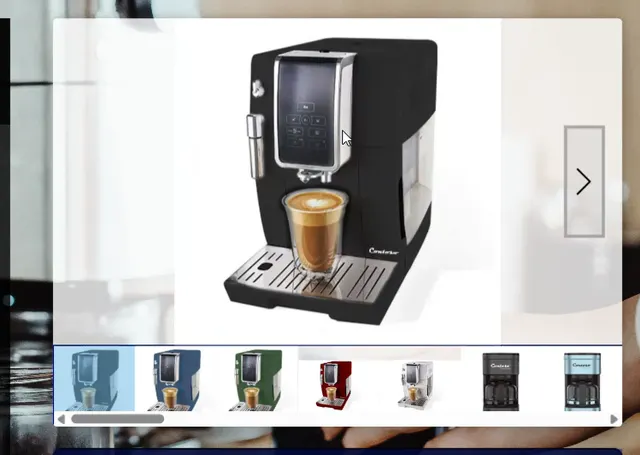
This snippet allows you to display a photo gallery, navigate between photos, and zoom in to view the photo in full screen.
Power Apps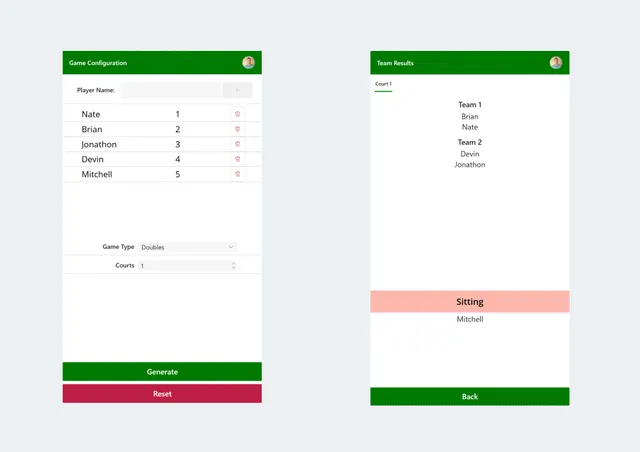
Ever been out on the courts, and want to switch things up a bit? Break up the team that keep smashing everyone?..... Have an odd number of people, and need an unbiased way to have someone sit out? Then have no fear! The Pickleball Team Generator is here!!
Power Apps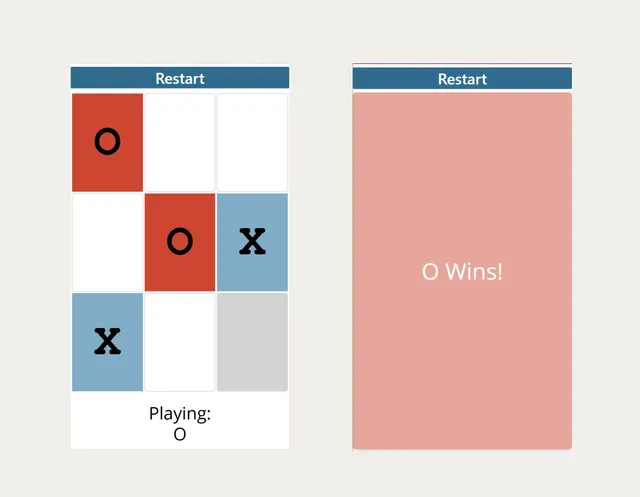
Just a simple way to challenge your friends or family to a nice (ad-free) game of tic tac toe on your phone.
Power Apps
A star rating control that allows users to select a value from 1 to 5 using visual stars. The stars fill based on the selected value.
Power Apps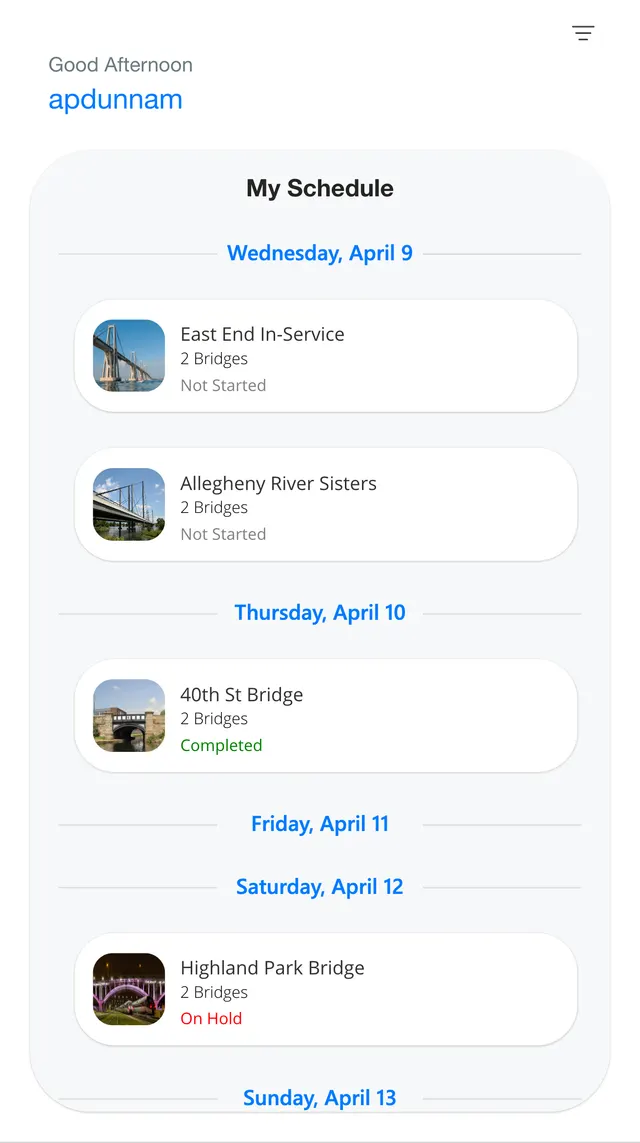
This snippet demonstrates a nested gallery layout in Power Apps that visually groups records by date
Power Apps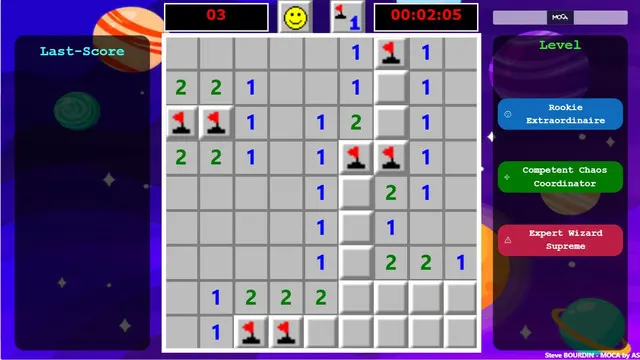
This snippet re-creates the vintage Microsoft Windows game, Minesweeper in your canvas app
Power Apps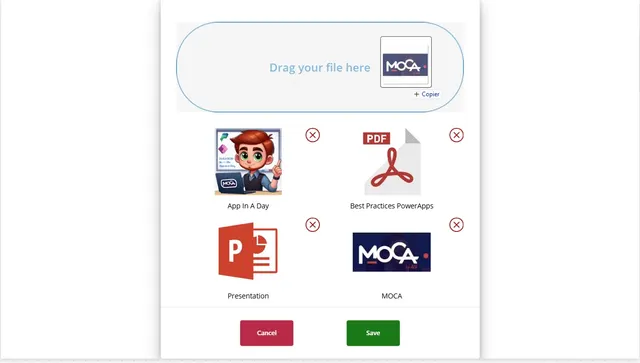
This snippet allows you to import files by dragging and dropping them onto a designated area.
Power Apps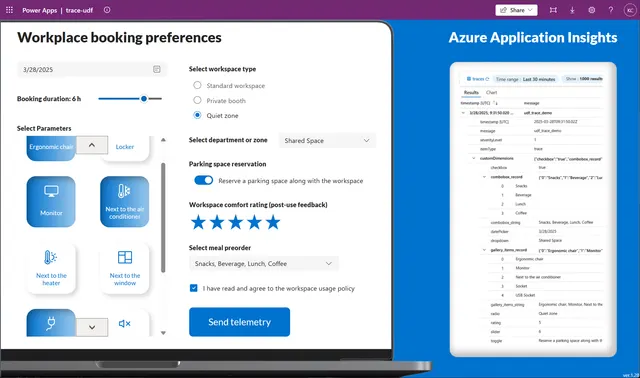
This snippet demonstrates how to implement telemetry logging in Power Apps using User Defined Functions (UDFs) and Azure Application Insights. It showcases the definition and application of UDFs to efficiently manage and send telemetry data.
Power Apps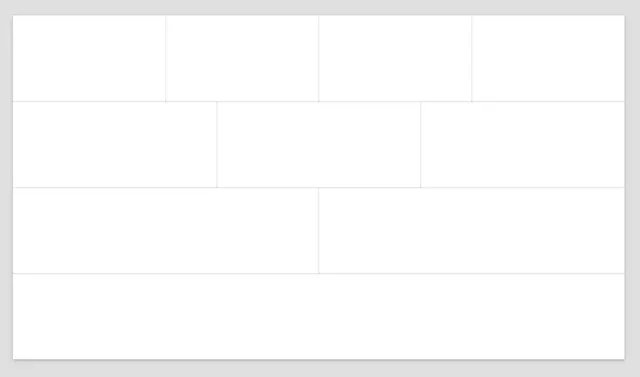
This is a simple snippet that can help you get started with creating a screen in canvas app. It is a set of containers with various number of columns.
Power Apps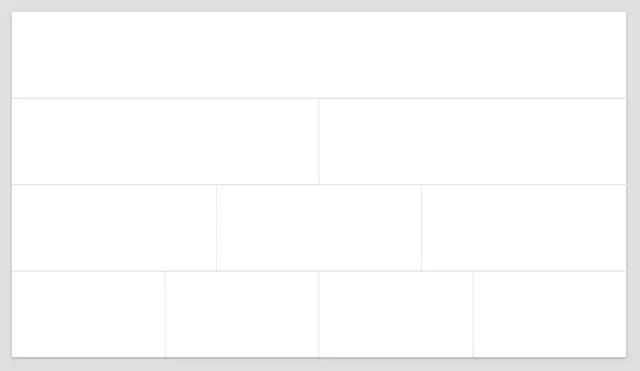
This is a simple snippet that can help you get started with creating a screen in canvas app. It is a set of containers with various number of columns.
Power Apps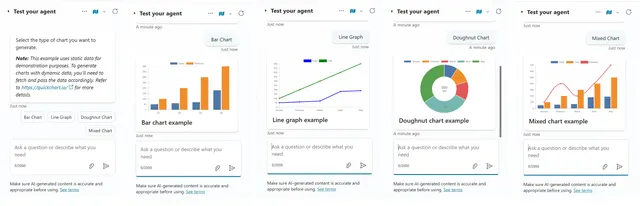
This snippet demonstrates how to render charts in Copilot Studio agents using an HTTP based chart rendering API.
Copilot Studio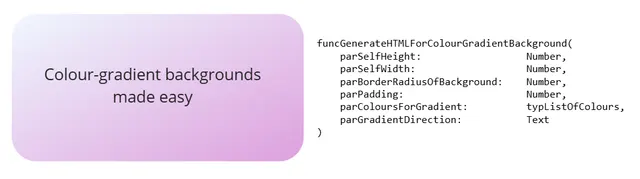
This function, funcGenerateHTMLForColourGradientBackground, generates the HTML Text required to create a linear colour-gradient background, with any number of colours.
Power Apps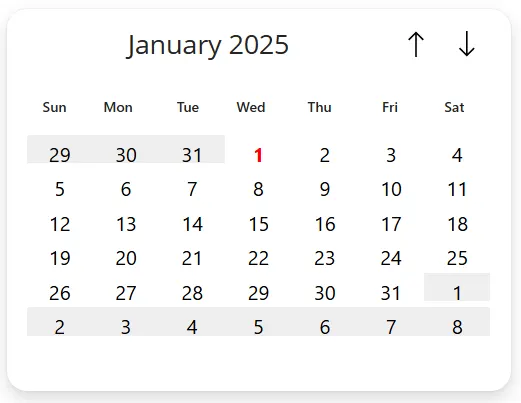
This is a snippet that can help you get started with creating a calendar in canvas app.
Power Apps
This is a snippet that creates a progress bar for a canvas app as component.
Power Apps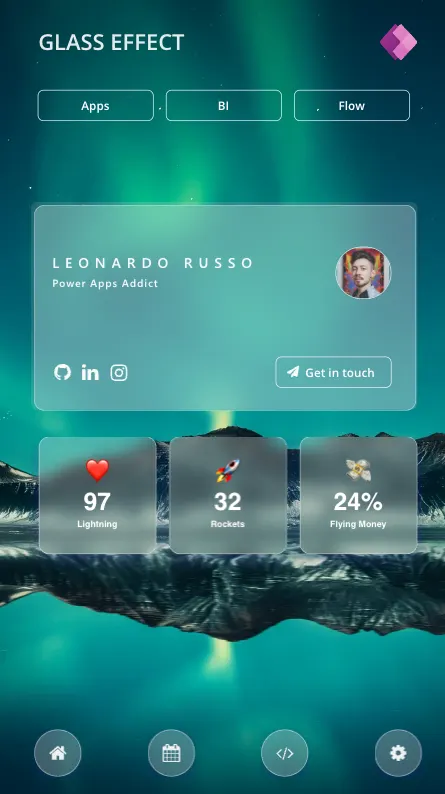
This snippet showcases a mobile screen using effect using glass effect.
Power Apps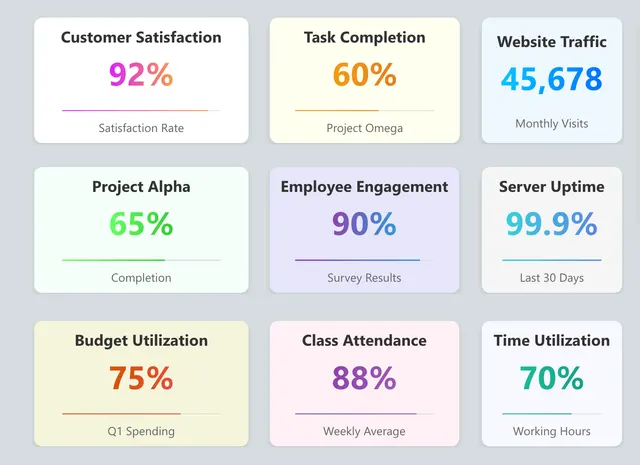
A Power Apps YAML snippet for a customizable progress bar card with gradient and text options.
Power Apps
This snippet shows how to implement a welcome message in your app
Power Apps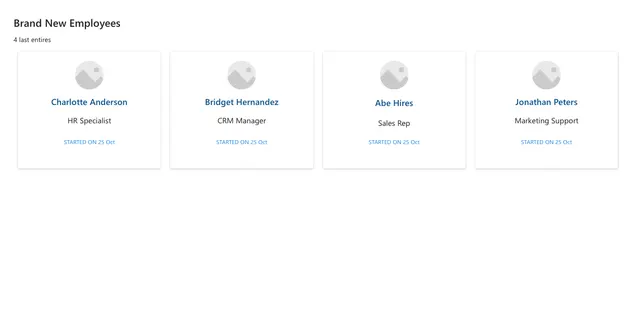
This snippet shows how to implement a responsive gallery of clickable people cards
Power Apps
This is a snippet that demonstrates how to get your manager details using the Office 365 Users action.
Copilot Studio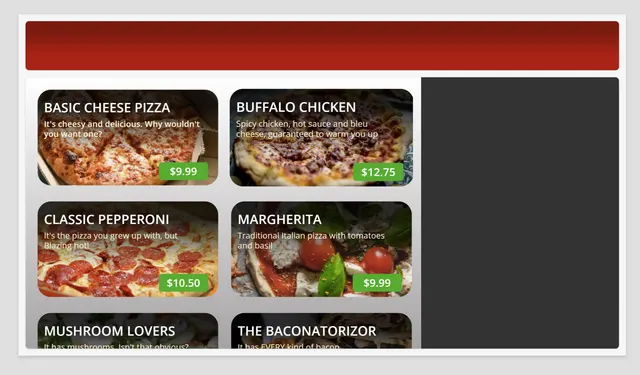
This is a simple Power Apps YAML snippet that shows a scrollable gallery of products styled in a modern way.
Power Apps
This is a snippet that demonstrates how you can generate better looking citations in Copilot Studio.
Copilot Studio
This is a snippet that demonstrates how to use an AI prompt in a Copilot Studio Topic.
Copilot Studio
This is a snippet that demonstrates how to do a foreach loop in Copilot Studio.
Copilot Studio

This is a Power Apps YAML snippet that shows a responsive gallery of clickable hero cards similar to those you see in make.powerapps.com.
Power Apps
This is a snippet that demonstrates how to use the SharePoint - Get items action as a connector action in a topic. It uses a custom adaptive card as the output to show a table of items.
Copilot Studio
This is a snippet that demonstrates how to use the icanhazdadjoke - fetch a random dad joke action in an action.
Copilot Studio
This is a snippet that demonstrates how to use the icanhazdadjoke - fetch a random dad joke action in an action.
Copilot Studio
This is a snippet that demonstrates how to use the MSN Weather - Get current weather action in a plugin action. It uses the AI generated text as output.
Copilot Studio
This is a snippet that demonstrates how you can provide the user of your copilot the option to select a topic when multiple topics are triggered.
Copilot Studio
This is a snippet that can be used to launch a new instance of the Google Chrome browser that resolves any issues that could occur due to the extension for Chrome failing to load properly.
 Power Automate Desktop

This is a snippet that demonstrates a sample message for when a copilot session times out. It includes two Power Fx expressions for formatting of the time and date.
Copilot Studio
This is a snippet that demonstrates how to use the MSN Weather - Get current weather action in an action.
Copilot StudioTry a different product or a broader search. Your next idea could also become a community snippet.